7
7
2.2 Turning the Archos™ 104 ON and OFF
2.2 Turning the Archos™ 104 ON and OFF
• Press and hold the ON/Menu button until the screen comes on.
• TheArchos™ 104 will automatically shut off after a given amount of time if no buttons are pressed.To conserve
battery energy, the backlight will automatically shut off. You can change these parameters in Setup > Power.
• Press and hold the Stop/off button until theArchos™ 104 shuts off.
2.3 Changing the Interface language
2.3 Changing the Interface language
• EnglishisselectedasthedefaultlanguageforyourArchos™ 104userinterface.Youcanchooseanotherlanguage
by going to Setup > Display (press the MENU button, then the ENTER button to access the Setup menu).
2.4 Caring for the Archos™ 104
2.4 Caring for the Archos™ 104
The Archos™ 104 is an electronic product that needs to be treated with care.
• Do not subject it to unnecessary shock or vibration.
• Do not subject it to heat. Keep it ventilated (especially when connected to a computer).
• Keep the Archos™ 104 away from water and excessively humid areas.
• Keep the Archos™ 104 away from high electromagnetic fields.
2.5 Foreign Character Sets
2.5 Foreign Character Sets
You have the possibility to display your file names, folder names, and MP3 ID3 tags in various character sets
(ex: Korean, Japanese, Simplified Chinese, etc.). You can find the language files CodePage_name.4fz in the font
folder under /Data on the Archos™ 104 hard disk or on the Archos website under the heading Software.
If, for example, you would like to have the Japanese language display, you would copy the file Cp932.4fz into
the folder /system on the Archos™ 104 . Shut down and restart the Archos™ 104 . File names, folder names,
and ID3 tags written using the Microsoft®codepage for the language will now be displayed in that character set.
Only one.4fz file can be used at a time, thus you should only put one.4fz file into the /system folder. When an.4fz
language file is used, the interface language will be set to English.
8
8
3
Playing Music
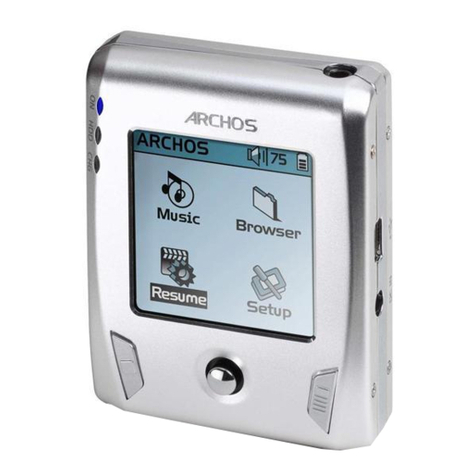
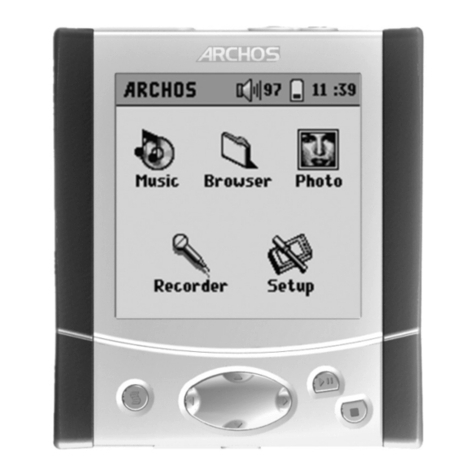
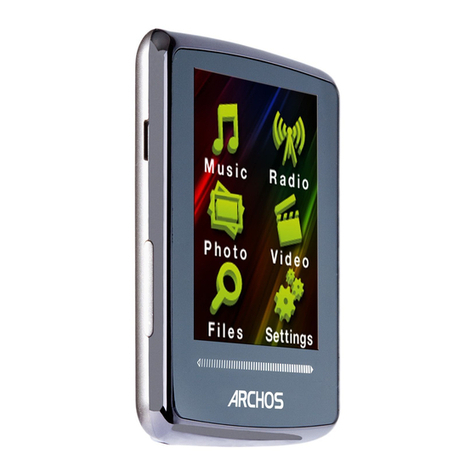
Once the Archos™ 104 has been turned on, the following screen is displayed. You can
select the major functions from this main menu.
• Music: Browse through the folder Music or use the ARCLibrary music selection system.
• Photo: Browse through and view all the pictures on your Archos™ 104.
• Browser: Browse through and manage all of the other files on yourArchos™ 104.
• Resume: Resume playing from the last place you stopped.
You can also access the Setup menu by pressing the MENU button and then the ENTER
button to set the parameters of your Archos™ 104 to your personal taste.
3.1 Playing a Music File
By clicking on the Music icon in the main menu screen, you will enter into a ‘music only’
mode. File types other than WMA, WAV, and MP3 that may be in those folders will be
filtered from view.
There are two ways to access your music, by selecting Browse hard disk or by searching
the songs’ tag information, Artist, Album, title, etc. In the case of Browse hard drive, you
will be sent directly to the Music folder of yourArchos™ 104. Here you can look at all your
music files and the folders on your Archos™ 104’s hard drive as if you were browsing
files with a computer. The other way is to browse your music by tag information, artist,
album, song name, year, or genre. The Unknown category indicates that the file has no
tag data.
To select a music file, use the navigation controls UP and DOWN to move upwards or downwards and ENTER
to enter a highlighted subfolder or tag category. Click ENTER to play the highlighted song. Use LEFT to leave a
folder and go back to the previous level.