manuals.online logo
Brands
  1. Home
  2. •
  3. Brands
  4. •
  5. Arlotto
  6. •
  7. Security Camera
  8. •
  9. Arlotto AR6220 Series User manual

Arlotto AR6220 Series User manual

Other manuals for AR6220 Series

1

Other Arlotto Security Camera manuals

Arlotto AR2530 Series User manual

Arlotto

Arlotto AR2530 Series User manual

Arlotto AR1200 series User manual

Arlotto

Arlotto AR1200 series User manual

Arlotto AR6220 Series User manual

Arlotto

Arlotto AR6220 Series User manual

Arlotto AR4260 series User manual

Arlotto

Arlotto AR4260 series User manual

Arlotto Pano360 User manual

Arlotto

Arlotto Pano360 User manual

Popular Security Camera manuals by other brands

ADEMCO RapidDome Owners Operating & Installation Guide

ADEMCO

ADEMCO RapidDome Owners Operating & Installation Guide

EverFocus EBA2880 user manual

EverFocus

EverFocus EBA2880 user manual

Honeywell OptiCAM-IR Installation and setup guide

Honeywell

Honeywell OptiCAM-IR Installation and setup guide

Uniq UC-600 user manual

Uniq

Uniq UC-600 user manual

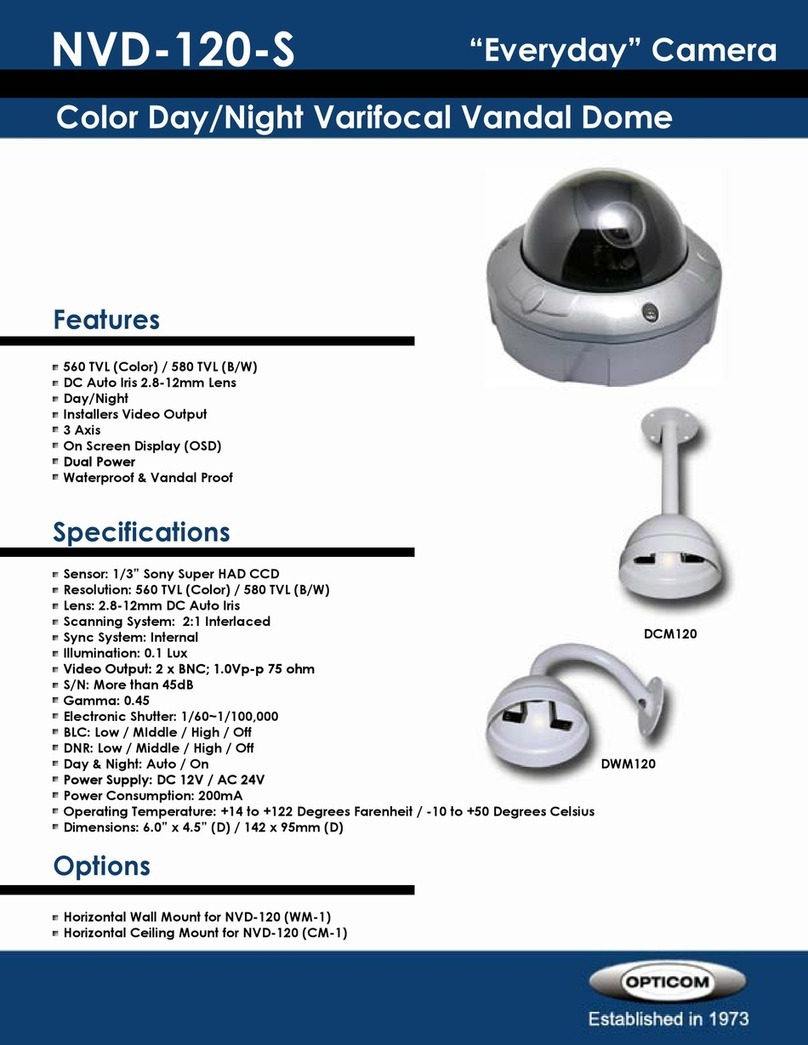
OPTICOM NVD-120-S datasheet

OPTICOM

OPTICOM NVD-120-S datasheet

Steren CCTV-221 instruction manual

Steren

Steren CCTV-221 instruction manual

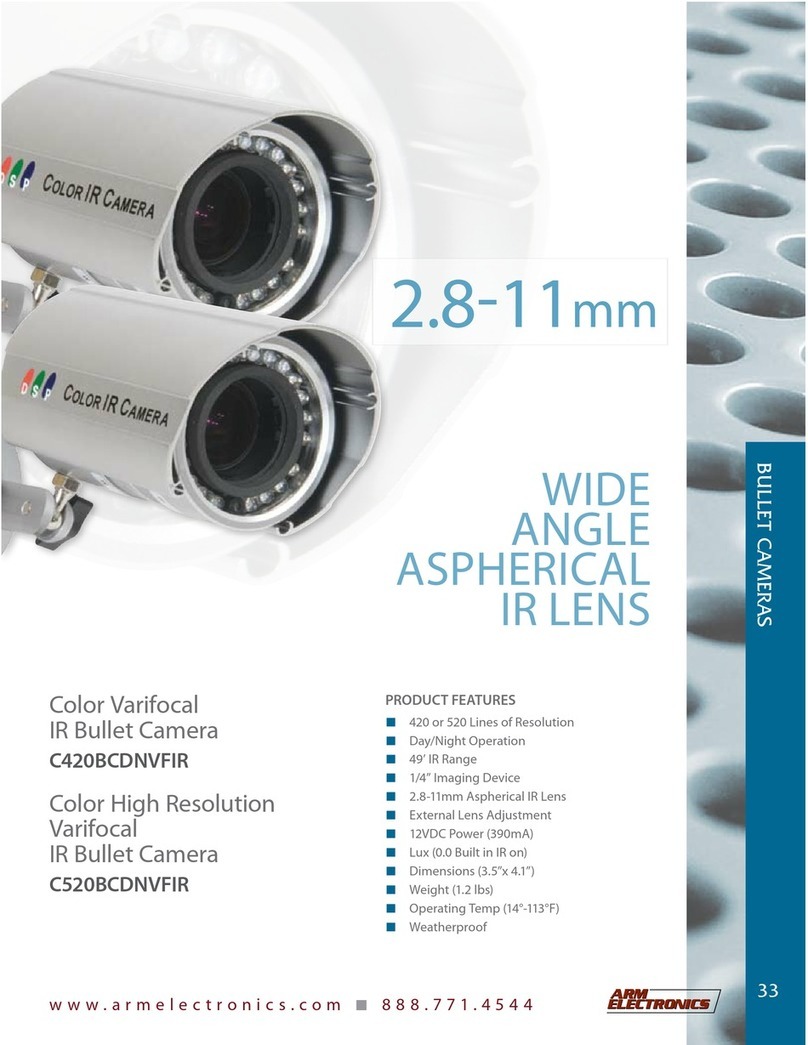
Arm Electronics C420BCDNVFIR Features

Arm Electronics

Arm Electronics C420BCDNVFIR Features

Eneo PLD-2036PTZ installation guide

Eneo

Eneo PLD-2036PTZ installation guide

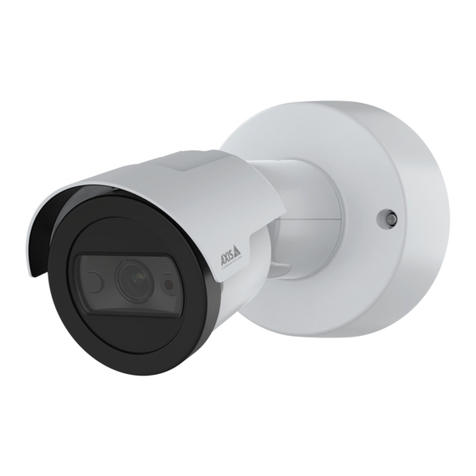
Axis AXIS M20 Series installation guide

Axis

Axis AXIS M20 Series installation guide

Panasonic KX-HCM230 operating instructions

Panasonic

Panasonic KX-HCM230 operating instructions

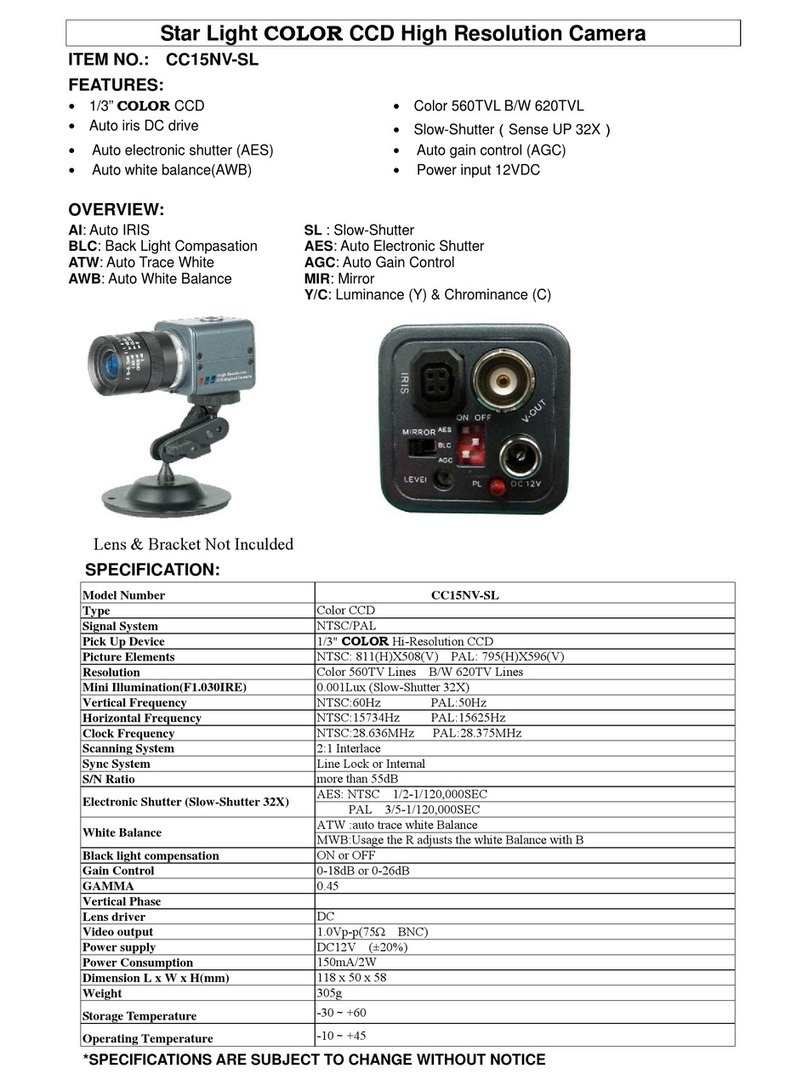
COP-USA CC15NV-SL Specifications

COP-USA

COP-USA CC15NV-SL Specifications

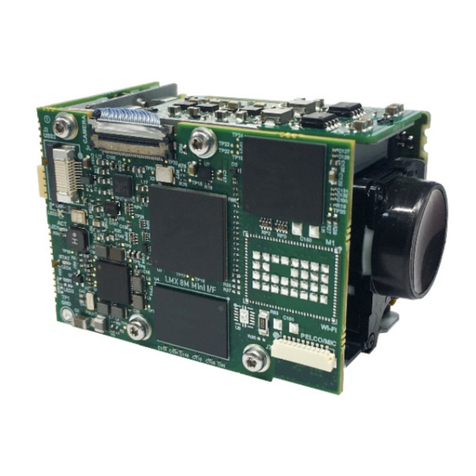
Active Silicon HARRIER H.264 quick start guide

Active Silicon

Active Silicon HARRIER H.264 quick start guide

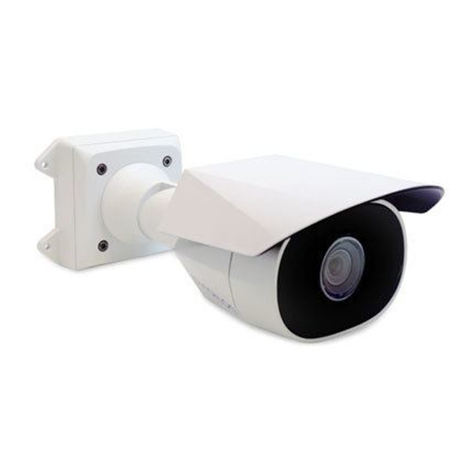
Motorola Avigilon 1.3C-H5SL-BO1-IR installation guide

Motorola

Motorola Avigilon 1.3C-H5SL-BO1-IR installation guide

INSTEON 2864-232 user manual

INSTEON

INSTEON 2864-232 user manual

Wisenet XNB-6002 quick start guide

Wisenet

Wisenet XNB-6002 quick start guide

Axis M5525-E user manual

Axis

Axis M5525-E user manual

Vitek VTC-IR62NZ922 user guide

Vitek

Vitek VTC-IR62NZ922 user guide

Panasonic WV-SF342 Specifications

Panasonic

Panasonic WV-SF342 Specifications

manuals.online logo
manuals.online logoBrands
  • About & Mission
  • Contact us
  • Privacy Policy
  • Terms and Conditions

Copyright 2025 Manuals.Online. All Rights Reserved.

AR6220 Series
Network Cameras
Getting Started Guide
Version 1.0.1
January 2014
2
Preface
Read This First
About This Guide
This guide provides the information of the user interface usage for AR6220 series speed dome
network camera.
Abbreviations
The following abbreviations are used in this document
List of Abbreviations
Abbreviation
Description
CCTV
Closed Circuit Television.
DHCP
Dynamic Host Configuration Protocol.
FTP
File Transfer Protocol
IPNC
IP Network Camera
JPEG
Joint Picture Experts Group.
MJPEG
Motion JPEG
NTSC
Nation Television System Committee.
PAL
Phase Alternate Line.
SMTP
Simple Mail Transfer Protocol.
SNTP
Simple Network Time Protocol.
UPnP
Universal Plug and Play.
RTSP
Real Time Streaming Protocol.
3
Contents
4
1. AR6220 Speed dome camera - Overview
This chapter provides the information about the outlook overview of AR6220 IPNC, which show you the
parts available in the network camera
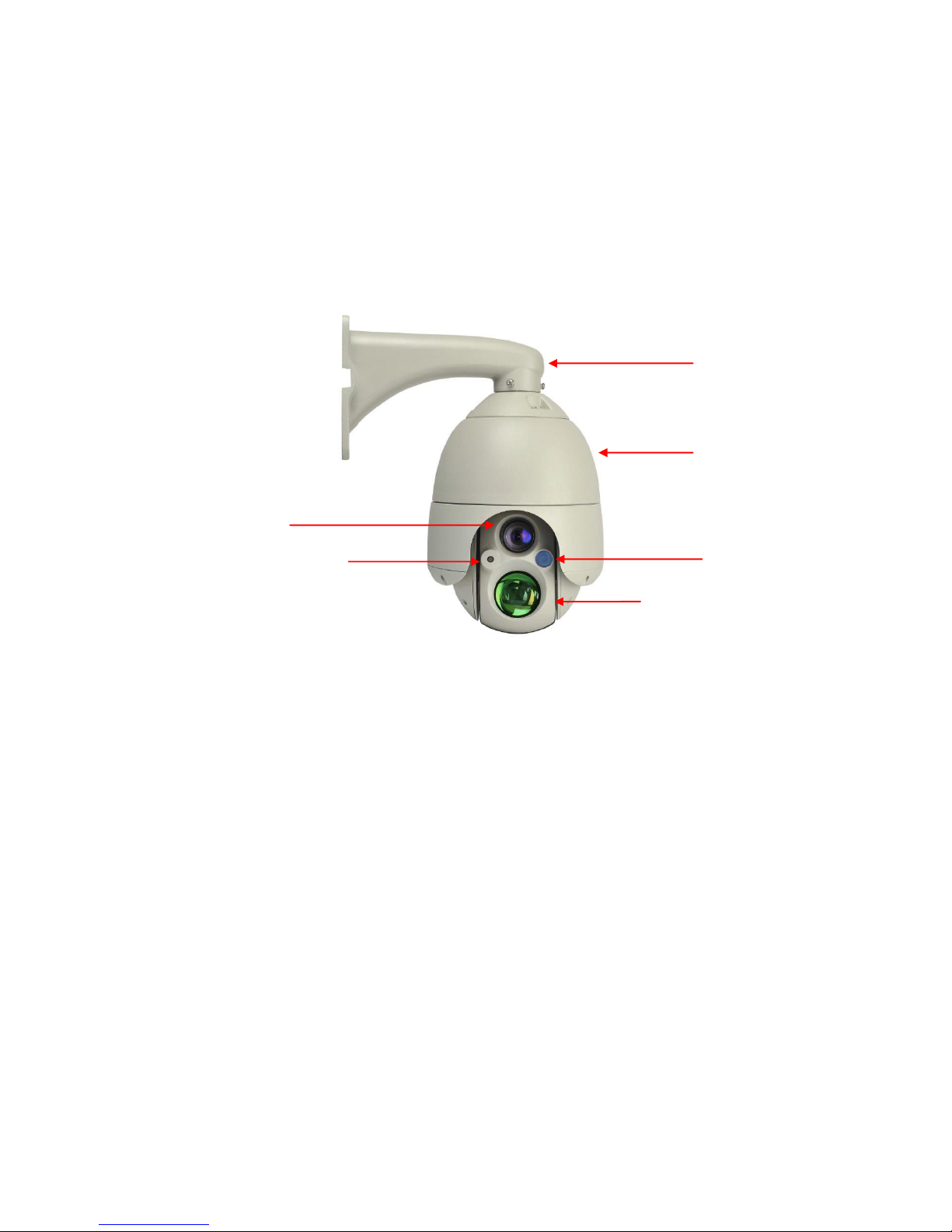
1.1. AR6220 IPNC Details
The following image shows the camera different parts:
2. AR6220 camera installation
This chapter provides the information about how to connect the IPNC with the PC, and VLC media
player Settings. For hardware installation please refer to the supplied Quick Installation Guide.
2.1. Minimum PC Requirement
Hardware:
Intel(R), Pentium(R), DUAL Core (D),CPU 3.0GHz or equivalent
2GB system memory or above.
Sound Card: DirectX 9.0c compatible sound card
Video Card: 3D hardware accelerator card required –100% DirectX9.0c compatible
10/100 Ethernet switch/hub
Bracket
Housing
IR light
Long distance IR light
Camera module
Light sensor
5
Software:
VLC media player 1.0.5 or above
Windows XP Service Pack 2 or above
Resolution of screen setting: 1280x960 or higher for the display of 720P/1080P
2.2. Connection Using Static IP
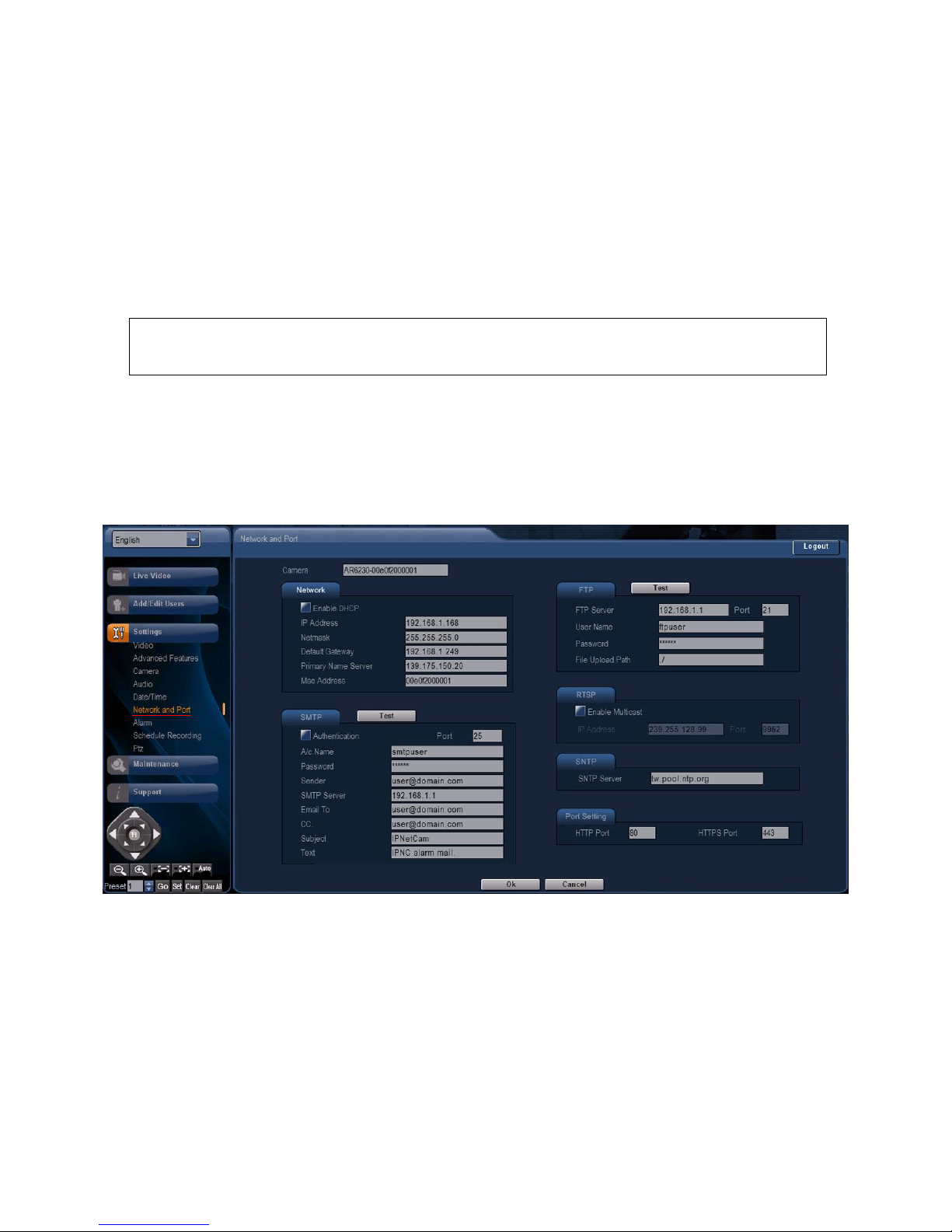
You can connect the IPNC with a static IP address. The default static IP is 192.168.1.168.
Note :
To recover the original factory setting and default IP please reset the camera in the user
interface.
Once the camera installation is fully finished you would be able to change the default IP to any you may
need. To make the changes please login in the camera and at Network and Ports please change the IP
as in the next image.
2.3. VLC Media Player Setting
To set the VLC media player and open a network stream:
1)Install VLC media player on your Host PC.
2)Open VLC media player (test with version1.1.9).
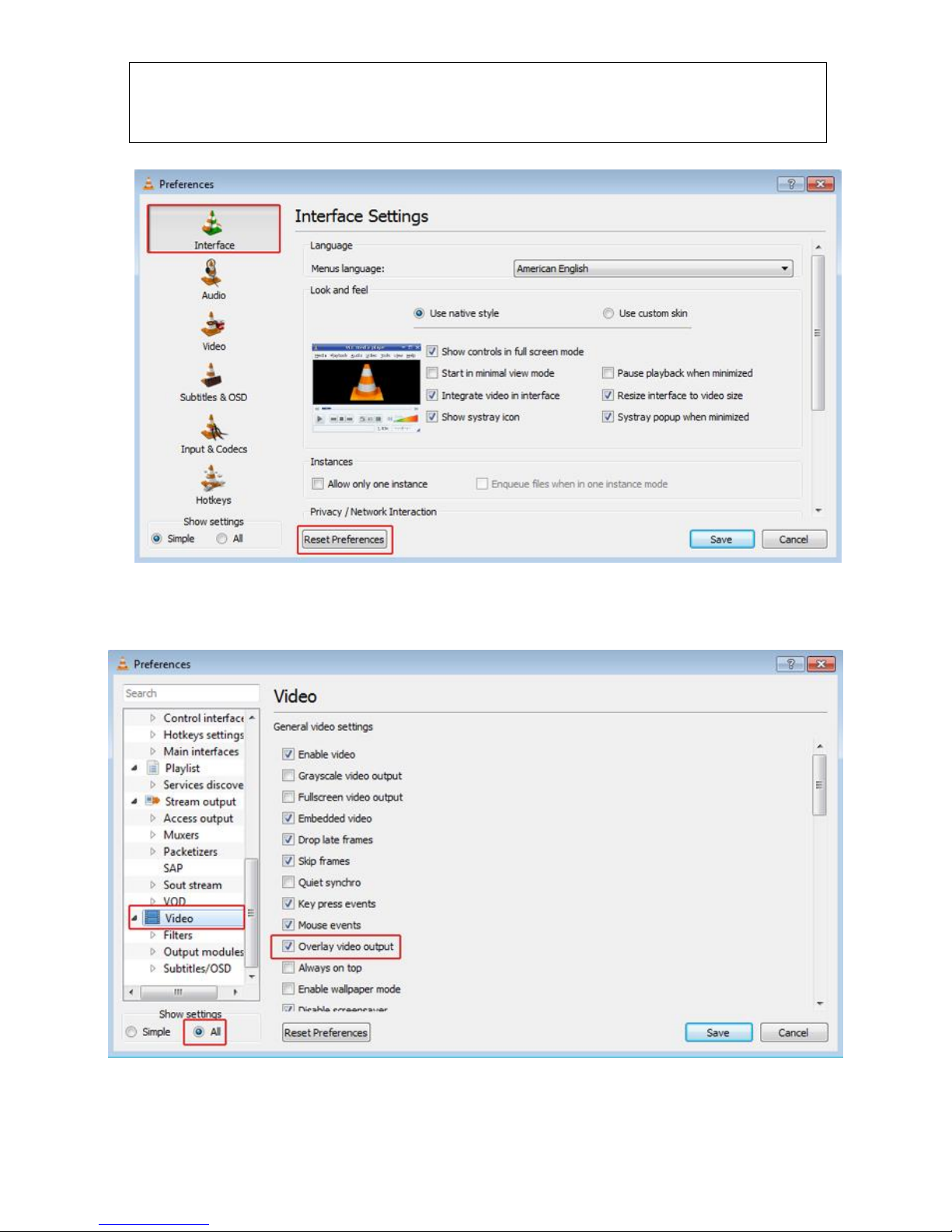
3)Click Tools > Preferences. The Preferences dialog box is displayed.
6
Note:
Before setting, ensure that all the parameters are set to default values.
To do this, in the Preferences dialog box, click Reset Preferences.
4)On the left pane, click Video and select Overlay video output option. Also, select All in Show settings.
5)On the left pane, click Input/Codecs > Demuxers > RTP/RTSP.
7
Check the caching value. For low latency, it should be 70~80 based on PC's performance, only in
VLC older version.
6)Click Save to save the settings.
7)In the VLC media player window, on the Media menu, click Open Network Stream. The Open dialog
box is displayed.
8)Select the RTSP option. In Address textbox, type the URL and click Play
MPEG4 Streaming URL :
Streaming 1 rtsp://192.168.1.168:8553/1?videoCodecType=MPEG4
Streaming 2 rtsp://192.168.1.168:8554/1?videoCodecType=MPEG4
MJPEG Streaming URL :
rtsp://192.168.1.168:8555/0?videoCodecType=MJPEG
H.264 Streaming URL :
Streaming 1 rtsp://192.168.1.168:8557/2?videoCodecType=H.264
Streaming 2 rtsp://192.168.1.168:8556/2?videoCodecType=H.264
9)Once you click Play, the video appears on the browser.
8
3. Running AR6220 IPNC Application
This chapter provides information about using the AR6620 IPNC application through the application
interface.
3.1. Starting the Application
To start the application:
1) Plug the power supply to the network camera
2) Open Microsoft Internet Explorer window, type the required IP address in Address box. Press Enter.
(default IP is 192.168.1.168)
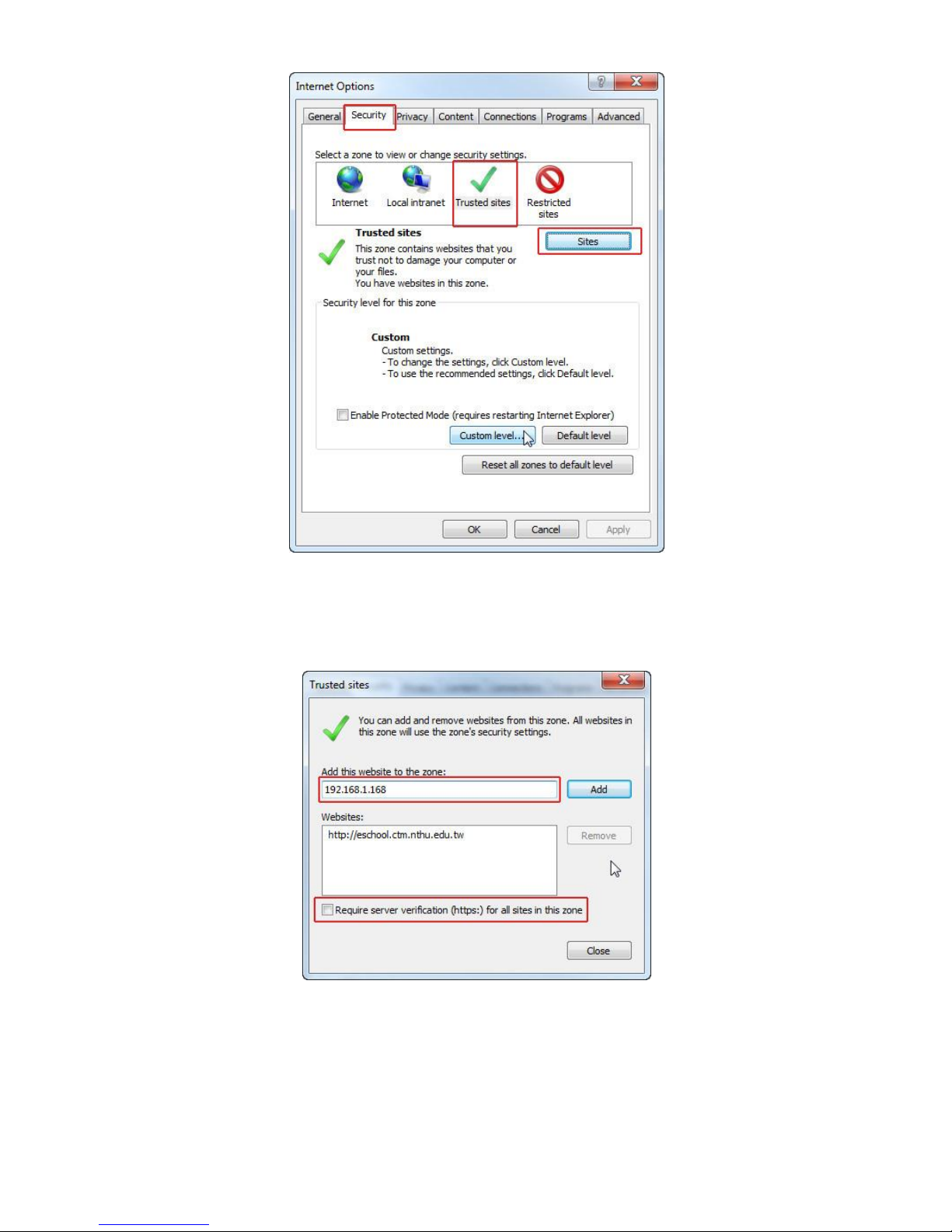
3) Once IP address is typed please go to IE tools, then internet options and select security tab. Click in
trusted sited and then in sites.
9
4) After this step a new window will pop-up, here you should add to the trusted website the new IP
number. Please disable the option to require the server verification.
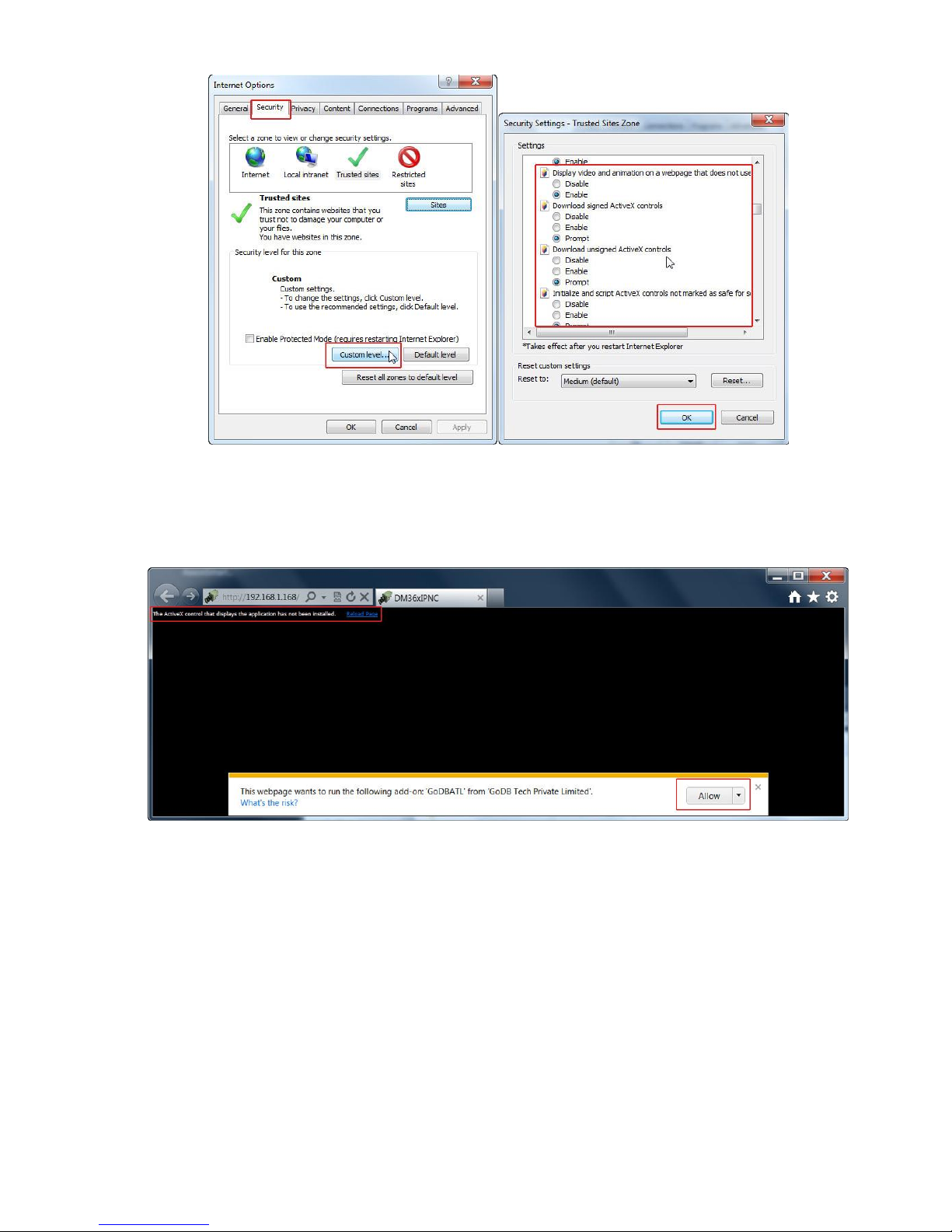
5) In IE, Internet options go to security and click in custom levels, a new window will pop-up, please
enable all ActiveX options. This would allow to IE to load the required ActiveX in the system.
10
Open IE web browser and type the default IP address of the camera, now the IE would require you
to install 2 Add-on applications, in the new menu shown please allow to the system to install them.
6) After installation, user needs to press key F5 on keyboard to refresh the IE active window. This will
take the user to main Login screen