8
5. Setup One-Touch Upload™Service
The factory settings of QBox support One-Touch Upload service to the
following cloud service providers:
Facebook
Flickr
Picasa
There may be additional connection to other service providers in the
future, depending on market demand, availability and feasibility.
Note: The above-mentioned providers may have different service
schemes and charges. Before using this function, you are recommended
to consult the specific provider for any potential service charges. QBox is
just a device to connect to such services. We are not responsible for any
charges you may incur by using the One-Touch Upload service.
5.1. Picasa
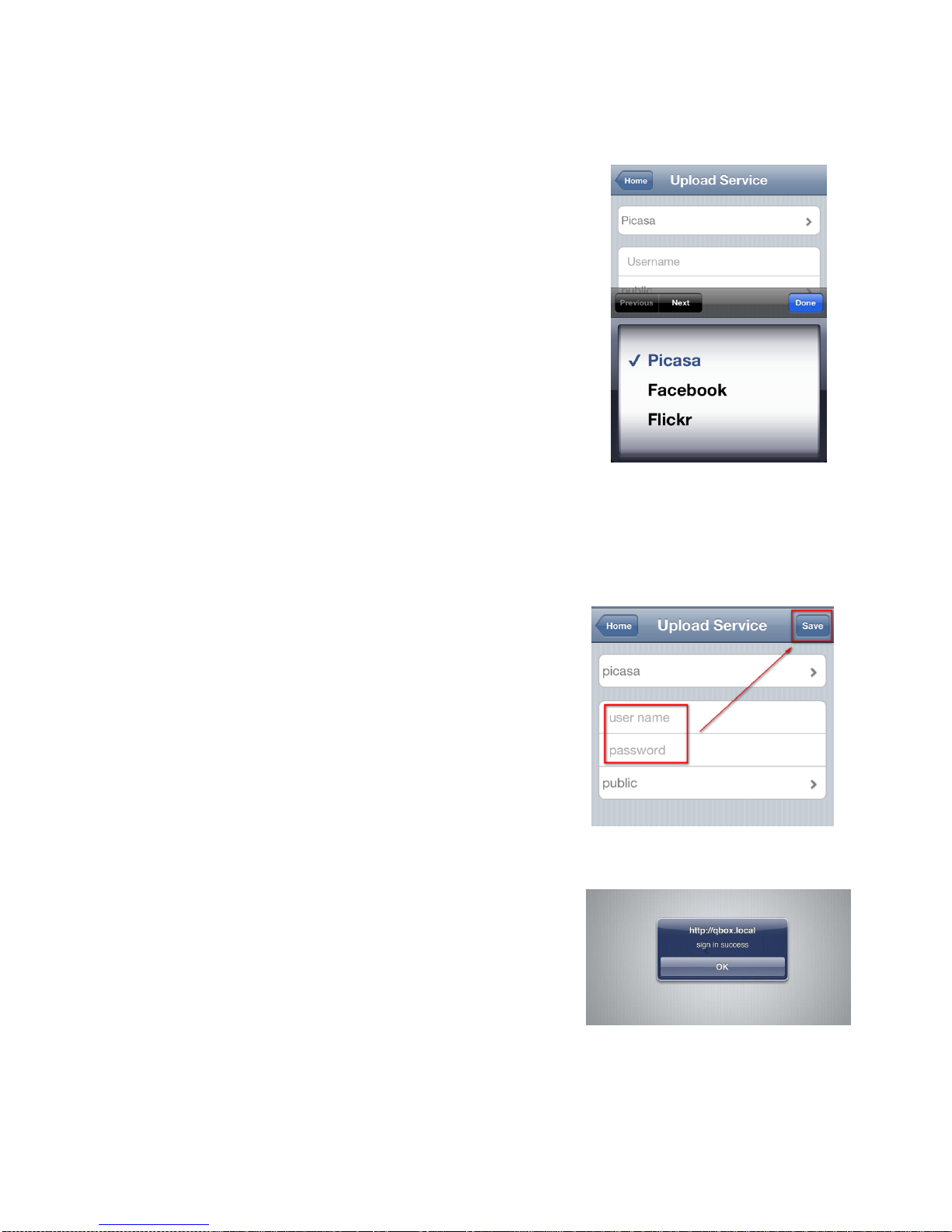
On iOS Safari page, choose “Upload Service”. Then select Picasa.
Enter your Picasa username (i.e. your login email address) and the
respective password.
If there has been a pre-configured username in QBox, it will also be
displayed here. If needed, you can change the username and the
respective password.
There is also a selection of share level for your uploading photos. You
may choose “public”, “friends”or “private”. Then, tap “Save”on the
upper right corner.
QBox will verify your Picasa account and show if the “sign in”is
“success”. QBox is then ready to upload photos from SD card slot to
Picasa. You can initiate the upload process by tapping on “Upload
Pictures”or long-press the “One-Touch Upload”button at the front
panel of QBox. When the upload is in progress, the red LED light will
flash. When the upload completes, it turns green.