manuals.online logo
Brands
  1. Home
  2. •
  3. Brands
  4. •
  5. Ascent Communication Technology
  6. •
  7. Network Router
  8. •
  9. Ascent Communication Technology AP201CWT User manual

Ascent Communication Technology AP201CWT User manual

Other Ascent Communication Technology Network Router manuals

Ascent Communication Technology ACT AP300 XG-PON ONT User manual

Ascent Communication Technology

Ascent Communication Technology ACT AP300 XG-PON ONT User manual

Popular Network Router manuals by other brands

TRENDnet TEW-435BRM - 54MBPS 802.11G Adsl Firewall M Quick installation guide

TRENDnet

TRENDnet TEW-435BRM - 54MBPS 802.11G Adsl Firewall M Quick installation guide

Siemens SIMOTICS CONNECT 400 manual

Siemens

Siemens SIMOTICS CONNECT 400 manual

Alfa Network ADS-R02 Specifications

Alfa Network

Alfa Network ADS-R02 Specifications

Barracuda Networks Link Balancer quick start guide

Barracuda Networks

Barracuda Networks Link Balancer quick start guide

ZyXEL Communications ES-2024PWR Support notes

ZyXEL Communications

ZyXEL Communications ES-2024PWR Support notes

HPE FlexNetwork 5510 HI Series Openflow configuration guide

HPE

HPE FlexNetwork 5510 HI Series Openflow configuration guide

Allied Telesis AT-AR236E quick start guide

Allied Telesis

Allied Telesis AT-AR236E quick start guide

ADTRAN NetVanta 3458-PoE quick start

ADTRAN

ADTRAN NetVanta 3458-PoE quick start

C&H Technologies EM405-8 manual

C&H Technologies

C&H Technologies EM405-8 manual

Huawei WiFi Mesh 3 Product description

Huawei

Huawei WiFi Mesh 3 Product description

Addonics Technologies ISC8P2G-S Quick install guide

Addonics Technologies

Addonics Technologies ISC8P2G-S Quick install guide

Atel W02 Arch+ Faqs

Atel

Atel W02 Arch+ Faqs

Allnet ALL0333AU user guide

Allnet

Allnet ALL0333AU user guide

Sercomm Genesis OC3505D Quick installation guide

Sercomm

Sercomm Genesis OC3505D Quick installation guide

Billion BIPAC 5102 Series user manual

Billion

Billion BIPAC 5102 Series user manual

TP-Link TD-8817 QIG

TP-Link

TP-Link TD-8817 QIG

Motorola MR1900 user guide

Motorola

Motorola MR1900 user guide

Cisco SOHO Series Regulatory compliance and safety information

Cisco

Cisco SOHO Series Regulatory compliance and safety information

manuals.online logo
manuals.online logoBrands
  • About & Mission
  • Contact us
  • Privacy Policy
  • Terms and Conditions

Copyright 2025 Manuals.Online. All Rights Reserved.

AP201CWT
GPON WiFi
ONT
Quick Reference
Guide
Revision E
AP201CWT GPON 1 GE + WiFi ONT
Solutions Provider for FTTx, RFoG and HFC www. ascentcomtec.com
Page 2 of 32
ACT AP201CWT GPON 1 GE + WiFi ONT
Quick Reference Guide
ACT Document Number: ACT AP201CWT Quick Reference Guide
Quick Reference Guide Revision E
Copyright © 2017 Ascent Communication Technology Limited.
All rights reserved. Reproduction in any manner whatsoever without the express written permission of Ascent
Communication Technology is strictly forbidden.
This document is produced to assist professional and properly trained personnel with installation and maintenance
issues for the product. The capabilities, system requirements and/or compatibility with third-party products
described herein are subject to change without notice.
For more information, contact ACT: support@ascentcomtec.com
Revision History
Revision
Date
Reason for Change
A
08/02/2016
Initial release
B
09/24/2016
Minor updates
C
11/12/2016
Fixed pictures
D
04/09/2017
Minor updates
E
05/16/2017
Updated version
AP201CWT GPON 1 GE + WiFi ONT
Solutions Provider for FTTx, RFoG and HFC www. ascentcomtec.com
Page 3 of 32
Table of Contents
1 Notes...................................................................................................................................... 5
1.1 Installation Precautions·································································································· 5
1.2 Precautions for Use········································································································ 5
2 Brief........................................................................................................................................ 6
2.1 Product Features············································································································ 6
2.2 Product Specifications···································································································· 7
2.3 Device Interface Definition ···························································································· 7
2.4 LED Description·············································································································· 8
2.5 Device Connection ········································································································· 8
2.6 Applications···················································································································· 9
3 Login Web Management Locally............................................................................................ 9
3.1 Physical Connection of ONU and PC ·············································································· 9
3.2 PC Access the WEB of ONU·························································································· 10
4 ONU Register Information Config ........................................................................................ 11
4.1 View ONU Register Status···························································································· 11
4.2 View ONU Optical Power Information········································································· 11
4.3 LOID Authentication Config ························································································· 12
5 Basic Configuration for Internet........................................................................................... 12
5.1 Route Mode Configuration ·························································································· 13
5.2 Configure Bridge WAN Connection for Internet ·························································· 19
5.3 View the WAN Connection Status················································································ 20
AP201CWT GPON 1 GE + WiFi ONT
Solutions Provider for FTTx, RFoG and HFC www. ascentcomtec.com
Page 4 of 32
5.4 Delete the WAN Connection························································································ 20
6 ONU LAN Configuration ....................................................................................................... 21
6.1 LAN IP Address Configuration ······················································································ 21
6.2 View LAN Client············································································································ 22
7 Multicast/IPTV Configuration............................................................................................... 23
7.1 Multicast/IPTV Service Setting····················································································· 23
7.2 IGMP Snooping Setting ································································································ 23
7.3 IGMP Proxy··················································································································· 24
7.4 IGMP VLAN Configuration···························································································· 24
8 WLAN Configuration ............................................................................................................ 25
8.1 WLAN Basic Configuration ··························································································· 25
8.2 WLAN Password Configuration···················································································· 25
8.3 WLAN Virtual SSID········································································································ 26
9 CATV Configuration .............................................................................................................. 27
9.1 Configure CATV Port Parameter··················································································· 27
9.2 View CATV Information ································································································ 27
10 TR069 Remote Management............................................................................................. 28
10.1 Configure Channel for TR069 Remote Management················································· 28
10.2 TR069 Client Configuration························································································ 28
11 Device Management.......................................................................................................... 29
11.1 ONU Remote Access Configuration ··········································································· 29
11.2 Restore Default Setting ······························································································ 29
11.3 Firmware Upgrade ····································································································· 30
11.4 Device Reboot············································································································ 31
AP201CWT GPON 1 GE + WiFi ONT
Solutions Provider for FTTx, RFoG and HFC www. ascentcomtec.com
Page 5 of 32

Do not place the equipment near flammable or conductive items, high temperatures (such as
direct sunlight) or in wet conditions, or on a PC chassis, and check that the surrounding
appliances are stable.

Check the cable for aging. Check and verify that the AC or DC input voltage is within the
permissible range of the device and that the polarity of the DC is correct.

Unless the manufacturer permit, use the type of power indicated on the label and the adapter
supplied with the product.

To prevent damage to the product from lightning, make sure that the ground of the power
outlet and the power adapter is securely grounded. In the thunderstorm, be sure to unplug the
power and all the connections.

Equipment input voltage fluctuation should be less than 10%, the power plug, refrigerators, hair
dryer and iron should not use the same socket.

To avoid electric shock or fire due to overload of the power outlet, damage to the cord or
damage to the plug, check the power cord regularly. If damage is found, replace it immediately.

Please place the device on a flat surface and cannot place items on the device.

Equipment is easy to produce heat when working, should maintain the appropriate cooling
space to avoid damage caused by overheating products. The elongated hole on the shell is
designed for heat dissipation. Keep the ventilation clean and avoid falling from the heat sink
into the equipment. Otherwise, the equipment may be damaged or fire. Do not spill liquid onto
the surface of the equipment.

Please read the user manual carefully before using the equipment and follow all the
precautions on the user manual and the product.

Avoid eye looked at the optical interface directly, so as to avoid the laser beam emitted by the
interface damage the eyes. Please try to wear safety glasses to effectively protect your eyes
from damage. It is best to plug in the fiber optic interface jacket when the optical interface is
not in use.

Turn off the power when the device is not in use

Before plugging the power supply, make sure that the power switch is turned off to avoid surge.
Be careful when unplugging the power supply and the transformer temperature may be high.

To ensure safety, do not open the enclosure of the device, especially when the device is
powered up.

Unplug the power supply before cleaning the equipment. Use a soft dry cloth to clean the
equipment to avoid the use of liquids or sprays.

Do not connect this product to any electronic product unless it is instructed by our customer
engineer or your broadband supplier, as any incorrect connection may cause power or fire
hazard.
AP201CWT GPON 1 GE + WiFi ONT
Solutions Provider for FTTx, RFoG and HFC www. ascentcomtec.com
Page 6 of 32
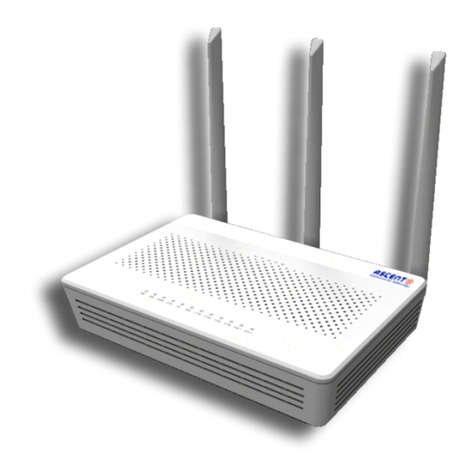
Ascent GPON ONU series (HGU) is GPON ONT for satisfying with Telecom, Radio and
Television, and Fiber To The Home (FTTH) multi service access. It’s based on the mature,
stable, high cost performance GPON technology and has Gigabit and Fast Ethernet switching
HFC technology, WLAN technology and powerful routing forwarding technology. Ascent GPON
ONU series has a higher bandwidth, higher reliability, easy management and good quality of
service (QoS) guarantee with technical performance of equipment meet the ITU-T G. 984
requirements and have good compatibility with third party manufacturers OLT.
GPON technology, based on ITU-T G.984 standard, is latest generation of broadband passive
optical network integrated access standard with high bandwidth, high efficiency, large
coverage, user interface, and many other advantages. It is the operator to achieve access
network services Broadband, integrated transformation of the ideal technology.
Ascent GPON ONU series can integrate wireless function with meet 802.11 n/b/g technical
standards and built-in high gain directional antenna, the wireless transmission rate up to
300Mbps. It has the characteristics of strong penetrating power and wide coverage. It can
provide users with more efficient data transmission security.

Dual-fiber access, providing broadband, CATV, Wi-Fi, IPTV service access, and so on.

Exact match GPON ITU-T G.984 standard, using GPON uplink 1.25G, downlink 2.5G standard

WIFI-type equipment exact match 802.11 n/b/g wireless standard protocol, support 20 MHz /
40 MHz

Supports PPPoE, DHCP, static IP broadband service access

Supports NAT, static routing, port forwarding

Supports data encryption, VLAN transparent transmission, VLAN tag and other functions

Supports up and down bandwidth limit function

Supports upgrade through the OLT remote / local ONU WEB

Supports broadcast storm suppression

Different data ports are isolated from each other

Supports port flow control

Supports OLT as SNMP-agent way of the unified management of the network management,
easy to install and maintain

Provide a variety of fault alarm function, easy to fault diagnosis

Supports AES-128 decryption, support key generation and switching

Supports DBA technology and priority based on the dual management model to ensure that the
user's minimum specified bandwidth requirements

Supports CATV service remote shutdown function

Operating wavelength: 1100 nm to 1600 nm

Light reflection loss: >45 dB

Input optical power: -18 dBm to 0 dBm
AP201CWT GPON 1 GE + WiFi ONT
Solutions Provider for FTTx, RFoG and HFC www. ascentcomtec.com
Page 7 of 32
Ambient temperature: 0°C to 50°C
Relative humidity: 10% to 90% (non-condensing) Power adapter input: 12 V/1A
TX Optical Power: 0 dBm to 5 dBm RX Optical Power: -8 dBm to -28 dBm
AP201CWT GPON 1 GE + WiFi ONT
Solutions Provider for FTTx, RFoG and HFC www. ascentcomtec.com
Page 8 of 32
Indicator
Description
1
PWR
Power status
On: The ONU is power on
Off: The ONU is power off
2
CATV
CATV port status
On: CATV optical normal(> -9 dBm)
Off: The CATV signals are not received (< -9 dBm)
3
WIFI
WIFI
On: WiFi function is on
Blinking: Data is being transmitted
4
LANn
LAN port status
On: Ethernet connection is normal
Blinking: Data is being transmitted through the Ethernet port
Off: Ethernet connection is not set up
5
LOS
GPON optical
signals
On: Optical power lower than receiver sensitivity
Off: Optical in normal
6
PON
ONU Register
On: Success to register to OLT
Blinking: In process of registering to OLT
Off: In process of registering to OLT

Connect the fiber: Insert the SC fiber connector into the PON connector on the rear panel of the
ONU.

Connect the Ethernet cable: Connect the RJ-45 Ethernet cable to any LAN port and each home
device, that is, the computer, IPTV set-top box, and so on.

Connect coaxial cable: Connect the coaxial cable to the RF connector of the ONU.

Connect the AC adapter: Plug the AC / DC adapter into the AC wall jack and the ONU 12V DC
power jack.
AP201CWT GPON 1 GE + WiFi ONT
Solutions Provider for FTTx, RFoG and HFC www. ascentcomtec.com
Page 9 of 32
1. Local NIC of PC connects to LAN port or ETH port of ONU via wires.
2. Set the IP address of PC’s local NIC as 192.168.101.X (X: 2-254).
AP201CWT GPON 1 GE + WiFi ONT
Solutions Provider for FTTx, RFoG and HFC www. ascentcomtec.com
Page 10 of 32
3. Open cmd windows and make sure that PC can ping the management IP (192.168.101.1) of ONU.
Make sure you can ping the ONU like #3.1. Open a web browser (such as IE, Firefox, or
Chrome), copy and paste the URL: http://192.168.101.1 into the address bar, and you should
arrive at the following landing page:
Input UserName: adminisp PassWord: adminisp