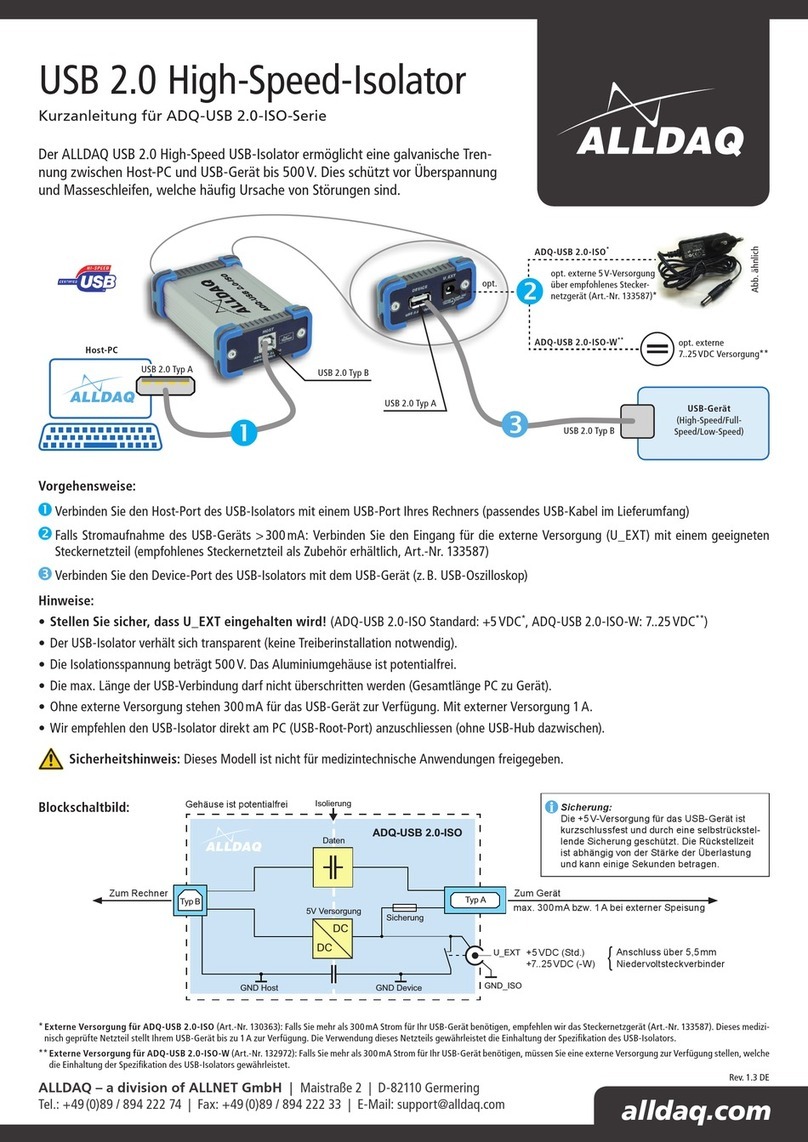
Asus USB 3.1 FRONT PANEL User manual

E10700
First Edition
July 2015
Copyright © ASUSTeK Computer Inc.
All Rights Reserved
USB 3.1 Front Panel
Innovatively enjoy a whole new digital experience

2
Package contents
Welcome!
USB 3.1 Front Panel
ASUS USB 3.1 Front Panel provides dual USB 3.1 Type-A ports, bringing
you fast transfer speeds of up to 10 Gb/s and providing complete
backward compatibility with your existing USB devices.
SATA Express cable Bracket
Phillips Screws
If any of the following items is damaged or missing, contact your
retailer. The illustrated items below are for reference only. Actual
product specications may vary per country or model.
Do not use damaged cable and other peripherals.
Specications summary
Input
1 x SATA Express
1 x SATA power plug (12V/5V/3V)
Output
2 x USB 3.1 Type-A ports
Dimensions
145 x 140 x 42 mm for 5.25”bays
Features
Dual 10 Gb/s USB 3.1 Type-A ports for front panel
Easy installation for both front 5.25”bays and onboard PCIE slots
Support DVD

3
USB 3.1 Type-A ports
SATA Express port
SATA power port
Parts and Features
Front view
Back view

4
Getting Started
Using the USB 3.1 Front Panel as front panel
1. Insert and secure the USB 3.1 Front Panel into the 5.25 inch drive bay of
your PC chassis.
• Unplugthepowercordfromthewallsocketbeforetouchingany
component.
• Beforeyouinstallorremoveanycomponent,ensurethatthe
power supply is switched o or the power cord is detached from
the power supply. Failure to do so may cause severe damage to
the motherboard, peripherals, or components.

5
Using the bundled SATA Express cable to connect your USB 3.1 Front
Panel is the best way to use your USB 3.1 Front Panel.
3. Connect the bundled SATA Express cable to the SATA Express port on the
motherboard.
2. Connect the bundled SATA Express cable to the USB 3.1 Front Panel.

6
Using the USB 3.1 Front Panel as back panel
1. Remove the two screws from the back of the USB 3.1 Front Panel, then
remove the cover of the USB 3.1 Front Panel box.
5. Switch on the power supply and turn on your system.
6. Insert the support DVD and follow the instructions to install the drivers.
4. Connect the SATA power plug to the USB 3.1 Front Panel.

7
2. Remove the four screws from the PCB (Printed circuit board) and remove
the PCB from the panel box.
3. Secure the PCB to the bracket using the bundled screws to transform it to
an add-on card.

8
4. Connect the bundled SATA Express cable to the add-on card.
5. Connect the bundled SATA Express cable to the SATA Express port on the
motherboard.
6. Connect the SATA power plug to the add-on card.
7. Install the add-on card into an empty PCIe slot on your motherboard.
8. Switch on the power supply and turn on your system.
9. Insert the support DVD and follow the instructions to install the drivers.

9
Federal Communications Commission Interference Statement
This device complies with FCC Rules Part 15. Operation is subject to the following two conditions:
• Thisdevicemaynotcauseharmfulinterference.
• Thisdevicemustacceptanyinterferencereceived,includinginterference
that may cause undesired operation.
This equipment has been tested and found to comply with the limits for a class B digital device,
pursuant to Part 15 of the Federal Communications Commission (FCC) rules. These limits
are designed to provide reasonable protection against harmful interference in a residential
installation. This equipment generates, uses, and can radiate radio frequency energy and, if not
installed and used in accordance with the instructions, may cause harmful interference to radio
communications. However, there is no guarantee that interference will not occur in a particular
installation. If this equipment does cause harmful interference to radio or television reception,
which can be determined by turning the equipment o and on, the user is encouraged to try to
correct the interference by one or more of the following measures:
• Reorientorrelocatethereceivingantenna.
• Increasetheseparationbetweentheequipmentandreceiver.
• Connecttheequipmentintoanoutletonacircuitdierentfromthatto
which the receiver is connected.
• Consultthedealeroranexperiencedradio/TVtechnicianforhelp.
WARNING! The use of shielded cables for connection of the monitor to
the graphics card is required to assure compliance with FCC regulations.
Changes or modications to this unit not expressly approved by the party
responsible for compliance could void the user’s authority to operate this
equipment.
ASUS Recycling/Takeback Services
ASUS recycling and takeback programs come from our commitment to the highest standards
for protecting our environment. We believe in providing solutions for you to be able to
responsibly recycle our products, batteries, other components as well as the packaging
materials. Please go to http://csr.asus.com/english/Takeback.htm for detailed recycling
information in dierent regions.

10
IC: Canadian Compliance Statement
Complies with the Canadian ICES-003 Class B specifications. This device complies with RSS 210
of Industry Canada. This Class B device meets all the requirements of the Canadian interference-
causing equipment regulations.
This device complies with Industry Canada license exempt RSS standard(s). Operation is subject
to the following two conditions: (1) this device may not cause interference, and (2) this device
must accept any interference, including interference that may cause undesired operation of
the device.
Cut appareil numérique de la Classe B est conforme à la norme NMB-003 du Canada. Cet
appareil numérique de la Classe B respecte toutes les exigences du Règlement sur le matériel
brouilleur du Canada.
Cet appareil est conforme aux normes CNR exemptes de licence d’Industrie Canada. Le
fonctionnement est soumis aux deux conditions suivantes :
(1) cet appareil ne doit pas provoquer d’interférences et
(2) cet appareil doit accepter toute interférence, y compris celles susceptibles de provoquer un
fonctionnement non souhaité de l’appareil.
Canadian Department of Communications Statement
This digital apparatus does not exceed the Class B limits for radio noise emissions from digital
apparatus set out in the Radio Interference Regulations of the Canadian Department of
Communications.
This class B digital apparatus complies with Canadian ICES-003.
VCCI: Japan Compliance Statement
VCCI Class B Statement
KC: Korea Warning Statement
Table of contents
Popular USB Interface manuals by other brands

PASCO
PASCO SCIENCEWORKSHOP 750 instruction manual
Phonic
Phonic FIREFLY 302 USB user manual

OHAUS
OHAUS Scout STX Series instruction manual
Denon
Denon DN-HC4500 - DJ Mixer USB Controller operating instructions
Lutron Electronics
Lutron Electronics Stanza SZ-CI-USB-CPN5138 installation instructions
Paradox
Paradox PMC5-TI00 quick start guide