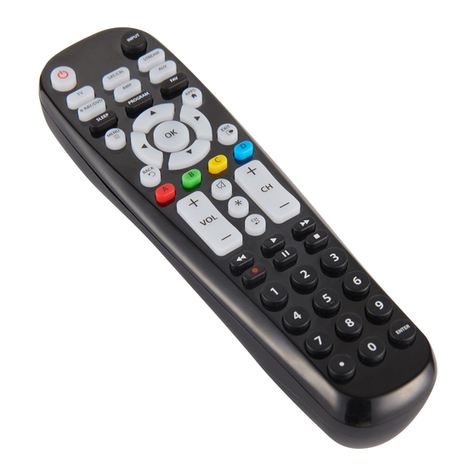
Atek Multimedia Remote Control User manual

User’s Manual
for
Tote-Remote®
Remote Control & Laser Pointer
for Laptop Computers

TABLE OF CONTENTS
Important Safety & Health Information 2
Special Notice Regarding Carrying
Laser Pointers On Commercial Aircraft 3
Introduction 4
Installation 5
Features & Operation 6
Compatibility & System Requirements 10
Troubleshooting 11
Maintenance, Service,& Support 13
One Year Limited Warranty 14
Regulatory Information 16
Purchase Record 17
Contact Information 18
1

IMPORTANT SAFETY & HEALTH INFORMATION
2
WARNING! RISK OF INJURY!
Laser beam can cause permanent
damage to eyes. Do not look into the
laser beam or shine the laser beam into
your own eyes, other peoples’ eyes, or
pets’ eyes.
WARNING! RISK OF INJURY!
Keep this device away from children. It is a
work tool, not a toy or entertainment device.
It should only be used by adults.

SPECIAL NOTICE REGARDING CARRYING
LASER POINTERS ON COMMERCIAL AIRCRAFT
Atek has received reports of airport security personnel
confiscating laser pointers. Although these reports have
been infrequent and have not involved the Tote-Remote,
Atek recommends that you consider packing your
Tote-Remote in your check-in luggage rather than in your
carry-on bag.
As of the publication date of this User’s Manual, the
Transportation Security Administration (TSA) web site does
not list laser pointers among “Items Prohibited in Aircraft
Cabins” (see www.tsa.gov), but it does state that “other
items that may be deemed to present a potential threat may
also be prohibited”.
If you have any questions on this topic, you should consult
with the responsible government entity.
Please note that Atek will not be held responsible for items
being confiscated or for any other legal matters related to
how and when you use, store, and carry your Tote-Remote.
3

INTRODUCTION
Thank you for purchasingthe Atek Tote-Remote
remote control & laser pointer.
Please register at www.atek.com for product updates.
On our website you can also learn aboutother Atek
products, includingthe Super Mini Optical Mouse for
laptop computers and other best-of-category Atek laptop
computer accessories.
If you have difficulty installing or using your Tote-Remote,
please contact your dealer or computer system manufacturer
for assistance or callAtek for further help.
Please read this User’s Manual thoroughly.It contains
important information about your Atek Tote-Remote. Failure
to follow instructions for proper installation and use of this
product may cause damage to the product, your computer,
connected devices, the health and safety of you and others,
andmay also void the warranty.
4

INSTALLATION
Your Tote-Remote includes the following items:
•Tote-Remote
•Coin cell battery (3V CR 2032)
•USB RF receiver
•Padded travel pouch
•User’smanual
Your Tote-Remote is simple to install. Just insert the battery
into the battery compartment (with the text on the battery
face up) and then plug the receiver into a USB port on your
computer or on a USB hub. No special application drivers
are required, but if you are using Windows Me or 98, you
might be prompted to place your original Windows operating
system CD into your CD-ROM drive.
If your Tote-Remote is not working properly, the receiver
may need to learn the ID code of the remote control
using the following procedure:
•Plug the receiver into the USB port (with computer on).
•Push the little red reset button on the receiver once with
the end of a paperclip (you should hear it click).
•Push the F5/Esc or wheel button onyour Tote-Remote.
5

FEATURES & OPERATION
The Tote-Remote is a wireless remote control and a laser
pointer. It’s the perfect tool for laptop presentations. Our
RF technology allows you to control your laptop computer
presentation while roaming freely around a room up to
approximately 30 feet away, with no line-of-sight to the
laptop computer required! Best of all, the Tote-Remote is
simple to use. Here’s how to use it:
•Wheel Button: Functions just like arrow up/down keys
on a keyboard. Moves PowerPoint®slides forward and
back. Moves the cursor up and downin Microsoft
Word®. Moves cells up and down in Microsoft Excel®.
The wheel button can also be used for scrolling in
certain applications -first push it in once (push in, not up
or down) and then the laser pointer button will illuminate
to indicate that the wheel button is now in scroll mode.
This light will stay on when you use the wheel button to
scroll and will stay on for approximately 25 more
seconds after you stop using the wheel button to scroll.
After that 25 second period, the Tote-Remote will
automatically exit scroll mode (even though a scroll icon
may still appear on your computer screen—it will
disappear when youmove the wheel button). Push the
wheel button in again to re-enterscrollmode.
NOTE: scroll mode is not for use in PowerPoint®.
6

•Laser Pointer Button: Push to turn on laser beam,
release to turn off laser beam. The laser beam will
automatically turn off after about 25-30 seconds of
continuous use to prevent accidental battery drain.
•Safety Lock: As an additional battery drain prevention
measure, your Tote-Remote has a safety lock feature.
Before traveling with your Tote-Remote, you can
engage the safety lock as follows: first push in and hold
down the laser pointer button, then push in (in, not up or
down) the wheel button, and then release both buttons.
To disengage the safety lock, repeat this procedure.
•F5/Esc Button: In PowerPoint®push this button to go
from normal (edit) view to slide show view, or from
slide show view to normal (edit) view. You may need to
push the button twice under certain circumstances.
7
Laser Pointer
Button
F5/Esc
Button
Wheel Button
USB RF
Receiver
Reset Button

Operation Overview
8
(Projector is optional and is
not included with this product)
(There is no need to aim or point the
remote control at, or maintain line-of-
sight with, the receiver)

Special Applications
Using One Tote-Remote to Control Multiple Computers
One Tote-Remote can be used to control multiple
computers. Each computer must have its own receiver.
You will need to follow the instructions on page 5 of this
User’s Manual for using the reset button on each receiver to
learn the ID code of the remote control. The receivers will
then all use this sameID code to receive signals from the
remote control. To change the ID code again, simply follow
the same procedure again.
Using Multiple Tote-Remotes with One Computer
Since a receiver can only operate on one ID code at a time,
all the remote controls would have to be set to the same ID
code in order to control one receiver. Although you can
randomly reset your Tote-Remote’s ID code (see Trouble-
Shooting section), there is no way to set the Tote-Remote
ID code to aspecific ID code. Therefore, the only way you
could use two (or more) remote controls with one receiver is
if by unlikely chance you bought two remote controls that
were set in the factory to the same ID code or if you
randomly reset one remote control to the same ID code as
another remote control. Both scenarios are highly unlikely.
9
Table of contents