manuals.online logo
Brands
  1. Home
  2. •
  3. Brands
  4. •
  5. AVYCON
  6. •
  7. Keyboard
  8. •
  9. AVYCON AVK P2500 User manual

AVYCON AVK P2500 User manual

Other manuals for AVK P2500

1

Other AVYCON Keyboard manuals

AVYCON AVK-NK500-A1 User manual

AVYCON

AVYCON AVK-NK500-A1 User manual

AVYCON AVK-N1100 User manual

AVYCON

AVYCON AVK-N1100 User manual

Popular Keyboard manuals by other brands

Man & Machine Really Cool + user guide

Man & Machine

Man & Machine Really Cool + user guide

SteelSeries APEX PRO TKL Product information guide

SteelSeries

SteelSeries APEX PRO TKL Product information guide

Vortexgear POK3R user manual

Vortexgear

Vortexgear POK3R user manual

Logitech RUGGED LITE quick start guide

Logitech

Logitech RUGGED LITE quick start guide

Honeywell ADEMCO 5839 Installation and setup guide

Honeywell

Honeywell ADEMCO 5839 Installation and setup guide

PROZIS EZ user manual

PROZIS

PROZIS EZ user manual

Hama AK-120 Operating	 instruction

Hama

Hama AK-120 Operating instruction

Rodgers RK-76 owner's manual

Rodgers

Rodgers RK-76 owner's manual

Logic Controls KB5000 Series user manual

Logic Controls

Logic Controls KB5000 Series user manual

Rapoo E9270P quick start guide

Rapoo

Rapoo E9270P quick start guide

AbleNet Chester Creek USB Keyboard quick start guide

AbleNet

AbleNet Chester Creek USB Keyboard quick start guide

iKey DP-88 Specifications

iKey

iKey DP-88 Specifications

Logitech G413 TKL SE Complete Setup Guide

Logitech

Logitech G413 TKL SE Complete Setup Guide

Ultimate Technology 500 POS user guide

Ultimate Technology

Ultimate Technology 500 POS user guide

Mace MACALLY MERGOKEY user guide

Mace

Mace MACALLY MERGOKEY user guide

iKey KYB-42-KIOSK Specifications

iKey

iKey KYB-42-KIOSK Specifications

Akko MX108 user manual

Akko

Akko MX108 user manual

Viper V770 user manual

Viper

Viper V770 user manual

manuals.online logo
manuals.online logoBrands
  • About & Mission
  • Contact us
  • Privacy Policy
  • Terms and Conditions

Copyright 2025 Manuals.Online. All Rights Reserved.

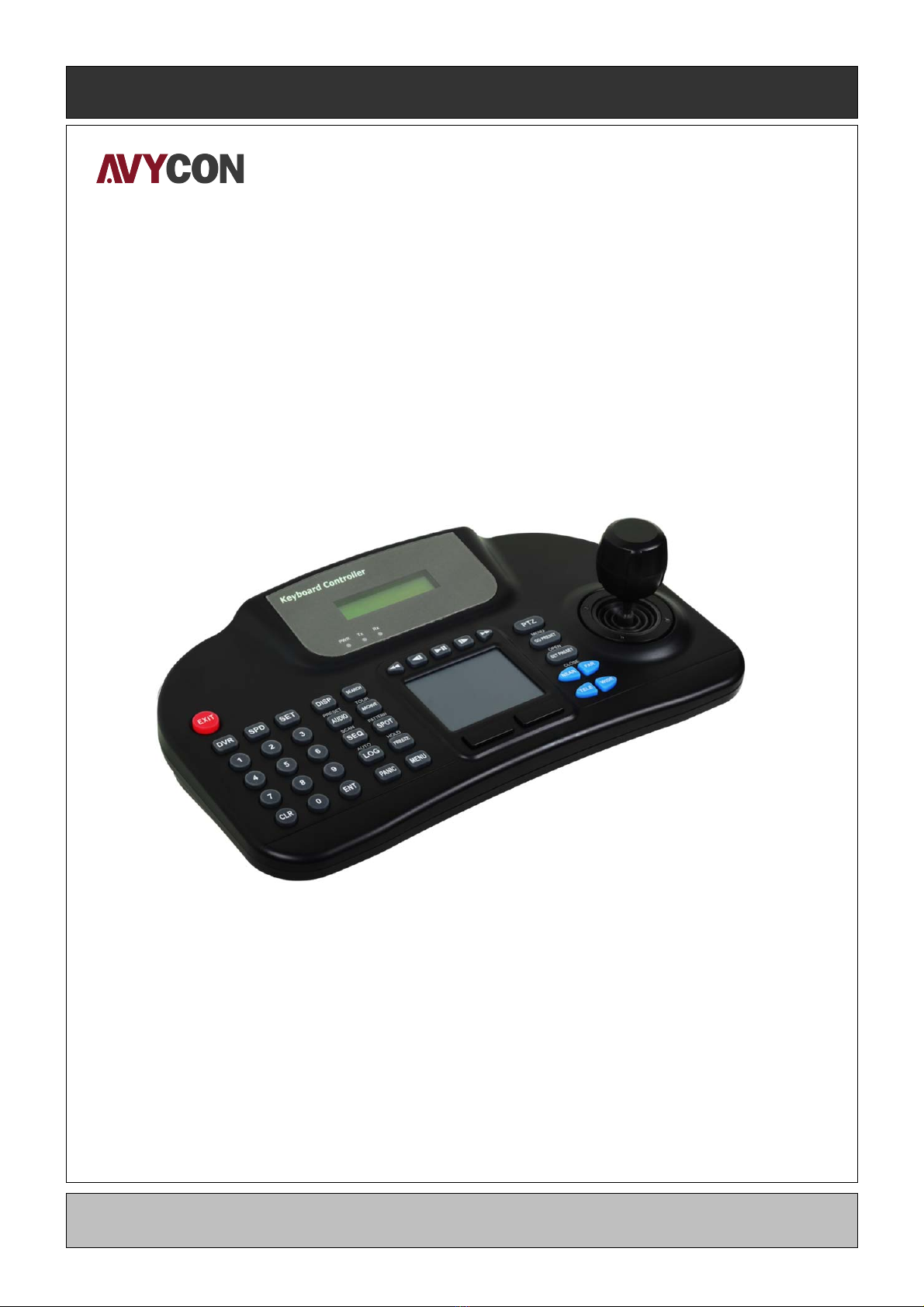
Keyboard Controller
Keyboard Controller
AVK-P2500
User`s Manual
This document contains preliminary information and is subject to change without notice.
11. KEYBOARD CONTROLLER (AVK-P2500 )
11.1 Connection
A user may connect cameras and Keyboard to a DVR.
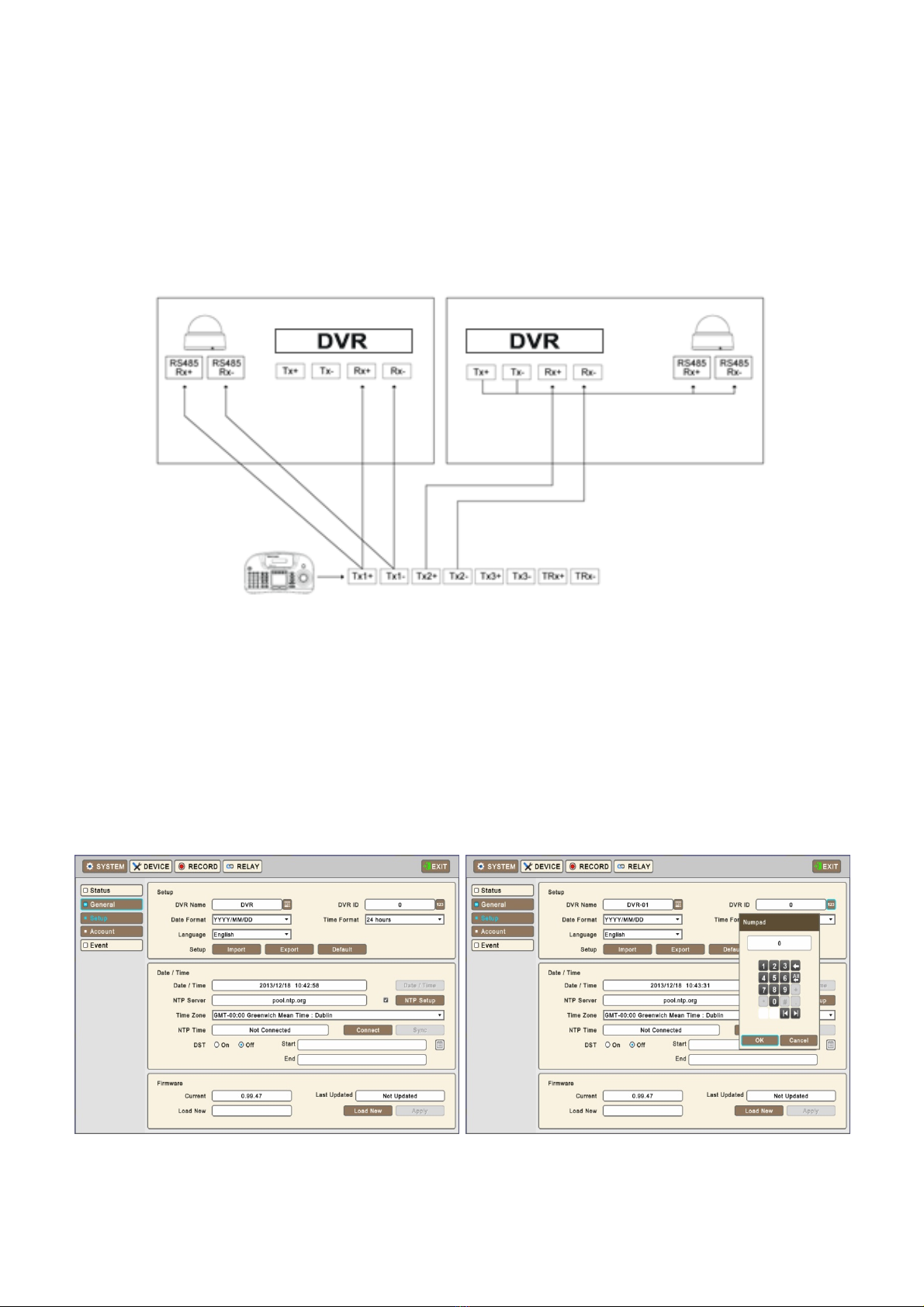
Please see below for connection examples. RS485 ports are used for connections.
11.1.1 Configuration Diagram
Example
Please make sure to connect “Tx to Rx“ or “Rx to Tx” with same polarity. (+ to +) and (- to -).
11.1.2 USB Connection
In order to use Touch Pad on AVK-P2500 , a user should connect AVK-P2500 and DVR with provided
USB cable. DVR will automatically recognize the Touch Pad.
11.2 Keyboard Setup in DVR
Enter “Setup>SYSTEM>General>Setup” and define the ID of DVR.
When a user connects more than two DVRs then each DVR has to have a different ID.
Then move to “Setup>Device>Camera” and select AVK-P2500 .
Then, choose PTZ protocol and Camera ID. (For detailed information on setting PTZ camera, please refer to DVR manual)
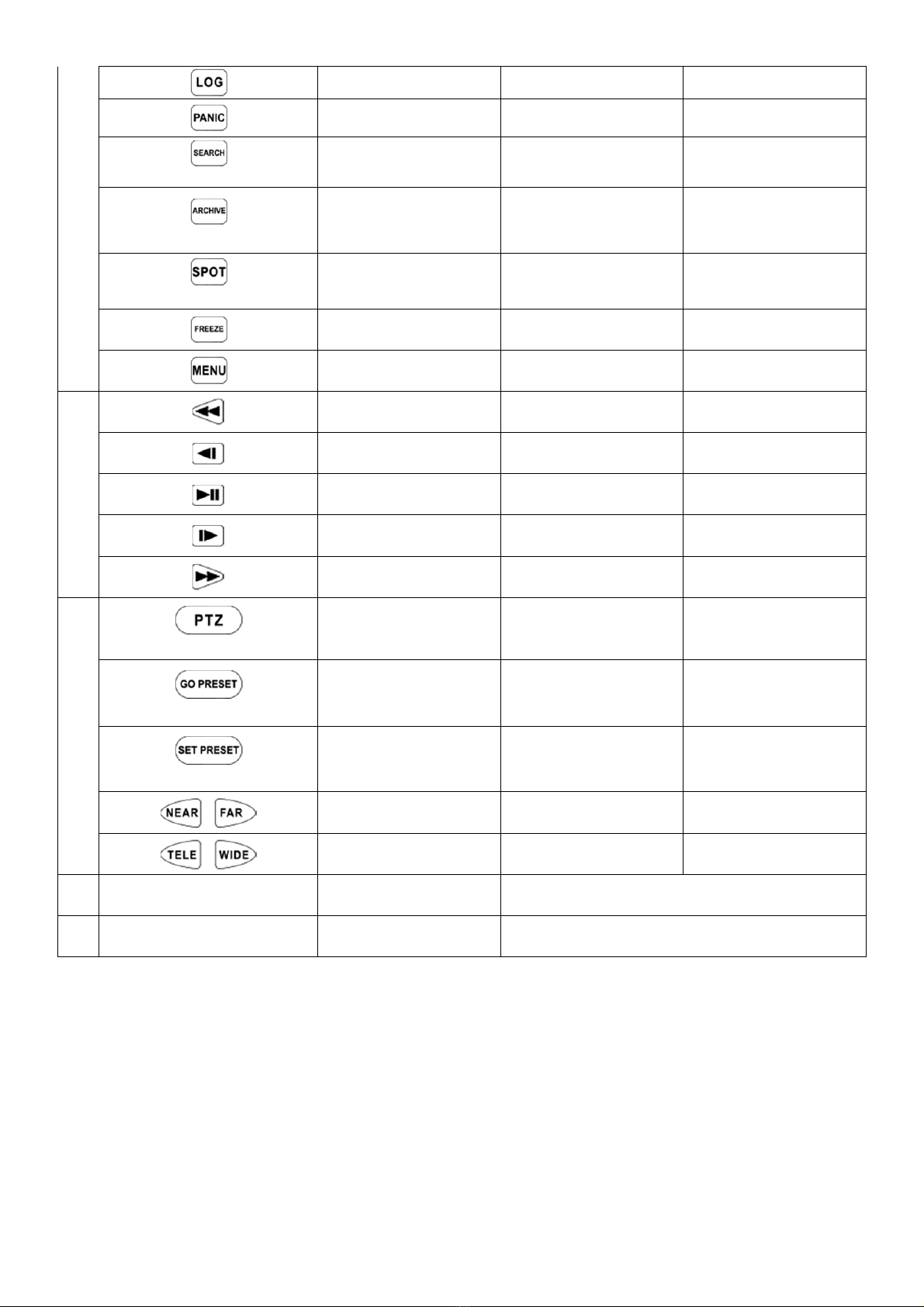
11.3 Keyboard Configuration
KEYS DVR Mode SPD mode
DVR control Mode PTZ Mode
①EXIT Key N/A N/A
②
DVR Mode select Key
SPD Mode select Key
Setup Key
③
~ Number Pad Key
Clear Key
ENTER Key
④
(PRESET)
Display Key N/A Preset Key
(SCAN)
Audio Key N/A Scan Key
(AUTO)
Sequence Key N/A Auto Key
System Log Key N/A N/A
Emergency recording
Key N/A N/A
(TOUR)
Search Key N/A Activate Tour Key
(PATTERN)
Archive Key N/A Activate Pattern Key
(HOLD)
Spot control Key N/A Hold Key
Pause on Live Key N/A N/A
DVR Menu Key N/A N/A
⑤
REW Key N/A N/A
Backward Key N/A N/A
Play/Pause Key N/A N/A
Forward Key N/A N/A
FF Key NA N/A
⑥
(MENU)
PTZ Mode Key N/A Camera Menu Key
(OPEN)
N/A Activate Preset Key Open Iris Key
(CLOSE)
N/A Set Preset Key Close Iris Key
N/A Focus control Key Focus control Key
N/A Zoom control Key Zoom control Key
⑦JOYSTICK Direction key Pan, Tilt, Zoom
⑧Touch Pad Mouse N/A
11.4 Setup
11.4.1 DVR Control Mode
Press + in DVR Mode to enter Main Setup and enter password. (Default password is 0000)
Keyboard Detail Option
VER Firmware version -
DATE Date setting YY/MM/DD
TITLE SET Camera title -
CONTROL ID ID No. Change -
DVR SPD Set Baud rate 2.4Kbps~57.6Kbps
COMM Communication setting RS422 / RS485
BACKLIGHT Backlight setting for LCD OFF / ON / AUTO
SLEEP Sleep mode setting OFF / 1Min / 5Min / 10Min / 30Min / 1 Hr
BUZZER Buzzer setting OFF / ON
TERMINATE Termination OFF / ON
JOYSTICK SPD Joystick speed 50MS~300MS
PASSWORD Change password Default password: 0000
FACTORY SET Factory reset -
SAVE/EXIT Save and Exit NO / YES
11.4.2 Speed Dome Setup
Press + in SPD Mode to enter Speed Dome Setup and enter password. (Default password is 0000)
Keyboard Detail Option
ADDRESS Camera ID number 1~255
MODEL Select Camera -
PROTOCOL Set Protocol PEL-D / PEL-P / W-DRX / SAM-E / LGP /
SAM-T / PANAS / VICON / AD / HWELL
BAUDRATE Set Baud rate 2.4Kbps~57.6Kbps
PARITY Set Parity NONE / EVEN / ODD
PROP Set Camera speed Slow PTZ => PROP: ON
Speed PTZ => PROP: OFF
11.4.3 Joystick Calibration
Press + to enter Joystick Calibration and enter password. (Default password is 0000)
Keyboard Detail Option
PTZ OFFSET Rest position value setting -
PAN LEFT Left Pan value setting -
PAN RIGHT Right Pan value setting -
TILT UP Tilt Up value setting -
TILT DOWN Tilt Down value setting -
ZOOM WIDE Zoom Wide value setting -
ZOOM TELE Zoom Tele value setting -

11.5 Operation
11.5.1 DVR/SPD Mode Conversion
Press “System ID” + “ ” to enter DVR control Mode.
Press “Speed Dome Camera ID” + “ ” to enter PTZ camera control Mode.
Example
If a user wishes to connect to SYSTEM ID 3 DVR then press Num Pad “ “+ “ ”.
If a user wishes to connect to Speed Dome camera ID 3 then press Num Pad “ “ + “ ”.
11.5.2 DVR Control Mode
11.5.2.1 Connection
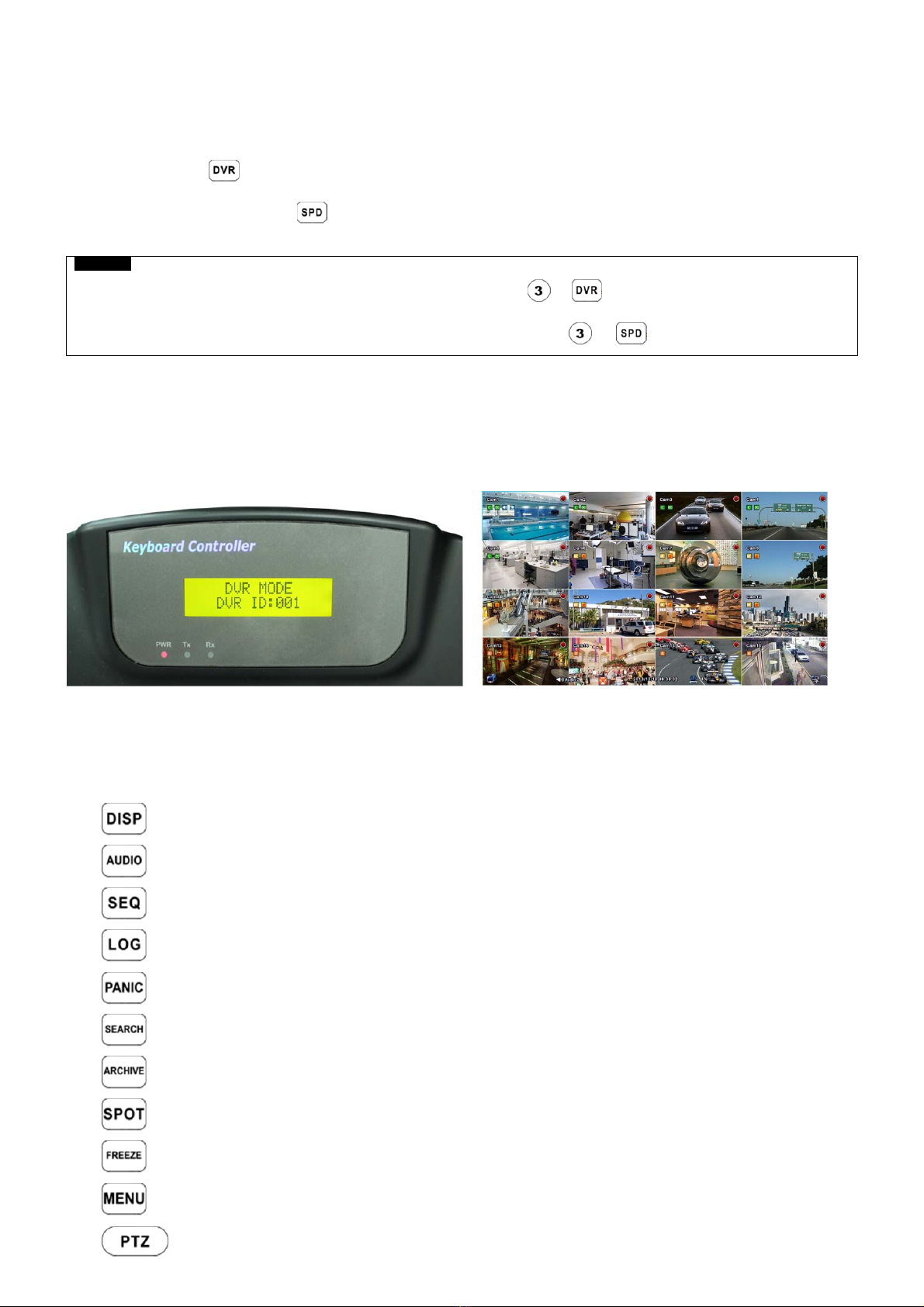
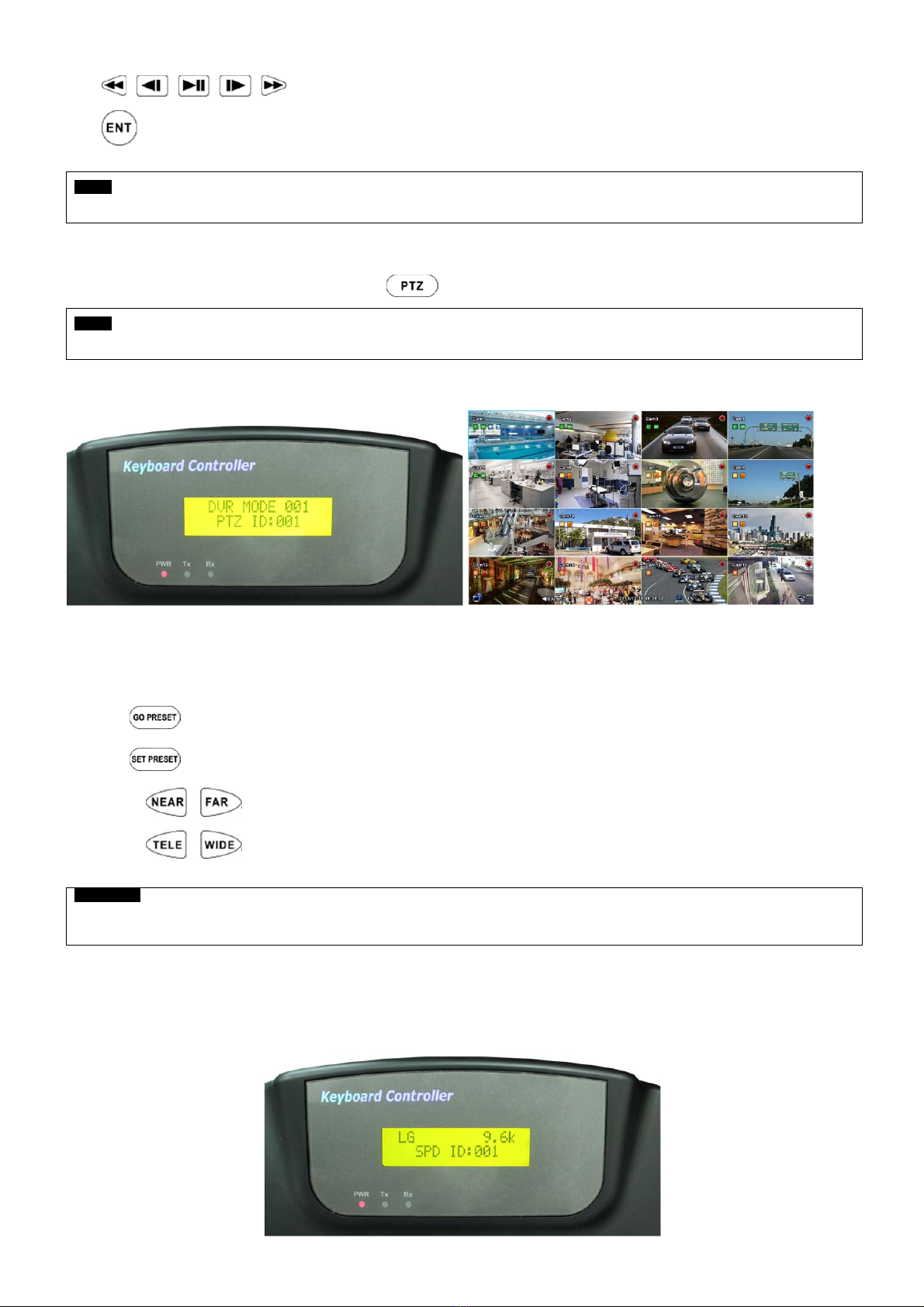
If the DVR Control Mode is selected followings will display on Keyboard LCD and Live OSD as “KBD: #” on the right-bottom
corner.
Then, a user should be able to operate the DVR functions by AVK-P2500 .
11.5.2.2 Buttons
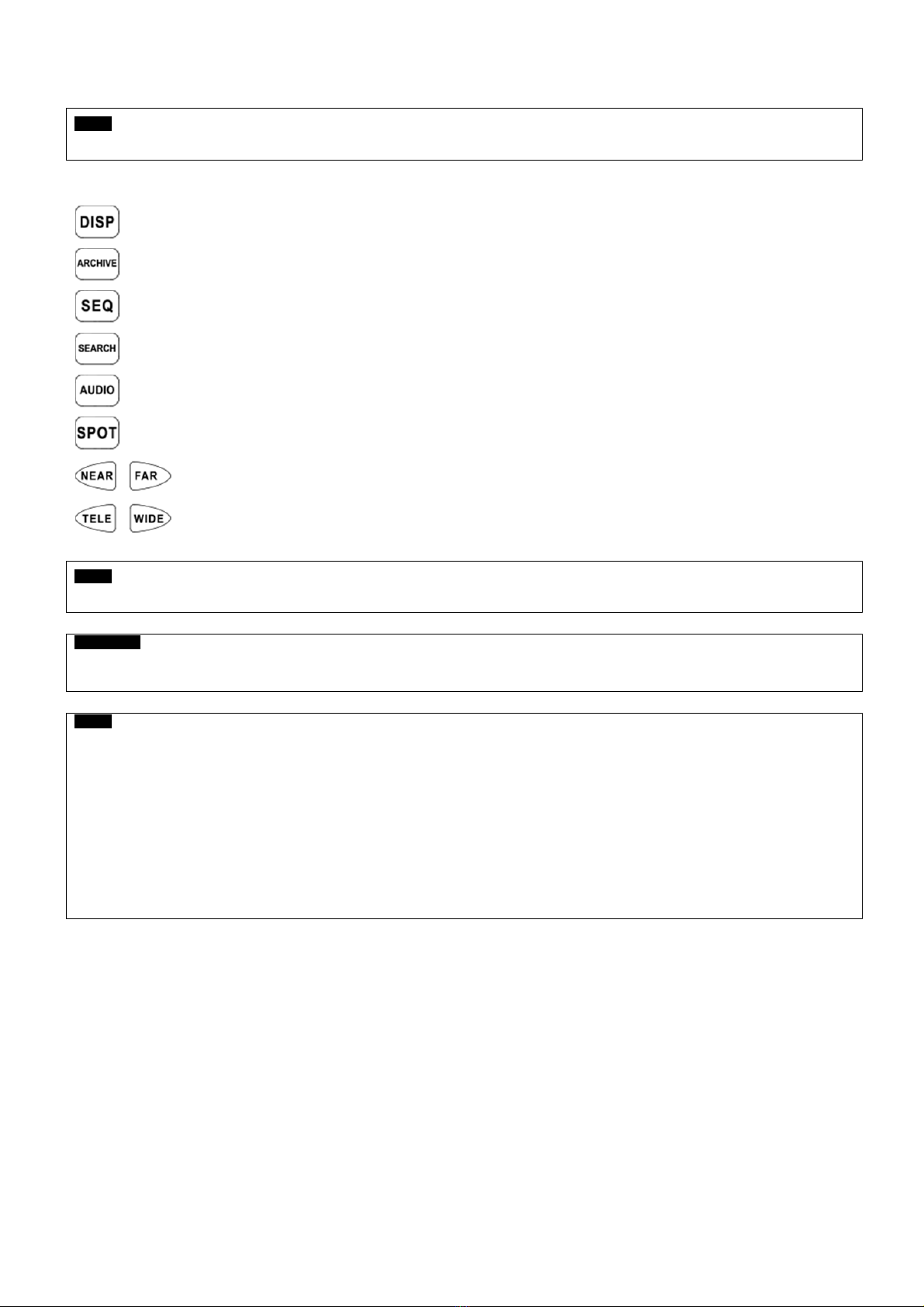
In DVR control mode, all buttons are operated according to texts written on each button. The functions are same as Front
buttons of DVR as follows:
-: Change display mode on Live and Playback in sequence of 1CH>4CH>9CH>16CH>1CH.
-:Activates and the AUDIO function and change Audio channel
-: Turn on/off Sequence function. Only supports 1CH, 4CH, 9Ch display mode
-: Pop up System Log
-: Active Emergency recording.
-: Pop up Search Menu in Live or switches to Live in Playback mode.
-: Pop up Archive window.
-: Change the channel of a monitor connected to the Spot output.
-: Freeze a current image in Live mode ONLY.
-: Pop up Setup window.
-: Enter PTZ control mode and able to use PTZ function of DVR.
-, , , , : Playback control in DVR Search Mode.
-:View a channel in full screen (by selecting a number with ENTER button).
NOTE
For detailed information on PTZ Mode, please refer to 4.3.5 Camera.
11.5.2.3 PTZ Mode
In order to enter PTZ mode, press “Camera ID” + “ “.
NOTE
PTZ Mode only can be switched from DVR Mode.
If the PTZ Mode is selected following will display on Keyboard LCD and OSD
Then, a user should be able to operate the PTZ camera with AVK-P2500 .
In PTZ mode, all buttons are operated according to texts written on each button. The functions are same as Front buttons of
DVR as follows:
-# + “ “ will move to saved Preset point.
-# + “ “ will save new Preset point under #.
-Press “ “ to adjust the Focus.
-Press “ “ to activate the Zoom.
WARNING
DEPENDING ON THE PROTOCOL BEING USED BY THE SPEED DOME CAMERA, CONTROLLING CAMERA MENU
COULD BE DIFFERENT. PLEASE CHECK SPEED DOME CAMERA MANUAL.
11.5.3 SPD Control Mode (Speed Dome)
11.5.3.1 Connection
If the SPD Control Mode is selected followings will display on Keyboard LCD:
Then, a user should be able to operate the Speed Dome camera directly with AVK-P2500 .
NOTE
Please check Protocol and Baud rate before operating the Speed Dome Camera using AVK-P2500 .
11.5.3.2 Buttons
(PRESET): Press number Key and PRESET then the camera will move to designated point.
(PATTERN): Press number Key and PATTERN then the designated Pattern will run
(AUTO): Press number Key and AUTO then the designated Auto will run.
(TOUR): Press number Key and TOUR then the designated Tour will run.
(SCAN): Press number Key and SCAN then the designated Scan will run.
(HOLD): Press HOLD to lock the Keyboard. To unlock a user has to input Password. (Default password is 0000)
: Press NEAR/FAR to adjust the focus of Speed Dome camera.
: Press TELE/WIDE to adjust the zoom of Speed Dome camera.
NOTE
SPD Control Mode is only supported when Speed Dome Camera is directly connected to AVK-P2500 .
WARNING
DEPENDING ON THE PROTOCOL BEING USED BY THE SPEED DOME CAMERA, CONTROLLING CAMERA MENU
COULD BE DIFFERENT. PLEASE CHECK SPEED DOME CAMERA MANUAL.
NOTE
When a Key does not Work after Set up
-If the communication speed of DVR and CP are not co-related, it may not work. Please make sure the Baud rate of Keyboard sets on
9.6kbps.
-Press the button to enter PTZ mode and switch to DVR mode again.
-Please reboot the DVR.
When Tx Blinks Continually on the LED Window
-If Tx blinks continually without any operation, it may be caused by improper set up of Joystick.
-OFFSET of the Joystick may not appropriately set up.
-Please do Joystick calibration.