manuals.online logo
Brands
  1. Home
  2. •
  3. Brands
  4. •
  5. Behringer
  6. •
  7. Music Mixer
  8. •
  9. Behringer B-CONTROL DEEJAY BCD2000 User manual

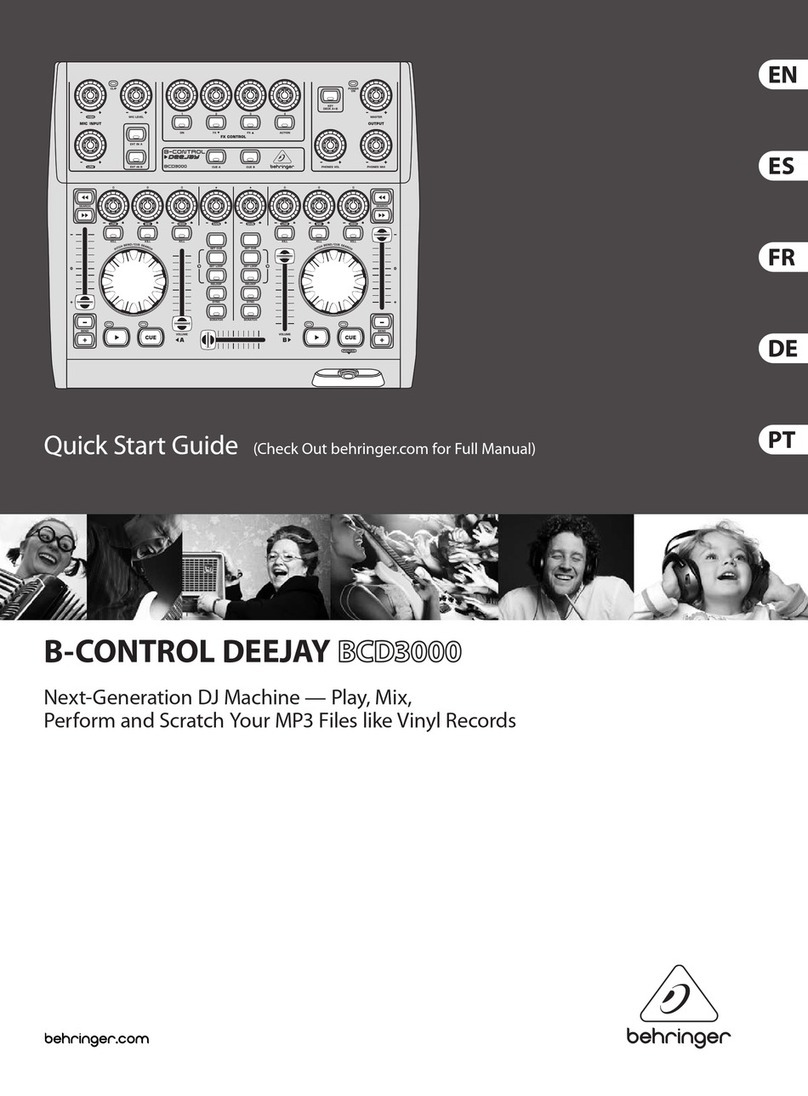
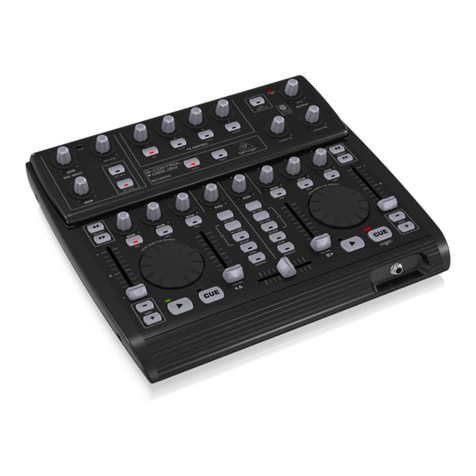
Behringer B-CONTROL DEEJAY BCD2000 User manual

Other manuals for B-CONTROL DEEJAY BCD2000

4

Other Behringer Music Mixer manuals

Behringer Eurorack UBB1002 User manual

Behringer

Behringer Eurorack UBB1002 User manual

Behringer EURORACK UBB1002 User manual

Behringer

Behringer EURORACK UBB1002 User manual

Behringer X32 DIGITAL MIXER User manual

Behringer

Behringer X32 DIGITAL MIXER User manual

Behringer DJX400 User manual

Behringer

Behringer DJX400 User manual

Behringer DANALOG DDX3216 User manual

Behringer

Behringer DANALOG DDX3216 User manual

Behringer EURORACK PRO RX1602 User manual

Behringer

Behringer EURORACK PRO RX1602 User manual

Behringer EURORACK UB1204-PRO User manual

Behringer

Behringer EURORACK UB1204-PRO User manual

Behringer PRO MIXER DX1000 User manual

Behringer

Behringer PRO MIXER DX1000 User manual

Behringer Xenyx QX2442USB User manual

Behringer

Behringer Xenyx QX2442USB User manual

Behringer XENYX 1002B User manual

Behringer

Behringer XENYX 1002B User manual

Behringer PRO MIXER DJX750 User manual

Behringer

Behringer PRO MIXER DJX750 User manual

Behringer Xenyx 502 User manual

Behringer

Behringer Xenyx 502 User manual

Behringer Europower PMH880S User manual

Behringer

Behringer Europower PMH880S User manual

Behringer Minimon Mon800 User manual

Behringer

Behringer Minimon Mon800 User manual

Behringer Powerplay 16 P-16M User manual

Behringer

Behringer Powerplay 16 P-16M User manual

Behringer X32 DIGITAL MIXER User manual

Behringer

Behringer X32 DIGITAL MIXER User manual

Behringer Pro Mixer NOX1010 User manual

Behringer

Behringer Pro Mixer NOX1010 User manual

Behringer EURORACK PRO RX1202FX User manual

Behringer

Behringer EURORACK PRO RX1202FX User manual

Behringer Digital Pro Mixer DDM4000 User manual

Behringer

Behringer Digital Pro Mixer DDM4000 User manual

Behringer XENYX 1002 User manual

Behringer

Behringer XENYX 1002 User manual

Behringer B-Control Deejay BCD3000 User manual

Behringer

Behringer B-Control Deejay BCD3000 User manual

Behringer B-CONTROL DEEJAY BCD2000 User manual

Behringer

Behringer B-CONTROL DEEJAY BCD2000 User manual

Behringer EURORACK PRO RX1202FX User manual

Behringer

Behringer EURORACK PRO RX1202FX User manual

Behringer EUROPOWER PMP560M User manual

Behringer

Behringer EUROPOWER PMP560M User manual

Popular Music Mixer manuals by other brands

Denon DN-HC5000 - Serato ITCH Hardware/Software... Service manual

Denon

Denon DN-HC5000 - Serato ITCH Hardware/Software... Service manual

Yamaha WC42260 owner's manual

Yamaha

Yamaha WC42260 owner's manual

Vertiv KMMLED156 Quick installation guide

Vertiv

Vertiv KMMLED156 Quick installation guide

Yamaha EMX3000 user manual

Yamaha

Yamaha EMX3000 user manual

Mackie Onyx Analogue Mixer brochure

Mackie

Mackie Onyx Analogue Mixer brochure

Peavey S-32 Sanctuary Series Operation guide

Peavey

Peavey S-32 Sanctuary Series Operation guide

Rane MP 4 Operator's manual

Rane

Rane MP 4 Operator's manual

True T9 Touchscreen Console owner's manual

True

True T9 Touchscreen Console owner's manual

Studiomaster Air Pro 24 instruction manual

Studiomaster

Studiomaster Air Pro 24 instruction manual

Yamaha MV802 owner's manual

Yamaha

Yamaha MV802 owner's manual

Roland SoundCanvas SC-8820 owner's manual

Roland

Roland SoundCanvas SC-8820 owner's manual

Roland M-160 owner's manual

Roland

Roland M-160 owner's manual

Yamaha MR1642 Operation manual

Yamaha

Yamaha MR1642 Operation manual

Pioneer DJM 909 - Battle Mixer W/Effects operating instructions

Pioneer

Pioneer DJM 909 - Battle Mixer W/Effects operating instructions

Veeder-Root TLS-350 Series System setup manual

Veeder-Root

Veeder-Root TLS-350 Series System setup manual

Alto APM80.QUAD user manual

Alto

Alto APM80.QUAD user manual

Omnitronic PM-211 user manual

Omnitronic

Omnitronic PM-211 user manual

SoundCraft B400 user guide

SoundCraft

SoundCraft B400 user guide

manuals.online logo
manuals.online logoBrands
  • About & Mission
  • Contact us
  • Privacy Policy
  • Terms and Conditions

Copyright 2025 Manuals.Online. All Rights Reserved.

B-CONTROL DEEJAY BCD2000
Version 1.0 June 2005
Users Manual
2
B-CONTROL DEEJAY BCD2000
This symbol, wherever it appears, alerts you to the
presence of uninsulated dangerous voltage inside
the enclosurevoltage that may be sufficient to
constitute a risk of shock.
This symbol, wherever it appears, alerts you to
important operating and maintenance instructions
in the accompanying literature. Please read the
manual.
IMPORTANT SAFETY INSTRUCTIONS
CAUTION: To reduce the risk of electric shock, do not remove
the top cover (or the rear section). No user
serviceable parts inside refer servicing to qualified
personnel.
WARNING: To reduce the risk of fire or electric shock, do not
expose this appliance to rain and moisture. The
apparatus shall not be exposed to dripping or
splashing and no objects filled with liquids, such as
vases, shall be placed on the apparatus.
DETAILED SAFETY INSTRUCTIONS:
1) Read these instructi ns.
2) Keep these instructi ns.
3) Heed all warnings.
4) F ll w all instructi ns.
5) D n t use this apparatus near water.
6) Clean nly with dry cl th.
7) D n t bl ck any ventilati n penings. Install in acc rdance
with the manufacturers instructi ns.
8) D n t install near any heat s urces such as radiat rs,
heat registers, st ves, r ther apparatus (including
amplifiers) that pr duce heat.
9) D n t defeat the safety purp se f the p larized r
gr unding-type plug. A p larized plug has tw blades with
ne wider than the ther. A gr unding type plug has tw
blades and a third gr unding pr ng. The wide blade r the
third pr ng are pr vided f r y ur safety. If the pr vided plug
d es n t fit int y ur utlet, c nsult an electrician f r
replacement f the bs lete utlet.
10) Pr tect the p wer c rd fr m being walked n r pinched
particularly at plugs, c nvenience receptacles, and the p int
where they exit fr m the apparatus.
11) Only use attachments/access ries specified by the
manufacturer.
12) Use nly with the cart, stand, trip d, bracket, r table
specified by the manufacturer, r s ld with the apparatus.
When a cart is used, use cauti n when m ving the cart/
apparatus c mbinati n t av id injury fr m
tip- ver.
13) Unplug this apparatus during lightning st rms r when
unused f r l ng peri ds f time.
14) Refer all servicing t qualified service pers nnel.
Servicing is required when the apparatus has been damaged
in any way, such as p wer supply c rd r plug is damaged,
liquid has been spilled r bjects have fallen int the
apparatus, the apparatus has been exp sed t rain r
m isture, d es n t perate n rmally, r has been dr pped.
15) CAUTION - These service instructi ns are f r use by
qualified service pers nnel nly. T reduce the risk f electric
sh ck d n t perf rm any servicing ther than that c ntained
in the perati n instructi ns unless y u are qualified t d
s .
3
B-CONTROL DEEJAY BCD2000
BCD2000
B-CONTROL DEEJAY BCD2000
The Ultimate DJ MachinePlay, Mix and Scratch any MP3 and WAV Files just li e
Vinyl Records
sPlay, mix and scratch any MP3 and WAV files ust like vinyl records with ultra-low latency
sFull-speed USB 4-channel audio interface plus high-resolution 24-bit A/D and D/A converters
sPerfectly complements the included BEHRINGER B-DJ software or any other DJ software
s2 scratch wheels support creative DJing such as scratching, pitch bending and cue searching
sFull-fledged DJ mixer control panel with premium quality mic preamp, 3-band kill EQ per channel, ultra-
precise faders, super-smooth crossfader and talkover function
s2 state-of-the-art phono preamplifiersone switchable to CD player
sSophisticated headphone section includes PFL Mix, Split options and direct listening to master output
mix
sPlay, Pause, Cue, Loop and Pitch Bend functions via dedicated controls for intuitive DJing
s4 user-assignable controls and buttons available for integrated FX section
sInnovative Cue logic with multiple storable cue points per song
sHigh-quality components and exceptionally rugged construction ensure long life
sConceived and designed by BEHRINGER Germany
4
B-CONTROL DEEJAY BCD2000
FOREWORD TABLE OF CONTENTS
1. INTRODUCTION ........................................................ 5
1.1 Before you get started .................................................... 5
1.1.1 Shipment .............................................................. 5
1.1.2 Initial operation ..................................................... 5
1.1.3 Online registration ................................................ 5
1.2 System requirements ..................................................... 5
2. INSTALLATION ......................................................... 5
2.1 Driver installation ............................................................ 5
2.2 Installation of the B-DJ software .................................... 6
2.3 Control panel software .................................................... 6
3. CONTROL ELEMENTS AND CONNECTIONS ......... 8
3.1 Control surface ............................................................... 8
3.2 The rear panel ................................................................ 9
4. THE B-DJ SOFTWARE ........................................... 10
5. OPERATION ............................................................ 10
5.1 First steps ..................................................................... 10
5.2 Additional DJ functions ................................................. 11
5.3 Expanded setup ............................................................ 12
5.4 Signal routing ................................................................ 12
5.4.1 Routing options with ASIO driver ....................... 12
5.4.2 Routing options with WDM/MME driver ............. 13
6. MIDI CONTROL ....................................................... 13
6.1 Sending control change functions ................................ 13
6.2 Sending button functions .............................................. 13
6.3 Receiving MIDI commands .......................................... 14
7. AUDIO CONNECTIONS .......................................... 15
8. SPECIFICATIONS ................................................... 15
. WARRANTY ............................................................ 16
Dear Customer,
welcome to the team of
BCD2000 users, and
thank you very much for
expressing your confi-
dence in us by purchas-
ing the B-CONTROL.
Writing this foreword for
you gives me great
pleasure, because it
represents the culmi-
nation of many months of
hard work delivered by
our engineering team to
achieve a very ambitious
goal: to present a first-
rate DJ system that
combines software with
controller technology.
The B-CONTROL fulfills
the wish of DJs who want intuitive and needs-oriented controllers.
The task of designing our new B-CONTROL certainly meant a
great deal of responsibility, which we assumed by focusing on
you, the discerning computer user and musician. Meeting your
expectations also meant a lot of work and night shifts. But it was
fun, too. Developing a product usually brings a lot of people
together, and what a great feeling it is when all who participated
in such a project can be proud of what theyve achieved.
It is our philosophy to share our enjoyment with you, because
you are the most important member of the BEHRINGER team.
With your highly competent suggestions for new products youve
made a significant contribution to shaping our company and
making it successful. In return, we guarantee you uncompromising
quality as well as excellent technical and audio properties at an
extremely reasonable price. All of this will enable you to give free
rein to your creativity without being hampered by budget
constraints.
We are often asked how we manage to produce such high-quality
equipment at such unbelievably low prices. The answer is quite
simple: its you, our customers! Many satisfied customers mean
large sales volumes enabling us to get better purchasing terms
for components, etc. Isnt it only fair to pass this benefit on to
you? Because we know that your success is our success too!
I would like to thank all of you who have made the B-CONTROL
possible. You have all made your own personal contributions,
from the developers to the many other employees at this company,
and to you, the BEHRINGER user.
My friends, its been worth the effort!
Thank you very much,
Uli Behringer
5
B-CONTROL DEEJAY BCD2000
1. INTRODUCTION
Thank you for expressing your confidence in us by purchasing
the B-CONTROL BCD2000. The BCD2000 features a full-speed
USB 4-channel audio interface plus high-resolution 24-bit A/D
and D/A converters. It perfectly complements the included
BEHRINGER B-DJ software or any other DJ software. And dont
let the cutesy looks fool you: this is an integrated, full-fledged
audio mixer with a premium quality mic preamp, 3-band kill EQ
per channel, ultra-precise faders, super-smooth crossfader and
talkover function.
The BCD2000 is packed with 2 state-of-the-art phono pre-
amplifiers, one of which is switchable to a CD player. Its
sophisticated headphone section includes PFL Mix, Split options
and direct listening to master output mix. Play, Pause, Cue, Loop
and Pitch Bend functions are regulated via dedicated controls for
intuitive Djing, and 4 user-assignable controls and buttons are
available for an integrated FX section. Take advantage of the
enormous processing power of modern PCs and mix, scratch
and manipulate digital music in real timeregardless of the
format!
+The f ll wing users manual is intended t familiarize
y u with the units c ntr l elements, s that y u can
master all the functi ns. After having th r ughly read
the users manual, st re it in a safe place f r future
reference.
1.1 Before you get started
1.1.1 Shipment
The BCD2000 was carefully packed at the assembly plant to
assure secure transport. Should the condition of the cardboard
box suggest that damage may have taken place, please inspect
the unit immediately and look for physical indications of damage.
+Damaged equipment sh uld NEVER be sent directly t
us. Please inf rm the dealer fr m wh m y u acquired
the unit immediately as well as the transp rtati n
c mpany fr m which y u t k delivery. Otherwise, all
claims f r replacement/repair may be rendered invalid.
+T assure ptimal pr tecti n f y ur B-CONTROL during
use r transp rt, we rec mmend utilizing a carrying
case.
+Please always use the riginal packaging t av id
damage due t st rage r shipping.
+Never let unsupervised children play with the
B-CONTROL r with its packaging.
+Please disp se f all packaging materials in an
envir nmentally friendly fashi n.
1.1.2 Initial operation
Please make sure the unit is provided with sufficient ventilation,
and never place the B-CONTROL on top of an amplifier or in the
vicinity of a heater to avoid the risk of overheating.
A power supply unit which meets the necessary safety require-
ments is enclosed for connecting the B-CONTROL to the mains.
1.1.3 Online registration
Please do remember to register your new BEHRINGER equipment
right after your purchase by visiting www.behringer.com
(alternatively www.behringer.de) and kindly read the terms and
conditions of our warranty carefully.
Should your BEHRINGER product malfunction, our goal is to have
it repaired as quickly as possible. To arrange for warranty service,
please contact the retailer from whom the equipment was
purchased. Should your BEHRINGER dealer not be located in
your vicinity, you may directly contact one of our subsidiaries.
Corresponding contact information is included in the original
equipment packaging (Global Contact Information/European
Contact Information). Should your country not be listed, please
contact the distributor nearest you. A list of distributors can be
found in the support area of our website (www.behringer.com).
Registering your purchase and equipment with us helps us
process your repair claims quicker and more efficiently.
Thank you for your cooperation!
1.2 System requirements
Minimum requirement: IBM compatible computer
Operating system Windows® XP
1 free USB port (USB 1.1)
Processor 800 MHz or higher (recommended)
192 MB RAM
min. 30 MB free hard-disk memory
Screen resolution 800 x 600 pixels,
1024 x 768 pixels recommended
DirectX® 8.1 r higher is required in
all cases!
2. INSTALLATION
2.1 Driver installation
First, install the driver on your computer. The driver is on the
CD-ROM supplied with the unit.
1. Connect the BCD2000 to a free USB port on your computer
2. Start Windows® XP
3. Once your computer has booted, switch on the BCD2000
and wait for the device to be detected by the system.
The F und New Hardware Wizard opens up
4. Close all applications, in particular those running in the
background, such as virus scanner software
5. Put the driver/software CD-ROM supplied with the unit into
the CD/DVD drive
6. In the first window that opens up, select Aut matic
s ftware installati n and click on Next >
7. If the error message Driver software has not passed
Windows Logo testing appears, ignore it and click on
C ntinue anyway to install the first part of the driver
8. Then click on Finish
9. Now the installation window for the WDM driver of the
BCD2000 appears on the screen. Again, select Aut matic
s ftware installati n and click on Next >
10. If the error message is shown again (Driver software has
not passed Windows Logo testing), ignore it and click on
C ntinue anyway
11. The second part of the driver is installed
12. Click on Finish.
The driver installation is complete. After a system reboot, the
BCD2000 is ready for use.
2. INSTALLATION
WARNING!
+We w uld like t bring y ur attenti n t the fact that
extremely l ud s und levels may damage y ur hearing
as well as y ur headph nes. Please turn the MASTER
c ntr l all the way t the left bef re p wering up the
unit. Always try t keep v lume at appr priate levels.

6
B-CONTROL DEEJAY BCD2000
2. INSTALLATION
+N te f r n teb k users: If y u enc unter pr blems
perating the BCD2000 fr m y ur system, please disable
the f ll wing settings:
1. In the Device Manager (right click n My C mputer >
Manage > Device Manager), click pti n Batteries >
disable Micr s ft ACPI-C mpliant C ntr l Meth d
Battery.
2. In the USB C ntr ller, d the f ll wing for each single
USB R t Hub: Right click > Pr perties > P wer
management > disable the pti n All w the c mputer
t turn ff this device t save p wer.
3. Restart Wind ws® XP. N w the system perf rmance f
y ur c mputer sh uld be m re stable.
2.2 Installation of the B-DJ software
Preparat ry steps:
In order to use the B-DJ software without problems, you must
have DirectX®, rev. 8.1 or higher. Please check what version of
DirectX® is installed on your system before you start to install the
software.
1. Start > Browse > Files r f lders...
2. Select the following option on the left-hand side (below
Select the item t be searched): Files and f lders
3. Enter dxdiag (= DirectX® Diagnosis) in the upper text box,
and click on Br wse
4. Double-click on the file diag.exe found in the folder
C:\WINDOWS\system32
5. In the DirectX diagnostic program now appearing, the current
DirectX® revision stored on your computer is shown at the
bottom of the main System page.
Installati n:
1. Open Windows® Explorer (My Computer > right mouse
button > Explorer)
2. In Windows® Explorer, select the drive containing the
BCD2000 driver/software CD-ROM (e. g. double click on
DVD drive (D:))
3. Select the folder B-DJ S ftware
4. Double-click on the setup file (.exe) to start installation
5. Follow the on-screen installation instructions.
After installation, the B-DJ software will be ready to operate.
Open the B-DJ program by double-clicking on the B-DJ icon on
the desktop or use Start > Programs > XYLIO B-DJ > B-DJ 1.0.
+Please n te that the B-DJ S ftware can nly be used if
the BCD2000 hardware is c nnected and switched n!
2.3 Control anel software
The BCD2000 control panel allows you to control some general
settings of the BCD2000. The control panel will be available in
the system as soon as the driver has been installed and the
BCD2000 has been connected and switched on. To start the
control panel software, click on the BCD2000 control panel symbol
in the task bar at the bottom right of your screen. If the B-DJ
software has already been started, you can also access the control
panel from the Configuration menu.
The following basic settings can be selected in the control panel:
GLOBAL MODE selecti n:
If B-DJ is selected, you can only adjust the input source for IN A
(Mic or Phono A) and the driver latency on the ASIO page (see
below). The outputs are assigned as follows:
CH 1-2: channels 1-2 are always routed to the MASTER OUT,
CH 3-4: channels 3-4 are always routed to the PHONES OUT.
Additionally, the BCD2000s MIDI characteristics differ from those
in ADVANCED mode (see below). In ADVANCED mode, all
selection options are available in the ASIO window.
The ASIO page:
Fig. 2.1: The ASIO window in the BCD2000 control panel
This is where all ASIO driver parameters can be adjusted. Most
professional music programs use ASIO, as does our B-DJ
software.
You can only select one software button per field.
In the field IN A (CH 1-2), you can select the input source to be
routed to the computer on channels 1-2 (Record).
In the MASTER OUT section, you can select the playback
channels CH 1-2 or CH 3-4 for the main outputs (Playback).
In the PHONES OUT field, you can select the playback channels
CH 1-2 or CH 3-4 for the headphones connector (Playback).
Use DRIVER LATENCY to adjust the latency in order to optimize
your computers performance. If you set the control to l w this
will optimize the response of your BCD2000, but also increase
the processor workload. In extreme cases, this can lead to clicking
and drop-outs in the audio signal. The mid position gives you a
good compromise between processor workload and the response
time of the BCD2000. A high latency ensures trouble-free
performance even on slow computers.
+Latency is the time that elapses between an perat r
acti n n the BCD2000 (e. g. pressing the PLAY butt n)
and the actual utput f the audi signal fr m the OUT
c nnect rs. Latency depends n the system used and
the pr cessing speed f y ur c mputer. Typical
latencies are in the millisec nds range (1 ms = ne
th usandth f a sec nd). M st pe ple cann t hear
latencies bel w 10 ms. When audi signals are passing
thr ugh a c mputer, it is imp ssible t achieve a 0-ms
latency.
7
B-CONTROL DEEJAY BCD2000
The WDM/MME page:
Fig. 2.2: The WDM MME window in the BCD2000 control panel
Use the WDM/MME driver if your music software does not support
ASIO (e. g. most software media players).
RECORD SELECT allows you to select BCD2000 input IN A or
IN B for 2-channel recording.
When you choose IN A, you can determine in the left-hand field
whether the phono or microphone signal will be recorded.
PLAYBACK of this driver type is always stereo (channels 1-2).
For this reason, the MASTER OUT connectors on the rear panel
and the PHONES connector on the front panel always provide
the same music signal.
The MIDI page:
Fig. 2.3: The MIDI window in the BCD2000 control panel
On the MIDI page no parameters can be set. It only informs you
about the various MIDI modes, depending on the GLOBAL MODE
selected:
In B-DJ mode, the buttons are toggle off, i. e. when you release
a button after pressing, the MIDI command is set back to its
original value (like when you release a key on a keyboard).
In B-DJ mode, all LEDs can be switched on and off individually
with specific MIDI commands.
In ADVANCED mode, all buttons are toggle on, i. e. press =
switch on press again = switch off the MIDI function (similar
to a light switch).
In ADVANCED mode, the response of the button LEDs depends
on the respective button, i. e. LED on = function enabled, LED
off = function disabled.
2. INSTALLATION
8
B-CONTROL DEEJAY BCD2000
3. CONTROL ELEMENTS AND CONNECTIONS
The various control elements of your BCD2000 are described in this chapter. All controls and connections are explained in detail, and
there are several useful tips on their use.
3.1 Control surface
Fig. 3.1: The BCD2000s control elements
The FX CONTROL secti n
These four controls as well as the buttons A to D can
have various software functions assigned to them. By default they
are assigned to the two effects sections.
Use the ANALOG INPUT buttons to select the input source.
If the buttons are not pressed, the signals from decks A and B of
the software are played back. When you press a button, the analog
input signal will be added to the corresponding deck in the B-DJ
software. Deck A can play back the phono input A or the
microphone signal. Deck B plays back the signal applied at
input B (phono or CD). The input source for deck A is chosen in
the control panel (see chapter 2.3), while the input source for
deck B is selected on the rear panel (phono/line switch ).
The OUTPUT secti n
The PHONES output (1/4" stereo connector) is used for
connecting headphones.
Use the PHONES control to adjust the volume for the
headphones output .
The micr ph ne input secti n (MIC INPUT)
Set the volume of the microphone signal with the MIC LEVEL
control.
The CLIP LED illuminates as soon as the microphone signal
level is too high and could possibly cause audible distortion.
If this happens, slightly turn the MIC LEVEL control counter-
clockwise.
The microphone input section has a 2-band equalizer
(EQ HIGH for high frequencies and EQ LOW for low
frequencies).
Use the TALKOVER button to activate the softwares talk-
over function. The talk-over function reduces the master
output signal and can come in handy when your own voice
needs to be prominently heard. When you want to make an
announcement, also press button .
The ON AIR button routes the microphone signal to the
master output signal.
9
B-CONTROL DEEJAY BCD2000
3. CONTROL ELEMENTS AND CONNECTIONS
The PFL MIX control determines the headphone volume
ratio between deck A and deck B. Both signals can be heard
in both earcups (stereo). When the PHONES SPLIT button
is pressed, it controls the volume ratio between the
signals of deck A in the left and deck B in the right earcup.
PHONES SPLIT MASTER OUT button. In the position
PHONES SPLIT (press button briefly) the signals of both
decks are separated in the headphones. In this case, they
will be audible in mono in each earphone. In the position
MASTER OUT (keep button pressed until button LED starts
flashing), the same signal is applied to the headphones
output and the master outputs. This allows you to control
your crossfader skills, for example, when practicing at home
or when there is nothing connected to the master outputs.
Set the volume of the MASTER output with the
MASTER OUTPUT control.
The POWER ON-LED lights up when the BCD2000 is
switched on.
The deck secti ns A and B
The control elements of decks A and B are the same. However,
some of them are grouped the opposite way round. We will
therefore describe the elements to only once. All of
these control elements refer to the software functions which can
be remotely controlled from the BCD2000.
The crossfader is used to fade between deck A and deck B.
Use the GAIN control to adjust the input signal.
Each deck features a 3-band equalizer (HI, MID and LOW)
with kill feature. Thus, the signal can be attenuated to a
much greater extent (-36 dB) than it can be raised (+12
dB). The CUT buttons below the EQ controls give you
maximum signal attenuation at the touch of a button. In this
way, you can fade out a specific frequency range of a music
piece completely and produce interesting filter effects. For
beat juggling, too, this function is a must.
When you press the BACK TO TOP button, the song position
pointer is set back to the beginning of the piece. Playback
stops even though the deck has just played!
LOOP IN END determines the start and end points of a
sequence to be played back several times in a loop. Press
the button to set the loop start point, and then again to set
the end point. Once the end point has been set, the loop
starts, i. e. the sequence is played back from the start point
and is repeated until you press the LOOP OUT button.
LOOP OUT deactivates the loop which was started with
button . Depending on the setting chosen in the software
configuration, the loop is either deleted directly or repeated
one more time.
SYNC SLAVE is a function which allows you to automatically
adapt the tempo of two music pieces to each other. The
song whose SYNC SLAVE button is pressed, is auto-
matically adapted to meet the tempo of the song currently
playing.
The scratch function is usually active only when the deck is
in pause mode. The SCRATCH button activates the scratch
function of the scratch wheel also during playback (PLAY
button pressed).
With the VOLUME fader, you can control the volume. While
mixing, it is important to have the same volume in both
decks.
Use the CUE button to set and select the cue points. Press
the CUE button a little longer to delete the currently selected
CUE point. How to use the CUE function is described in
chapter 5.2.
Playback is started with the PLAY PAUSE button. Press
this button again to stop playback. Press the button once
again to resume playback from the position where it stopped.
BEND button. Press the UP button (+) to raise the playback
tempo. Press the DOWN button () to slow down the
playback tempo. With this function you can synchronize the
beats of two pieces currently running. In the Configuration
window of the B-DJ software you can adjust the percentage
by which the tempo is changed.
The pitch fader provides continuously adjustable playback
tempo control. The pitch range can be adjusted in the
Configuration menu.
Use the SEARCH buttons to move forward or backward in
a song.
The function performed by the scratch wheel depends on
whether the deck is in PLAY or PAUSE mode.
PLAY: pitch bend is active. This function mimics the
pitching technique (accelerating and slowing down the
turntable to adapt the rhythm of two vinyl records to each
other). Turn the scratch wheel clockwise to raise the
playback tempo. Turn it counter-clockwise to slow down
the tempo. However, if the SCRATCH button is pressed,
you can also scratch during playback.
PAUSE: Cue Search is active: You can both scratch and
locate exact cue positions.
3.2 The rear anel
Fig. 3.2: The rear-panel audio connectors of the BCD2000
MIC INPUT. The MIC IN connector is the balanced XLR
input for your dynamic microphone.
The analog input A (PHONO) is used for connecting a
turntable.
Connect the ground cable on your turntable to the GND
screw on the BCD2000 housing.
Analog input B. To connect a CD player or tape deck to this
input, set the switch to LINE.
Connect the MASTER OUTPUT to your power amplifier. It
provides the main output signal, which can be adjusted with
the MASTER control .
SERIAL NUMBER.
10
B-CONTROL DEEJAY BCD2000
Fig. 3.3: POWER switch, mains and USB connectors
The USB connector is used for connecting to a computer
with a compatible USB port. The BCD2000 uses the USB
connector to send and receive audio and control data.
A standard power socket is provided for connection to the
mains. A matching power cable is included with the unit.
The POWER switch turns your BCD2000 on and off. It
should always be in the OFF position (out) when connecting
the unit to or disconnecting the unit from the mains.
+Please n te: The p wer switch d es n t c mpletely
separate y ur BCD2000 fr m AC p wer. If y u plan n
n t using y ur BCD2000 f r a pr l nged peri d f time,
please disc nnect it fr m the mains by rem ving the
p wer cable fr m the wall utlet.
4. THE B-DJ SOFTWARE
Heres a short overview of the enclosed B-DJ program. Since
many program functions are controlled from the B-CONTROL,
chapter 5 describes how to work with the B-DJ system (hardware
and software) as a whole. A detailed description of the B-DJ
software can be found in the enclosed B-DJ manual (pdf document
accessible via Configuration > Help).
Fig. 4.1: The main B-DJ window
The B-DJ user interface is divided into several sections: the two
decks are displayed in the lower left and right halves of the screen,
like two CD players or turntables (deck A is on the left and deck B
is on the right). Between the two decks, there is the mixer section
with the crossfader and level indicators for both decks as well as
the master level indicator.
The List Browser is located in the upper half of the screen, on the
left the list currently selected is shown on the right.
In the middle of the screen, there are the two graphic waveform
displays showing the tracks currently loaded in the decks.
5. OPERATION
5. OPERATION
The operating concept of the B-DJ system has been designed so
that you will understand it quickly and intuitively. All control
elements are arranged in a way you probably know from DJ mixers
or DJ CD players. The user interface (BCD2000 Blue Skin) is
almost identical to the user interface of the BCD2000, so that you
can control as many functions as possible from the B-CONTROL,
thus knowing immediately where to do whatwithout having to
touch your computer mouse.
5.1 First ste s
Wiring
First of all, connect all the devices you need to the BCD2000.
Make sure the unit is off before connecting it to other equipment.
If you want to use the BCD2000 without additional audio sources
(CD player, turntable, microphone), you only need to wire the
outputs:
Fig. 5.1: Standard wiring of the BCD2000
Connect the MASTER output to your hi-fi system, a pair of
active speakers or the PA system in the club where you are
playing. Connect your headphones to the PHONES output .
The BEHRINGER DJ headphones HPX4000 are particularly well
suited.
Pr gram launch
Once you have installed the driver and B-DJ software, you can
launch the program. Boot your computer, then switch on the
BCD2000. Your computer will detect the driver and display the
control panel icon. Start the B-DJ program via the Start bar or by
clicking on the B-DJ icon.