
Bosch DiBos User manual

OPERATING INSTRUCTIONS

– 2 –BOSCH Security Systems GmbH A1 02.03
Contents
OPERATING INSTRUCTIONS DiBos
4.998.137.631 A1
Introduction and safety instructions 3. . . . . . . . . . . . . . . . . . .
Introduction to the system 4
Password 4
Logging on 4
Changing users/logging off 4
Exiting the system / ending the program 4
The basic live image window 5
General information 6
Basic window menu bar 7
Basic window toolbar / alarm simulation bar 8
Basic window status bar / connection window 9
Controlling a dome camera 10
The basic image archive window 12
Image archive menu bar 13
Image archive toolbar 14
Image archive toolbar / alarm simulation bar 15
Image archive status bar / connection window 16
Recorder buttons
Looking at, printing, saving, swapping out,
and deleting archive images 17
Deleting archives / searching for archive
images and additional data 18
Connecting backup drive and / swapping
out archive images on diskette 19
Formatting a CD 20
Swapping out data on CD 22
Alarm simulation 23
Connection with a remote station 24
Searching for and looking at archive
images from the remote station 26
Notes 27

– 3 –BOSCH Security Systems GmbH A1 02.03
Introduction and safety instructions
Service station:
Telephone:
What do these operating instructions tell you?
These operating instructions provide you with all relevant information that
you need in order to perform the tasks described in the table of contents
quickly and easily.
You will find more detailed information about the respective screens online
on your system if you press the F1 key or click the Help button.
Caution!
To avoid electrical shock, do not remove the cover. Leave all
maintenance to qualified personnel.
Warning!
To avoid fire or electrical shock, never expose the device to rain or
humidity.
Warning!
Installation should only be undertaken by qualified customer service
personnel in accordance with all applicable electrical regulations.
Power connection!
Devices with or without power cords have voltage in the device as
soon as the power cord is plugged into the outlet. However, the
device is only ready for use if the power switch (ON/OFF) is on ON.
If you unplug the power cable from the outlet, the voltage supply to
the device is completely halted.
Notes on cleaning
When cleaning the surface, be sure that you do not use any
caustic or scrubbing cleansers and that no liquid gets inside the
device.
The device may only be operated by trained
persons! For security reasons and in order to avoid faulty
operation, any authorization code required for operation
should only be communicated to these persons.
Note
It your are not able to accomplish some of the described steps of
this manual, it may be that you don’t have the rigth authority level.
In this case please contact your authorized dealer.

– 4 –BOSCH Security Systems GmbH A1 02.03
Introduction to the system
For the password, there are no restrictions as to the type and number
of characters permitted.
You can change the password on the System menu.
Password
You must log on to the system in order to commence operation.
After you have switched on the system and the live image screen appears, you will see a dialog box in the middle of the screen that invites
you to log on.
When the computer is booted, the system runs automatically in the background and is able to respond to signals and record images. You
must only log on if you wish to perform operating tasks. Only authorized users have access to operate the system, based on a password.
Depending on your access privileges, with the user interface you can:
·view live images for monitoring purposes and manually switch camera views
·open the image archive and retrieve, print, and delete saved images
·perform system configuration
·perform an alarm simulation
Enter your user name and password and confirm with OK. You are
now on the live image.
The live image consists of the live image basic window, which is also
displayed if no video station was selected or one or several
connection windows
Logging on
Select System from the menu bar and click Exit system.
Exiting the system / ending the program
On the System menu, you can change users or log off. During a
change of user, the system continues to run in the background. This
is recommended if you leave the system.
Changing users/logging off
Logon screen

– 5 –BOSCH Security Systems GmbH A1 02.03
The basic live image window
1Menu bar
2Toolbar
3Status bar
Connection window
4Title bar of the connection window for the
selected station
5Display all configured cameras of the
selected station
6Display of selected camera images
7Display of status of all configured alarm
inputs of the selected station and re
lay statuses
The basic live image window
Display of several live images
You can display several live images, depending on the number of connected and configured cameras. The live images are always arranged
automatically from left to right in consecutive rows.
For each camera marked with a , a live image is shown.
14
5
2
6
7
3
General information

– 6 –BOSCH Security Systems GmbH A1 02.03
The basic live image window
General information
If several cameras are selected and activated with the left mouse button (highlighted in blue), these camera images can
all be shown together. Click to show and hide the camera images.
If you click the Ctrl key and click the left mouse button on selected cameras, you can combine these into non–continuous
camera blocks.
If you click the Shift key and clickthe left mouse button on the first and last selected cameras, you can create continuous blocks.
If you click this button (in the upper right corner), you will minimize (depending out the configuration) the basic window.
This gives you the opportunity to look at the minimized images and to edit texts in the interface simultaneously.
Click to return to a full–sized image.
Camera deactivated
Camera activated: if you click this box, you can activate the camera and show the live image.

– 7 –BOSCH Security Systems GmbH A1 02.03
?
The menu bar of the basic window in the live image
Image archive: change to the image archive
Configuration: change to the configuration
Alarm simulation: trigger an alarm or other actions
Change user: log the user off and log on screen for new
user
Change password: change the password
Exit system: end the program (administrator)
Establish connection: establish connection via ISDN/network/
modem
Terminate connection: terminate connection via ISDN/network/
modem
Local connection: establish local connection (live image)
Connection
Camera switching: to the next camera selected with
Image quality: image compression can be changed
save displayed
images: Activate and deactivate automatic saving
from all images displayed
Camera
Toolbar: on/off
Status bar: on/off
Alarm simulation bar: on/off
Full Screen mode: enlarges the image of the selected camera
to full–screen size
View
Tile: open windows are displayed next to one another
Cascade: open windows are displayed overlapping one
another (cascading)
Arrange icons: icons can be deposited at the bottom of the window
Station X: all stations with a connection are displayed
Windows
Help topics: calling up online Help
Info: Info about the system, e.g. version and
serial number
System

– 8 –BOSCH Security Systems GmbH A1 02.03
Basic window toolbar / alarm simulation bar in live image
NameIcon
Image
archive
Explanation
Look at, search for, swap out or print
saved images in local/remote archives.
Configuration Hardware, image saving, image
transmission, and user settings.
Not active with integrated operating
station.
Alarm
simulation The configured alarm simulation
buttons will be called up.
Connect with a remote station
(network/ISDN/DSL/modem)
Terminate established connection will be
terminated.
Local
connection Connection will be established to the
local system.
Full Screen
mode Enlarges the image of the selected
camera to full–screen size.
Save images
displayed Activate, deactivate automatic saving of
all images displayed. With
simultaneous generation of a separate
archive in the image archive with the
name <Computername>_normal.
Automatic
camera
switchover
Switchover of all cameras displayed.
Help If you place the mouse pointer over an
object, you will receive help with that
object.
Alarm
simulation Buttons for the configured alarm
simulation signals or other configured
actions.
Free–standing
Alarm simulation 1 triggered
Alarm simulation 3 and 4 not configured
Alarm simulation 2 not triggered
The alarm simulation bar can be embedded in the toolbar or
free–standing.
Embedded
NameIcon Explanation

– 9 –BOSCH Security Systems GmbH A1 02.03
Existing / approved cameras will be
displayed in live image.
Display of the existing / approved cameras
Basic window toolbar / connection window in live image
The Status bar (lowermost line of the screen) contains help
information about the menu you are currently using. It shows the
name of the remote station to which an external connection has just
been established.
The Title bar contains:
– the window title with the name of the selected station and
– the buttons to minimize, maximize and close the window.
Clicking minimizes the window and places it at the bottom
edge of the screen.
Clicking restores the window to normal size.
Terminates the existing connection
Configured alarm inputs are displayed
in the live image
On the left side of the screen, you will find a list of the configured
cameras.
The lower portion of the image displays all configured alarm inputs.
Status display of the configured alarm inputs
The statuses of all configured alarm inputs are displayed as follows.
no icon Input is in standby
Input has triggered
?Input does not exist as hardware
Display of the configured alarm inputs
Contact input or video motion detector of
a camera
Foyer card reader / barcode reader
Configured relay outputs can be activated
and deactivated by clicking with the right
mouse button
on

– 10 –BOSCH Security Systems GmbH A1 02.03
Control of a dome camera
e.g. to the left
If a dome camera is configured, an arrow will appear in its live
image if the user moves the mouse (variable speed) over the live
image. With the left mouse button, you can control the camera in
the direction of the activated arrow.
e.g. to the right
A magnifying glass appears in the middle of the screen. If
you see a +sign, this means that you are zooming in on
the image. If you see a –sign, the camera angle is getting
larger.
Here you can set the focus (sharp/ blurred) and aperture (open /
close).
e.g. up
e.g. down
Configured dome camera
+Zoom in: reduce camera angle (zoom in)
–Zoom out: enlarge camera angle (zoom out)
By clicking the right mouse button on the live image, you activate
the following menu:
– Dome camera control
–Presets saved
– Macros saved
Dome camera control
Presets saved
In the configuration, you can call up set camera positions here.
Macros saved
Call up saved camera commands.
(Start/end macros).
Please also use the online help
Note
Depending where you place the mouse cursor you operate with a
variable speed.
Note
Presets and macros are to be configured in the set up in
advance.
Other manuals for DiBos
2
This manual suits for next models
1
Table of contents
Other Bosch Software manuals
Bosch
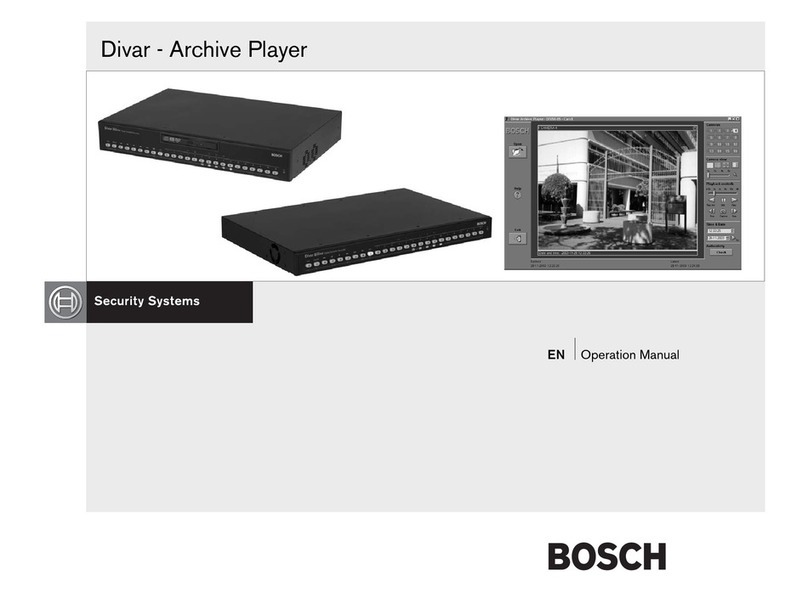
Bosch Divar Archive Player User manual
Bosch
Bosch DB24C4200R2 User manual
Bosch
Bosch VIDOS User manual
Bosch
Bosch VIDOS User manual
Bosch
Bosch RPS D5500CU User manual
Bosch
Bosch DB24C4200R2 How to use
Bosch
Bosch 2 User manual
Bosch
Bosch DINION IP 5000 MP Mounting instructions

Bosch
Bosch MBV-BPRO-40 User manual
Bosch
Bosch VMS User manual

















