manuals.online logo
Brands
  1. Home
  2. •
  3. Brands
  4. •
  5. Bungard
  6. •
  7. Plotter
  8. •
  9. Bungard FilmStar-PLUS User manual

Bungard FilmStar-PLUS User manual

Popular Plotter manuals by other brands

MUTOH Kona 760 Service manual

MUTOH

MUTOH Kona 760 Service manual

HP 7475a Service manual

HP

HP 7475a Service manual

Vulcan-Hart FC-500VC user manual

Vulcan-Hart

Vulcan-Hart FC-500VC user manual

Roland TrueVIS VG-640 Supplemental manual

Roland

Roland TrueVIS VG-640 Supplemental manual

MIMAKI CF2 Series Operation manual

MIMAKI

MIMAKI CF2 Series Operation manual

Roland VersaUv LEF - 12i troubleshooting guide

Roland

Roland VersaUv LEF - 12i troubleshooting guide

Roland VersaCamm SP-540V user manual

Roland

Roland VersaCamm SP-540V user manual

Seiko I Infotech LP-1020 user guide

Seiko I Infotech

Seiko I Infotech LP-1020 user guide

Ioline Summit Service manual

Ioline

Ioline Summit Service manual

HP 7470A Interfacing and programming manual

HP

HP 7470A Interfacing and programming manual

Roland VersaUV LEF-200 Tutorial

Roland

Roland VersaUV LEF-200 Tutorial

ENCAD T-200 Service manual

ENCAD

ENCAD T-200 Service manual

GRAPHTEC CE6000-120AP user manual

GRAPHTEC

GRAPHTEC CE6000-120AP user manual

HP Designjet 330 user guide

HP

HP Designjet 330 user guide

Furuno RP-17 Operator's manual

Furuno

Furuno RP-17 Operator's manual

MIMAKI CFL-605RT Operation manual

MIMAKI

MIMAKI CFL-605RT Operation manual

HP 7470A Operator's manual

HP

HP 7470A Operator's manual

Skycut D Series user manual

Skycut

Skycut D Series user manual

manuals.online logo
manuals.online logoBrands
  • About & Mission
  • Contact us
  • Privacy Policy
  • Terms and Conditions

Copyright 2025 Manuals.Online. All Rights Reserved.

Photoplotter FilmStar-PLUS
Instructions to Use Page 1 / 16
Introduction
Filmstar-Plus is the name of the
next generation of our bitmap pho-
toplotter series. Optimi ed for in-
house production of high end film
layouts at reasonable price level the
system can directly process Gerber
files or bitmap files. Filmstar-PLUS
does an excellent job, comes with
an attractive design and a remark-
ably low price.
Features:
•precise edge definition in photo
quality
•perfect blackness results in perfect opacity
•extended software package included in delivery
Improvements compared to Filmstar FP 8000:
•higher resolution; up to 16 256 x 25 400 dpi
•Stand alone unit - no separate PC necessary.
Data can be transferred to plotter either via USB-
stick or via USB-cable
•New electronics with Touch-Display and intuitive
user interface
•Software update: customi ed Windows optics,
Windows routine for opening and saving of files,
higher resolutions in Gerber2Bitmap, various cal-
ibration programs in Run_Filmstar
•3 different plot speeds for either high precision or
less time consumption
Description:
•The film is fixed on a rotating drum. A highly focused red light
laser diode is moving step-wise alongside that drum, driven by
a precise stepper motor with worm and gear drive. Of course,
all settings are software adjustable, calibrated and controlled.
•Data are either transferred via USB-cable from your computer
to the plotter or read in from any USB stick. Software is part of
delivery. It allows paneli ation of layout and drill data, rework
of aperture tables and contains functions like negative plot, mirroring, preview and drill data export.
•Interactive, absolute or relative positioning of the layouts on the film.
•Preview and rework of various aperture tables of different layout systems.
Bungard Elektronik GmbH & Co. KG, Rilkestraße 1, 51570 Windeck – Germany
Tel.: +49 2292 / 9 28 28-0, Fax: +49 2292 / 9 28 28-29, E-mail: [email protected]
Photoplotter FilmStar-PLUS
Instructions to Use Page 2 / 16
Technical Data
Maximum plot size: 365 x 375 mm (L x B)
Maximum film format: 405 x 395 mm (L x B)
Maximum file size: 256 MB
Speed: 7 mm of film width / min. at 2032 dpi
Light source: Laser-diode 670 nm (red)
Data formats: Gerber, Extended Gerber, Hi-Res BMP
xtent of delivery: Photoplotter and Software on CD
System requirements: Windows XP / Windows 7 / Windows 8
Dimensions: 710 x 340 x 200 mm (L x W x H)
Weight: Approx. 25 kg
Power supply External power supply Input 100V-240V /
47–63 H ; Output 36V- DC
Technical resolution:
Resolution X: 1625, 2032, 3251, 4064, 6502, 8128,
16256
Resolution Y: 25 400dpi
Graphical resolution:
1) Finest point/ Finest line = 5 µm (0.005 mm/0.19685 mil).
2) Finest space between 2 lines = 10 µm (0.01 mm/0.3937 mil)
3) Finest space between 2 areas = 18 µm (0.018 mm/0.70866 mil)
4) Finest inverse spot diameter (transparent point in black area) = 25 µm
(0.025 mm/0.98425 mil)
Safety Regulations:
Carefully read this instructions and especially the safety regulations before using the unit. Also pay
heed to the safety data sheets of the photographic chemicals. Keep these instructions in a safe place
in case you need to refer to them in the future.
The photoplotter Filmstar Plus is designed for use in the laboratory and may be operated only by
trained professionals.
Apply the general safety regulations for the operation of electrical equipment.
Before any maintenance work disconnect plotter from mains voltage.
Bungard Elektronik GmbH & Co. KG, Rilkestraße 1, 51570 Windeck – Germany
Tel.: +49 2292 / 9 28 28-0, Fax: +49 2292 / 9 28 28-29, E-mail: [email protected]
Photoplotter FilmStar-PLUS
Instructions to Use Page 3 / 16
Inside the Plotters are no user-serviceable parts. The case may be opened only by experts.
Connect only to the specified voltage and current.
During plotting, the film is exposed by a laser beam. This can damage the human eye. Do not look into
the laser beam during operation!
Temperature and humidity affect the accuracy of the plotter. Avoid variations in temperature and hu-
midity. Environment should be clean and dust-free and by no means corrosive!
The photo films are very light-sensitive. Protect them till the end of the fixing process from light!
Store film and chemicals in a cool, dark and dry place.
Before you use the film, let it acclimati e 24 hours at min. to the processing temperature.
When handling chemicals wear personal protective equipment (gowns, gloves, goggles).
The drum surface should be kept clean and dry. To remove any remnants of the tape, use a soft cloth
moistened with a liquid detergent. Do not use a spray.
The fixer contains silver and must be recycled! Safety data sheets for the developer and fixer concen -
trates are available. These are actually no dangerous goods according to transport regulations.
Amount of Delivery:
1 Plotter
1 Software CD
3 Testfilms (1 x lightbar for light calibration, 1 x test grid film for dimensional calibration, 1 x test film
with plot samples
1 power supply
Accessories
Dark Room for Filmstar-PLUS, Fixing Pins
Dark Room lamp assembly green
60 cm complete
Developer and Fixer
Film-Punch Triple Tank for Filmstar
Bungard Elektronik GmbH & Co. KG, Rilkestraße 1, 51570 Windeck – Germany
Tel.: +49 2292 / 9 28 28-0, Fax: +49 2292 / 9 28 28-29, E-mail: [email protected]
Photoplotter FilmStar-PLUS
Instructions to Use Page 4 / 16
Setup – Short Instructions
Remove Filmstar-PLUS from the packaging
and inspect for transport damages.
Set up Dark Room (no light may penetrate
from the outside!).
Install and connect the special safelight.
Place plotter in the darkroom and connect
to power supply.
Establish a USB connection from the plotter
inside of the Dark Room to the PC outside
of the Dark Room, if plotter shall run directly
from PC.
Perform a first test plot:
•In the Dark Room cut one film in strips of 7 cm
•Fix a strip to the drum, so that the arrow of the drum and the arrow of the
housing face each other (picture above)
•Close the lid and turn on main power
•At the touch panel press "Lightbar"
•Click on "1625"
•And subsequently, 125/12
•Press START
•The Filmstar-PLUS now plots 8 test patterns with 1625dpi and with intens-
ities of 125, 137, 149, 161, 173, 185, .197 and 209.
While the Filmstar-PLUS plots, you can setup the photochemicals in the cuvette:
1. mix developer (2 parts water, one part developer)
2. mix fixer (2 parts water, one part fixer)
3. the middle chamber fill with water
After plotting has finished, switch off the plotter, remove the film in Dark Room
condition and develop a minute and fix a minute. Then rinse the film thoroughly
and dry. The result of your first test plot should look like in the picture below (Test
plot light bar).
Now the plotter is set
up and ready to use.
Next, install the soft-
ware and read in the
machine parameters
(Setup - Import table
setup). A detailed de-
scription of the installa-
tion, see the Software chapter.
After software is installed, make two test plots:
1. A Multi-resolution-lightbar, to check the light
settings
2. A Test Grid to verify the correct dimensions
The preparation of the test plots is described in Chapter Run-Filmstar.
Bungard Elektronik GmbH & Co. KG, Rilkestraße 1, 51570 Windeck – Germany
Tel.: +49 2292 / 9 28 28-0, Fax: +49 2292 / 9 28 28-29, E-mail: [email protected]
Lightbar
Multi-resolution-lightbar
Test Grid
Photoplotter FilmStar-PLUS
Instructions to Use Page 5 / 16
Instructions – Long Form
Please address any inquiries related to the photoplotter hard- or software to your local dealer first. The
Photoplotter software is subject to copyright. All information enclosed here is subject to change.
FilmStar-PLUS uses films sensitive to red light, as standard in photoplotting industry. These films come
in sheets or on rolls and usually have 0.1 or 0.18 mm thickness. Suppliers are e. g. Agfa, Kodak, Fuji.
We supply 0.1 mm thick sheets cut to si e ready for use on FilmStar-PLUS. As usual these films re-
quire a Dark Room where they go through a standard development and fixation procedure. The Dark
Room needs a special green safe-light illumination.
Setup and Commissioning of the hotoplotter
Dark Room
All feeding or removing of film from the photoplotter, as well as the subsequent development and fixa -
tion, require Dark Room conditions and a special green safe light. Install the unit in an appropriate
room together with trays or tanks one each for development, fixation and rinse. In this room you will fur-
ther need a main supply for the plotter and the safe light. If you want to run the plotter directly from the
PC, then you need to establish a USB connection from the plotter inside of the Dark Room to the PC
outside of the Dark Room.
We recommend vertical mounted tanks with cover for the chemical processing. These need little in-
stallation footprint and the liquids have a
small surface compared to their volume,
which increases their life time. Further, ver-
tical film handling has the big advantage that
no air bubbles can stay underneath the film
and spoil development.
Installation
On the front of the plotter is the touch screen with the two USB ports, two LEDs and a switch for the
touch-display-backlight. On the left side of the case there is the main switch. On the back of the plotter
there is the plug for the power supply and the connection for the USB cable. The power supply also has
a pilot light. Of the two USB ports only one can be used. The other is intended as a hidden reserve.
Place the photoplotter in the Dark Room and connect the power supply unit. Do not turn on the plotter
yet. If you want to run the plotter directly from the PC, connect the supplied USB cable.
Bungard Elektronik GmbH & Co. KG, Rilkestraße 1, 51570 Windeck – Germany
Tel.: +49 2292 / 9 28 28-0, Fax: +49 2292 / 9 28 28-29, E-mail: [email protected]
Photoplotter FilmStar-PLUS
Instructions to Use Page 6 / 16
Test run
You will need some adhesive tape to mount the film
on the drum. We suggest you use 20mm white paper
tape (painter's utilities), as this white tape can be
best seen in the Dark Room light and it can easily be
cut off the roll by hand.
Enter the Dark Room, turn on the green safe light
and make sure there is no extra light from outside
dropping in. Open Filmstar´s lid. You will see the
drum. Turn it by hand until the white arrow on the
drum faces the white arrow on the left of the drum
housing. Take a sheet of film from its box and tape
the upper end to the drum in a way that the tape sits
about 5 mm on top over the arrow.
Since we only need a small strip for the first test plot,
you can cut the film with a scissor or similar to strips of approx. 7 cm.
The emulsion side of the film must be facing the drum. Films coming on rolls
are already wound accordingly. Under the green light, the emulsion side of the
film normally looks gray, the top side is darker.
It is also possible to place the emulsion side (gray) to the other side (the laser
diode). But be careful, in this case the correction factor for drum circumference
changes, because the picture will now appear on the outer diameter of the film
and not on the inner diameter of the film (= the diameter of the drum). If you
want to plot with emulsion side outside, then you need to correct the drum dia-
meter in Run-Filmstar software according to the film thickness.
There is another white arrow on the lower part of the drum housing that you
should use for lateral positioning of the film. After you fixed the upper edge of
the sheet, turn the drum by hand and sweep over the sheet so it goes tightly
on the drum. It is important that the sheet edges are parallel to the drum axis
and that the upper and the lower sheet corners are facing each other, i. e. the
film is not twisted, else the image will be distorted or the line edges will not be
sharp. (Mounting films correctly will need some practice.)
In that state use adhesive tape to fix also the lower end of the film to the drum.
Finally, it is very important that you turn the drum further to the starting position
with the two white arrows in one line.
Close the lid and re-pack all film material into a safe box (!!). You can now
turn on the plotter. The Laser LED will light up several times very shortly and
you will hear some beeping noise. After that the LED light will be barely vis-
ible. When the exposure process has been started the LEDs will light up per-
manently.
Annotations:
Films form different film supplier can have a different light sensitivities. In Ad-
dition the developing chemicals may differ. For that reason it is possible and
necessary to adjust the intensity of the laser light depending on your personal
working conditions as and in accordance to the desired resolution. To do so
you can plot a so called lightbar either directly from the machine's touch
Bungard Elektronik GmbH & Co. KG, Rilkestraße 1, 51570 Windeck – Germany
Tel.: +49 2292 / 9 28 28-0, Fax: +49 2292 / 9 28 28-29, E-mail: [email protected]
Resolution
Light intensity
Photoplotter FilmStar-PLUS
Instructions to Use Page 7 / 16
panel or you produce a single lightbar or a multi-resolution-lightbar with the software “Run-
Filmstar.exe“. For a first test we will plot a lightbar directly from the machine with a resolution of 1625
dpi, a start laser intensity of 125 and steps of 12.
When you turn on the plotter, the welcome message Bungard Filmstar-PLUS appears. In the next dia-
log you can chose between lightbar and USB key. Chose lightbar and in the upcoming screen 1625,
after that 125 12 and at last press START.
Filmstar-PLUS will now plot 8 test samples with a resolution of 1625 dpi and with light intensities of
125, 137, 149, 161,173,185, 197 and 209. After plot process has finished, go back into the Dark Room,
take the film from the plotter and develop as described in the chapter below.
After the developing and fixing process your test plot should look similar like the picture below:
The drum rotates at first slowly and with considerable noise (normal resonances of the stepper motor).
After the drum reaches its operating speed, it rotates with a constant rotational speed and the plotting
begins. During the exposure process the "laser" labeled LED lights or flashes. Pressing STOP on the
display, you can interrupt the process at any time (press several seconds). If the plotting is completed
or interrupted, the drum stops to rotate and the laser head will return to its starting position.
Before you start a new plot, please wait, until the laser head has fully achieved its ero position on the
left side of the drum.
Film Developing and Fixing
In this chapter we assume that you are using the film and
chemicals that we supplied and that you are treating the film
in the Dark Room also made by us. If you are using other
consumables or equipment you will have to adapt to your
working conditions the instructions given here below.
The setup concentration of the developer and fixer concen-
trate are written on the jerrycans: Dilute one part of concen-
trate in 2 parts of water. As a precaution, if your tap water is
very hard please use deioni ed water. The three vertical
tanks in our Dark Room take 9 liters each, so you will need
each 3 litres of concentrate and 6 litres of water at room tem-
perature.
The fixer goes in the first tank from the front, the middle tank takes the rinse water and the last tank is
to be filled with developer. Be careful when filling in the liquids. The developer will be destroyed if fixer
drops in. Please keep all tanks closed by the lids. The water in the middle tank will need to be replaced
frequently. Components of the film emulsion will leave pasty residues in this tank. To empty the tanks,
Bungard Elektronik GmbH & Co. KG, Rilkestraße 1, 51570 Windeck – Germany
Tel.: +49 2292 / 9 28 28-0, Fax: +49 2292 / 9 28 28-29, E-mail: [email protected]
Lightbar
Photoplotter FilmStar-PLUS
Instructions to Use Page 8 / 16
take the flexible hose from the holder, close the opening by your thumb, put the end over the container
where you want to drain the liquid in and release the thumb. Wash all tanks with water and make sure
there are no residues sitting on the walls. If necessary rub the walls with paper towel. From 2013 on the
cuvettes will be delivered with cock valves instead of hoses.
The procedure to develop a film exposed on Filmstar-PLUS takes not more than a minute. If you do not
like to touch the liquid by hand (wear thin Latex gloves) you should use a film clamp.
Especially big sheets of film tend to stick to the tank wall. To avoid this, try to handle the sheet so that it
goes in the tank in an S-shape. This little disadvantage in handling is minor compared to the advantage
that there will be no air bubbles at all under the film surface, as known from hori ontal development
trays. Moreover, the tank offers only a small liquid surface to the air, so that the destructive oxidi ation
of the developer will be delayed. In addition the annoying process of decanting the liquids from and
back into the storage containers can be omitted.
After exposure a short rinse is sufficient. In the fixer the film will mostly be clear after 30 seconds. It is
good practice and gives better long term stability, though, to keep it in the fixer for double time. Rinsing
after fixing is highly important. Finally, to dry the film, put it to the Dark Room wall and wipe the first
side with a smooth fu le-free paper tissue. Remove the film, dry the wall, reverse the film and wipe the
second side. Repeat the procedure with a fresh tissue. You may also profit from a hot air dryer. A well
dried film looks fully transparent. Rests of opaque, bluish color indicate insufficient drying. The ambient
humidity and the drying grade of the film will highly affect the film precision!
As mentioned, the developer will oxidi e when in contact with air. It will take a brown color and cannot
blacken the film sufficiently any more.
Test: Expose a piece of film for 2 seconds to normal daylight. After max. 1 minute of development at
ambient temperature the film must be entirely black opaque. If this is not the case the developer must
be exchanged. If you use the tank lid and take care not to pollute the developer it will have a life time of
approx. 6 months. For frequent use the developer may be replenished with concentrate that you add in
portions. The life time of the fixer mostly depends on the throughput. The time needed to clear the film
will be longer with increasing use.
Attention: The fixer contains silver and must be recycled! Safety data sheets for the developer and
fixer concentrates are available. These are actually no dangerous goods for road transportation.
Software
Overview:
The CD contains the file SetupFilmstar.exe. Please double click on this file and run the software install-
ation. The Filmstar-PLUS software will be installed in the directory C:\program files\Filmstar. In the
Filmstar folder you will find plotter software Run-Filmstar.exe and these additional folders:
Convert Bitmap to FPF: BMP2Fpf.exe and BMP_Gray2Fpf.exe. With these programs you can convert
high resolution Bitmaps into the plotter format FPF. For BMP2Fpf.exe you need monochrome files,
BMP_Gray2Fpf.exe also processes gray-scale pictures.
Convert Gerber to FPF: Contains the program Gerber2Bitmap.exe. With the help of this program you
can convert your vector based Gerber data into raster based Bitmap-files.
Drivers: contains the drivers for the plotter when running the plotter directly from the PC. Please install
the file CDMxxxxx_Setup.exe (current version:CDM20824_Setup.exe) in this case. If you are going to
transfer the data via USB-stick, you do not need to install any driver.
Inspect FPF: Contains the program „View_FPF.exe“. This program inspects your created FPF-files.
Machine parameters - import to Run_photo_USB2.exe: This folder contains the PHS-file with the
machine configuration. Please import this file into the program „Run_photo_USB2.exe“.
Manual: Contains this manual.
Samples: Contains sample data for your first steps.

Bungard Elektronik GmbH & Co. KG, Rilkestraße 1, 51570 Windeck – Germany
Tel.: +49 2292 / 9 28 28-0, Fax: +49 2292 / 9 28 28-29, E-mail: [email protected]
Photoplotter FilmStar-PLUS
Instructions to Use Page 9 / 16
Gerber2Bitmap
Gerber2Bitmap handles Gerber data. You may load
files, place the artwork image on the plot area, and
view them. You may also convert the aperture tables
of non-extended Gerber data. Further, this software
can paneli e boards and generate drill data from the
panels. Finally, Gerber2Bitmap creates raster data
that are ready for use with the following program that
drives the photoplotter. These raster data are actually
a bitmap that comes in a special FPF format. There is
an additional output possibility for 250 dpi Windows
BMP files, so that you can inspect the conversion res-
ults by double clicking the BMP file in Windows Ex-
plorer.
Here we describe only the features that are required
to create the plot data. For more CAD / CAM func-
tions such as paneli ation, drilling data export and fi-
ducials we recommend the software IsoCam. Upon
request, we will provide a more detailed guide to the
program Gerber2Bitmap and Run-Filmstar.exe.
The program screen is divided in the menu bar, the icon bar, the (dark
gray) plot area and, at the right of the screen, a vertical list of layers
and aperture files. The icons have bubble help coming up if you place
the mouse cursor over them.
The plotting area shows the maximum film si e that the plotter can
handle. Please set the value to what applies to your unit. This is done
in the menu Preference Plotting area. In Preference Units you may
set your preferred measuring unit (metric, inch). A last, but important
setting that must be done only once, is under P reference memory
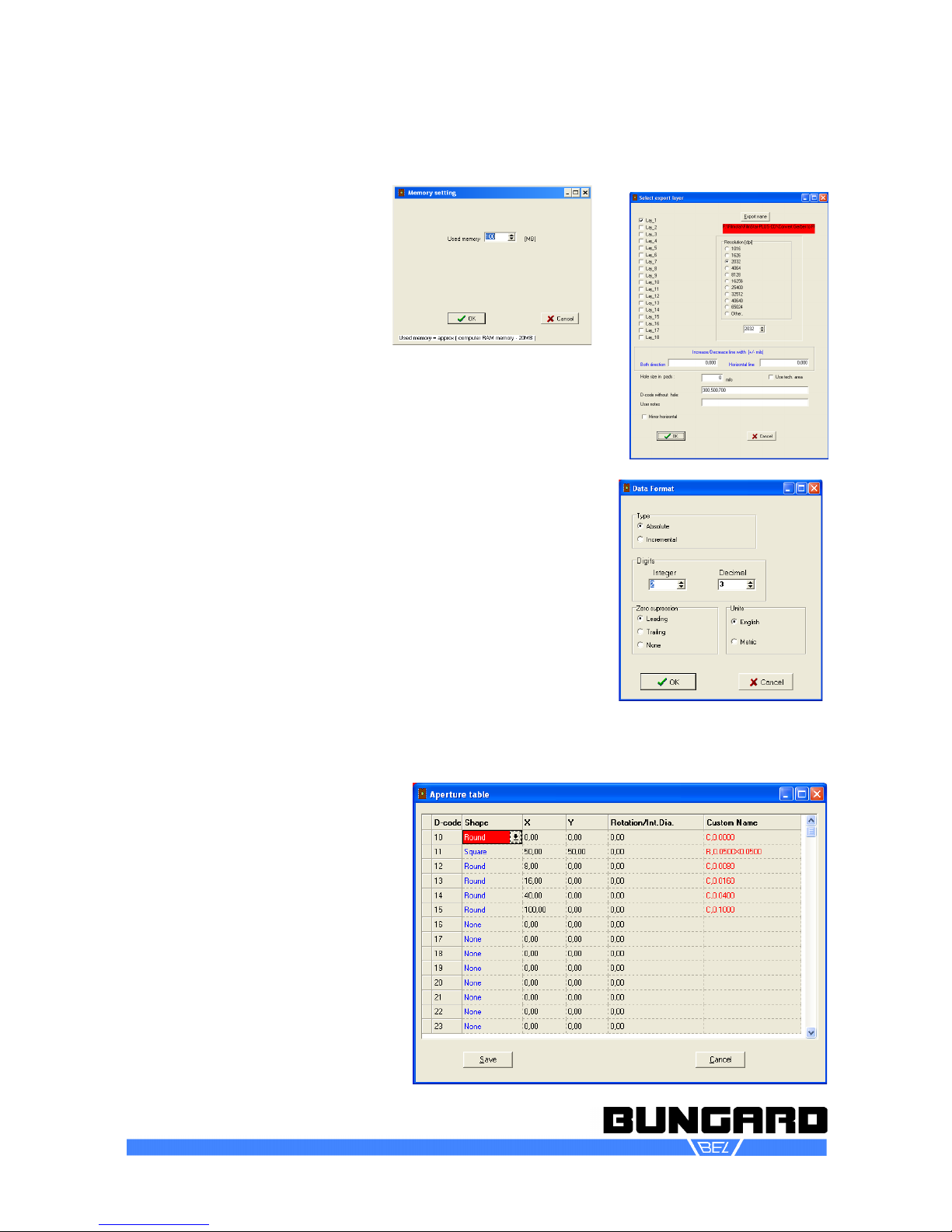
size. Set this value according to the table below.
Computer RAM Set used memory
less than 0,5 GB 128 MB
0,5 - 1 GB 384 MB
1 - 1,5 GB 512 MB
more than 1,5 GB 768 MB
768 MB is max. allowed value for "used memory".
Here is a typical work flow with Gerber2Bitmap:
1. Job Import Master Gerber opens a file selector that allows to import Gerber files, either standard or
extended. In a first approach we assume you have selected a file in Extended Gerber format, since the
Standard Gerber Format is not state of art anymore. A rectangle comes up in the upper right corner
that corresponds to the artwork in si e and orientation. You drag this rectangle versus the plot origin in
the upper left corner.
Repeating this step you may arrange several layouts on the plot surface. If you right click the red rect-
angle a pop up menu comes up that allows to position, lock, unlock and delete the particular image. If
you have several images on the screen the one in red color is the active one.
Bungard Elektronik GmbH & Co. KG, Rilkestraße 1, 51570 Windeck – Germany
Tel.: +49 2292 / 9 28 28-0, Fax: +49 2292 / 9 28 28-29, E-mail: [email protected]
Photoplotter FilmStar-PLUS
Instructions to Use Page 10 / 16
Some programming reasons require
that the assignment of the X and Y
axes on the screen look different
than on the photoplotter: The plot
image is both mirrored and twisted
by 90 degrees. That causes that the
direction of the drum circumference
shows from the left to the right, and
the laser head movement is on an
axis showing vertically on the
screen (you can imagine looking
from inside of the drum against the
film). For maximum execution speed you should try to arrange all art-
work hori ontally on the screen (in the direction of drum rotation).
2. Job Preview opens a preview window to show you the total of all
layouts that you loaded.
3. Job Export Fotoplotter File (FPF) creates the raster data in an
internal format called FPF. These data are written into a file of
your choice that can later be used by the Run-Filmstar software. In
this menu you select also the resolution (dpi) in which data will be
converted. If you choose high values, the film will be structured
more fine and the file si e increases, however, enormous. Since
today's computers do well with large file si es, we recommend to
choose a rather high resolution and reduce the resolution in the
plotting process.
Annotation: Standard-Gerber:
If you have no Extended Gerber files you need to specify the
measuring unit and the ero suppression for each Gerber file. This
is done in Preference Data Format. Second, and again for all
Gerber files, you need to load an appropriate aperture file. This is
done from the Job Import Aper-
tures menu. A dialogue window will
show up that allows to select the
type of aperture file to load, and al-
lows to select to use an aperture
converter. The aperture files from
CAM350, GC-CAM or IsoCam are
supported directly. (You may also
use the external ViewMate software
to convert aperture files to the
Lavenir format .ENV.)
The aperture converter built into
Gerber2Bitmap will take all neces-
sary information automatically. You
just press "Guess format" and
"Start". To quit the converter, press
Cancel.
Bungard Elektronik GmbH & Co. KG, Rilkestraße 1, 51570 Windeck – Germany
Tel.: +49 2292 / 9 28 28-0, Fax: +49 2292 / 9 28 28-29, E-mail: [email protected]