Celestron NexImage 93708 User manual

NexImage
USER’S MANUAL
Model #93708, #93711
#95518, #95519
ENGLISH

2 | ENGLISH
Congratulations on your purchase of the Celestron NexImage
Solar System imaging camera.
Your NexImage camera comes with the following:
+ NexImage Camera
+ 1.25” nose piece
+ CD including NexImage iCap and RegiStax processing software
+ USB Cable
Recommended Minimum System requirements:
+ Pentium IV, 2.0 GHz, 1GB RAM
+ Graphics card with 24 or 32 bit
+ Windows XP, Windows Vista, Windows 7 (32 & 64 bit)
+ DirectX 9.0c or higher
1.25”
Nose Piece
USB CableNexImage Camera NexImage iCap and
Registax processing
software
Fig 1

ENGLISH |3
Quick Start
1. Place the CD into your computer’s
CD-ROM drive.
2. Install both the NexImage iCap and
RegiStax software onto your computer.
3. Thread the 1.25” nose piece into the body
of the NexImage camera. See Fig 2.
4. Slide the 1.25” nose piece of the camera
into the eyepiece barrel of your telescope.
See Fig 3.
5. Plug the small end of the USB cable into
the port on the back of the camera.
6. Plug the other end of the USB cable
into a USB port on your computer.
Once connected, the Found New
Hardware message will appear. Follow
the Installation Wizard until the device
has been successfully installed.
Fig 2
Fig 3

4 | ENGLISH
Capturing Images
1. Double-click the NexImage iCap icon
on your computer’s desktop to start the
program. See Fig 4.
2. If the NexImage camera is not already
detected, select the camera and press OK.
See Fig 5.
3. Select an easy target like the Moon to
begin with. Center and focus your
telescope on the specific feature you
wish to image.
4. You should be able to see light displayed in
the Preview window of the iCap software.
5. Use the telescopes focuser to focus the
image until the object is visible and sharp.
See Fig 6.
Fig 4
Fig 5
Fig 6
A
B E
HD
C

ENGLISH |5
6. Use the Gain (A) and Exposure (B)
settings to make sure that the image is
not underexposed or overexposed .
7. Select the video format (C). For the highest
resolution, select 1280x960.
8. Select the frames per second (FPS) for
your video. The FPS box (D) will always
display the maximum frames per second
for the selected resolution setting.
9. Press the Video File button (E) to bring up
the Recording Setting box. See Fig 7 & 8.
ROI Subframing
If the object you are imaging does not consume
most of the field of view, you can select an
ROI (region of interest) to increase the
framerate and save disk space. Go to the
Device menu and select ROI Specify, or
click on the ROI icon. Draw the ROI with your
mouse, then click inside the red box to set
the ROI. The ROI can be reset any time by
clicking the reset icon or going back to the
Device menu.
Fig 7
Fig 8

6 | ENGLISH
10. Press the Video File (E) to select the
destination location for your video.
11. Click on the Advanced tab. You can either
select the amount of time or number of
frames you wish to record. See Fig 9.
12. Press the Record button (F) when ready
to begin recording video. See Fig 10.
13. Once recording is complete, press the
check video button (G) to view the
capture image.
See the Help file (H) to learn more about the advanced features of iCap software.
Now that your video is captured, you are ready to process it into one high-resolution image.
Fig 9
Fig 10
F G

ENGLISH |7
Processing Images
1. Double-click the RegiStax icon on your
computer’s desktop to start the program.
See Fig 11.
2. Press the Select button (A) and select the
video that was just recorded. See Fig 12.
3. Press the Set Alignment Points button (B)
to have RegiStax automatically select the
alignment positions over your image.
4. Press the Align button (C) to begin the
alignment process.
5. Select the Best Frame option under the
Limit Setup box (D) and enter a number
that represents one-half of the number
of image frames that were captured, i.e. if
300 frames were captured then enter 150.
Press the Limit button (E).
A
B
D
C
E
Fig 11
Fig 12

8 | ENGLISH
6. You will automatically advance to the Stack screen. Accept the default settings and press
the Stack button (F). See Fig 13.
7. Next, move to the wavelet processing screen by clicking on
the Wavelet tab (G). See Fig 14.
8. On the wavelet page, use the wavelet-sliders (H) to enhance
the image. The power of RegiStax lies in the Wavelets settings.
This is a special filtering technique that is very good for
enhancing details in images. Each wavelet layer carries part
of the image within it. The lower numbered wavelets control
the fine detail stored in the image, while the larger numbered
wavelets control the coarse detail. Each layer can be adjusted
individually to reveal the desired amount of detail for your image.
9. Finally, press the Save Image button to save the final image.
Fig 13
Fig 14
FG
H

ENGLISH |9
To explore the many other features of RegiStax and view helpful tutorials, visit the
RegiStax homepage at: http://www.astronomie.be/registax/index.html
How NexImage Works
NexImage uses a light-sensitive imaging sensor to capture streaming video of any Solar System
object. Using the included software, you can separate the video into hundreds of individual images
(frames) and digitally stack them to significantly reduce the electric “noise” inherent in video chips
and bring out the unseen fine detail (signal) hidden within your image. The NexImage camera
takes advantage of the fact that the signal-to-noise ratio of your stacked composite image is
proportional to the square root of the number of frames combined. This means that stacking as
few as 16 frames will reduce the grainy noise of the composite image by 4 times. While stacking as
many 900 frames will improve the image by 30 times! However, stacking the individual frames is
only half the power of the NexImage imager. With the included software package, each individual
frame is analyzed for quality to filter out those frames most affected (blurred) by poor atmospheric
“seeing.” This form of after-the-fact adaptive optics leaves only the sharpest, clearest frames to be
stacked and aligned into a high-quality image. Finally, powerful processing features automatically
break the image up into individual unsharp mask layers that can be used to bring out tremendous
detail and reveal final images that will rival those taken with astronomical CCD cameras costing
thousands of dollars.
The Basics
Focusing
As with all astrophotography, sharp focus is essential for high-quality results. Although there
are many techniques and devices for focusing your telescope, the human eye still remains one
of the best detectors of subtle changes in detail. One advantage that video imaging has over
imaging with more sophisticated (and expensive) CCD cameras is the speed with which it can
display an image. Focusing NexImage is more like focusing an eyepiece than focusing a CCD
camera. Unlike long-exposure cameras, you don’t have to wait many seconds to see the effect
of a focus change using NexImage.

10 | ENGLISH
Focusing Tips
To achieve best focus, concentrate on a high contrast feature of the object you are imaging.
Focusing on small features such as a moon’s shadow on Jupiter or Cassini’s division in the
rings of Saturn will guarantee best focus across the entire image.
Once the frames of your video are stacked, the overall brightness of the composite (stacked)
image is usually brighter than its individual component frames. For this reason, it is best to keep
the brightness of the video image seen on the screen dimmer than you would normally desire. It
is important that no part of the image is overexposed to assure the maximum amount of detail
in the final composite image.
Collimation
No matter what type of telescope you image with, poor collimation (alignment of the optics) will
ruin your chances for a good image. Before you begin imaging, always check the collimation of
your instrument and make adjustments if necessary. Refer to your telescope’s owner’s manual
for instruction in collimating the optics.
Finding Objects
At first it can be difficult to locate individual planets due to their relative brightness. To make it
easier to initially find your object in the imaging window, increase the brightness and gain controls
on the Exposure toolbar. This will allow you to better see the object as it passes through the
imaging window. Once you have located and centered the object, you can adjust the setting
until the object is at the desired brightness and contrast.
How long to take Streaming Video
At first you may think that the more frames you record, the better. However, there are some
limitation to the duration of video and the amount of frames you can acquire. Resolution and
file size can both limit the length of time of your video.
This manual suits for next models
3
Table of contents
Other Celestron Digital Camera manuals
Celestron
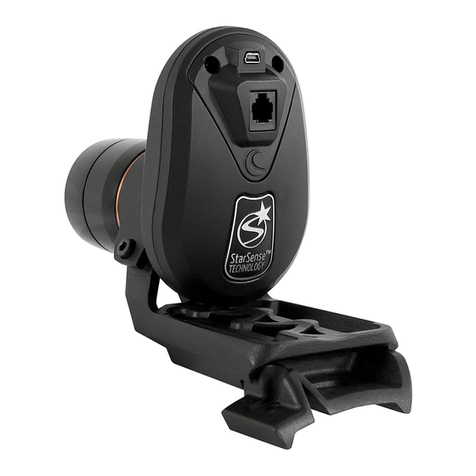
Celestron StarSense AutoAlign User manual

Celestron
Celestron VistaPix 72204 User manual
Celestron
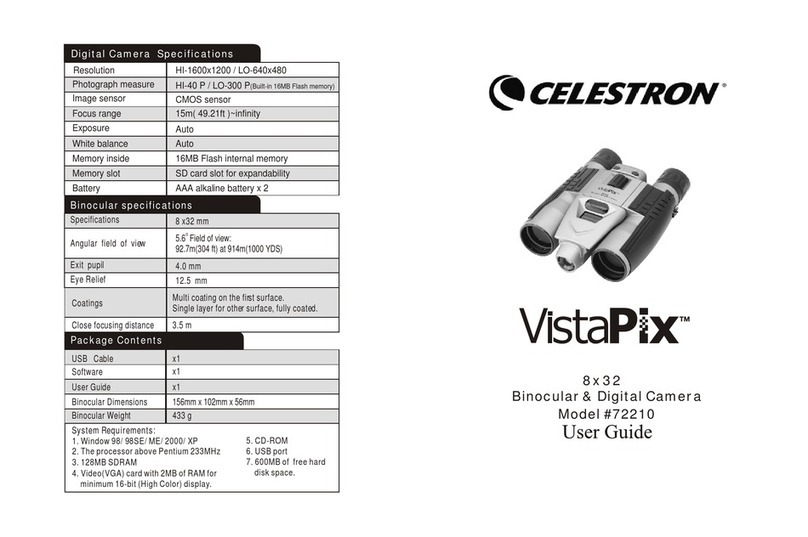
Celestron VistaPix 72210 User manual

Celestron
Celestron 95507 Operating and maintenance manual

Celestron
Celestron Skyris 132M Operating and maintenance manual

Celestron
Celestron VistaPix 72204 User manual

Celestron
Celestron VistaPix 72212 User manual