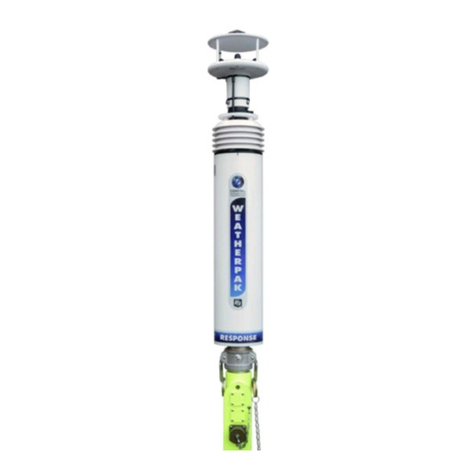
WEATHERPAK®MTR
User’s Manual
P/N: 0302-140-001 Rev. D 9
2-2.3 Connecting to a Computer with Serial to USB Converter
In the event the computer does not have a USB port, you must employ a “Serial to USB” converter, which is
available at your local computer supply store. Connect the Serial cable to the converter. Follow the directions
provided with the Serial to USB device.
2-2.4 Connecting to a Computer with the Ethernet Port
This method is to be employed only if the Receiver/Display must be connected to a network. Please contact
Coastal Environmental Systems, Inc. for further information.
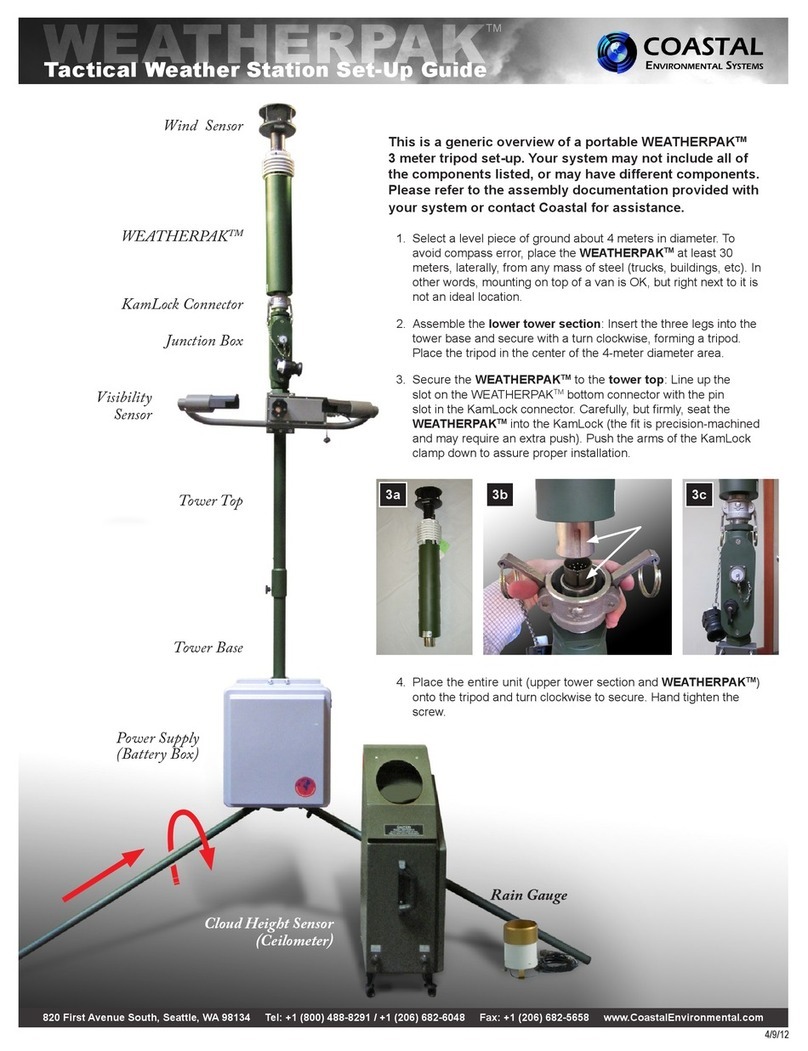
2-3 TRIPOD AND WEATHERPAK®SET UP
Assemble the tower in the following manner:
1. Insert and lock the legs onto the bottom section of the
tower, forming the tower’s tripod base.
2. Align the slot on the WEATHERPAKwith the guide pin
on the quick release and push straight in. DO NOT
“screw” the WEATHERPAKonto the KamLock
connector. The KamLock provides a precision sealed fit
and may require an extra push to seat the
WEATHERPAK®properly. Once the weather station is
properly seated, press the arms of the clamp down to
assure a tight fit. The battery indicator light (on the
tower junction box) should illuminate when the
WEATHERPAK®is properly seated into the KamLock.
3. Place the entire unit (upper tower section and
WEATHERPAK) onto the tripod, engage the twist-lock
and turn clockwise ¼ turn.
4. The WEATHERPAKis now running and sampling data.
When the WEATHERPAKis removed from the
KamLock connector, it will stop sampling and shut itself
off.
CHAPTER 3 SYSTEM OPERATION
Once set up, the WEATHERPAKautomatically begins sampling
weather conditions and transmits data to the Receiver/Display
every 30 seconds. (See “Data Line Interpretation” in Section 3-
3.5, for additional information.)
The Receiver/Display takes approximately 20-30 seconds to
complete a boot-up routine. When this process is complete, it is ready to accept the first transmission from the
WEATHERPAK®. The data may now be viewed on the display or viewed and archived using Coastal Environmental
Systems’ optional INTERCEPT™ software. Plume modeling software requires five minutes of data before a valid plume
can be presented,
3-1 CONFIGURING THE DISPLAY
During the boot-up process two touch screen buttons will appear labeled Configure and Skip Configuration.
When selected, the Configure button opens a series of screens which allow the operator to select from several
data display configuration choices. Once these selections have been made (typically the first time you boot-up
your new system), the values are stored in memory. It is not necessary to configure the system every time it is
used. The configuration screen will time-out in approximately five seconds, or you can touch the Skip
Configuration button to proceed. Configuration choices are:
Figure 3 – Tower Set-up