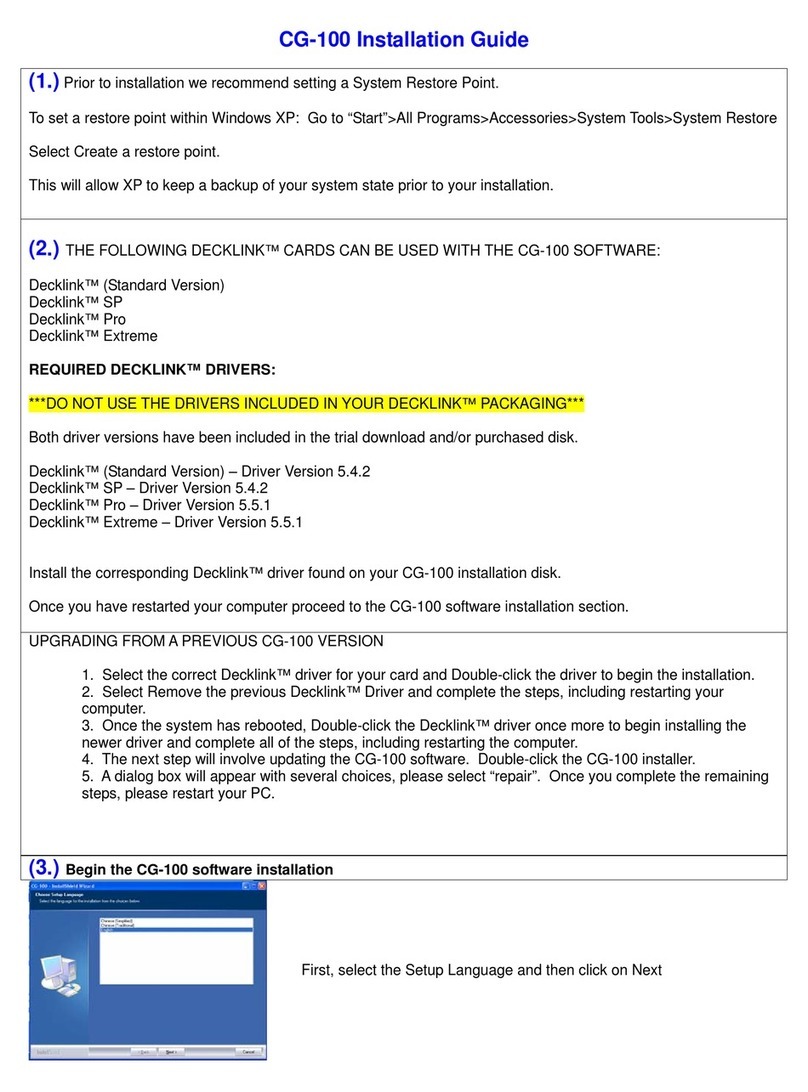
Data Video CG-100 User manual

1
CG-100
Version 1.51

2
Warnings and Precautions
If you have purchased CG-100 software with a Blackmagic Design
Video Card please observe the precautions supplied when installing
it.
It is also advisable to read any precautionary notes supplied with
your PC when installing new hardware and software.
When installing new software on to a Windows XP platform it is
advisable to first create a System Restore Point, this will provide a
working platform to go back to, in the event that anything should go
wrong during installation.
Details of how to create a System Restore Point can be found in
your PC instruction manual or from the Microsoft Website:
http://www.microsoft.com/windowsxp/using/helpandsupport/learnmo
re/systemrestore.mspx

3
Table of Contents
Warnings and Precautions 2
Packing List 8
Introduction 9
Product Overview 9
Features 10
Minimum Requirement 11
Recommend System: 11
QuickTime Recommendations:12
CG-100 Interface 13
System Set Up 14
TV system selection 14
Difference between NTSC and PAL 14
Display mode 4:3 or 16:9 15
Set Video Standard 16
Set Margins 16
Right to left reading 17
Synchronize CG output, PLAY function 18
Anti-aliasing CG output when there is no video input 19
External Key 20
Enable [App] button 21
Language setting 22
GPI Trigger 23
Tools, Effects 26
Files 26
Pages 27
Objects 30

4
Layout Tools & Animation Tools 31
Parameters Panels 32
Layout Editing 34
Text Editing 34
(1).Click Text button on the tool bar 34
(2). Drag the marks around the text object 35
(3). To Move a text object 35
(4). Fine-tuning the position of Text Object 36
(5).To Resize a Text Object 36
(6). To Adjust the Gaps between letters (Kerning) 36
(7). To Rotate a Text Object 37
(8). Content of Text Objects 38
(9). Multi-line Text Objects 40
(10). Save Text Styles 43
(11). Apply a Style 45
(12). Text Parameters Setting 46
(13). Vertical Text Object 48
(14). Importing text from a text file 49
Inserting a Graphic Bar or a Line 52
Inserting a Rectangle or an Ellipse 55
Inserting an Image 57
The transparency of an image 59
Select a color to be transparent 60
Extra Editing Tools 61
(1). Background button 61

5
(2). Grid button 62
(3). Group button 62
(4). Top/ Bottom 62
(5). Delete 63
(6). Undo / Redo 63
Group Move/Zoom 64
Group Copy/Cut/Delete 68
Animation Editing 69
Setting an Animation Box 69
To add a [Display] Animation 73
To add a [Wipe] animation 76
To duplicate a row of animation 76
To add a [Push] animation 78
[WIPE] with Reserve Last screen 79
[PUSH] with Reserve Last Screen 80
To add a [Fade] animation 81
Roll and Crawl 82
To Roll a List 82
To adjust the size of a Roll Object 85
To adjust the size of a Crawl Object 88
Live CG Editing 90
Live Status Panel 92
Quick Edit function 94

6
To Modify the Text 94
Page List 96
Select a Page 96
Delete a Page 96
Duplicate a Page 97
Insert a Page 97
The effect of Reserve Last Screen 98
Reserve last screen 99
Clean last screen 100
Clipboard 101
Copy to the Clipboard 101
Lock/Unlock the Clipboards 102
Paste from the Clipboard 102
LOGO 103
Clock & Timer 105
Clock 105
Timer / Stop Watch 106
TARGA Sequences 108
Transfer text to CG function 110
Application 114
Logo Generator 114
Features of the Logo generator 114
System Buttons 117
Logo Pages 118
Setting up a Sample Page 119

7
Adding Background CG-100 pages 120
Adding a TV Channel’s Logo 121
Adding a Targa Sequence 121
Add Crawl-A / Crawl-B 122
Logo Page Quick Modification 124
DL-Renderer 127
The Bonus Utility of CG-100 129
Q & A 135
CG-100 registration 137
Sample connection diagram 139
Service & Support 140

8
Packing List
1. CG-100 software CD
2. Quick Installation Guide
3. User Manual
4. BNC 1.8 m cable * 2
5. DeckLink Card (Optional)

9
Introduction
Thank you for purchasing the Datavideo CG-100. The CG-100 is
the first CG software that uses the Blackmagic Design DeckLink
series as a video output card. The CG-100 can be used as an
accessory for the Datavideo SE800 vision mixer, or as an individual
unit. It is also the first Live CG software that has SDI interface at an
affordable price. You will be amazed by what you can do with this
advanced piece of technology.
In order to bring out the maximum performance of this unit, we
recommend that you spend some time reading this manual
carefully.
Product Overview
SDI overlay offers the best, broadcast quality, CG solution in the
industry today. However, it has always been beyond the budget of
small studios and production houses - The Datavideo CG-100 has
changed that!
The CG-100 combines with a Blackmagic Design DeckLink Card to
bring you live SDI CG overlay at an affordable price. It supports
NTSC and PAL video standards and is able to generate graphics for
16:9 or 4:3 aspect ratios. Pages can be composed and combined
with animation effects, to run as a sequence, or they can be
displayed and edited live. The CG-100 combines perfectly with the
SE-800 to give superb quality graphics / text / logo overlay on live
production mixes.
CG-100 can be used in any SDI or YUV input switchers (with
DeckLink SP, DeckLink Pro or DeckLink Extreme). It can also be
used with the SE-800 via the SDI text overlay interfaces.

10
Features
Image objects may be imported as graphics and stored as part of the
page.
Simple shapes (bars, ellipses and rectangles) are menu items and may
be added to the page.
Animation objects can Wipe, Push, and Fade in various directions at
different speeds.
Text can roll and crawl.
Supports Windows Unicode for multi-language inputs
Redo/Undo functions for quick testing of an additional effect.
Live editing mode provides great flexibility to immediately alter one CG
page while another CG page is live.
Quick CG Text Editor allows navigation from page to page to quickly
modify text
Stand-alone logo display function.
Nine “clipboard” items can be stored and used in CG combinations on
different pages and files.
Group function makes CG combinations easy to edit.
SDI & YUV available. (DeckLink SP, DeckLink Pro, or DeckLink SP)
External Key output (DeckLink Pro only)
Automatically create multiple CG pages from a text file.
Time & date display
TARGA sequence playback
GPI trigger animation.
Can select different operation mode, “Logo Generator”
Plus bonus Live Streaming software
Other manuals for CG-100
1
Table of contents
Other Data Video Software manuals