Datadesk TrackBoard How to use

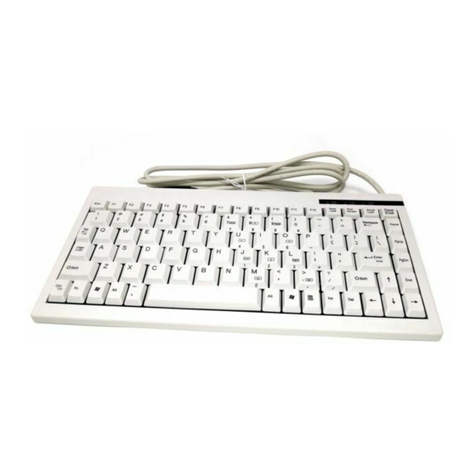
TheTrackBoard provides full 105-key functionality with a space-
saving 79-key layout by usingTrackBoard’s exclusive dual-purpose
keys.TrackBoard also includes a trackball with a three-button
design that puts all point and click functions within easy reach.
PACKAGE CONTENTS
• The TrackBoard keyboard.
• One 6 ft. Cable for connecting to computer.
• One Serial Adapter
• Set of key caps
If any of these items are not present, please contact
Datadesk.
INSTALLATION
Before you begin to install the TrackBoard, make sure your
computer is turned off. Plugging and/or unplugging cables while
your computer is turned on can result in lost or damaged data
and serious damage to the components of your computer.
CONNECTING TRACKBOARD TO A PC
1. Plugthe gray 8-pin connector onthe single end ofthe supplied
Y-cable into the connector on the right side of the TrackBoard.
2. Plug the gray PS/2 keyboard connector on the double-end
of the suppliedY-cable into the keyboard port of the PC. If you
own an older computer, you may have a larger 5-pin AT style
port. If so, you will need to purchase a 6-pin female to 5-pin
male adapter.These adapters are readily available at any office
or computer supply store or you may purchase directly from
Datadesk.
3. Plug the black PS/2 mouse connector on the double end of
the keyboard Y- cable into the PS/2 mouse port of the PC.
If you have an older computer where the mouse is connected
to a serial port, attach the included serial adapter to the black
PS/2 mouse connector on the double end of the Y-cable and
plug it into the serial port of the computer.You may also do this
if you wish to keep your existing mouse plugged into the PS/2
port.xxxx
PLEASE NOTE:The TrackBoard trackball incorporates the
newest “plug-n-play” protocol, so except for early versions of
Windows 95, the trackball should be instantly recognized on
power-up when connected to either the serial or PS/2 mouse
port of the computer. If not, go to the System Control Panels
and run the “Add New Hardware” in order for the trackball to
be acknowledged as either a new serial or PS/2 device.
ADJUSTINGTHE KEYBOARD FEET
SHORT FORM INSTRUCTIONS for PC
Congratulations on your purchase
of Datadesk’s TrackBoard.
IFYOU HAVE QUESTIONS:
If you need further help, please contact Datadesk Technical Support:
15 user-definable function
keys for automated single
keystroke operation
Specially-designed "can't
miss" keycaps for all
function and trackball keys
Drag mode key
for trackball
Contextual
menus key
User-configurable color-coded key caps
for often-used keys. Also, includes
replacable standard gray key caps
Unique dual-purpose
keys provide extended
keyboard functionality
in a small package
Full-size, 3-button
trackball puts all point,click,
and drag functions
within easy reach
Extra large, easy-
to-use "click-bar"
for trackball
The Common-Sense Combination Keyboard and Trackball

You can adjust the angle at which theTrackBoard sits by raising
the keyboard feet.At the back of the foot, where it attaches
to the keyboard, you'll see a slightly raised ridge. By pressing
on that ridge (towards the back of the keyboard), you'll open
the foot.
CONTROL PANELS
You can use your computer’s “Keyboard” Control Panel to
set the Key Repeat and Delay Until Repeat rates for your
TrackBoard.To access this Control Panel, open the START
menu, go to Settings, select Control Panels, then Keyboard.
Adjust the settings as desired.
TRACKBOARD TRACKBALL
The trackball has three (3) buttons that perform the following
functions:
•Top Left Button-Drag-Lock - Objects can be dragged without
holding down the Click Bar. Drag lock is engaged by depressing
this button one time.
•Top Right Button - Windows Application key-Contextual
Menus (Same as Right mouse button).
• Click Bar button on the bottom-Single click (Left Mouse
Button)
You may use the “Mouse” Control Panel to adjust the speed
of the trackball and to change the assignment of the trackball
keys. Pull up the Start menu, go to Settings, then Control
Panels, and open up the Mouse control panel. Adjust the
settings as desired.
DUAL PURPOSE KEYS
TrackBoard incorporates a space-saving layout, which includes
all of the most commonly used keys. It also achieves full 105-
key functionality through its exclusive dual-purpose keys
feature.This feature provides for some of the less commonly
used keys, such as Home, End, etc. to be available as secondary
keys.
The legends for the secondary key functions are printed in
green on the front skirts of the keys. Below is a list of the
secondary key functions and the keys they are on.
The Dual-Purpose Keys:
SECONDARY
KEY FUNCTION KEYS KEY COLOR
Insert Right Alt Green
Delete Back Slash Key Gray
Home Left Cursor Key Blue
End Right Cursor Key Blue
Page Up Up Cursor Key Blue
Page Down Down Cursor Key Blue
Number Pad Enter Large Enter/Return Key Gray
Windows Applications Windows Key Yellow
To engage the secondary keys, Press the Right Shift key
(it has the fn legend on the front skirt) once, next Press any
key with the secondary key function you wish to use. Pressing
any other key than a dual-purpose key automatically turns off
the dual-purpose feature.
USINGTRACKBOARDWITHWINDOWS NT™
To log on to a Window NT server, the key sequence of
Control-Alt-Delete is accomplished by depressing and
holding down Ctrl and Alt and then pressing the Right Shift
key once (engaging the Secondary Key Functions),then pressing
the Back Slash Key (it has the del legend on the front
skirt).
FUNCTION KEYS: F1-F15
The Trackboard provides fifteen user-definable function keys.
Windows-style operating system software utilizes F1 as Help,
F2 to rename an item, F3 to find files or folders and ALT + F4
to quit a program. F13 is assigned to Print Screen. Microsoft
Excel assigns the F14 key to toggle the Scroll Lock function.
F15 is assigned Pause.
Some software has preprogrammed functions assigned to
these F-keys, such as MicrosoftWord,Word Perfect and Nisus.
Please consult your manuals to determine if and how this
feature is implemented in your software.
To get maximum utilization from your function keys, third-
party macro or shortcut software programs such as Keyboard
Express or Macro Express, can be used.This type of software
will allow you to design shortcuts which instantly execute
multistep tasks, reduce complex commands and program
functions to a single keystroke.
USING COLORKEY™
AND REPLACING KEYTOPS
TrackBoard comes with the Alt,Win, Control, and the Cursor
keys in individual colors — to make them easily recognizable.
However, you have the opportunity to further customize
yourTrackBoard by adjusting which keys will be on the keyboard
in either their individual colors or in the standard platinum
color of the rest of the keyboard.
Changing keytops is a quick and simple process.
1.Turn off your computer and disconnect the cable from the
TrackBoard to the computer.
2. Place the legs of the keytop puller on the sides of the key
top you wish to replace. Push down gently to seat the puller.
Then, while you hold down the keyboard with one hand, gently
but firmly pull up on the ring part of the puller until the key
top comes off.
3. Put the replacement key top onto the keyswitch and press
firmly with your finger until it seats.
10598VALLEY ROAD N.E., BAINBRIDGE ISLAND,WA 98110 • PHONE: (206) 842-5480
Visit our website @ www.data-desk.com
Other Datadesk Keyboard manuals