IPLoA-MESH-AC-W_User Guide_2017-06-12
Specications are subject to change without notice.
DKT is not responsible for any typographical errors or wrong.
Page 8
Mesh installation via PDS cable, recommended
To achieve the best performance, you use a wired infrastructure as backbone such as:
• Power grid (Power Line Communication, PLC)(not applicable to IPLoA-MESH-AC-W model)
• PDS cabling (RJ-45)
• Coax/MoCA (used for Cable-TV or broadband services) (not applicable to IPLoA-MESH-AC-W model)
In this guide we use Ethernet cable between the router and all the IPLoA-MESH-AC-W units.
Step1:InstalltherstIPLoA-MESH-AC-W
The following items should be found in your
package:
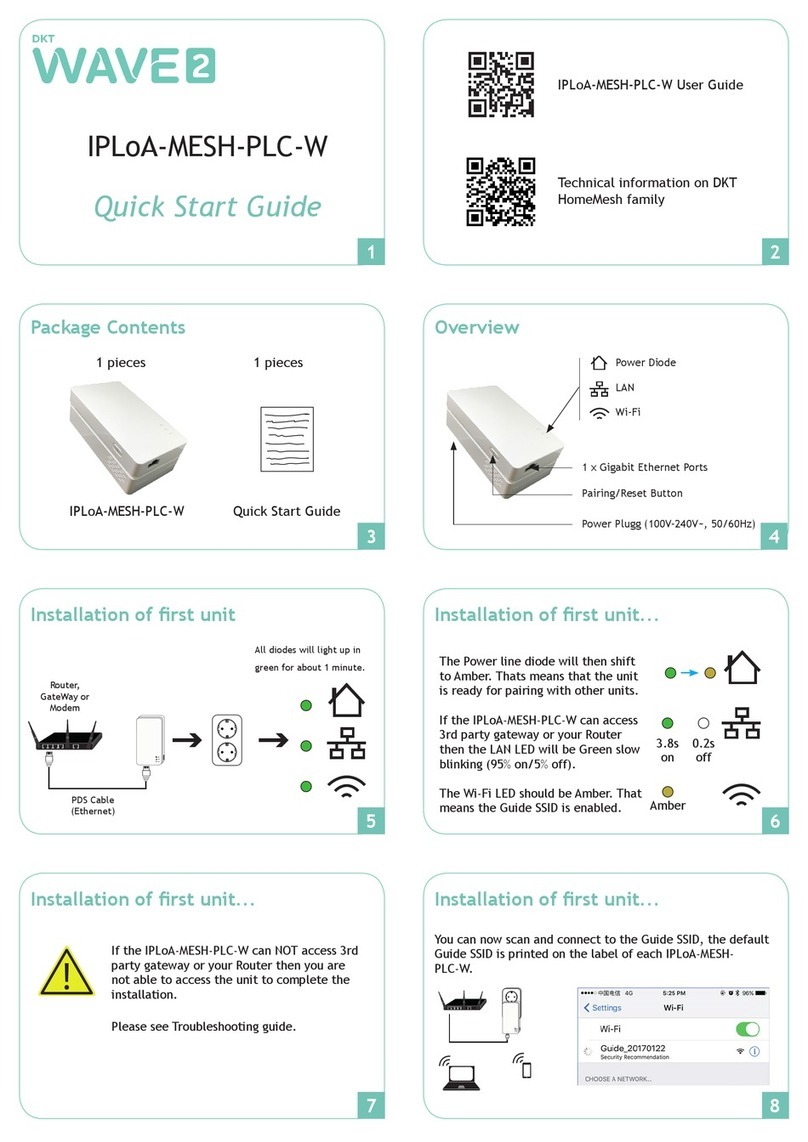
Plug in IPLoA-MESH-AC-W to the existing ADSL /
Broadband Gatway or your home Router with an
Ethernet cable in LAN socket.
If the IPLoA-MESH-AC-W can access 3rd party
gateway or your Router then the LAN LED will be
Green slow blinking (95% on/5% off).
The Wi-Fi LED should be Amber. That means the
Guide SSID is enabled.
3.8s
on
0.2s
off
Amber
You can now scan and connect to the Guide SSID,
the default Guide SSID is printed on the label of
each IPLoA-MESH-AC-W.
Check that the 3rd party gateway works normally
and you are able to connect to it.
1 pcs
IPLoA-MESH-
AC-W
1 pcs
Power supply
with USB-C-
connector
Gateway, delivery point
3rd party gateway
Cable or Wi-Fi
Plug in the supplied mains adapter to IPLoA-MESH-
AC-W