2.4.5 Adjusting the video frequency flicker rate
To adjust the flicker rate to suit your equipment, select ‘Flicker’from the menu, then
press the OK button to enter. Use the UP and DOWN buttons to scroll through the
options and press ‘OK’ to confirm (50 / 60 Hz).
2.4.6 Adjusting the white balance
In the menu select ‘White Balance’, then press the OK button to enter. Use the UP
and DOWN buttons to scroll through the options and press ‘OK’ to confirm. Options
include: Auto, Sunny, Incandescent, Fluorescent, and Cloudy.
2.4.7 Selecting the AV output format
In the menu select ‘TV Type’, then press the OK button to enter. Use the UP and
DOWN buttons to scroll through the options and press ‘OK’to confirm. (NTSC / PAL).
2.4.8 Changing the ‘auto power off’ time limit
In the menu select ‘Auto Power Off’, then press the OK button to enter. Use the UP
and DOWN buttons to scroll through the options and press ‘OK’ to confirm. (OFF, 1
min, 3 min, 5 min).
2.4.9 Changing the date and time display
In the menu select ‘Date Time Display’, then press the OK button to enter. Use the
UP and DOWN buttons to scroll through the options and press ‘OK’ to confirm. (OFF
/ Date / Time / Date & Time).
2.4.10 Enabling Motion Detection
If motion detection is enabled, the DRIVE-EYE will start recording when it senses
movement. This can be helpful for recording accidents where the vehicle is parked
and unattended (for example, a hit and run on parked cars etc.). If this setting is on
the DRIVE-EYE will not power off automatically, it will enter into standby mode. This
means that a constant power supply is required, this is best achieved using the
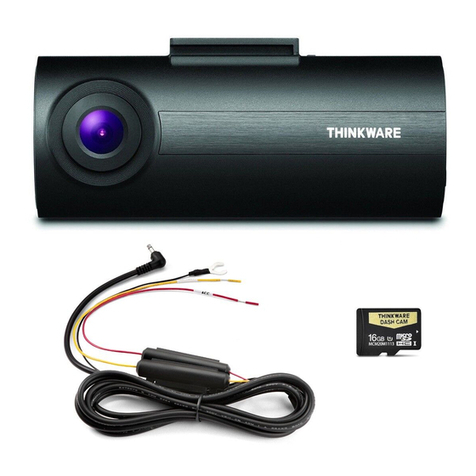
hardwire kit available connected to a permanently live circuit instead of an ignition
activated circuit.
To enable (or disable) this function, select ‘Motion Detection’ from the menu, then
press the OK button to enter. Use the UP and DOWN buttons to scroll through the
options and press ‘OK’ to confirm (ON / OFF).
2.4.11 Changing the time limit for powering off the display
In the menu select ‘Power Off Screen’, then press the OK button to enter. Use the UP
and DOWN buttons to scroll through the options and press ‘OK’ to confirm. (OFF / 1
min / 3 min / 5 min).