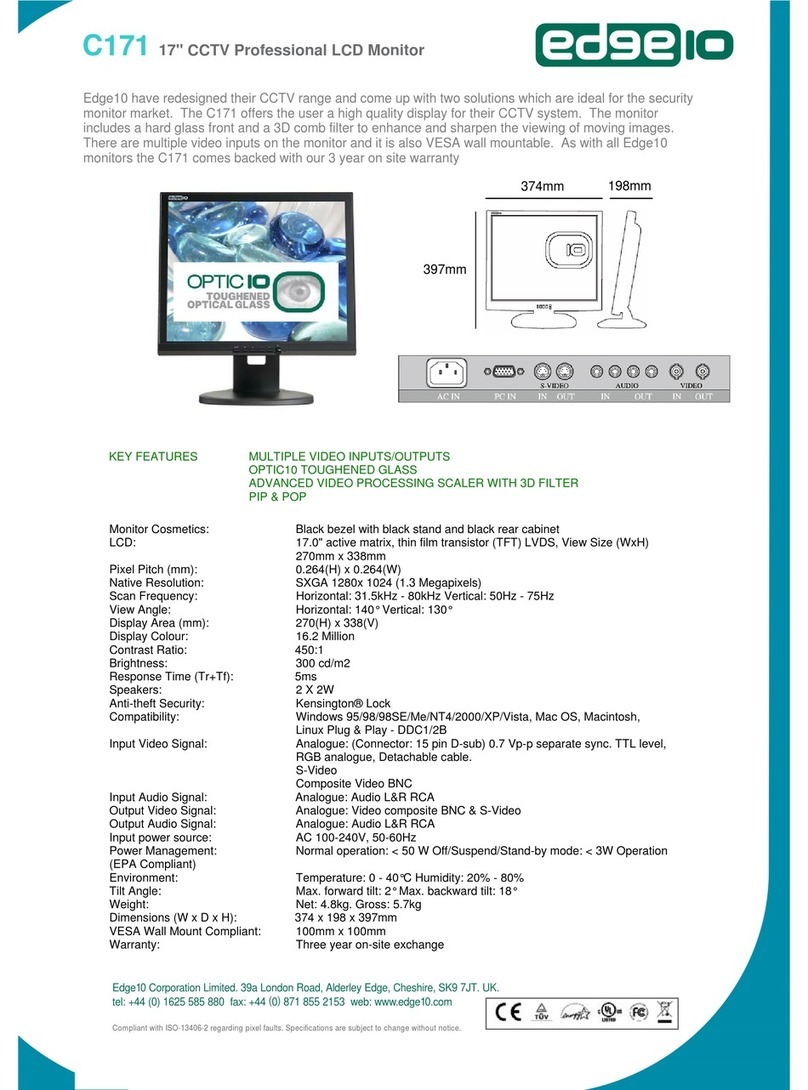
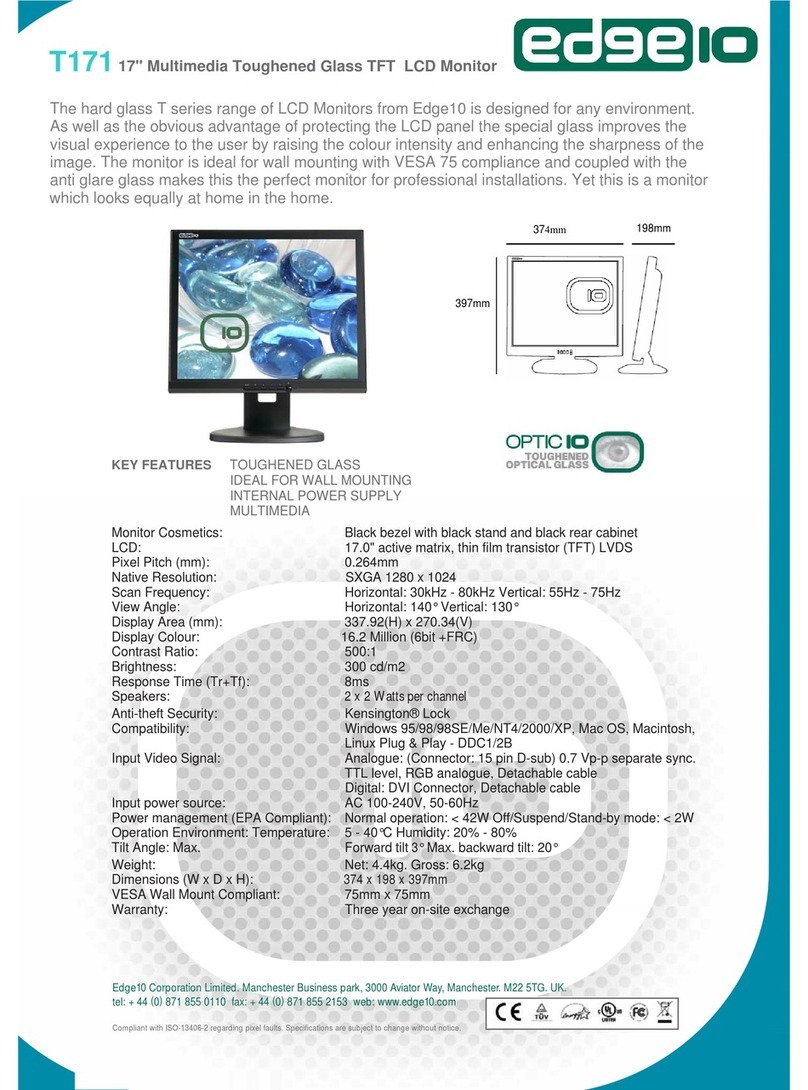
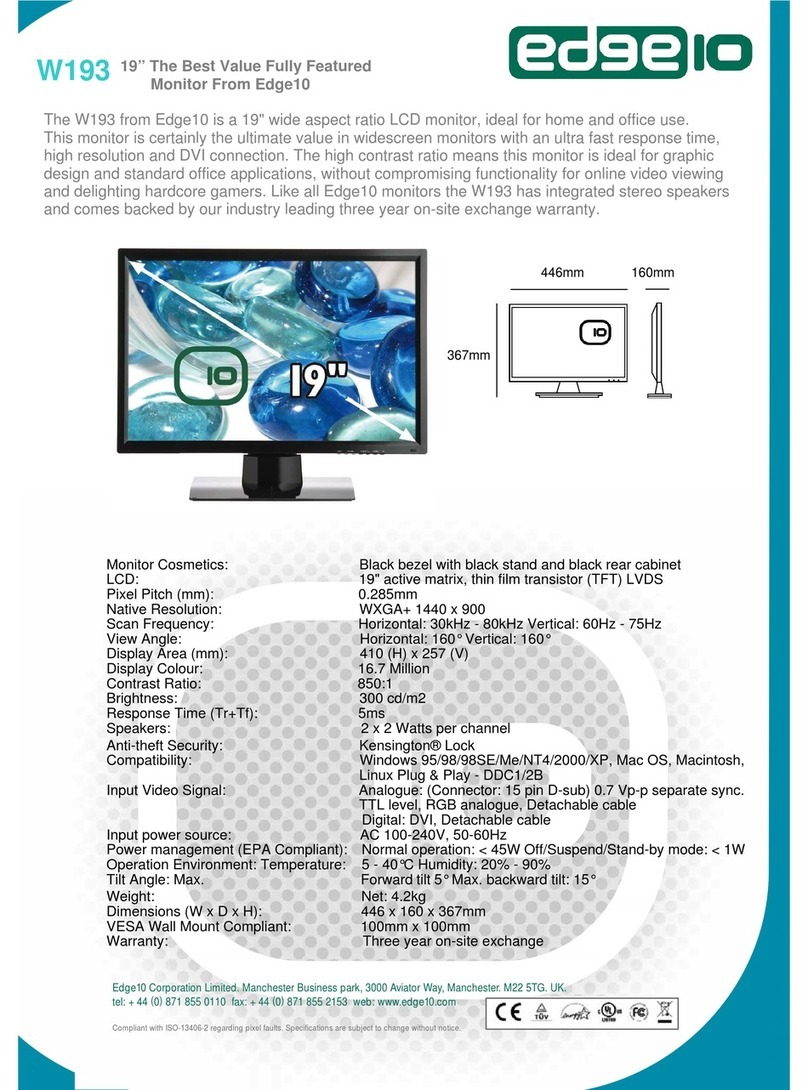
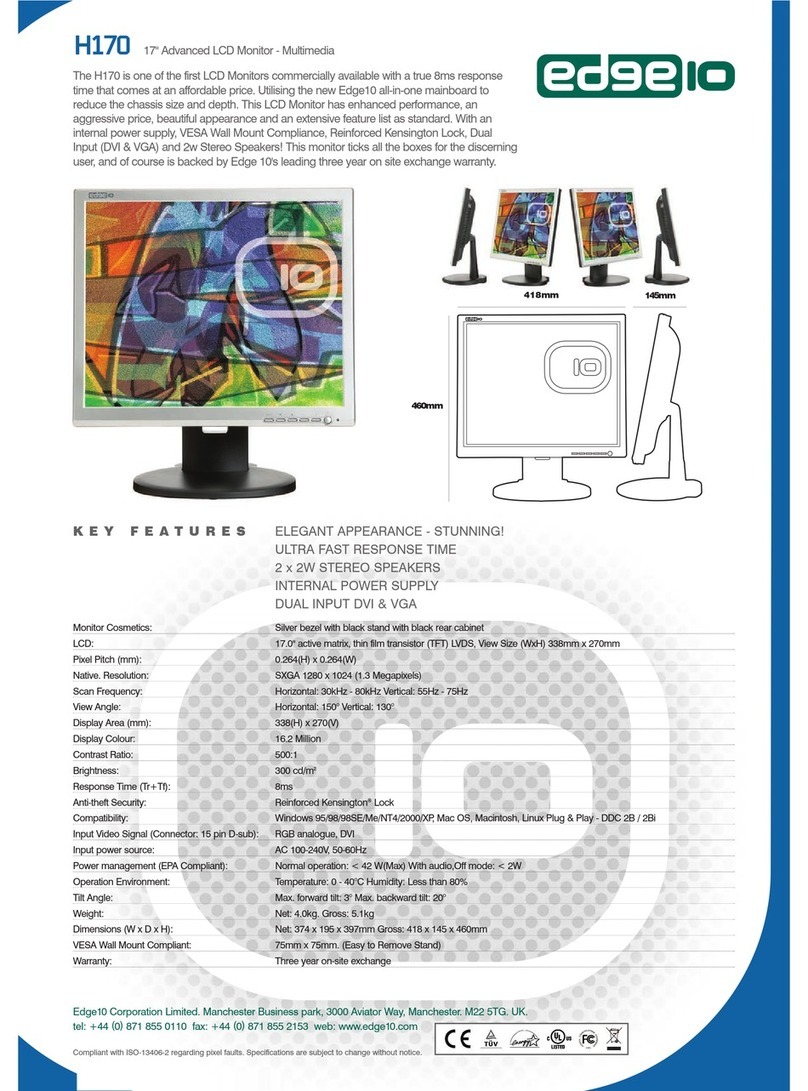
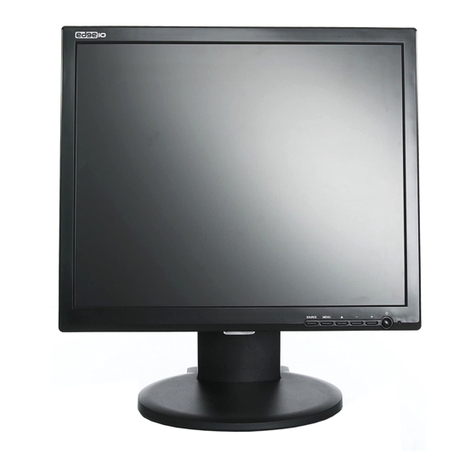
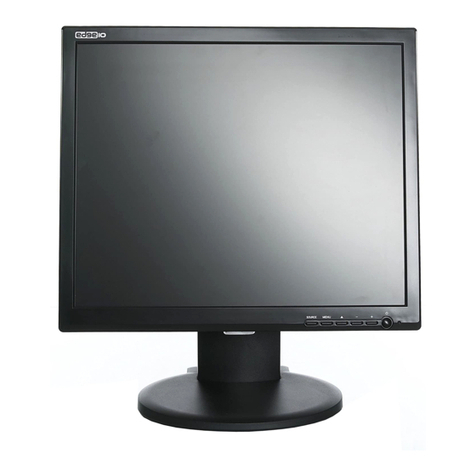
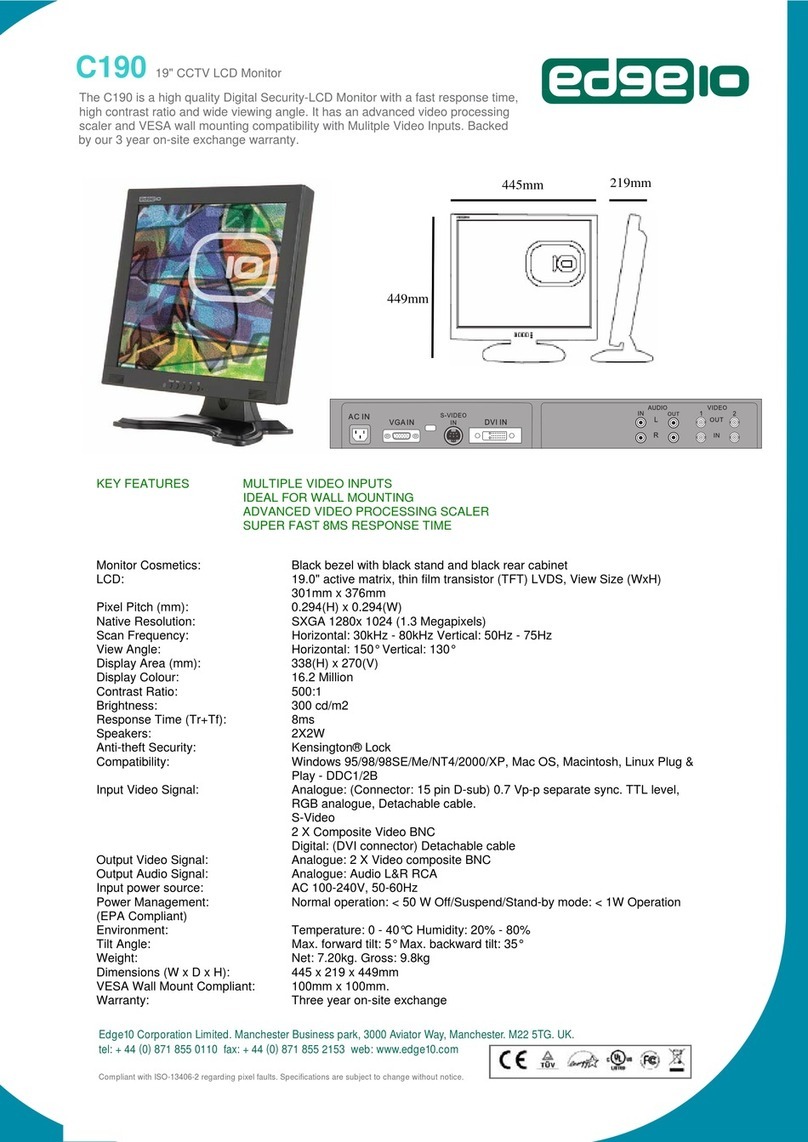
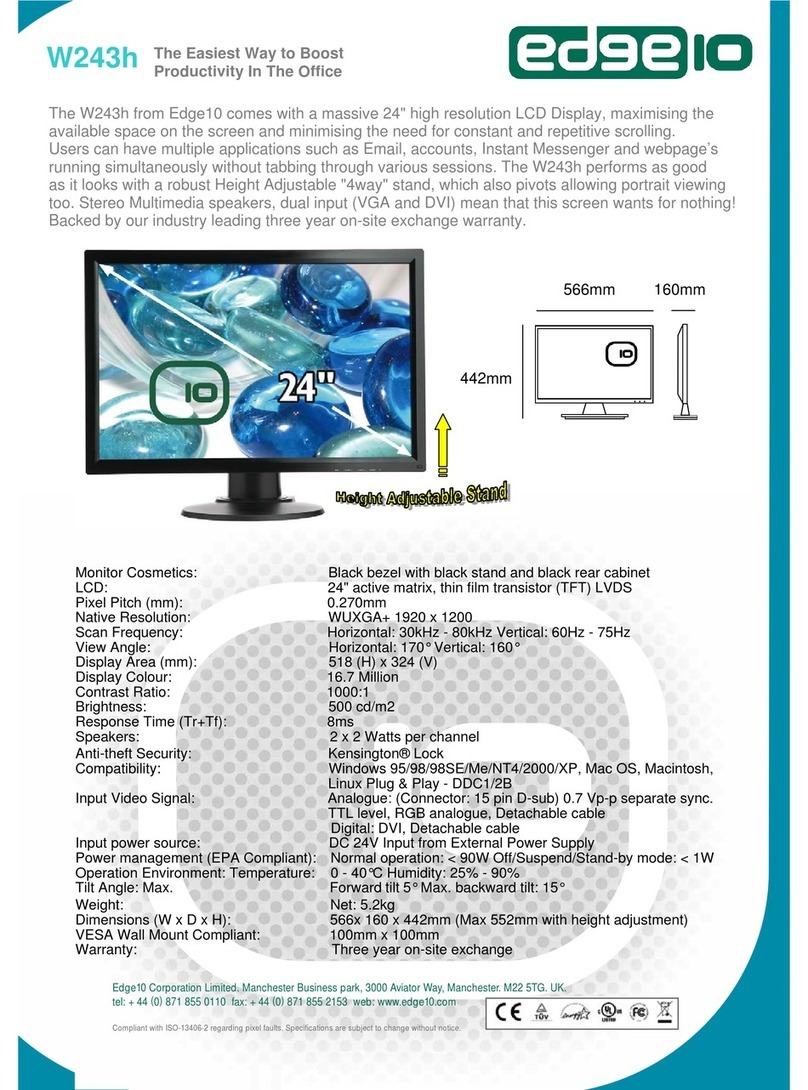
Edge10 H170 User manual

Advanced
Display
Systems
H170 LCD Monitor User Manual
www.edge10.com
The display comes with a three years on site warranty. To
activate your warranty please register your display at
www.edge10.com/support

Contents
1. Instructions for Federal Communications Commission Compliance……..2
2. CE Statement………………………………………………………………….4
Safety
E
G
M
A
P
T
P
O
O
MC
3. Introduction…………………………………………………………………...6
eneral Specifications
onitor Characteristics
ccessories
recautions
4. Installation……………………………………………………………………..7
erminal Connection
re-installation Check
5. Operation……………………………………………………………………....8
Keypad Operating
SD Menu
SD Icon Overview
6. Specification &Technical Data…………………………………………….....13
7. Energy-saving Modes…………………………………………………………14
8. Supported Timing…………………………………………………………......15
9. FAQ (Frequently Asked Question)………………………………..…………16.

1.0 Instructions for Federal Communications Commission (FCC)
Compliance
This d
to
for
by
the
op
int
cas
pre
ate the reception antenna of the equipment
quipment
ent into sockets
—— d technician familiar with wireless networking
In o to satisfy the limitations regarding electromagnetic emissions and to
acc
wit
.0 CE Statement
evice has passed the tests stipulated by Article 15 of FCC Compliance and conforms
the limitations and provisions for Class-B digital equipment. The restrictions are
mulated to prevent the harmful interference with radio frequencies produced by or used
household appliances. This unit will emit electromagnetic waves during operation and
refore, it may interfere with the radio-frequency signal if it is not configured and
erated as directed in the user manual. It is not guaranteed that this device will not cause
erference with specific equipment--in particular when it is being powered on or off. In
e this device interferes with TV sets or wireless networking equipment, the user may
vent the interference by using one or several of the methods stated below:
——Reloc
——Increase the distance between this device and the e
——Connect the power plug of this device and that of the equipm
for different lines
Contact an experience
equipment or TV sets
rder
prevent interference with TV sets and/or wireless networking equipment nearby, the
essories provided with this unit should be used. This device should not be modified
hout the authorization or confirmation of the manufacturer.
2

This is to state that this 17” LCD monitor complies with the following compulsory regulations:
zSafety
pliance complies with LVD-73/23/EEC Low Voltage Direction (EN60950-1:2001)This ap
requirements:
Electrical s•hock protection
•
•
•etic emissions protection
•uced during normal operation or
a
•nd moving parts hazards
zments.
Electro han that produced by radios
ternal
EMI: Rad EN55022:1998 + A1: 2000 + A2:
EN61000-3- c Current Emission
EN61
EMS: :2001 + A2: 2003
nt
IEC
IEC61
IEC61
IEC61
IEC61
IEC61 unity
IEC61
SafetyIns uctions
Energy risk protection
Fire hazard protection
Hazardous electromagn
Protection against hazardous substances prod
m lfunction
Mechanical a
EMC
complies with the 89/336/EEC requireThis device
magnetic interference generated by this device is less t
or other long-distance communication equipment. During normal operation, interference
neffects should be at an acceptable level; this device also incorporates a sound i
anti-interference design. When correctly configured and maintained, it should operate
normally in typical home or office environments.
io interference characteristics are in conformity with
2003 Class B Limit Value & Test Method for Radio Interference Characteristics for
Information Technology Equipment
A) Electromagnetic emissions
B) Conducted emission
armoni2:2000; Class A H
000-3-3:1995+A1:2001 Voltage Fluctuation & Flicker
+A1Anti-interference levels are in conformity with EN55024:1998
class B
Limit Value & Test Method for Anti- Interference Level for Information Technology Equipme
61000-4-2:1995+A1: 1998+A2:2000 Electrostatic (ESD)
000-4-3:2002+A1: 2002 Immunity to RF field strength
000-4-4:2004 Electrical fast transient
000-4-5:1995+A1 :2000 SURGE
000-4-6:2003 CS
000-4-8:1993+A1:2000 Magnetic-imm
000-4-11:2004 Voltage Dips/Interruptions
tr

1. Please carefully read this manual before operating the device and keep it available for future
2. e danger of the monitor falling and thereby possibly causing injury and/or serious
3. t or where water or other liquids may come in
4.
5.
6.
y occur.
le
12. ediately
13. r:
ocedures are followed. In that case,
14. In cas
reference.
To avoid th
damage to the monitor itself, do not place it on unstable cars or desks. Be careful to avoid placing
any stress on the LCD screen during handling.
Do not place this monitor in areas that are we
contact with it, such as bathrooms, kitchens, wet floors, near washing machines or by swimming
pools.
Remove the power plug from the electrical socket before cleaning. No water-containing cleaning
agent should be used to clean the screen, but only cleaning agents formulated specifically for
cleaning LCD screens. Do not put any liquid cleaning agent directly on the screen, but put it on a
soft cloth first and then gently apply the cloth to the screen.
In order to guarantee reliable operation and adequate heat dissipation, do not cover or block vent
holes on the monitor. Do not put the monitor close to heat sources. Do not place the monitor on
furniture such as a bookshelf, unless sufficient ventilation is available.
A 3-pin grounding plug is provided for this monitor. In order to guarantee normal operation and
safety of this unit, this plug should be used with a matching grounded power socket.
7. Please follow all warnings and instructions that accompany the monitor.
or fire ma8. Please pay special attention to power supply overloads, as electrical shock
9. Do not place anything on the power cord. Do not hang the power cord over an area where peop
or objects may pass.
10. In case the monitor is not be used for an extended period, turn off power to avoid the possibility
of short circuits caused by lightning.
11. In order to avoid electrical shock or fire risks, do not insert any object through any openings in
the monitor’s enclosure. Do not allow any liquid to come in contact with the monitor.
In case of any abnormal noise or odor caused by incorrect operation, turn off power imm
and contact a professional technician. Do not attempt to repair this monitor by yourself, as
electrical shock may occur when opening the back cover or accessing internal components.
If any of the following conditions occurs, turn off power and contact a repair service provide
1) the power cord is damaged or worn;
monitor has experienced immersion or wetting;2) liquid has gotten into the monitor, or the
3) the monitor has fallen;
ce shows obvious changes;4) the monitor’s performan
5) the monitor fails to work normally when correct pr
please make any adjustments in accordance with instructions supplied with the monitor; do
not attempt any changes to established procedures, as further damage may occur, making
successful repair of the monitor more difficult.
e parts need to be replaced, you must use identical parts or those supplied by our certified
manufacturers. Any other parts used without our authorization may result in electrical shock or fire
risk.

3.0 Introduction
General Specifications
This high-quality 17” monitor is based on a liquid crystal display (LCD) with exceptional
resolution and features multi-frequency intelligent scanning in the range of 30 to 80 KHz.

Caution: In order to maintain this monitor in optimal working condition, please carefully read
this manual before use.
Monitor Characteristics
z17” viewable-area screen
z1280 x 1024 resolution, 300cd/m2, 500:1 (subject to panel specification)
zWide viewing angle (subject to panel specification)
zColor temperature : Standard :9300K, 7500K, 6500K, 5400K, 4200K, Custom R,G ,B
zLow power consumption
zAutomatic power switching: AC 100~240V, 50~60Hz.
zUser image adjustments: Brightness, contrast, H./V. position, phase adjust, clock adjust,
language, color, volume, reset, exit
zChoice of eight languages: English, France, German, Italian, Spanish, Sweden, Traditional
Chinese and Simplified Chinese.
Pa
Ca
shipp
Pr
ckage includes:
z17” LCD monitor
zAC Power cord
zInstruction manual
z
W
a
rranty Card
z
D-Sub 15 Cable
zDVI-D Cable (optional)
zAudio cable (optional)
ution: Please keep the original packing materials including cartons for possible future use in
ing or moving the monitor.
ecautions
zPlease turn off power before cleaning this monitor. Use a soft cloth with clean water and
lightly wipe the LCD screen surface.
zThis monitor operates at a high voltage and is potentially hazardous. Only qualified
technicians are permitted to assemble or disassemble the device or access internal
components.

4.0 Installation
Terminal Connection
f
e
d
c
NO. Terminal Function
cAC-In AC power input 100~240V, 50/60HZ
dAudio-In (optional) Audio input
eDVI-In (optional) To PC DVI
fD Sub 15 VGA -In To PC D Sub 15 VGA
Pre-installation Check
Please check the label on the nameplate on the back cover first. Input voltage between 100V and 240V should be
used with this monitor. Also please make sure this monitor and your main system (computer) is powered off before
attaching any connectors.

5.0 Operation
Keypad Operating
The LCD monitor has been preset at the factory with the Timing shown in Appendix to create optimal
picture. Users are also able to adjust the picture to the desired brightness and sharpness by following the
instructions.
Normal Key Define
Hot Key Define
Buttons Functions
EXIT Button Exit the OSD (On Screen Display)
dPress to bring up the On Screen Display and select main menu items
XPress to bring up the On Screen Display and select sub menu items
-Adjust sub-setting bars i.e. CONTRAST, BRIGHTNESS, etc. to
decrease setting values of the OSD
+Adjust setting bars i.e. CONTRAST, BRIGHTNESS, etc. to increase
setting values of the OSD
LED power
status display
Green – Normal operation
Amber – Power Management
Off – Power turn off
Power Switch For turning ON/OFF the monitor
Buttons Functions
EXIT Button Auto setup
-Volume Mute
+Volume Adjust

OSDMenu
OSD function allows the user to easily adjust the display to the desired quality.
Structure of OSD
Operating Procedure
1.Power on the LCD monitor.
2.Press “d” or “f“ to pop up OSD menu.
3.Press “d” to select main menu item.
4.Press “f“ to select sub menu item.
5.Press “+” and “-“ buttons to adjust.
6.Press the EXIT button when finish adjusting.

The Adjustment of Monitor’s Screen Display
There are two ways to adjust the monitor’s screen, i.e. auto adjustment and manual adjustment.
Auto adjustment
1. Power ON the LCD monitor and computer.
2. Select “AUTO SETUP” of OSD screens by
pressing the“d” button to “AUTO
SETUP”.
3. Press “+” button while displaying “AUTO
SETUP” screen.
4. The auto adjustment is started. “AUTO
SETUP” will be displayed during auto
adjustment. It takes about 10 seconds to
finish adjustment.
Manual adjustment
a) Power ON the LCD monitor and computer.
b) Adjust according to the aforementioned “Operating Procedure” and “Menu Table” to adjust the
screen to your favorable screen display.
Other manuals for H170
2
Table of contents
Other Edge10 Monitor manuals