manuals.online logo
Brands
  1. Home
  2. •
  3. Brands
  4. •
  5. Envizen
  6. •
  7. Portable DVD Player
  8. •
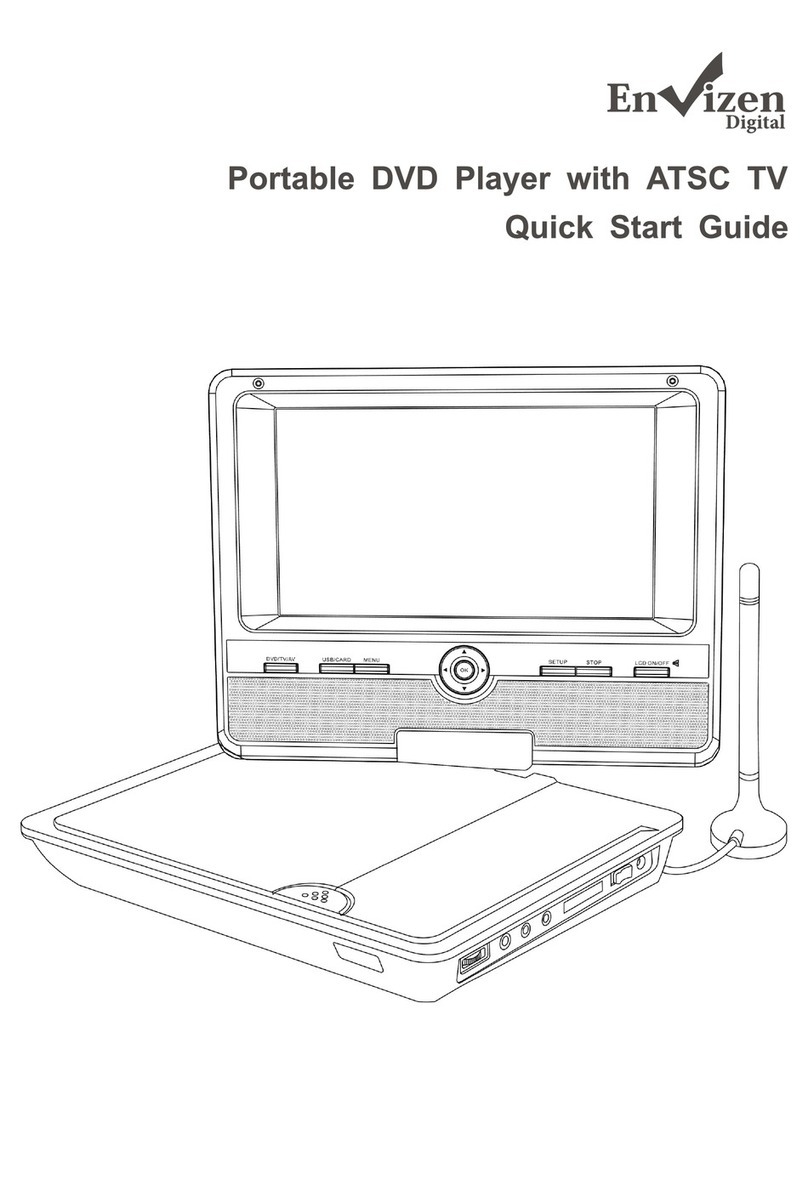
  9. Envizen ED8850 User manual

Envizen ED8850 User manual

Other manuals for ED8850

1

Other Envizen Portable DVD Player manuals

Envizen ED8850 User manual

Envizen

Envizen ED8850 User manual

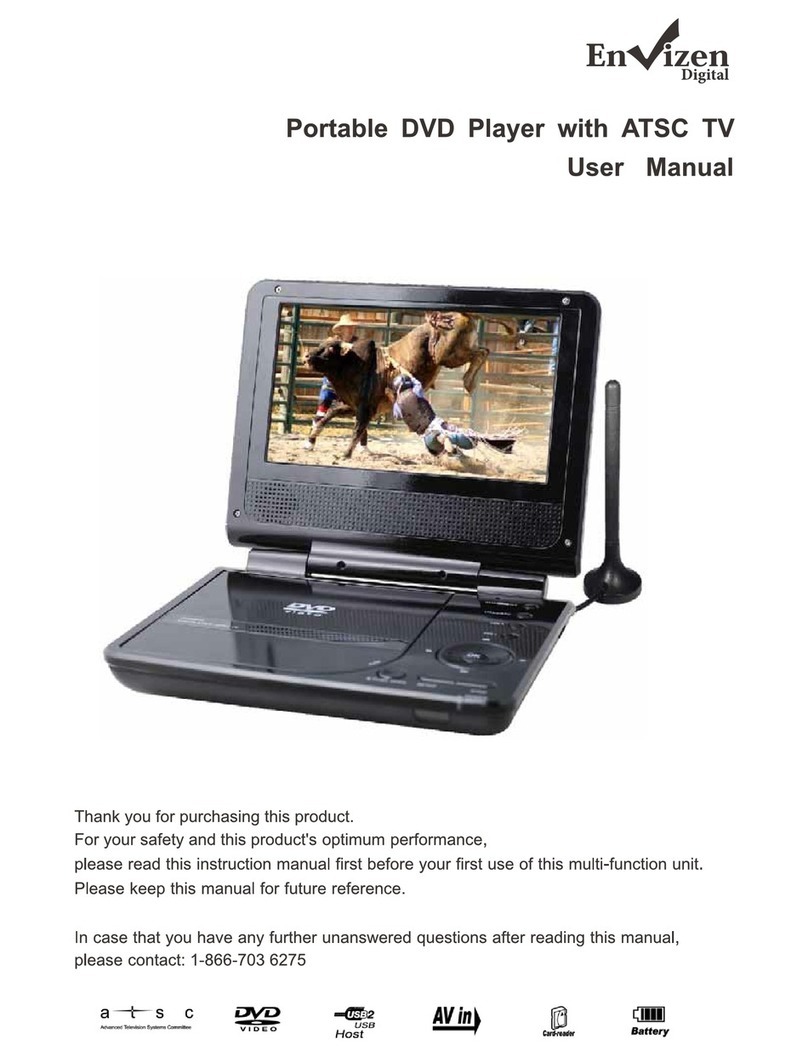
Envizen Portable DVD Player with ATSC TV User manual

Envizen

Envizen Portable DVD Player with ATSC TV User manual

Envizen Portable DVD Player with ATSC TV User manual

Envizen

Envizen Portable DVD Player with ATSC TV User manual

Envizen ED-8850A User manual

Envizen

Envizen ED-8850A User manual

Popular Portable DVD Player manuals by other brands

Hyundai H-LCDVD901 instruction manual

Hyundai

Hyundai H-LCDVD901 instruction manual

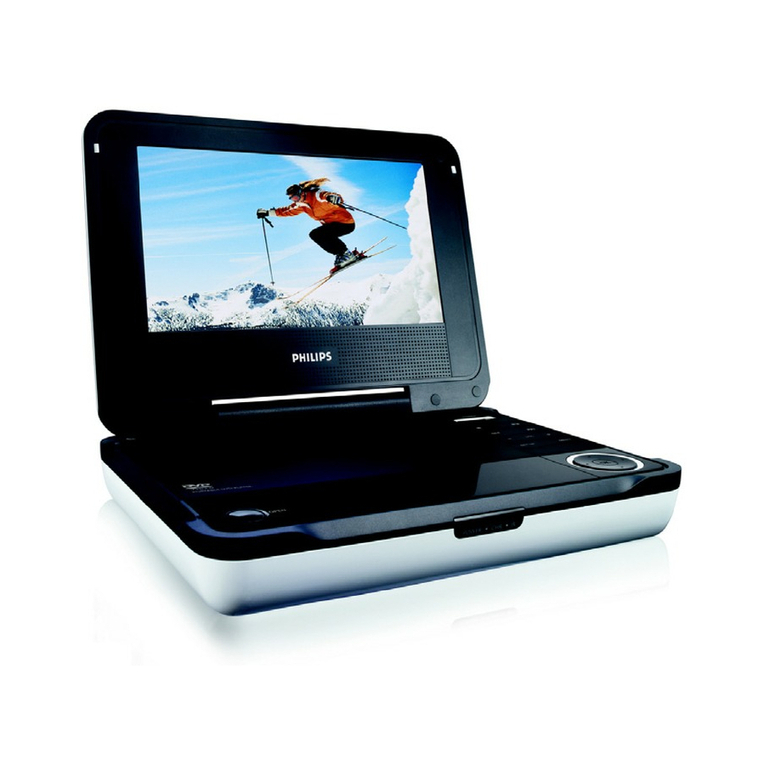
Philips PET718/77 user manual

Philips

Philips PET718/77 user manual

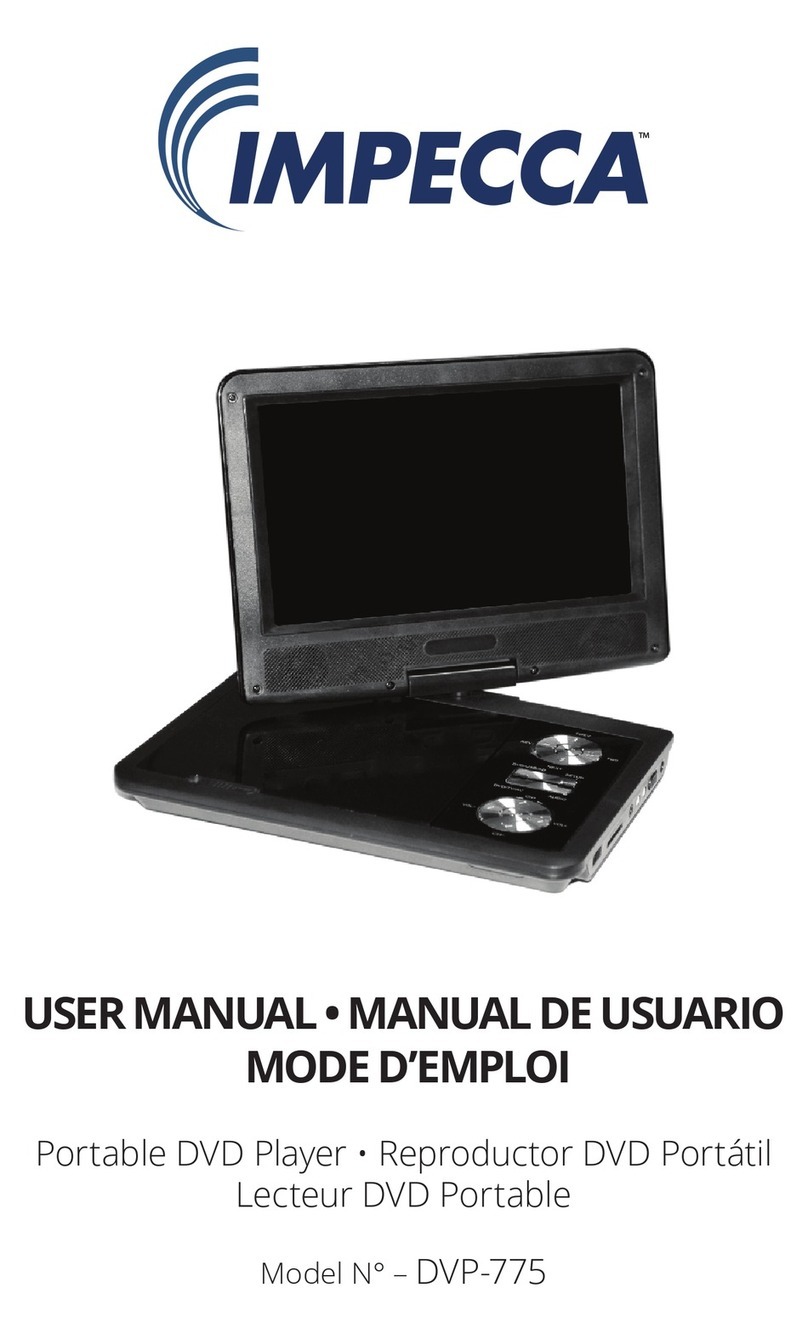
Impecca DVP775 user manual

Impecca

Impecca DVP775 user manual

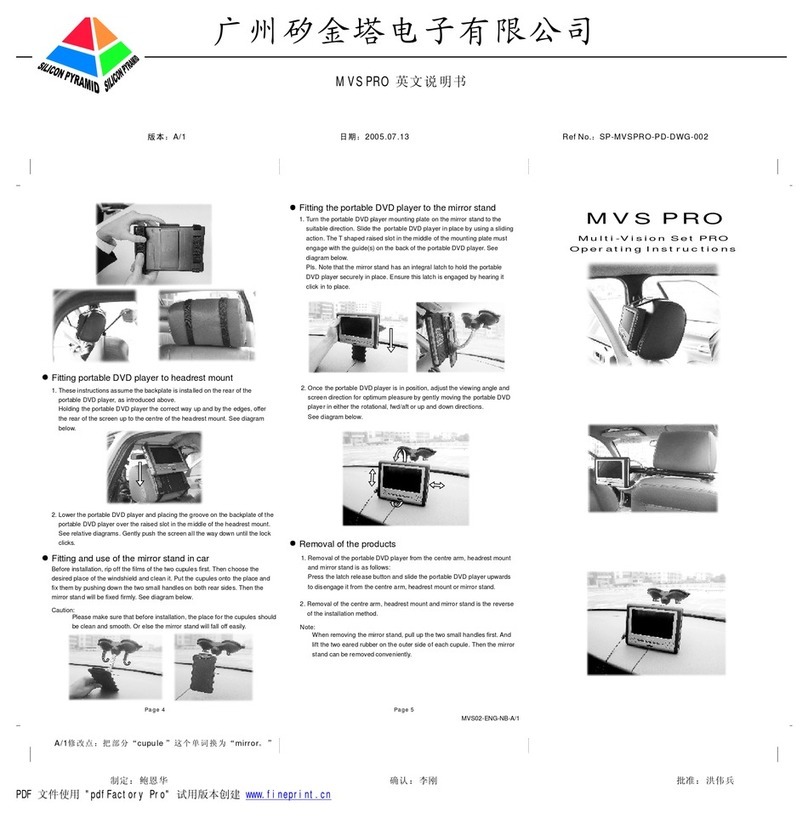
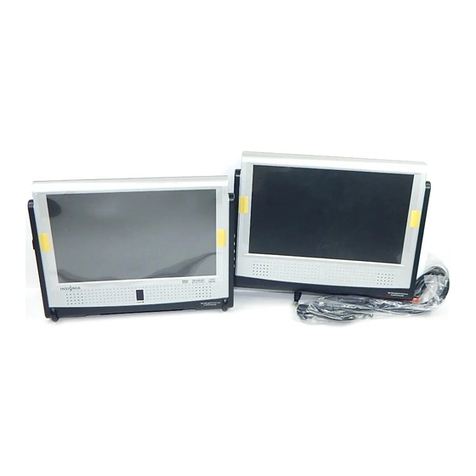
NextBase MULTI-VISION SET PRO manual

NextBase

NextBase MULTI-VISION SET PRO manual

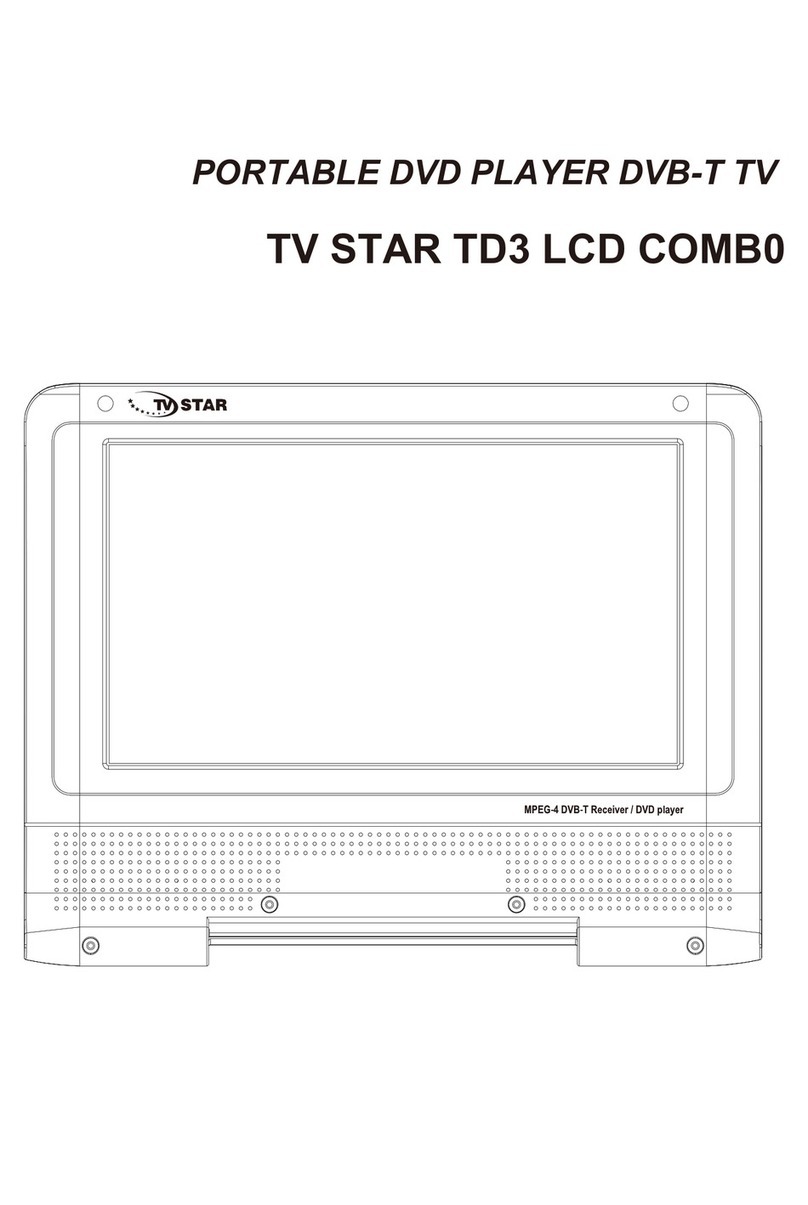
TV Star TD3 LCD COMBO user manual

TV Star

TV Star TD3 LCD COMBO user manual

Philips PD7016 user manual

Philips

Philips PD7016 user manual

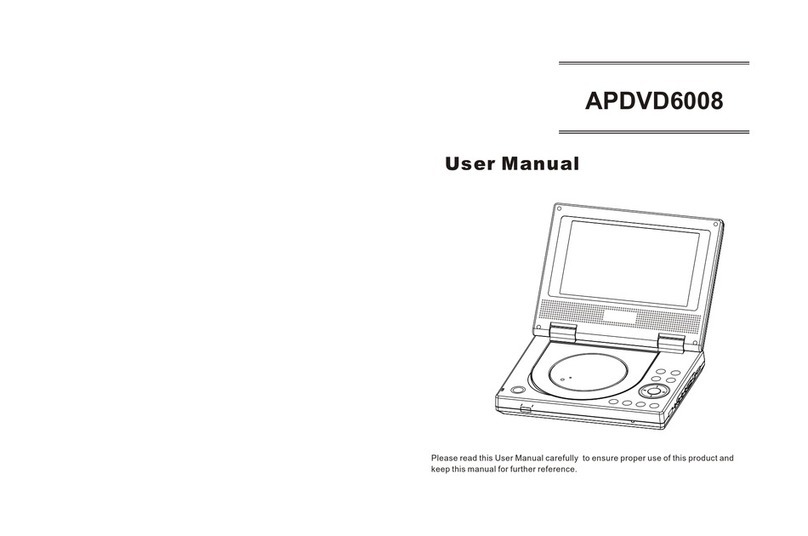
Akura APDVD6008 user manual

Akura

Akura APDVD6008 user manual

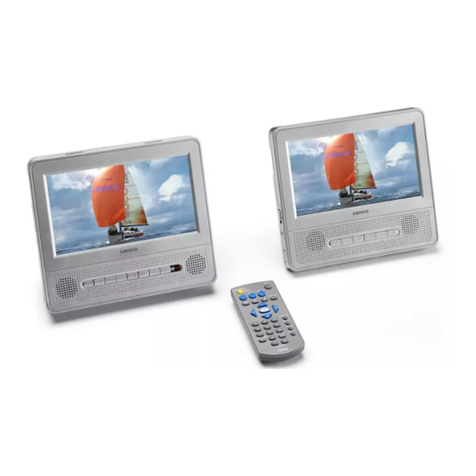
LENCO MES-202 operating manual

LENCO

LENCO MES-202 operating manual

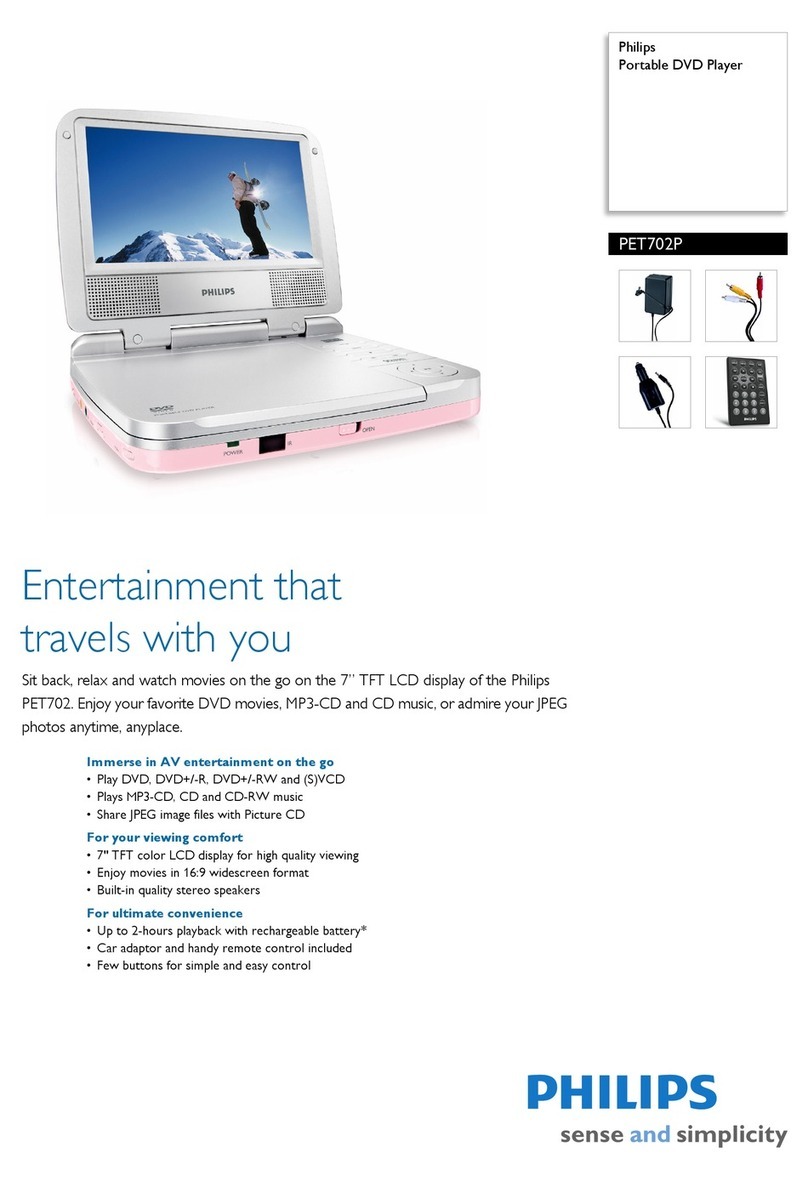
Philips PET702P Specifications

Philips

Philips PET702P Specifications

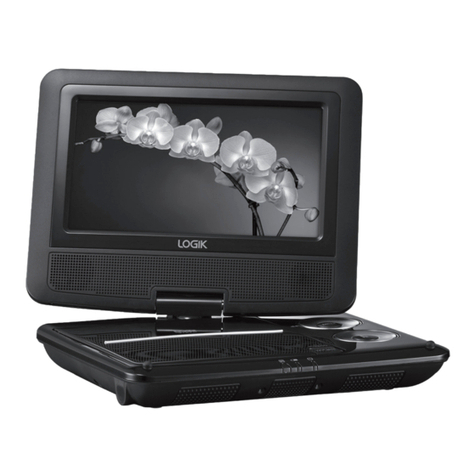
Logik L7SPDVD11 instruction manual

Logik

Logik L7SPDVD11 instruction manual

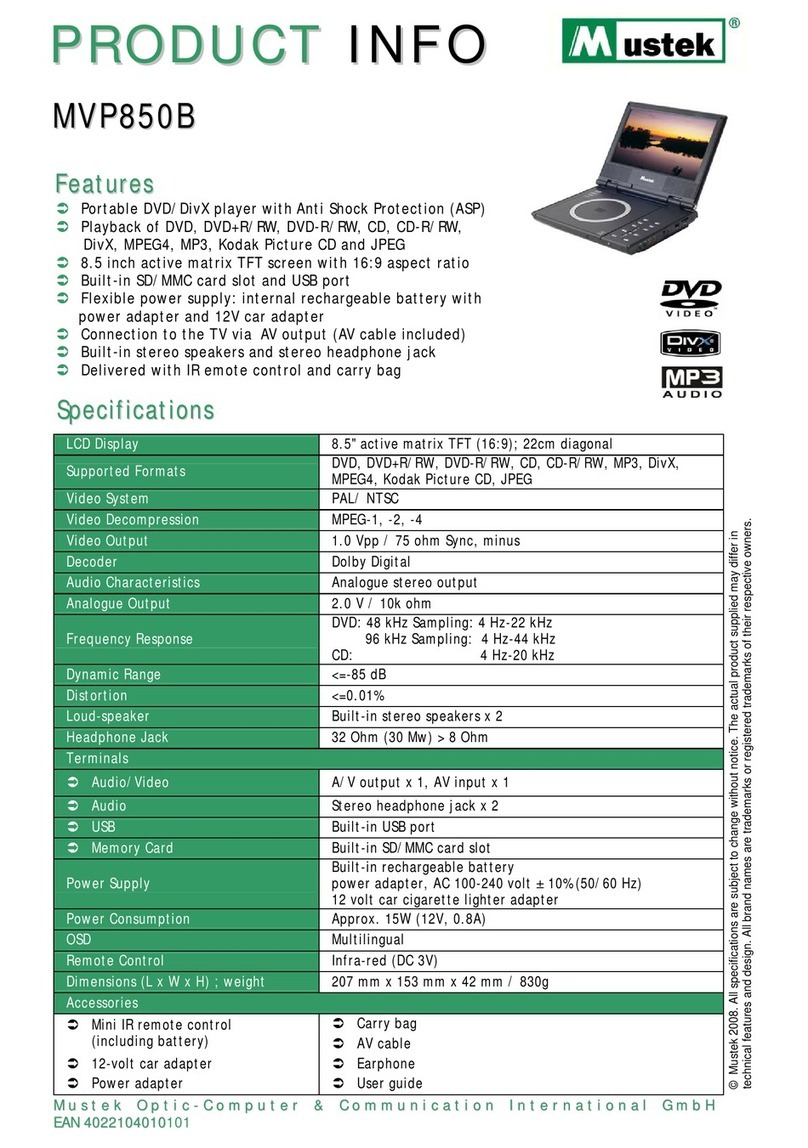
Mustek MVP850B user guide

Mustek

Mustek MVP850B user guide

Philips PET721D/98 user manual

Philips

Philips PET721D/98 user manual

LENCO DVP-928 user manual

LENCO

LENCO DVP-928 user manual

Philips PD9000/12 user manual

Philips

Philips PD9000/12 user manual

LENCO DVP-1027 instruction manual

LENCO

LENCO DVP-1027 instruction manual

Philips PD7010/05 user manual

Philips

Philips PD7010/05 user manual

LENCO DVP-846 brochure

LENCO

LENCO DVP-846 brochure

Matsui PL617 user guide

Matsui

Matsui PL617 user guide

manuals.online logo
manuals.online logoBrands
  • About & Mission
  • Contact us
  • Privacy Policy
  • Terms and Conditions

Copyright 2025 Manuals.Online. All Rights Reserved.

Quick Start Guide
Portable DVD Player with ATSC TV
Introduction to the Device
1.DVD/DTV/AV: Switch DVD/DTV
/AV mode.
2.USB/CARD: Switch USB or card
reader playback.
3.VOL: Volume up/down.
5.OK: Confirm your selections.
7.STOP : Stop current playing.
8.SETUP: Enter the device confi
guration.(DVD/ATSC)
9.OPEN: Open the DVD cover.
4. PREV/NEXT: Go to the next
or previous chapter/Choose channels
that you want on the ATSC mode.
▲
▲
6. REW/FF: Fast forward or
rewind.
▲
▲
4
6
5
1
2
3
7
98
4
5
6
1
1.RF ANT
1345 6
2
1.Earphone
2.AV in
3.USB
4.3 in 1 card reader
5.Power
6.DC IN 9V
Device Overview
1
Introduction to the Device
Remote Control
2
: Closed caption(ATSC)
: Direction key(ATSC)
: Electronic Program Guide(ATSC)
: Setup your favorite programs(ATSC)
: TV Information(ATSC)
: Select different viewing angle
: Search progress that you want on the DVD mode
: Slow speed for playing
: Repeat play the current chapter
: Rewind
: Switch the OSD languages on the DVD mode
Switch the languages that the disc supports
: Setup the brightness/contrast
:
:
:
:
:
Switch the USB or CARD mode
Switch the DVD/ DTV or AV mode
Return to ATSC menu playback(ATSC)
Fast forward
Turn off the volume
:
:
:
:
:
:
:
Increase volume
Numeral Key
Decrease volume
Change last channel
Enter the Title playback
Stop
Zoom in/out the current picture
Change next channel
Exit the current display
Confirm
Direction Key
Menu setup
Enter the Menu playback
Play/Pause
Skipbackward
Skipforward
Time/Title/Chapter indication
:
:
:
:
:
:
:
:
:
~
:
:
4
GENERALGENERAL AUDIOAUDIO VIDEOVIDEO PREFERENCEPREFERENCE
The setup menu consists of four sub-menu
To navig
nd arrows on the remote control.
eo
setup,the preference Setup.
Press the"MENU" key to activate the main menu. Select the "Setup" option and press the "OK" key
to enter the System Setup.
Change the OSD Language
Change the screen ratio
Setting the region and time
Timer Setting: for more information, refer to the next section.
Channels or Menu operations can be locked using password. The original password is "0000".
SETUP Menu
ote control or on the device.
GENERAL SETTING MENU
AUDIO SETTING MENU
VIDEO SETTING MENU
PREFERENCE SETTING MENU
This menu i
Note: It is only for Digital TV Setup.
5
3.1 Power Supply Connection
Power Supply Connection
You have 3 options to supply power for the device.
Power supply connection through the car adapter.
Caution!Do not use any other cords but the one
Connect the Car adapter (supplied with your device ) as indicated below.
Voltage before connecting.Unplug adapter when you leave the vehicle.
Car Adapter
Power supply connection through the AC Adapter.
Power outlet
Connect the power supply cord to the 9-12 volt input of the product then plug the power supply cord to a
main power outlet. While this device is charging through the AC adapter, the internal battery will be charged
at the same time. This unit is a mobile device that needs a battery to operate outside. Built-in rechargeable
battery allows for portable use while traveling or outdoors for up to 2.5 hours.
Operating instructions: Internal battery automatically charges when device is connected to the AC adapter
through a main power outlet. Internal rechargeable battery has 2.5 hours of life.
Warning: To prevent fire or shock hazard, do not expose the device to water, rain, or moisture.
Never expose battery pack to temperatures above 140 degrees F.
Do not disassemble
Do not incinerate
Rechargeable Internal Battery.

3
Remove the protection and put in the disc
Put on the power
DVD Player
AV In
As the picture above, use the AV cable to connect the portable DVD player or other devices to this unit.
Turn on the portable DVD Player and the other unit to which connection has been made. Press the DVD/TV/AV
button on the portable DVD player or on the remote control to enter the AV mode.
6
4.2 USB/CARD
Insert the USB in the slot located on the side of the player
Insert the SD/MMC/MS card in the slot located at the side of the player
Switch on the player
USB/CARD
In Main Menu→Channel Scan→Manual Scan,set the appropriate parameter. Move the highlight bar to
"search" button. Press [OK] key to scan Channels.
Digital TV
There are two different ways to scan channels. Press SETUP on the remote/device, then in
the Main menu -> channel scan -> auto scan, move the highlight bar to “search” button.”
Please be sure that the bracket is securely fastened to the unit and cannot be lifted upwards.
Unzip and open the unit,and sit back and enjoy.
Press the release buckle in the back of the bracket.
Lift the unit up to release it.
Note: Do not press the release button other than when detaching the unit from the bracket.
Release buckle
You can enjoy movies in the
Note: Please insert the disc before attaching the unit to the headrest mounting bracket.
Adjust the headrest so there is an open space of about 3 cm.
Close the buckle and adjust the belt until it fits tightly around the headrest.
Car Seat Attachment
of the
front seat.
Attach the headrest mounting bracket to the back of the headrest of the front seat.
car by attaching the unit to the back of the headrest
7