Operation
GENERAL SETTINGS
Connect your M2 to the Drive Smarter App to configure the following settings.
Video Resolution:
Allows you to select the desired video resolution for loop recordings and emergency videos. Lower
resolution settings result in smaller file sizes, which makes the files easier to transfer and share.
Loop Clip Time:
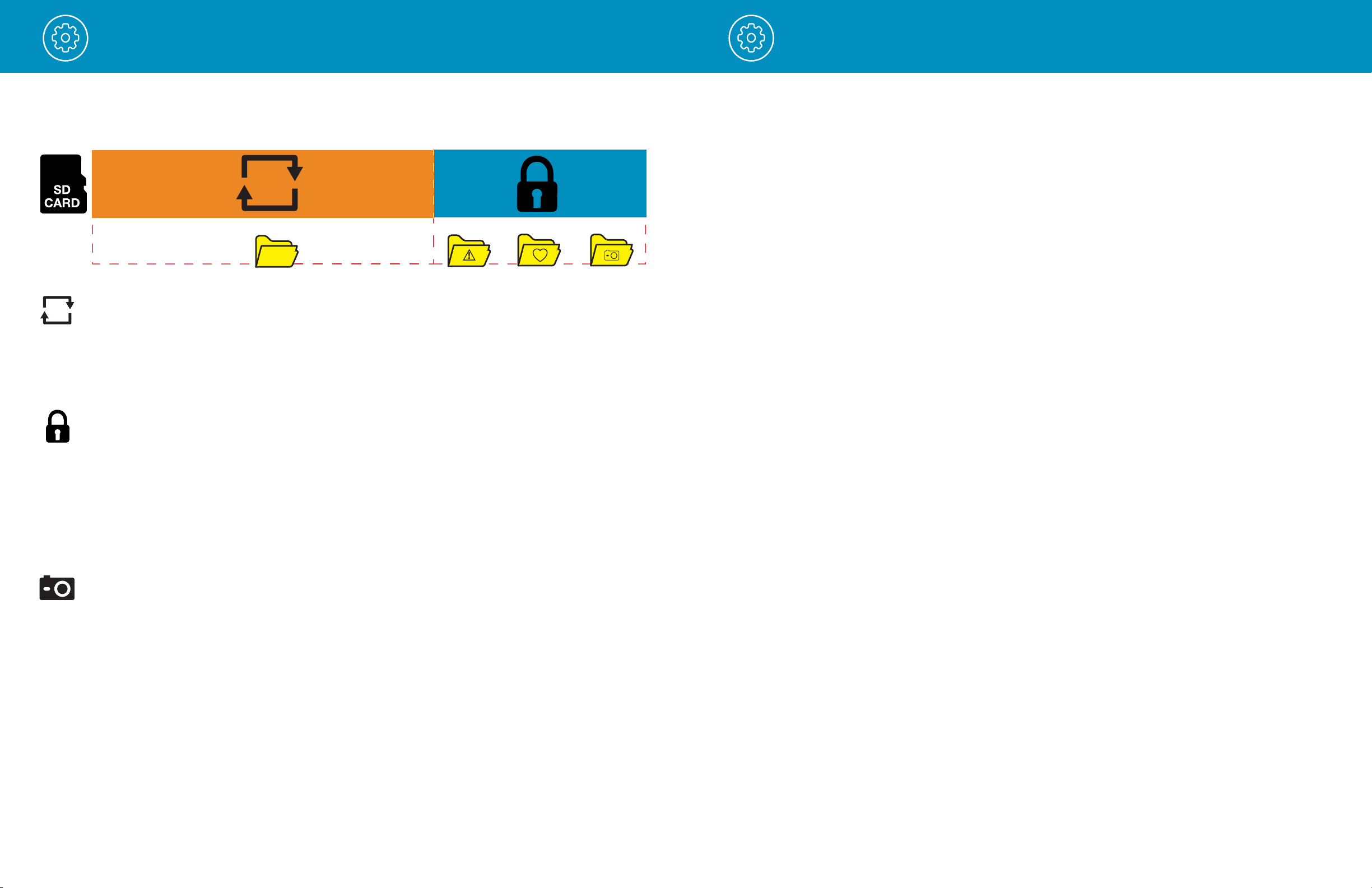
Loop recordings and emergency videos can be saved in 1 min, 2 min, or 3 min clips depending on your
preference. Smaller (1 min) files are easier to transfer to your phone and share.
Wi-Fi:
Allows enabling/disabling WiFi connection on the device and viewing the camera’s WiFi name and
password.
GPS:
GPS can be disabled if needed. Enabling this setting allows your recordings to have an exact GPS location
stamped on the footage. This also always allows you to know the location of your vehicle if the camera is
wired via a hardwire kit and connected to a Wi-Fi hotspot installed in the car.
Date/Time:
• Enable “Automatic” mode to have date / time settings based on the camera’s GPS signal. Having
the correct date and time ensures that timestamps associated with your videos are accurate. In
this mode, you will still have to ensure that you have picked the correct “Time Zone” and enabled
or disabled “Daylight Savings” based on your location.
• To manually set the date and time, cursor down to “Manual”, and select it. You will now be able to
enter Date and Time information.
Microphone:
The microphone can be enabled or disabled via settings or on the main screen. When disabled your
recorded videos will be silent.
Motion Detection:
Enabling Motion Detection allows your camera to monitor movement around the camera (changes in light)
which can be used to record any suspicious activity around the vehicle when parked. This setting screen
allows you to choose which of the available cameras should be used to monitor for activity. If leaving your
vehicle off for more than 48 hours (or less if your battery is old) please use the “Auto Surveillance Shutoff”
setting to set a time-limit on Motion Detection to prevent your battery from being drained.
Note: For Motion Detection to work the camera needs to be connected via hardwire kit (part: 0010058-1)
or be plugged into an ‘always on’ Cigarette Lighter Socket. You can check if your vehicle has an ‘always
on’ CLA adapter online or in the vehicle’s owner’s manual.
Parking Mode:
Enabling Parking Mode allows your camera to monitor for changes in its internal G-Sensor/accelerometer.
Bumps, Collisions, and break-ins can trigger the G-Sensor to save valuable footage from the moment of
impact. If leaving your vehicle off for more than 48 hours (or less if your battery is old) please use the “Auto
Surveillance Shutoff” setting to set a time-limit on Motion Detection and prevent your battery from being
drained.
Note: For Parking Mode to work the camera needs to be connected via hardwire kit (part: 0010058-1) or
be plugged into an ‘always on’ Cigarette Lighter Socket. You can check if your vehicle has an ‘always on’
CLA adapter online or in the vehicle’s owner’s manual.
Surveillance Auto Shutoff:
If leaving your vehicle off for more than 48 hours (or less if your battery is old) please use the “Auto
Surveillance Shutoff” setting to set a time-limit on Motion Detection and Parking Mode to prevent your
battery from being drained.
G-Sensor:
You can use this setting to set the sensitivity of the G-Sensor from 1-3 or turn it off. Level 1 is the easiest to
activate the G-sensor. Level 3 is the setting which will only lock videos when the most severe impacts are
detected. Level 1 is recommended for most users.
Watermark (Date/Time, Speed, GPS, Driver ID Video Stamp)
The watermark settings allow you to toggle having the date/time, speed, GPS coordinates, the Escort logo
and a custom Driver ID be stamped into the bottom of all recorded video.
Driver ID Watermark:
This setting allows you to associate a Driver ID with the camera (for example: John, Employee 12, or a
license plate number, etc). This allows you to set the name of the driver which will be stamped on the
footage as part of the watermark.
Exposure:
Allows you to adjust how light or dark videos and images will appear on the camera.
Drive Smarter Services:
These settings allow you to select which videos you would like auto-uploaded to the Drive Smarter App for
sharing/review. You can also choose to have Incident Reports sent to your insurance provider, as well as
Mayday alerts sent to your Emergency Contact if a severe G-Sensor event is detected.
Speed Units
Choose between miles/hour or kilometers/hour as the speed unit stamped in the watermark.
Operation
15 16