4
3a. Direct Wireless Connection
(1) Go to the Wi-Fi setting on your mobile device. Choose the Wi-Fi router with a prefix of HD-
xxxxxx (xxxxxx=Camera ID numbers).
Enter the default password 12345678 and save the settings.
(2) Launch the APP, tap to add camera.
(3) Scan the QR code label on the back of the camera to bring up the DID information
(CGXX-XXXXXX-XXXXXX), or manually type in the DID, including the dashes.
(4) Name your camera (max. 20 characters).
(5) Enter the security code:123456.
(6) Tap save information and follow the in-app wizard to complete the setup process.
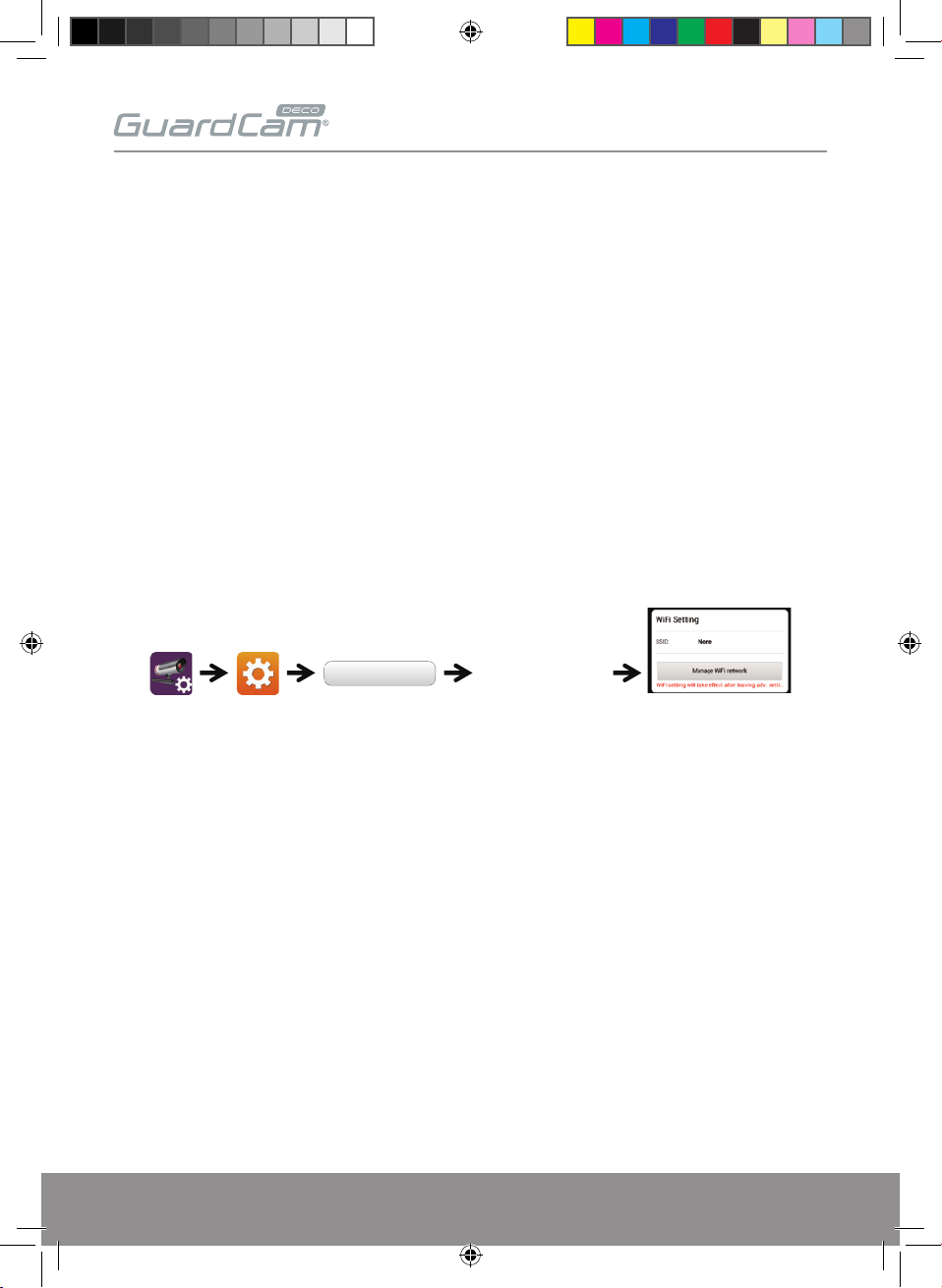
3b. Wi-Fi Setting
3A.
3b. The camera will be off-line for around 40 seconds to reboot for Wi connection. When camera
connects to Wi-Fi router correctly, Green LED will stay ON.
3c. In the Wi-Fi setting of your smart phone/tablet, make sure the Wi-Fi router you are connecting
to is the same as the camera. If not, manually assign to it.
Be sure to choose your local home Wi-Fi router on your local network in the ADVANCED SETTING.
The system will begin to count down and reboot the system. The camera view will show on screen
again after Wi-Fi setting has been updated.
Advanced Enter Admin Password
(default 123456)
Choose the appropriate Wi-Fi
router for your local network
GUARDCAMDECO QUICK START GUIDE.indd 4 12/03/2018 14:35:10