10 ColorSource Overview
Available Controls
Pinch two fingers to zoom the display in or out. Zoom in to see intensity levels within the channel
cells.
Drag with two fingers to pan the display.
Single click on a deselected light to select it.
Single click on a selected light to deselect it.
Double click on a light to select that light alone and de-select all others.
Press and hold a cell to open the arrangement screen. When in arrangement mode the screen dis-
plays as a grid. Pick lights to move them to another position on the grid.
Press the Stage Map button (left-most button below the screen) to exit the arrangement mode.
Selected lights are indicated surrounded by a green box.
The vertical strip to the right of the main area displays special content that is playing:
Effects: press an icon to Stop or Edit the effect from playback. Press the icon to place the effect on
the wheel controller to increase or reduce the effect.
Audio (ColorSource AV only): press an icon to Stop or Edit the audio from playback. Pick the
icon to place the audio volume on the wheel controller to increase or reduce the volume of that audio
clip.
Video (ColorSource AV only): press an icon to Stop or Edit the video from playback. Pick the icon
to place the video luminance on the wheel controller to increase or reduce the video brightness.
Note: The Effects, Audio, and Video icons will only display if that type of content is playing.
Fader Mode
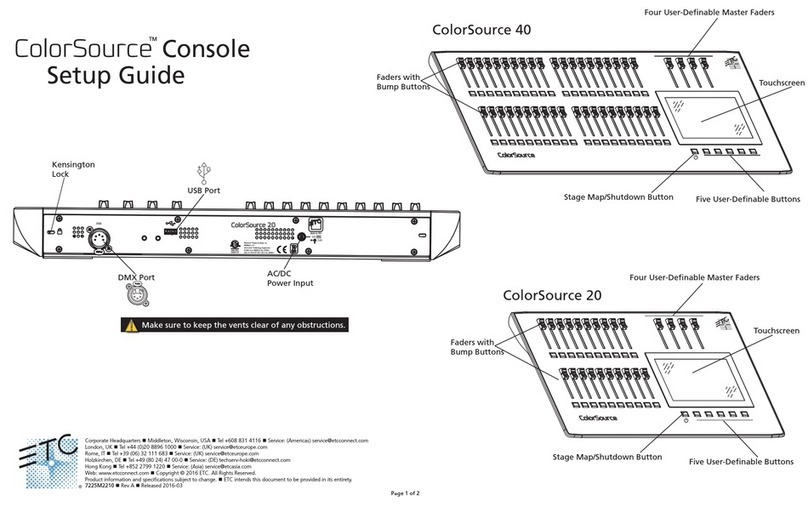
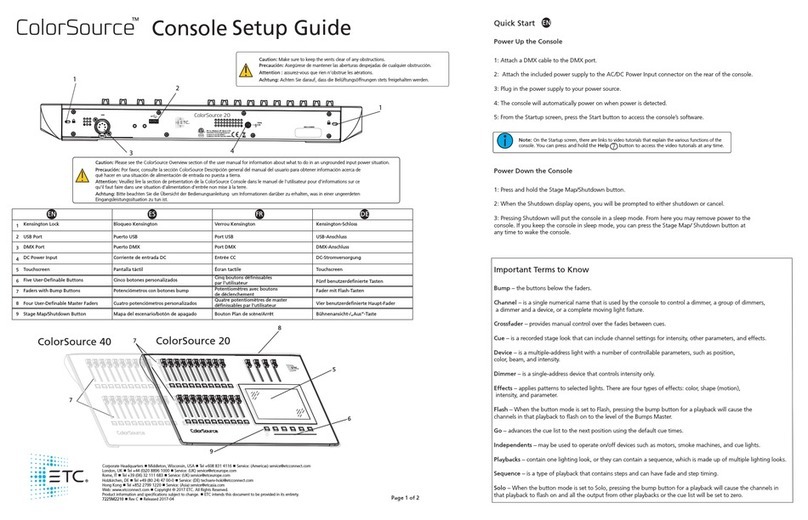
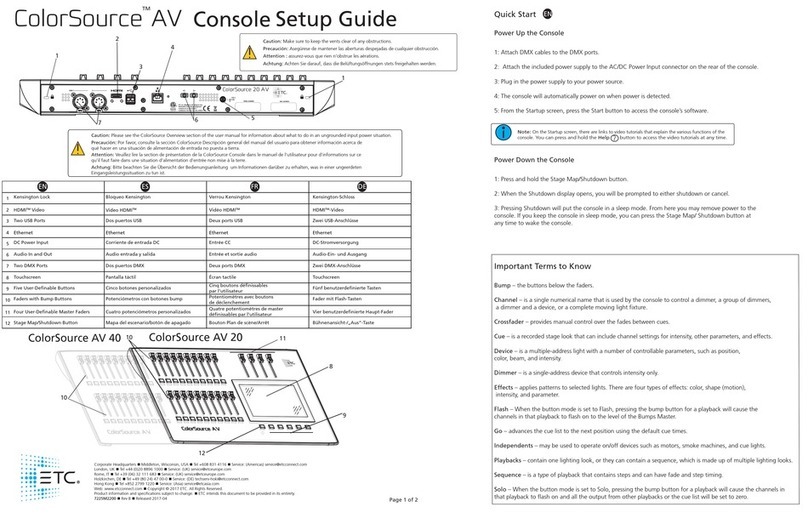
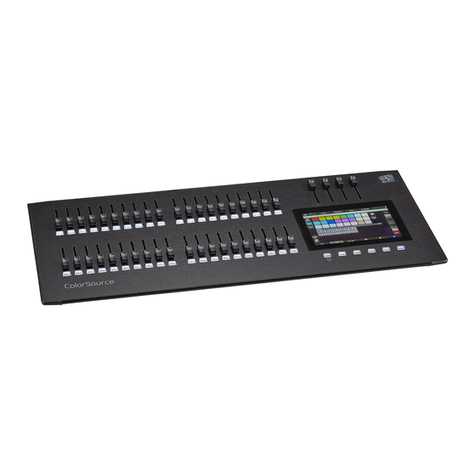
The faders to the left of the display may be set to operate individual channels or playbacks.
Two pages of channels are provided and ten pages of playbacks.
Note: See channels for information on faders and captured channels.
Bumps
The buttons below the faders are bump buttons.
Their operation changes based on the fader mode.
When the faders are in channel mode, the bumps can be used to select or deselect channels.
When the faders are in playback mode, their behavior is set based on the selected button mode.
Crossfader
The Crossfader can be assigned to one of the four faders above the touchscreen. It is assigned in the Con-
sole tab in Settings.
The Crossfader provides manual control over the fades between cues. You can see the progress of the
crossfade and which cues are affected in the cue viewer.