ETM DeltaBlack 71614 User manual

DeltaBlack
• Integrated 7-channel data logger including one relay output
• DIN-rail mounted including wall mount bracket
• Integrated 2G/3G/4G world wide wireless modem
• Customized SMS alerts
• LED indication for cellular signal quality and communication status
• Pre-configured for the most common sensor types
• Easy access to logged measurements via ETM’s IoT Cloud Dashboard (EWO)
• Easy integration to PLC, SCADA and telemetry systems
FEATURES
INTRODUCTION
DeltaBlack is an easy to use Cellular 4G/3G/2G remote
monitoring and logging solution for use in heavy duty industrial applications.
ACCESSORIES
• Pump, fan, generator and motor
• Refrigeration and freezer systems
• Metering, HVAC, indoor climate
• Fire panels and intruder alarms
• Data centre monitoring
• Tank measurements
Common applications include:
Quick Start Guide
Welcome to your ETM Product
Get started: This guide helps with initial product setup. Need more? Find
additional product information by simply scanning the QR code.
ETM Mätteknik AB (HQ)
Ekbacksvägen 32, 168 69, Bromma, Sweden
Tel: +46 (0)8 25 28 75 E-mail: [email protected]
www.etmiot.se
ETM Pacific Pty Ltd (APAC)
Suite 6, 273 Alfred Street, North Sydney NSW 2060, Australia
Tel: +61 (0)2 9956 7377 E-mail: sales@etmiot.com.au
www.etmiot.com.au
Support: ETM oers multiple support options to help you
get the most out of your product. You can go onto
If urgent, please call us using the numbers below.
INDUSTRIAL IOT EDGE SOLUTION
PIN DESCRIPTION
Terminal 71614 (Digital) 71615 (Analogue)
CH1 DI, Pulse DI, Pulse
CH2 DI, Pulse, AI 0-2.5V AI 4-20mA
CH3 DI, Pulse, AI 0-2.5V AI 4-20mA
CH4 DI, Pulse, AI 0-2.5V AI 4-20mA
CH5 DI, AI 0-2.5V DI, AI 0-2.5V
CH6 DI, AI 0-2.5V DI, AI 0-2.5V
CH7 DI, AI 0-2.5V AI 4-20mA
SGND Signal Ground
SGND Signal Ground
Relay
COM (Common)
NO (Normally Open)
NC (Normally Closed)
Sensor Feed 5V and 16V max 100mA
RS232
EIA561
Communication with computer
for configuration
V+ In
V- In
(6-35VDC)
Power Supply
Status LEDs
1
Slow Flash
2x Flash 3s Pause
3x Flash 3s Pause
4x Flash 3s Pause
Searching for network connection
Active 2G network connection
Active 3G network connection
Active 4G network connection
2On
O
Internet provider connection
No Internet provider connection
3
On
O
Rapid Flash
Recieving data (2s active)
No data transmittion occurring
Sending Data
Signal strength LEDs
1
Flashing
On
O
RSSI < -105dBm or No SIM detected
RSSI ≥ -105dBm (Poor signal)
Not registered to mobile network
2On
O
RSSI ≥ -89dBm (Fair signal)
RSSI < -89dBm or not reg. to mobile network
3On
O
RSSI ≥ -73dBm (Good signal)
RSSI < -73dBm or not reg. to mobile network
LED INDICATOR
Pressure Sensor Temperature/Humidity
Sensor Power Supply
USB to RJ45
Adapter
Screw mount antenna Magnetic base antenna

CONNECTING SIM CARD
Getting Started
1. Connecting the hardware
1. Start the configuration tool.
2. Connect the unit to your computer.
3. Go to the terminal tab, use ”Set COM Port” to choose the right COM port (most
likely not COM1) and set the baud rate to 115200.
4. Open the port by pressing ”COM(X): CLOSED”.
5. Click anywhere in the blue window until you see a flashing square. Proceed by
pressing the ”reset” button on the modem, then immediately press ”Esc” on your
keyboard until the message ”Escape Pressed” shows up.
6. Make sure the that the firmware matches the configuration tool version like the
picture above (6).
7. The unit is now ready to be configured.
General settings
Used for adding phone numbers, change Unit ID, Clock sync, data formats...
Channel settings
Setting up and configuring alarms on dierent channels/pins.
Data Transfer/Logging Timers
For data logging/monitoring. Choosing which data the unit will gather and send.
Communication
Specify where the unit should send the data.
1. When done configuring the unit, press the red button ”WRITE MEMORY” to
upload the configuration to the unit.
2. To see the current configuration on the device, press ”READ MEMORY” when
having the unit connected to the computer to read it onto the configuration tool.
3. To save your configuration to use for future units press ”File” in the top left corner,
then ”save” in the dropdown menu, and save it to an optional location.
4. Your unit is now ready to use.
2. CONFIGURATION TOOL 3. CONFIGURING THE UNIT
ETM PRODUCTS
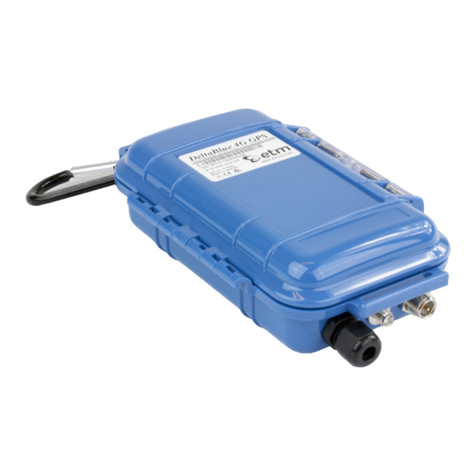
DeltaBlue
Outdoor and
battery-powered
remote monitoring,
alarming & logging
solution
DeltaBlack
Industrial cellular
remote monitoring,
alarming & logging
solution
ETM-770
Cellular Network
Monitoring tool
Cat M1/NB-IoT
2G/3G/4G
4. EWO (ETM WEB OFFICE)
ETM
To access the ETM IoT Cloud Dashboard, please visit the
website or scan the QR Code.
www.etmweboce.com/EWO/pages/login.jsp
• Log in using the provided login credentials
• Manage your account, units and organisation in the settings.
• Under settings > configuration choose which data you want to be presented
• Enjoy your ETM product
WIRING EXAMPLES
3.
3.
3.
4.
5.
6.
6.
1.
3.
71614
Multiple I/O Controls
Digital Input
71615
Basic I/O Control and
4-20mA 2-Wire transmitter
2.
1. Connect the SIM Card
2. If you wish to configure the unit, proceed to connect a RJ45 to USB
adapter to a computer.
3. To power up the unit, connect a 6-35VDC power supply through the
terminal
ETM-Purple
Intelligent cellular
2G/3G/4G
with ”last gasp”
This manual suits for next models
1
Other ETM Data Logger manuals