manuals.online logo
Brands
  1. Home
  2. •
  3. Brands
  4. •
  5. Extron electronics
  6. •
  7. Enclosure
  8. •
  9. Extron electronics PowerCage 401 User manual

Extron electronics PowerCage 401 User manual

Other manuals for PowerCage 401

2

Other Extron electronics Enclosure manuals
Extron electronics PowerCage 401 User manual
Extron electronics

Extron electronics PowerCage 401 User manual

Extron electronics HSA 200SE User manual
Extron electronics

Extron electronics HSA 200SE User manual

Extron electronics PowerCage 411 User manual
Extron electronics

Extron electronics PowerCage 411 User manual

Extron electronics HSA 822 User manual
Extron electronics

Extron electronics HSA 822 User manual

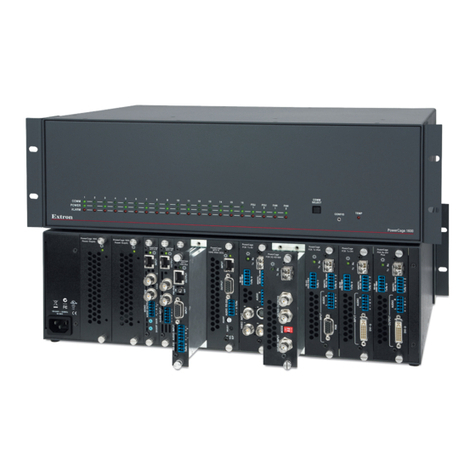
Extron electronics PowerCage 1600 User manual

Extron electronics

Extron electronics PowerCage 1600 User manual

Extron electronics Cable Cubby 500 User manual
Extron electronics

Extron electronics Cable Cubby 500 User manual

Extron electronics PowerCage 1600 User manual
Extron electronics

Extron electronics PowerCage 1600 User manual

Extron electronics HSA 822MS Manual

Extron electronics

Extron electronics HSA 822MS Manual
Extron electronics HSA 822M User manual
Extron electronics

Extron electronics HSA 822M User manual

Extron electronics EWB 112 User manual
Extron electronics

Extron electronics EWB 112 User manual

Extron electronics NBP 1200C User manual

Extron electronics

Extron electronics NBP 1200C User manual

Extron electronics CCD 220 User manual
Extron electronics

Extron electronics CCD 220 User manual

Extron electronics PowerCage 1600 User manual
Extron electronics

Extron electronics PowerCage 1600 User manual

Extron electronics PVM 220 User manual
Extron electronics

Extron electronics PVM 220 User manual

Extron electronics Hideaway HSA 200C Series User manual
Extron electronics

Extron electronics Hideaway HSA 200C Series User manual

Extron electronics HSA 400 Series User manual
Extron electronics

Extron electronics HSA 400 Series User manual

Extron electronics Cable Cubby F55 Edge User manual
Extron electronics

Extron electronics Cable Cubby F55 Edge User manual

Extron electronics Cable Cubby 202 User manual
Extron electronics

Extron electronics Cable Cubby 202 User manual

Extron electronics PowerCage 401 User manual
Extron electronics

Extron electronics PowerCage 401 User manual

Extron electronics EWB 212 User manual
Extron electronics

Extron electronics EWB 212 User manual
Extron electronics MediaLink MLM-WB+ User manual

Extron electronics

Extron electronics MediaLink MLM-WB+ User manual

Extron electronics EBP 1200C User manual

Extron electronics

Extron electronics EBP 1200C User manual

Extron electronics SMB 110 Series User manual

Extron electronics

Extron electronics SMB 110 Series User manual

Extron electronics CS 120P User manual

Extron electronics

Extron electronics CS 120P User manual

Popular Enclosure manuals by other brands

Antec Veris Fusion Remote Max Specification sheet

Antec

Antec Veris Fusion Remote Max Specification sheet

ENERMAX iVektor.Q ECA 3371 Series user manual

ENERMAX

ENERMAX iVektor.Q ECA 3371 Series user manual

Lindy 43095 user manual

Lindy

Lindy 43095 user manual

SICK C4000 Select operating instructions

SICK

SICK C4000 Select operating instructions

Geeek A60 PLUS installation guide

Geeek

Geeek A60 PLUS installation guide

OVE SYDNEY 48 installation manual

OVE

OVE SYDNEY 48 installation manual

SilentiumPC Armis AR5 Hardware installation

SilentiumPC

SilentiumPC Armis AR5 Hardware installation

Pulsar 17/TRP80/DSPR Assembly instructions

Pulsar

Pulsar 17/TRP80/DSPR Assembly instructions

MSI MPG SEKIRA 500X quick start guide

MSI

MSI MPG SEKIRA 500X quick start guide

Antec Dark fleet DF-10 user manual

Antec

Antec Dark fleet DF-10 user manual

Peavey DS 1502 Specifications

Peavey

Peavey DS 1502 Specifications

D-Link ShareCenter Pro DNS-1550-04 user manual

D-Link

D-Link ShareCenter Pro DNS-1550-04 user manual

Rosewill RX82-U(JBOD) user manual

Rosewill

Rosewill RX82-U(JBOD) user manual

QNAP SAS JBOD CLI 1.0 user guide

QNAP

QNAP SAS JBOD CLI 1.0 user guide

GAMDIAS Talos P1 Quick installation guide

GAMDIAS

GAMDIAS Talos P1 Quick installation guide

Auvs KR615 user manual

Auvs

Auvs KR615 user manual

Antec AR300 user manual

Antec

Antec AR300 user manual

CommScope FDH 3000 user manual

CommScope

CommScope FDH 3000 user manual

manuals.online logo
manuals.online logoBrands
  • About & Mission
  • Contact us
  • Privacy Policy
  • Terms and Conditions

Copyright 2025 Manuals.Online. All Rights Reserved.

1
IMPORTANT:
IMPORTANT:
Go to www.extron.com for the complete
user guide, installation instructions, and
specifications before connecting the
product to the power source.
PowerCage 401 Enclosure • Setup Guide
This setup guide contains installation information about the PowerCage 401 Enclosure using step-by-step instructions. For
complete instructions, see the PowerCage 401 Enclosure User Guide at www.extron.com.
WARNING: Potential risk of severe injury.Installation and service must be performed by authorized personnel only.
AVERTISSEMENT : Risque potentiel de blessure grave ou de mort. L’installation et l’entretien doivent être effectués
par le personnel autorisé uniquement.
Rear Panel Features
RS-232
LAN
Rx GTx
REMOTE
100-240V ~ --A MAX100-240V ~ --A MAX
50-60 Hz 50-60 Hz
RS-232
HDMI
12
AUDIO AUDIO HDMI
FOX DT HD
Tx
Rx
SIGNAL
HDCP
Rx GTx
RS-232
Rx GTx
Tx
Rx
SIGNAL
HDCP
Tx Rx Tx Rx
OPTICAL OPTICAL
INPUTS
RS-232
HDMI
12
AUDIO AUDIO HDMI
FOX DT HD
Tx
Rx
SIGNAL
HDCP
Rx GTx
RS-232
Rx GTx
Tx
Rx
SIGNAL
HDCP
Tx Rx Tx Rx
OPTICAL OPTICAL
INPUTS
RS-232
HDMI
12
AUDIO AUDIO HDMI
FOX DT HD
Tx
Rx
SIGNAL
HDCP
Rx GTx
RS-232
Rx GTx
Tx
Rx
SIGNAL
HDCP
Tx Rx Tx Rx
OPTICAL OPTICAL
INPUTS
RS-232
HDMI
12
AUDIO AUDIO HDMI
FOX DT HD
Tx
Rx
SIGNAL
HDCP
Rx GTx
RS-232
Rx GTx
Tx
Rx
SIGNAL
HDCP
Tx Rx Tx Rx
OPTICAL OPTICAL
INPUTS
A
A
AB
B
BC
C
CD
D
DE
E
EF
FFGG
G H
H
H
Figure 1. PowerCage 401 Rear Panel
APower connector 1 — Connect this port to a 110-240 VAC, 50-60 Hz power source using a standard IEC power cord.
BPower connector 2 — Connect this port to a 110-240 VAC, 50-60 Hz power source using a standard IEC power cord.
CSlot 1 — Install a PowerCage 401-compatible board into slot 1.
DSlot 2 — Install a PowerCage 401-compatible board into slot 2.
ESlot 3 — Install a PowerCage 401-compatible board into slot 3.
FSlot 4 — Install a PowerCage 401-compatible board into slot 4.
GLAN connector — Use an RJ-45 cable to attach this connector to a LAN (Ethernet) for control of the device.
• Use a straight-through cable for connection to a switch, hub, or router.
• Use a crossover or a straight-through cable for connection directly to a PC.
HRemote RS-232 connector — To control the unit, connect an RS-232 device to the 3-pole, 3.5 mm captive screw connector
and configure it as follows: 9600 baud rate, 8 data bits, 1 stop bit, no parity.
1
2
PowerCage 401 Enclosure • Setup Guide (Continued)
Mounting and Cabling
1. Turn off or disconnect all equipment power sources.
2. Mount the PowerCage 401 to a rack using the pre-installed MBD 149 rack ears or use the optional MBU 149 mounting kit for
under-desk mounting (see figure2).
MBD 149
Mounting Bracket
ADJUST
MENU
NEXT
RESET
POWERCAGE 401
POWER SUPPLY POWER SUPPLY
CONFIG
Extron
ADJUST
MENU
NEXT
RESET
POWERCAGE 401
POWER SUPPLY POWER SUPPLY
CONFIG
Extron
ADJUST
MENU
NEXT
RESET
POWERCAGE 401
POWER SUPPLY POWER SUPPLY
CONFIG
Extron
MBU 149
Mounting Bracket
PowerCage 401
MBU 149
Mounting Bracket
Figure 2. Mounting Diagrams
NOTES:
• For tabletop mounting use the included rubber feet. Up to three units may be stacked together, one on top of the
other.
• The optional UTM 100 mounting kit may also be used to mount up to 2 units, one under the other.
3. Connect power to the rear panel IEC connector or connectors (see figure1, Aand Bon page1).
4. Attach cables to the LAN and RS-232 connectors, as applicable (see figure1, Gand H).
Installing Transmitter and Receiver Boards into the Enclosure
Any combination of up to four transmitter or receiver boards can be installed in the PowerCage enclosure. The quantity and type
of boards vary depending on the conguration for each installation site.
Before installing the boards in the enclosure, refer to the model-specic guide for each PowerCage transmitter and receiver board
you are installing. The guides describe the features of each board and how to set up and cable it.
NOTE: The power supplies and boards are hot-swappable; they can be installed or removed without turning off or
disconnecting the power to the PowerCage 401 enclosure.
CAUTIONS:
ATTENTIONS :
• Use ESD precautions when installing a board to avoid damaging it. Keep the board in the anti-static bag until it is
needed.
• Prenez les précautions ESD lorsque vous installez une carte afin d’éviter de l’endommager. Gardez la carte dans le
sachet dépoussiérant jusqu’à ce que vous en ayez besoin.
• Use proper grounding techniques during installation.
• Utilisez des techniques de mise à la terre correctes pendant l’installation.
2
3
1. Where applicable, remove as many blank plates
or previously installed boards from the rear of the
PowerCage Enclosure as necessary to accommodate the
number of new boards to be installed.
2. Carefully slide the board into the slot, aligning the bottom
edge of the board with the left and right board mounting
slides on the bottom of the enclosure slot. Push the board
completely into the slot and finger-tighten the two top
screws while pushing in the screws to secure the board in
place. See the illustration on the following page.
3. Repeat step 2for all boards needing installation.
NOTE: Cover all empty board slots; do not leave them
open. Securely fasten the screws for all boards and
blank panels.
RS-232
12
AUDIO AUDIO
FOX DT HD
Tx
SIGNAL
HDCP
Rx G
Tx
RS-232
Rx GTx
Tx
Rx
SIGNAL
HDCP
OPTICAL OPTICAL
HDMI HDMI
Tx Rx Tx Rx
Rx
OUTPUTS
RS-232
LAN
Rx GTx
REMOTE
RS-232
12
AUDIO AUDIO
FOX DT HD
Tx
SIGNAL
HDCP
Rx G
Tx
RS-232
Rx GTx
Tx
Rx
SIGNAL
HDCP
OPTICAL OPTICAL
HDMI HDMI
Tx Rx Tx Rx
Rx
OUTPUTS
RS-232
12
AUDIO AUDIO
FOX DT HD
Tx
SIGNAL
HDCP
Rx G
Tx
RS-232
Rx GTx
Tx
Rx
SIGNAL
HDCP
OPTICAL OPTICAL
HDMI HDMI
Tx Rx Tx Rx
Rx
OUTPUTS
2
A
UDIO AUDIO
FOX DT HD
RS-232
Rx GTx
Tx
Rx
SIGNAL
HDCP
O
PTICAL
OPTICAL
HDMI
Rx Tx Rx
OUTPUTS
Screws
(2 per board)
Align board and
slide into slot.
Figure 3. Board Installation
Front Panel Features
ADJUST
MENU
NEXT
RESET
POWERCAGE 401
POWER SUPPLY POWER SUPPLY
CONFIG
E
A
A
A
FFF
D
D
D E
E
E N
N
N O
O
O P
P
P
IIIKKK LLL MMMHHH
J
J
J
BBBBBBBCCCGGG
Figure 4. PowerCage 401 Front Panel
APower supply 1 LED IReset button
BPower supply 1 JMenu button
CPower supply 2 KNext button
DFan 1
EFan 2
FConfiguration port
GLCD screen
LHorizontal adjust knob
MVertical adjust knob
NPower supply 2 LED
OFan 3
HReset LED PFan 4
APower supply 1 LED —
LED Color - State Power Supply Status Fan Status
Green - On Good Both fans functional
Red - On Failed Both fans functional
Orange - On No AC power present Both fans functional
Green - Blinking Good Either fan not functional
Red - Blinking Failed Either fan not functional
Orange - Blinking No AC power present Either fan not functional
BPower supply 1 — Connect power to IEC power connector 1 (see figure1, Aon page1).
CPower supply 2 — Connect power to IEC power connector 2 (see figure1, B).
DFan 1 — For power supply 1
EFan 2 — For power supply 1
3
4
4
68-2640-50 Rev. B
06 20
For information on safety guidelines, regulatory compliances, EMI/EMF compatibility, accessibility, and related topics, see the
Extron Safety and Regulatory Compliance Guide on the Extron website.
© 2016-2020 Extron Electronics — All rights reserved. www.extron.com
All trademarks mentioned are the property of their respective owners.
Worldwide Headquarters: Extron USA West, 1025 E. Ball Road, Anaheim, CA 92805, 800.633.9876
FConfiguration port — If desired, connect a host device to the front panel USB mini-B port for configuring the enclosure (see
figure4 on page3).
NOTE: This port allows communication to the enclosure and the boards.
GLCD screen — The screen displays messages, menu information, and your selections (see Menus, Configuration, and
Adjustments).
HReset LED — Lights green after pressing the Reset button.
IReset button — Pressing the Reset button sets various enclosure settings to the factory default values.
JMenu navigation button — Press Menu to access the PowerCage 401 menu system (see Menus, Configuration, and
Adjustments).
KNext navigation button — From each menu press Next to step through submenus (see Menus, Configuration, and
Adjustments).
LHorizontal adjust knob — Turn the horizontal adjust knob to navigate the menu system (see Menus, Configuration, and
Adjustments).
MVertical Adjust knob — Turn the vertical adjust knob to navigate the menu system (see Menus, Configuration, and
Adjustments).
NPower supply 2 LED — See the Power Supply Status table on page3.
OFan 3 — For power supply 2
PFan 4 — For power supply 2
Menus, Configuration, and Adjustments
The PowerCage 401 enclosure has a menu system consisting of four main menus that are selected by pressing the front panel
Menu button (see figure4, Jon page3) See the gure on previous page. Each main menu consists of submenus that are
accessed by pressing the front panel Next button (K). Use the front panel Horizontal (L) and Vertical (M) Adjust knobs
to make any submenu adjustments. See the following owcharts.
Power
On
60-1492-01
FW v1.00.xxx
Default
Cycle
SLOT MENU
Menu
Menu
Next
Menu
Menu
Menu
Next
2 sec.
5 sec.
2 sec.
FRAME STATUS
MENU
VIEW COMM
SETTINGS MENU
EXIT MENU
Menu
Menu
Menu
Next
Next
Extron
PowerCage 401
Default Cycle
Power
On
60-1492-01
FW v1.00.xxx
Extron
PowerCage 401
2 sec.
5 sec.
2 sec.
2 sec. 2 sec.2 sec. SLOT MENU
Menu
Slot #1
Fox DT HD
Slot #2
N/A
Slot #3
Fox DR HD
Slot #4
N/A