2
PowerCage 411 Enclosure • Setup Guide (Continued)
1. Where applicable, remove as many blank plates
or previously installed boards from the rear of the
PowerCage Enclosure as necessary to accommodate the
number of new boards to be installed.
2. Carefully slide the board into the slot, aligning the bottom
edge of the board with the left and right board mounting
slides on the bottom of the enclosure slot. Push the board
completely into the slot and finger-tighten the two top
screws while pushing in the screws to secure the board in
place (see figure2).
3. Repeat step 2for all boards needing installation.
NOTE: Cover all empty board slots; do not leave them
open. Securely fasten the screws for all boards and
blank panels.
FOX3 T 301 PC
RS-232
Rx G
Tx
AUDIO IN
HDMIINPUT LOOPOUT
OUT IN OUT IN
USB HID USB 2.0
AB
RS-232
LAN
Rx GTx
REMOTE
FOX3 T 301 PC
RS-232
Rx G
Tx
AUDIO IN
HDMIINPUT LOOPOUT
OUT IN OUT IN
USB HID USB 2.0
AB
FOX3 T 301 PC
RS-232
Rx G
Tx
AUDIO IN
HDMIINPUT LOOPOUT
OUT IN OUT IN
USB HID USB 2.0
AB
FOX3 T 301 PC
RS-232
Rx G
Tx
HDMIINPUT LOOPOUT
OUT IN OUT IN
USB 2.0
AB
Screws
(2 per board)
Align board and
slide into slot.
Figure 2. Board Installation
Front Panel Features
ADJUST
MENU
NEXT
RESET
POWERCAGE 411
215W
POWER SUPPLY
215W
POWER SUPPLY
CONFIG
E
A
A
C
C C
CA
A C
C C
C
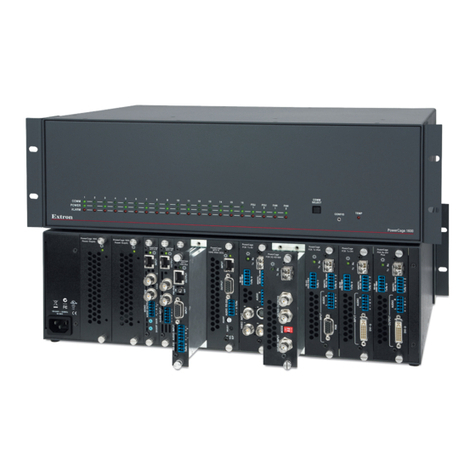
Figure 3. PowerCage 411 FOX3 Front Panel
APower supply LEDs —
LED Color - State Power Supply Status Fan Status
Green - Solid Good Both fans functional
Red - Solid Failed Both fans functional
Orange - Solid No AC power present Both fans functional
Green - Blinking Good Either fan not functional
Red - Blinking Failed Either fan not functional
Orange - Blinking No AC power present Either fan not functional
BPower supplies — Connect power to IEC power connector 1 or 2 (see figure1, Aon page1).
CFans — For power supplies.
DConfiguration port — If desired, connect a host device to the front panel USB mini-B port for configuring the enclosure.
NOTE: This port allows communication to the enclosure and the boards.
ELCD screen — The screen displays messages, menu information, and your selections (see Menus, Configuration, and
Adjustments on page3).
FReset button and LED — Pressing the Reset button sets various enclosure settings to the factory default values. The LED
lights green after pressing the Reset button (see the PowerCage 411 Series User Guide for details).
GNavigation buttons —
• MENU — Press MENU to access the PowerCage 411 menu system (see Menus, Configuration, and Adjustments).
• NEXT — From each menu press NEXT to step through submenus (see Menus, Configuration, and Adjustments).
HNavigation adjust knobs —
• Horizontal — Turn the horizontal adjust knob to navigate the menu system (see Menus, Configuration, and
Adjustments).
• Vertical — Turn the vertical adjust knob to navigate the menu system (see Menus, Configuration, and Adjustments).
2
3