•To start the Quick Wizard, open any Web Browser and type the below mentioned URL.
https://192.168.2.190/admin/
•Log in with the user name superuser and password wonderdream.
•A ter log in upload the license ile into irewall, or the Quick Setup Wizard to initialise.
•Follow the on screen instructions to complete the basic installation.
Getting Started
1
GAJSHIELD
Connect GajShield Appliance & Power On
Network Diagram
GajShield UTM
Inter ace1 Inter ace2
(Cross Cable)
Red Cable Grey Cable
Personal Computer
ISP Router
Internet
2Personal Computer (PC) Network Setup
Change your PC’s IP address to 192.168.2.100 and Subnet 255.255.255.0 or any IP address o 192.168.2.0/24
network series. Also check your PC gateway & DNS, i you are trying to browse the internet.
Example:- I your GajShield irewall IP is 192.168.2.190, use the same IP as your de ault gateway & DNS.
Accessing GajShield from your Personal Computer
NOTE: Beca use GajShiel d devi ce uses a se l -s igned certi i cate, you ma y s ee a certi i cate warning in your browse r. It is
sa e to i gnore the warni ng i n (Internet Expl orer) or to add a certi icate exception in (Mozil la Fire ox).
NOTE: Get the product li cens e rom your s a les representati ve.
NOTE: Your Ga jShield devi ce come s insta ll ed with bas ic con i gurati on that al lows outbound TCP, UDP, a nd ping tra ic,
and bl ocks a l l unrequested i nbound tra ic rom the WAN network.
3
(Straight Cable)
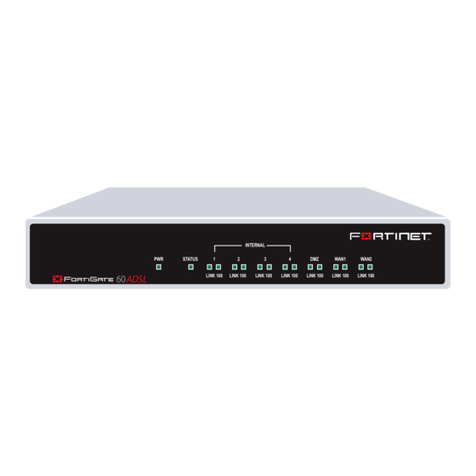
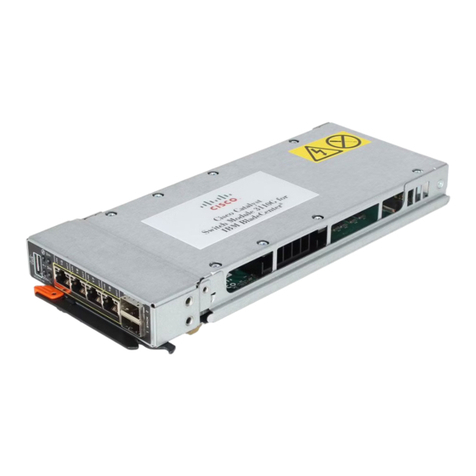
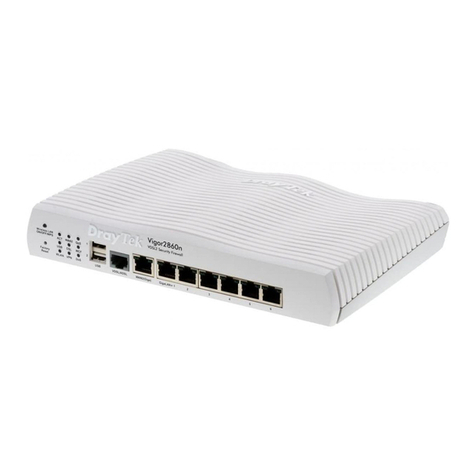
This image is used for representation purpose, the appliance & interface varies from model to model.
*