manuals.online logo
Brands
  1. Home
  2. •
  3. Brands
  4. •
  5. Haier
  6. •
  7. TV
  8. •
  9. Haier HT-3788 User manual

Haier HT-3788 User manual

Other manuals for HT-3788

1

Other Haier TV manuals

Haier L24K3 User manual

Haier

Haier L24K3 User manual

Haier L22T3 User manual

Haier

Haier L22T3 User manual

Haier LT19Z6 User manual

Haier

Haier LT19Z6 User manual

Haier HTR21S34 User manual

Haier

Haier HTR21S34 User manual

Haier LE20F6500 User manual

Haier

Haier LE20F6500 User manual

Haier 25FV6H User manual

Haier

Haier 25FV6H User manual

Haier HL26R1 - R-Series - 26" LCD TV User manual

Haier

Haier HL26R1 - R-Series - 26" LCD TV User manual

Haier 21FA1 User manual

Haier

Haier 21FA1 User manual

Haier LT19K3CW2 User manual

Haier

Haier LT19K3CW2 User manual

Haier HTR20-A User manual

Haier

Haier HTR20-A User manual

Haier HLH26BBTV-01 User manual

Haier

Haier HLH26BBTV-01 User manual

Haier SA21XT User manual

Haier

Haier SA21XT User manual

Haier 29F9B-P User manual

Haier

Haier 29F9B-P User manual

Haier HL22FO1 User manual

Haier

Haier HL22FO1 User manual

Haier LE40T3 User manual

Haier

Haier LE40T3 User manual

Haier HL32K1b User manual

Haier

Haier HL32K1b User manual

Haier DX-LCDTV19 User manual

Haier

Haier DX-LCDTV19 User manual

Haier HL42B User manual

Haier

Haier HL42B User manual

Haier HL15WHITE User manual

Haier

Haier HL15WHITE User manual

Haier HTAR21B Quick start guide

Haier

Haier HTAR21B Quick start guide

Haier L40A8A-A1 User manual

Haier

Haier L40A8A-A1 User manual

Haier L24F6b User manual

Haier

Haier L24F6b User manual

Haier HTX14S33 User manual

Haier

Haier HTX14S33 User manual

Haier 1407 User manual

Haier

Haier 1407 User manual

Popular TV manuals by other brands

IKEA UPPLEVA user manual

IKEA

IKEA UPPLEVA user manual

Toshiba 19A20 Service manual

Toshiba

Toshiba 19A20 Service manual

Sony XBR-100Z9D reference guide

Sony

Sony XBR-100Z9D reference guide

Sony Trinitron KV-HR36M90 Service manual

Sony

Sony Trinitron KV-HR36M90 Service manual

JVC AV-14AG16 instructions

JVC

JVC AV-14AG16 instructions

Loewe Table Stand Reference 55 user guide

Loewe

Loewe Table Stand Reference 55 user guide

Panasonic Genus TX-G10 operating instructions

Panasonic

Panasonic Genus TX-G10 operating instructions

Samsung LN26C350D1D Service manual

Samsung

Samsung LN26C350D1D Service manual

BBK LT1516D Service manual

BBK

BBK LT1516D Service manual

Samsung 55S9 B Series Quick setup guide

Samsung

Samsung 55S9 B Series Quick setup guide

Sharp LC-40FI5012E user manual

Sharp

Sharp LC-40FI5012E user manual

Evervue BN185 Operation manual

Evervue

Evervue BN185 Operation manual

North State TV2GO user guide

North State

North State TV2GO user guide

Toshiba CX35F70 owner's manual

Toshiba

Toshiba CX35F70 owner's manual

Magnavox PS1980 owner's manual

Magnavox

Magnavox PS1980 owner's manual

Philips 20HF5335D manual

Philips

Philips 20HF5335D manual

Panasonic QuintrixF TX-29AS1D operating instructions

Panasonic

Panasonic QuintrixF TX-29AS1D operating instructions

Samsung 4 Series Quick setup guide

Samsung

Samsung 4 Series Quick setup guide

manuals.online logo
manuals.online logoBrands
  • About & Mission
  • Contact us
  • Privacy Policy
  • Terms and Conditions

Copyright 2025 Manuals.Online. All Rights Reserved.

HT-3788
Stage curtain for open and close effect
255 programs stored
I C bus control
All bands CATV
Multi-picture modes
Intellectual game
Electronic calendar
AV input
Earphone output
Programs scanning
Alternately watching between present program and last
Multi-program appointing, power on/off timer
Main Features
2
CONTENTS
WARNING AND CAUTIONS..............................1
BASIC FEATURES...............................................2
TECHNICAL SPECIFICATIONS.........................2
CONTROL PANEL...............................................3
SEARCHING AND STORING............................4
1. Preparation for Searching..................................4
2. Automatic Searching.........................................4
3. Manual Searching..............................................4
4.Band Selection....................................................4
5. Fine Tune...........................................................5
6. Memory.............................................................5
7.Channel Exchange..............................................5
PICTURE SETTING............................................6
AUDIO SETTING.................................................6
FUNCTION SETTING........................................7
1.Language Setting...............................................7
2.Color System Setting.........................................7
3.Sound System Setting........................................7
4.Noise Reduction................................................7
5.Calendar.............................................................7
TIME SETTING...................................................8
1.Time Setting.......................................................8
2. Off-Time...........................................................8
3. On-Time............................................................8
4. Channel time.....................................................8
5. Channel..............................................................8
BASIC OPERATION...............................................9
1.Program Selection ............................................9
2.Sleep Time Setting...............................................9
3.Mute .................................................................9
4.TV/AV Selection..................................................9
5.Volume Adjustment ..........................................9
6. ............................................9
7. ........................................9
8.Picture Mode Selection........................................9
9.Music TV Selection.............................................10
10.Power on/off .....................................................10
11.Sound system......................................................10
12.Channel review...................................................10
12.Game...................................................................10
.. 1
EXTERNAL CONNECTION.................................12
....
....
....
On Screen Display....
Program Scanning........
.
REMOTE CONTROLLER GUIDE...................... 1
TROUBLESHOOTING GUIDE.............................13

WARNING AND CAUTIONS
220V
30
8V
1
When you clean the TV set, please pull
out the power plug from AC outlet.Or
may result in electric shock, fire or
damage to the TV set. Don't clean the
cabinet and the screen with benzene,
petrol and other chemicals.
Do not place the TV set near rain or
moisture as it may cause an electric shock,
or the TV set to catch fire. The TV set
must only be used in dry indoor location.
In order to prolong the using life of the
TV set, please place it at a well ventilated
location.
The back cover must only be removed by
a registered electrical service person.
Removing the back cover may result in
electric shock, fire or damage to the TV
set.
If the TV set is not going to be used for
long time, or there is a severe thunder &
lightening storm, it is recommended that
the TV set be disconnected from the AC
power outlet and the aerial plug removed.
Do not place the power source near the
heat source,be pressed and please hold
the body of plug when you plug or
unplug the power wire.
Do not overload wall outlets and extension
cords, or can result in damaging to the TV
set or electric shock hazard.
BASIC FEATURES
2
1.CRT: 14”
2.COLOUR SYSTEM
:
: PAL SECAM NTSC 3.58/ 4.43(AV)
3.TV SYSTEM B/G D/K
5.POWER CONSUMPTION: See rating plate
6.AERIAL INPUT IMPEDANCE: 75
7.AUDIO MAX OUTPUT POWER: 2W
8.NET DIMENSION(mm): 355 x 360 x 310
9.NET WEIGHT(kg): 9.2
Supplied Accessories: Infrared Remote Controller: 1 Battery(AAA): 2
Operating Instructions: 1
4.POWER SUPPLY: See rating plate
Stage curtain for open and close effect
255 programs stored
I C bus control
All bands CATV
Black background when there is no signal
Program appointing, power on/off timer
Electronic calendar
Intellectual game
Multi-picture modes
Noise reduction
Real-time timer
AV input
Earphone output
2
NOTE: Design and specifications are subject to change without notice.
TECHNICAL SPECIFICATIONS
CONTROL PANEL
2.Rear Panel
To know the functi on of all buttons, please read foll owing pages.
1.Front Panel
3
MENU button
TV/AV selection
Power indicator: the indicator lights red
when power on the TV.
Remote sensor:let the remote controller
aim here the TV set can receive remote
control signal.
Main power switch: press the button to
turn on the TV set and the indicator lights.
Press the button again to turn off the TV set.
Program up/down button(the same use as
button on remote controller)POS+/POS-
Volume up/down button(the same use as
VOL+/VOL- button on remote controller)
Audio input terminal
Video input terminal
Earphone
MENU TV/AV
-
+-
+
CH
VIDEO IN
AUDIO IN
EARPHONE
CAUTION: TO REDUCE THE RISK OF ELECTRIC SHOCK,
DO NOT REMOVE COVER (OR BACK)
NO USER-SERVICEABLE PARTS INSIDE
REFER SERVICING TO QUALIFIED SERVICE PERSONNEL
DO NOT OPEN
RISK OF ELECTRIC SHOCK
CAUTION
Antenna input socket
SEARCHING AND STORING
1.Preparation for Searching
Connect the antenna (or CATV signal cord) and power
cable, press the power switch, and the picture will display
after indicator lights.
2.Automatic Searching
After auto-searching all programs, the TV can memorize
and store the best states of the programs.
(1)Press the MENU button to display the menu as right
figure.
(2)Press POS+/- button to select AUTO SEARCH.
(3)Press VOL +/- button to start searching from present
program, when the TV finishes searching, it will
display the program which start searching from.
3.Manual Searching
You can use this function to preset the program you need
to the channel you selected.
(1)Press the MENU button to display the menu as right
figure.
(2)Press POS+/- button to select MANUAL SEACH.
(3)PressVOL +/- button to start searching, when finds
program, the TV will stop searching, if the program is
not you need ,you can press VOL +/- button to go on
searching.
4.Band Selection
When you use manual searching, if the program you
need is not in present band, you can change the band to
speed searching.
(1)Press the MENU button to display the menu as right
figure.
(2)Press POS+/- button to select BAND.
(3)PressVOL +/- button to select band you need.
4
设定
PRESET
CHANNEL 004
CH.EXCHANGE - - -
BAND V-L
MEMORY ON
FINE TUNE
MANUAL SEARCH
AUTO SEARCH
设定
PRESET
CHANNEL 004
CH.EXCHANGE - - -
BAND V-L
MEMORY ON
FINE TUNE
MANUAL SEARCH
AUTO SEARCH
设定
PRESET
CHANNEL 004
CH.EXCHANGE - - -
BAND V-L
MEMORY ON
FINE TUNE
MANUAL SEARCH
AUTO SEARCH
SEARCHING AND STORING
5.Fine Tune
If the sound or picture effect is poor, you can fine tune
the program to get better effect.
(1)Press the MENU button repeatedly to display menu
as left figure.
(2)Press POS+/- button to select FINE TUNE.
(3)Press VOL +/- button to fine tune, then exit the
menu to store.
5.Memory
You can skip the program you do not need(as repetitive
signal, spurious signal) and select the program you need.
(1)Press MENU button to display menu as left figure.
(2)Press POS+/- button to select CHANNEL .
(3)Press VOL +/- button or numeric buttons on the
remote controller to select the program number
you want to skip.(For example program 008.)
(4)Press the POS+/- button to select MEMORY.
(5)Press VOL +/- button to set OFF or ON.
Note: When a program is set to on, the program can not
be selected by pressing POS+/- button. (But you
can select it by pressing numeric buttons.) When a
program is set to off, then the program can be
selected by pressing POS+/- button.
7.Channel Exchange
(1)Press MENU button repeatedly to display menu as
left figure.
(2)Press POS+/- button to select CH.EXCHANGE .
(3)Press the numeric buttons on the remote controller
to select the program number you want to swap. For
example program 026, you should enter 026.
(5)Press the VOL +/-button to swap program to present
channel.
5
设定
PRESET
CHANNEL 004
CH.EXCHANGE - - -
BAND V-L
MEMORY ON
FINE TUNE
MANUAL SEARCH
AUTO SEARCH
设定
PRESET
CHANNEL 004
CH.EXCHANGE - - -
BAND V-L
MEMORY ON
FINE TUNE
MANUAL SEARCH
AUTO SEARCH
设定
PRESET
CHANNEL 004
CH.EXCHANGE - - -
BAND V-L
MEMORY ON
FINE TUNE
MANUAL SEARCH
AUTO SEARCH
PICTURE SETTING
AUDIO SETTING
(1)Press the MENU button repeatedly to display menu
as right figure.
(2) press VOL +/- button to adjust the volume directly.
Note: The adjustments of sound setting are as right figure.
6
(1)Press the MENU button to display menu as right
figure.
(2)Press POS +/- button to select item you want to adjust.
(3)Press VOL +/- button, you can adjust brightness,
contrast, color, sharpness, tint to get best picture.
Note:(1)When you adjust one item, the white bar will
change color to red.
(2)Tint adjustment is just valid in NTSC TV mode.
(3)Press the DISPLAY button on remote controller,
you can exit the menu directly.
AUDIO
VOLUME 20
PICTURE
BRIGHTNESS 60
CONTRAST 75
COLOR 50
SHARPNESS 50
FUNCTION SETTING
1. Language Setting
(1)Press the MENU button repeatedly to display menu
as left figure.
(2)Press POS +/- button to select LANGUAGE.
(3)Press VOL +/- button to select the OSD language
you need.
2. Color System Setting
(1)Press the MENU button repeatedly to display menu
as left figure.
(2)Press the POS +/- button to select COL-SYS.
(3)Press VOL +/- button to select the color system in
circle: AUTO---PAL---SECAM---N3.58---N4.43---
AUTO.
3. Sound System Setting
(1)Press the MENU button repeatedly to display menu
as left figure.
(2)Press POS +/- button to select SIF.SYS.
(3)Press VOL +/- button to select the sound system in
circle: D/K---B/G---D/K.
4. Noise Reduction
(1)Press the MENU button repeatedly to display menu
as left figure.
(2)Press POS +/- button to select NR.
(3)Press VOL +/- button to select ON or OFF.
When you select ON, the noise will be less, When
you select OFF, the noise will be more.
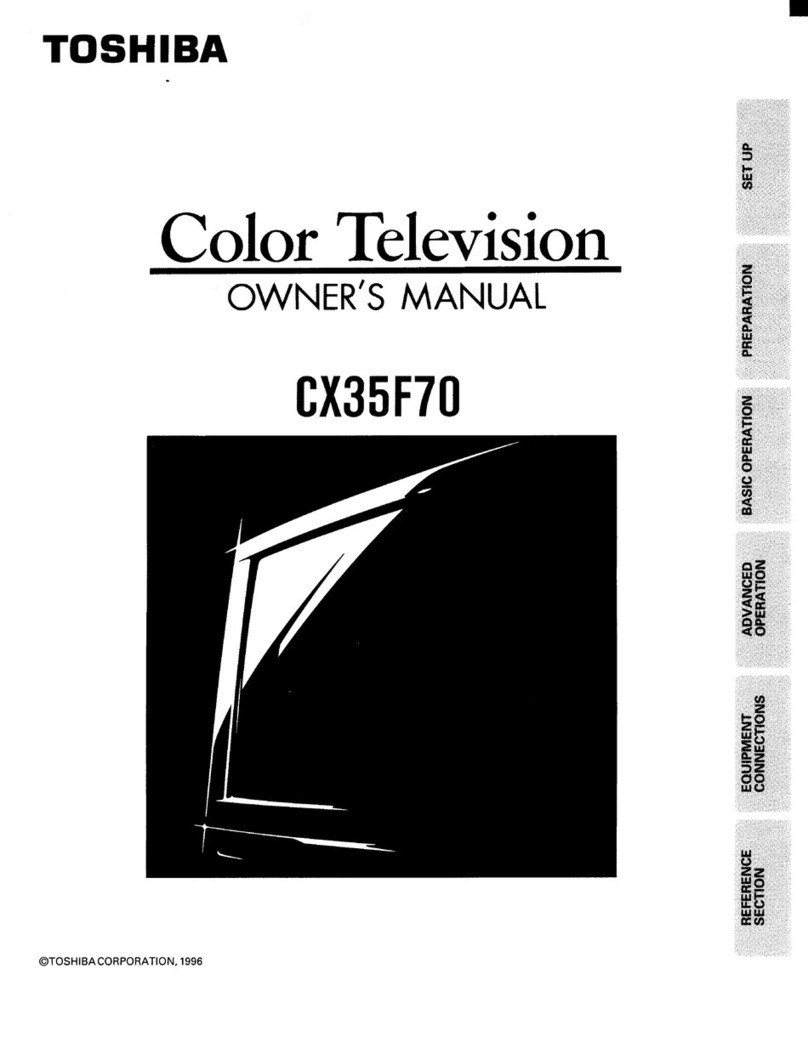
5. Calendar
(1)Press the MENU button repeatedly to display menu
as left figure.
(2)Press POS +/-button to select CALENDAR.
(3)Press VOL +button to enter the calendar menu.
(4)Press POS +/-button to change year.
(5)Press VOL +/- button to change month.
(6)Then press the MENU button repeatedly to exit this
menu.
Note: this calendar offers the years from 1990 to 2089.
7
SYSTEM
LANGUAGE ENGLISH
COL-SYS AUTO
SIF-SYS B/G
NR ON
CALENDAR
SYSTEM
LANGUAGE ENGLISH
COL-SYS AUTO
SIF-SYS B/G
NR ON
CALENDAR
SYSTEM
LANGUAGE ENGLISH
COL-SYS AUTO
SIF-SYS B/G
NR ON
CALENDAR
SYSTEM
LANGUAGE ENGLISH
COL-SYS AUTO
SIF-SYS B/G
NR ON
CALENDAR
SYSTEM
LANGUAGE ENGLISH
COL-SYS AUTO
SIF-SYS B/G
NR ON
CALENDAR
+
12-2005
SU MO TU WE TH FR SA
1 2 3
4 5 6 7 8 9 10
11 12 13 14 15 16 17

18 19 20 21 22 23 24
25 26 27 28 29 30 31
8
Note: Follow timer functions is only valid when the TV is
working or standby. You must refresh the time by
after
the TV is power off with alternating current.
entering CLOCK menu and resetting the time
1. Time setting
(1)Press the MENU button repeatedly to display menu
as right figure.
(2)Press POS+/- button to select TIME.
(3)Press VOL- button to adjust the hour, press
VOL+button to adjust the minute.
2. Off -Time
(1)Based on real-time clock and time setting, press
POS+/- button to select OFF-TIME.
(2)Press VOL+/- button to adjust off-time.
3. On -Time
(1)Based on real-time clock and time setting, press
POS+/- button to select ON-TIME.
(2)Press VOL+/- button to adjust on-time.
4. Channel Time
(1)Based on real-time clock and time setting, press
POS+/- button to select CH-TIME.
(2)Press VOL+/- button to set the changing program
time.
5.Channel
(1)Based on real-time clock and time setting, press
POS+/- button to select CHANNEL.
(2)Press numeric buttons on the remote controller to
enter program number you need.
(3)When the changing time is up, the TV set will
automatically switch to the program number you set.
TIME SETTING
CLOCK
TIME --:--
OFF-TIME --:--
ON-TIME --:--
CH-TIME --:--
CHANNEL ---
CLOCK
TIME --:--
OFF-TIME --:--
ON-TIME --:--
CH-TIME --:--
CHANNEL ---
CLOCK
TIME --:--
OFF-TIME --:--
ON-TIME --:--
CH-TIME --:--
CHANNEL ---
CLOCK
TIME --:--
OFF-TIME --:--
ON-TIME --:--
CH-TIME --:--
CHANNEL ---
CLOCK
TIME --:--
OFF-TIME --:--
ON-TIME --:--
CH-TIME --:--
CHANNEL ---