08
07
Scan the barcodes directly, the decoded data will be transferred to the receiver and
displayed on the PC or your host. A prompt sound will be heard if registration failed.
Inventory mode allows you to use the scanner without any connection to a host. The
scanned codes will be stored in the built-in memory of the scanner. At the end of your
work, scan the “Transfer Data” code to transfer the data to your PC or other host.
Transfer Speed Setting (Inventory Mode Only)
Scan “Total Number of Data Entry” to check how many data is decoded
After you transfer the data in inventory mode, scan “Clear Data” to clear the inventory
data.
Normal Mode
Clear Data
Fast
Standard
Inventory Mode
Transfer Data
Total Number of Data Entry
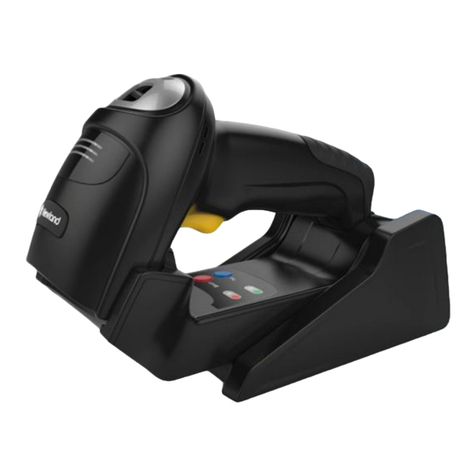
Wired Connection
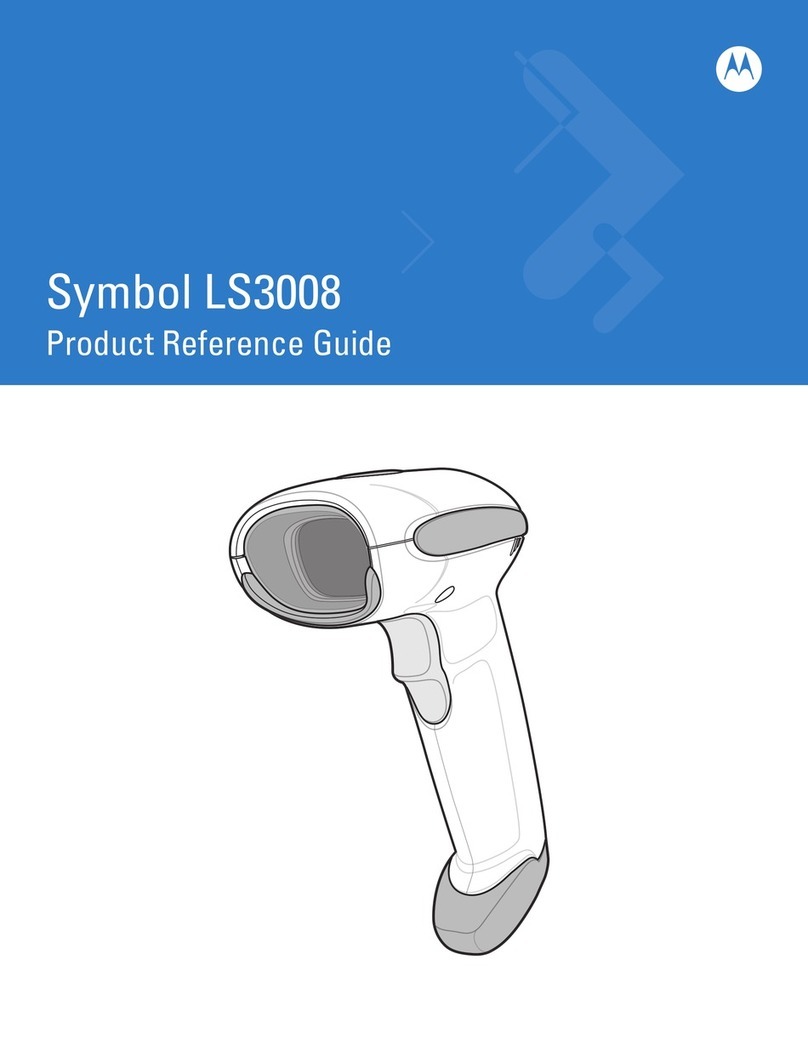
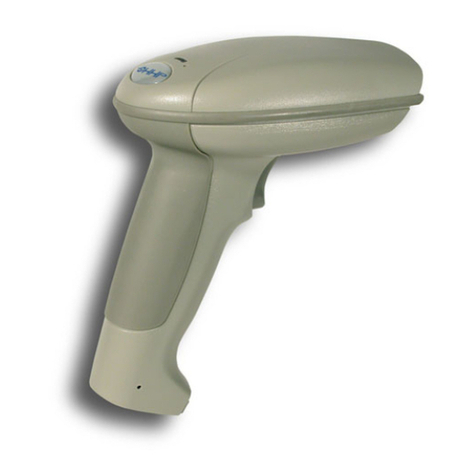
1. Plug the cable connector into the data port on the bottom of the scanner handle.
2. Gently tug the cable to ensure the connector is properly secured.
3. Connect the other end of the interface cable to the host computer.
4. Your PC will install the driver automatically. Once the driver installation is completed,
the scanner is ready for use.
Pair the Scanner with a Device
Note:
Scan the following barcodes to switch from wireless into wired mode to enable /
disable wired mode.
Wired Mode On *
Wired Mode Off
Set Your Barcode Scanner
Normal Mode (*)
Inventory Mode
Wireless Connection
1. Disable the wired mode.
2. Plug the included wireless receiver into your host device.
Return to default