Humanscale Switch User manual

USER MANUAL
Mousing Comfort in the Palm of Your Hand


TABLE OF CONTENTS
Features
Compatibility
Switch Mouse Installation
Switch Mouse Adjustments
Healthy Mousing
Cleaning the Switch Mouse
Customer Service
Warranty
Regulatory Information
Disposal of the Switch Mouse
1
2
3
6
9
13
14
14
15
16

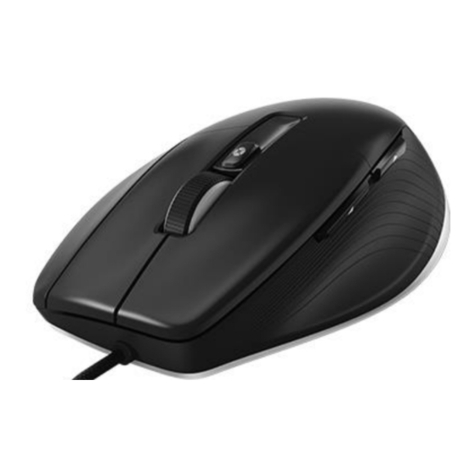
FEATURES
Navigation Dish
Replaces the scrolling wheel and
associated repetitive stress with
one-touch four-direction scrolling
Programmable
Buttons
Three programmable
buttons—one on each
side and the clickable
navigation dish—
enable user-specified
functions
Palm Rest
Unique design supports
entire hand to keep
wrist straight and
eliminate contact stress
V-Shaped Base
Accommodates a naturally angled forearm
position to minimize injury risks
Stabilizer
Enables left- or right-handed use
Extender
Patented length-
adjustability
feature fits any
hand
The Switch Mouse is a groundbreaking
mousing solution that boosts comfort and
reduces the risk of injury with design and
technology innovations providing the most
ergonomic mouse ever created.
1
Friction Layer
Improves grip and mousing accuracy

COMPATIBILITY
Specifications
Resolution: 1200 dpi
Technology: Laser Scanning Technology
Switch: Micro Switch
Current Consumption: Max70mA
Switch Mechanical Life: 1,000,000 cycles
Cable Length: 200 cm (80")
USB Connector
Certified for Windows Vista
Also compatible with:
Windows 8
Windows 7
Windows XP
Windows 2000
Mac OS 9 (plug-and-play only)
Max OS X (plug-and-play only)
Minimum System Requirements
Available USB port
CPU 233MHz or faster processor or equivalent
128MB RAM or higher
Hard disk capacity more than 40MB
2

SWITCH MOUSE INSTALLATION
Quick-Start Installation
The Switch Mouse is a plug-and-play device. To begin use immediately:
Shut down your computer and unplug your existing mouse.
Plug the Switch Mouse into a USB port.
Restart your computer and begin using the Switch Mouse.
The default settings are as follows:
- Left Top Button: Single Left Click
- Right Top Button: Single Right Click
- Middle Button (Navigation Dish): Not Assigned
- Left Side Button: Not Assigned
- Right Side Button: Not Assigned
- Navigation Dish: Vertical Page Scrolling
3

Driver Installation
To take advantage of customizable button functions and to control scrolling speed, install the convenient
Switch Mouse driver following the Quick-Start Installation.
The Switch Mouse Driver is certified for use with Windows Vista, and is also compatible with Windows 8,
Windows 7, Windows XP and Windows 2000.
To install the driver:
1. Visit the “Downloads” page at www.humanscale.com.
2. Select the “Mouse Drivers” category, then download the Executable Switch Mouse driver to your
hard drive.
3. When prompted, select “Save” and proceed to step 4, or select “Run” and proceed to step 5.
4. Navigate to the downloaded file and double-click to launch the installation.
5. Follow on-screen prompts.
6. Once the installation is complete, a Switch Mouse icon will appear on your Taskbar.
4
Switch Mouse Icon

Switch Mouse Driver InstallationSwitch Mouse Driver Installation
Switch Mouse Driver Installation
The Switch Mouse driver will be installed in the following directory on your
hard drive.
To install the driver into a different directory, type the directory location below
or click the Browse button.
Click OK to begin the installation.
Copy to: C:\Program Files\Switch Mouse
OK Cancel Browse
Switch Mouse Set UpSwitch Mouse Set Up
Vertical Scroll:
Slow Fast
OK Cancel
Switch Mouse Driver InstallationSwitch Mouse Driver Installation
From: Y:\Design - NPRs\NPR569 - Switch
To: C:\Program Files\Switch Mouse\ICONLIST.BMP
Cancel
Switch Mouse Driver InstallationSwitch Mouse Driver Installation
Switch Mouse Driver installation complete.
[Unassigned]
Previous Page
Next Page
Button Configuration
Right-Hand Mousing
OK
Scroll Speed Setting
Horizontal Scroll:
To customize Switch Mouse functions:
1. Double-click the Switch Mouse icon on your Taskbar.
2. Under “Button Configuration,” select either
“Right-Hand Mousing” or “Left-Hand Mousing”
to indicate which hand will control the Switch
Mouse, then use the remaining drop-down
menus to assign specific tasks to each of the
three programmable buttons, which include the:
- Middle Button (Navigation Dish)
- Left Side Button
- Right Side Button
3. Under “Scroll Speed,” use the sliders to control
the horizontal and vertical scroll speed of your
navigation dish.
4. A number of additional mousing functions can be
controlled by your operating system. Configure
your mouse settings, such as double-click speed
and pointer options, from your Control Panel.
Uninstalling the Driver
To uninstall the Switch Mouse Driver, select Start >
Programs > Switch Mouse > UnInstall.
5

SWITCH MOUSE ADJUSTMENTS
Sizing the Switch Mouse
The Switch Mouse features a patented size-adjustability feature
to ensure a proper fit for most users. To determine the most
comfortable Switch Mouse size for you:
1. Place your hand on the enclosed Switch Mouse Hand-Sizing Chart,
positioning the location where your wrist meets your palm along
the green line.
2. Determine which size corresponds to the tip of your middle finger.
3. Grasp the front and rear portions of the Switch Mouse and pull
apart to reveal the sliding extender.
4. Set the extender to the numeral that corresponds with the tip of
your middle finger on the chart.
Hand-Sizing Chart
0
1
2
3
4
5
6
7
8
HSSMC0808
6

SWITCH MOUSE ADJUSTMENTS
Left-Handed Use
Thanks to its symmetric design, the Switch Mouse accommodates both left- and right-handed users. The
Switch Mouse ships ready for right-handed use.
To physically accommodate left-handed use, simply remove the stabilizer from the left side of the mouse
by sliding it outward in the direction of the arrow, and reinsert on the right side. The Switch Mouse will
now support the left hand at a healthy 45-degree angle.
Left Hand Right Hand
Stabilizer
7
This manual suits for next models
1
Table of contents