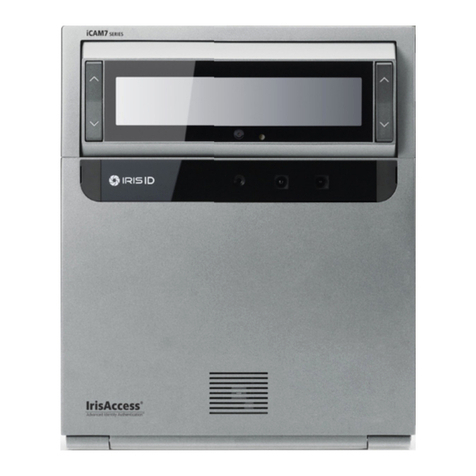
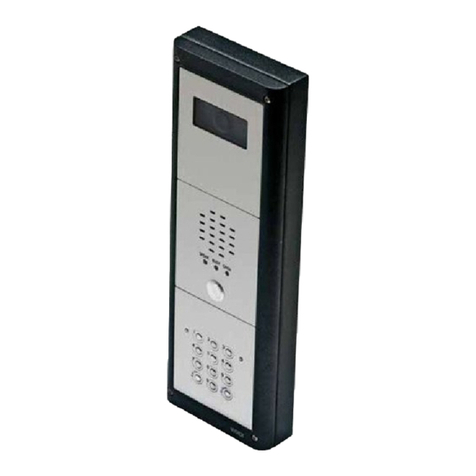
IRIS ID IrisAccess iCAM7101S-B Installation instructions

iCAM7100S SERIES
HARDWARE GUIDE
ADVANCED MULTIFACTOR BIOMETRIC IRIS READER
• Fully automatic dual iris capture
• Simple non-intrusive, non-contact user interface
• Integrated megapixel face camera with LED flash
• ISO/ANSI compliant iris and face images
• 4.3” color touch screen LCD
• Integrated contactless smart card reader [optional]
• Surface mount plate included; Recess mounting kit [optional]
VERSION 1.1
Packing List
Required Equipment (not included)
Power Source
• 12-24 VDC +/- 10% / Minimum 24W (12VDC @ 2AMPS)
(Measured at iCAM unit)
• Uninterruptable Power Supply (strongly recommended)
Network
• Ethernet Wiring CAT5e Ethernet Cabling (or better)
• Ethernet Switch
Software
• Software required depending on Application
(See www.irisid.com for details)
What’s in the Box
• iCAM7 series
• Hardware Guide
• L wrench
iCAM7 series Hardware Guide L wrench
iCAM7101S-B (Black Color)
iCAM7111S-H1T (Titanium Color)
FACE CAMERADUAL IRIS 4.3” LCD
CONTACTLESS
CARD READER
ISO/ANSI
COMPLIANT
EASY
INSTALLATION
iCAM7101S-B / iCAM7101S-T
iCAM7111S-H1B / iCAM7111S-H1T

2
Front View
Bottom View
Rear View
Hardware Information
Mirror
Up / Down Tilt Buttons
Face Camera Flash
Proximity Sensor
4.3” Color Touch Screen LCD
Cable Channel
Knock-out
Function Buttons
Screw Cap
Face Camera
Alignment Guide
Card Reader (optional)
Speaker
Status LED
Tripod Socket
(1/4-20 (1/4 diameter, 20 threads per inch))
Surface Mounting
Screw Hole
Gang Box Screw Hole
Screw Cap
Function Buttons
Tamper Switch
Desktop Stand Hole
Installation Plate
Camera Unit
Interface Panel
CCTV Camera (optional)

3
Hardware Information
Inside
Input / Output
Connections
External GPIO
Relay Output
RS232 / RS485 /
RS422 Serial
Wiegand
Output / Input
Tamper
Switch
Wiring Legend
Guide
Installation Plate Screw
RTC Battery
Power LED
Power Connection
Power On/Off Switch
Ethernet Connection /
USB 2.0 (Bottom)
Factory Default Button
External Speaker Jack

4
Desktop Stand Guide
Protective Tabs
1 2
3 4
The Desktop Stand is most often used with units that will be
setup as an enrollment station camera unit, or for locations
that are best suited for tabletop / desktop usage of an
iCAM7 series unit. (sold separately)
Parts included in the box:
- Plate (x1)
- Legs (x2)
- Protective Tabs (x2)
Rear View
Desktop Stand Hole
NOTE Verify all parts have been included. If any items are
missing, contact Iris ID.
Plate Legs

5
1Open each cap at both sides of unit,
and loosen the captive screws (with included L wrench)
to release the interface panel.
(Left : MIC / Screw Cap.
Right : USB Connector / Screw Cap)
2
iCAM7 series Mounting & Stand Solutions
iCAM Installation
The iCAM7 series unit can be fitted to a surface mount (available out-of-the-box), recess mount
(with optional recess mounting kit), or optional desktop stand.
Surface Mounting
After opening the interface panel, loosen the screw.
Unscrew the installation plate screw to separate from the installation plate.
Separate the installation plate
by sliding the plate downward.
3
Cover Rear
Installation Plate
The iCAM can be surface mounted with standard equipment provided with the contents of your unit.
Review the following procedure for instruction on how to surface mount your iCAM7 series unit.

6
Slide the iCAM7 series
into the installation plate
and fasten the installation
plate with a screw.
OR
5
Place the installation plate on the desired wall and screw into wall.
Feed any needed wiring through the installation plate hole (i.e.: Power, Ethernet, etc).
Attach the installation plate to the wall surface using the appropriate fastener (recommended
#10 screws) and anchors for the wall material. Another option is to mount and fasten the
installation plate to a previously installed electrical gang box.
4
Installation Plate
Surface Mount
Gang Box Mount
Hole Marking
Installation Plate

Turn on power source and switch the power switch of the iCAM7 series
unit to the ON position.
8
After wiring the unit and switching
it to the ON position, close the interface panel
and fasten the screws.
(with screw caps placed back into closed position).
9
Remove protective film from RTC battery.
6
Before wiring unit, confirm the power
is in the off position. Route and connect
the Power and Ethernet wires to
iCAM7 series.
7
NOTE
OFF ON
Power on
Power Supply
Connector
Ethernet
Cable
If connecting any other wiring such as Wiegand, GPI/O to the iCAM, review the following
section “Wire Connection Details” before closing interface panel and fastening screws.
7
OFF ONOFF ON

External GPIO
A
Wire Connection Details
8
A B C D
F
E
GPIO Specifications:
• For output, the GPIO can provide 5VDC @ 20mA.
• For Input, the GPIO is selectable between active High & active Low.
• Assignment of GPIO is handled through Software
GPIO3 and 4 can be used to control the tilt position of the tilt unit of an iCAM7 series.
Use GPIO3 and GND for up tilting. Use GPIO4 and GND for down tilting.
External GPIO
External Tilt
GPIO1
GND
GPIO2
GND
GPIO3
GND
GPIO4
GND
GPIO3
GROUND
GPIO4
GROUND
Up
Down

9
BRS232 Output
RS232
Output
To RS232 port
of computer
or access system
TXD
RXD
GND
RS232 serial communication port for connection with an access panel or to other computer
equipment. When configured, the Card ID associated with the user is output from the
RS232 output port upon a successful identification.
12VDC
(Max 0.3A)
12VDC
(Max 0.3A)
12VDC
(Max 0.3A)
TXD
RXD
GND
RS485 Output
RS485
Output
To RS485 port
of computer
or access system
TX/RX+
TX/RX-
RS485 serial communication port for connection with an access panel or to other computer
equipment. When configured, the Card ID associated with the user is output from the
RS485 output port upon a successful identification.
TX/RX+
TX/RX-
GND
RS422 Output
RS422
Output
To RS422port
of computer
or access system
TX+
TX-
RX+
RX-
RS422 serial communication port for connection with an access panel or to other computer
equipment. When configured, the Card ID associated with the user is output from the
RS422 output port upon a successful identification.
TX+
TX-
RX+
RX-
GND

IMPORTANT: ONLY KNOWLEDGEABLE PROFESSIONAL INSTALLERS SHOULD BE USED TO INSTALL ALL
ELECTRONIC ENTRY/EXIT LOCKING DEVICES. DIRECT CONNECTION OF ELECTRONIC ENTRY/EXIT LOCKING
DEVICES SHOULDN’T BE MADE FROM THE RELAY OUTPUTS ON THE ICAM. IT IS THE RESPONSIBILITY OF THE
INSTALLER TO ASSURE THAT THE INSTALLATION IS PERFORMED IN ACCORDANCE WITH ALL COUNTRY/STATE/
LOCAL FIRE AND SAFETY REGULATIONS AND THAT ANY 3RD PARTY PRODUCTS USED WILL NOT CREATE A
HAZARD.
10
CRelay Output
Relay Output
Two independent dry contact relays. The purpose and the duration of the relays are defined
by the controlling software. Typically, Relay_1 (NC_1, COM_1, NO_1) is triggered upon user
acceptance (access granted). The diagram shows Relay_1 connected to indicators which
changes from Red to Green for an accepted user. Relay_2 (NC_2, COM_2, NO_2) is typically
used to indicate iCAM tamper. In this diagram the relay is activated when the iCAM tamper
switch is triggered. The maximum electrical rating for the relay is 3A at 24VDC.
RED
LIGHT
POWER
SUPPLY
ALARM
SYSTEM
24 HOUR
ZONE
GREEN
NC_1
COM_1
NO_1
NC_2
COM_2
NO_2
Wiegand Output
Wiegand Specifications:
• Wiegand output uses 3 wire interface (Data0, Data1, and Ground),
• Maximum wire length from iCAM to Access Control Panel is 500feet (152m).
D
ACCESS
CONTROL
PANEL
GROUND
DATA_1
DATA_0
Wiegand Output Card Reader
Interface
The Wiegand Output from the iCAM7 series camera unit can be used with 3rd party
devices capable of receiving Wiegand data. This Wiegand output emulates a typical Access
Control Card Reader. Configuration of this output is provided through software.
See the associated image for general wiring of Wiegand Output to an Access Control Panel.
NC
DATA_0
DATA_1
GND
This manual suits for next models
3
Table of contents
Other IRIS ID Intercom System manuals