manuals.online logo
Brands
  1. Home
  2. •
  3. Brands
  4. •
  5. Jensen of Scandinavia
  6. •
  7. Repeater
  8. •
  9. Jensen of Scandinavia AirLink 2400 Installation guide

Jensen of Scandinavia AirLink 2400 Installation guide

Popular Repeater manuals by other brands

Kenwood TKR-750-850 Function reference

Kenwood

Kenwood TKR-750-850 Function reference

Asus RP-AC51 quick start guide

Asus

Asus RP-AC51 quick start guide

Exibel HRP0101 instruction manual

Exibel

Exibel HRP0101 instruction manual

Kenwood TKR-750 Service manual

Kenwood

Kenwood TKR-750 Service manual

York Universal LINC485 installation manual

York

York Universal LINC485 installation manual

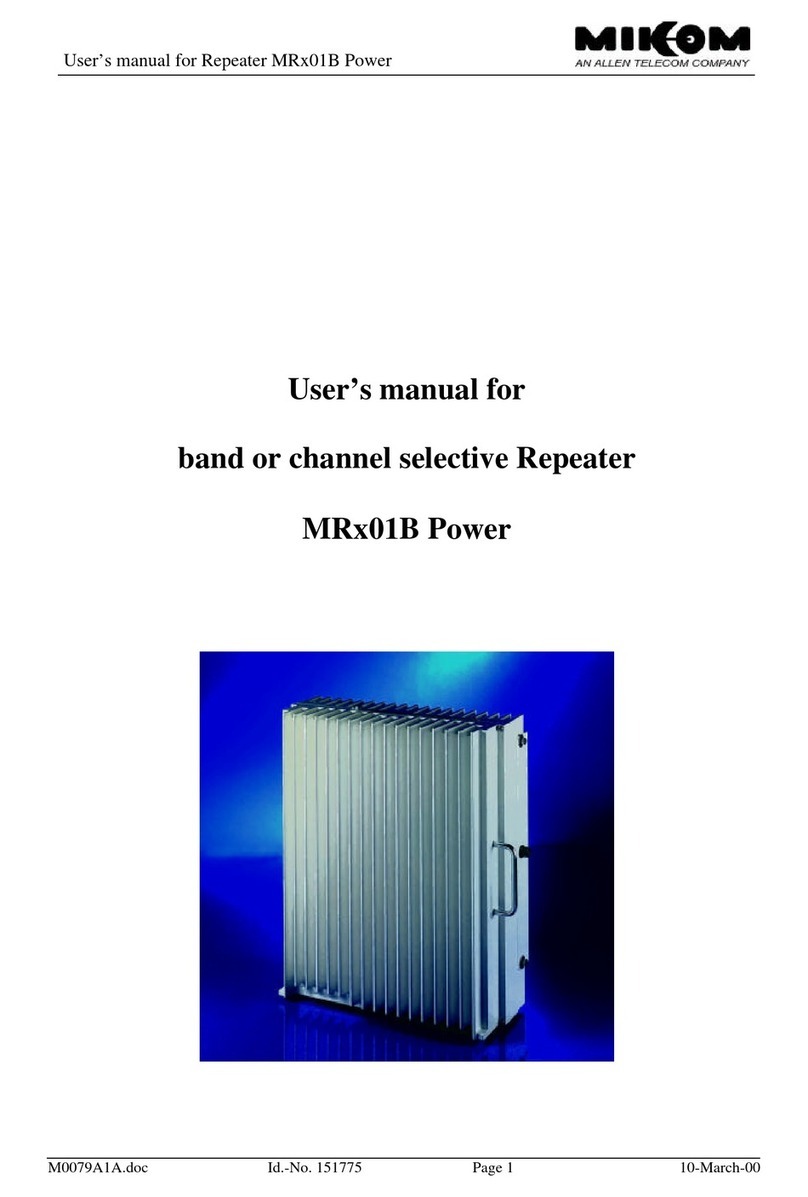
MIKOM MRx01B Power Series user manual

MIKOM

MIKOM MRx01B Power Series user manual

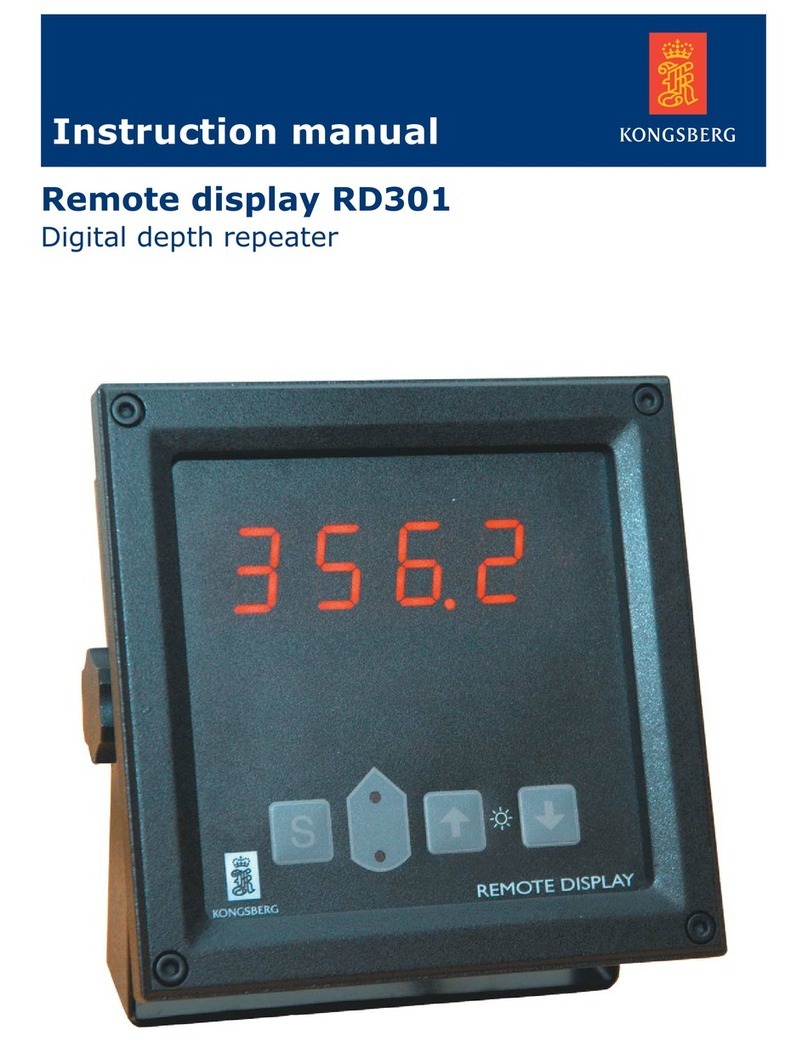
Simrad RD 301 instruction manual

Simrad

Simrad RD 301 instruction manual

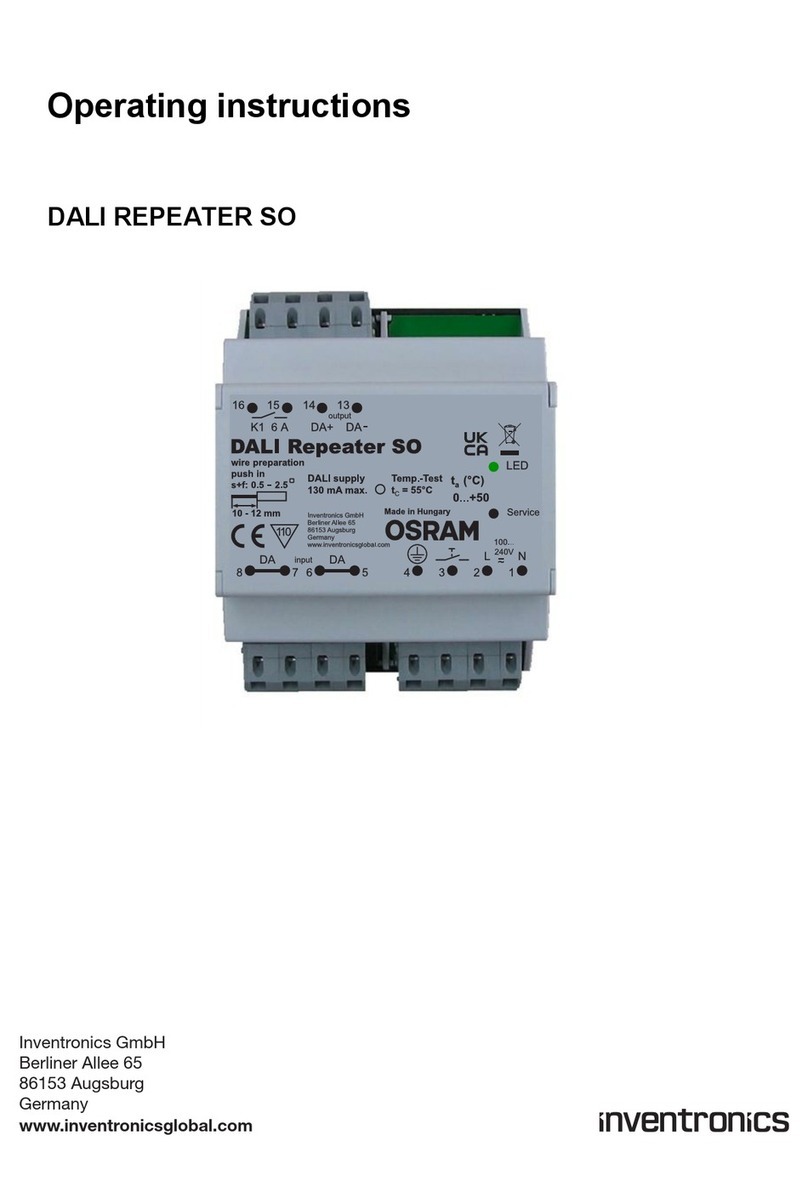
Inventronics DALI REPEATER SO operating instructions

Inventronics

Inventronics DALI REPEATER SO operating instructions

XFP 16 installation manual

XFP

XFP 16 installation manual

Andrew MRx18 user manual

Andrew

Andrew MRx18 user manual

COMBA RXA3748 user manual

COMBA

COMBA RXA3748 user manual

ADRF SDR-ICS-43 user manual

ADRF

ADRF SDR-ICS-43 user manual

Teltonika WRP100 user manual

Teltonika

Teltonika WRP100 user manual

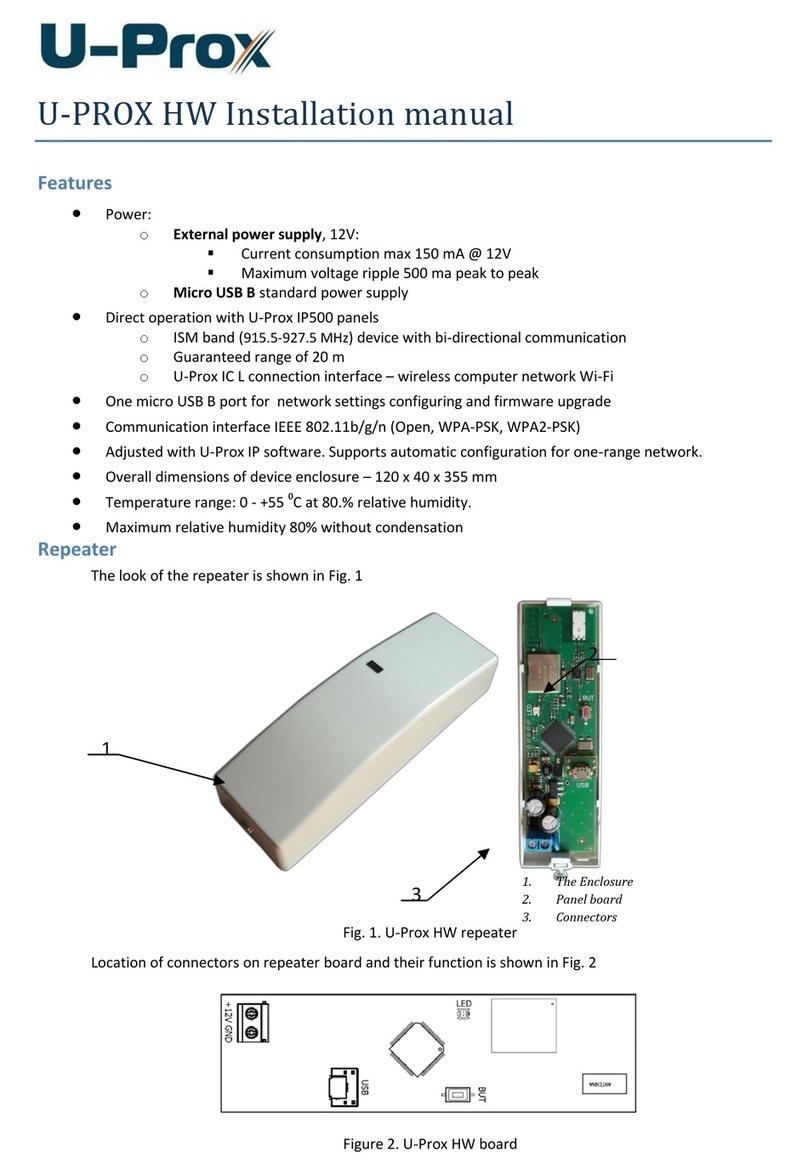
U-Prox HW installation manual

U-Prox

U-Prox HW installation manual

Motorola VRS750 Service manual

Motorola

Motorola VRS750 Service manual

KanexPro SDI-HDRPTPRO user manual

KanexPro

KanexPro SDI-HDRPTPRO user manual

Ltech LT-3030-CС quick start guide

Ltech

Ltech LT-3030-CС quick start guide

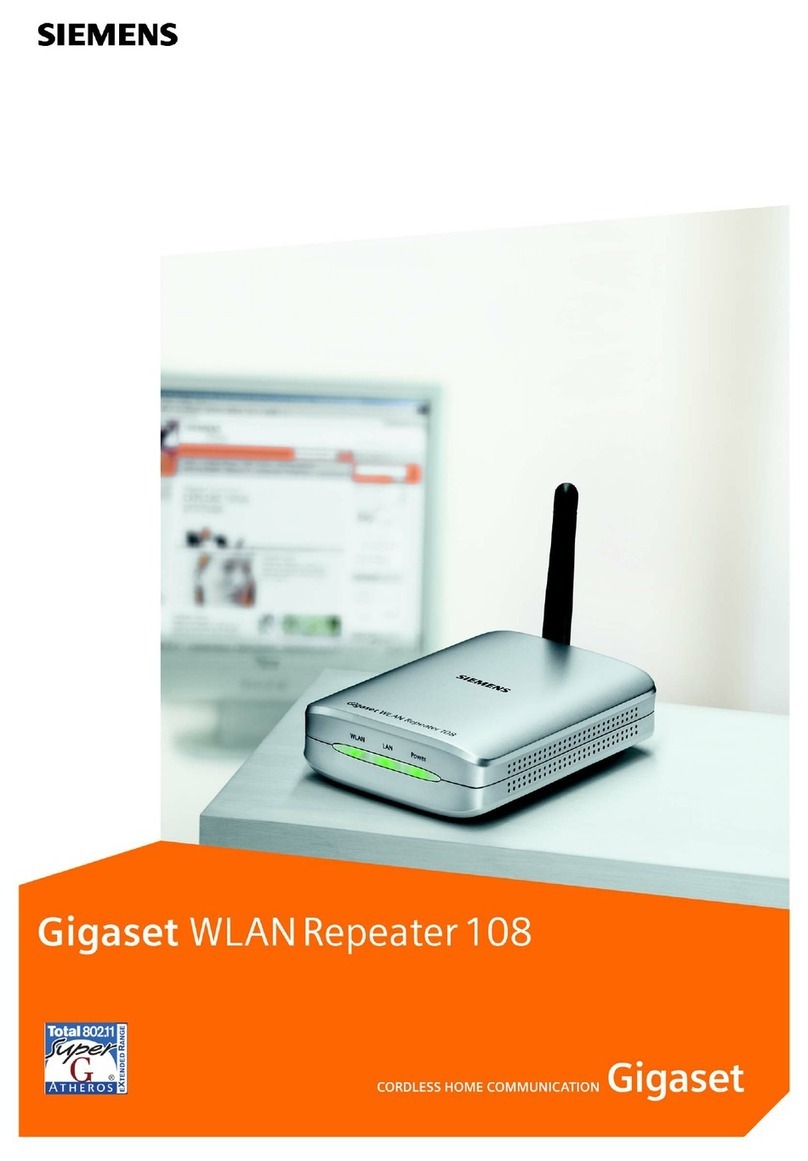
Gigaset 108 owner's manual

Gigaset

Gigaset 108 owner's manual

manuals.online logo
manuals.online logoBrands
  • About & Mission
  • Contact us
  • Privacy Policy
  • Terms and Conditions

Copyright 2025 Manuals.Online. All Rights Reserved.

AirLink 2400 FAQ
versjon 1.0 - July 2015 - © JensenScandinavia AS
What is AL2400AC?
What is dual-band?
What’s the difference between AP, Repeater and Client mode?
Setup AL2400AC as a repeater
How to setup and use AL2400AC in AP mode
How to change name and password on AL2400AC in AP mode.
Setup AL2400AC as an Client
Setup AL2400AC using WPS in repeater mode
Setup AL2400AC using WPS in AP mode
Setup AL2400AC using WPS in Client mode
Where should I place the AL2400AC?
How do I reset AL2400AC to factory default?
The AL2400AC will not connect to my network!
AL2400AC LED
Where can I get more help?
Page 2
Page 2
Page 3
Page 4
Page 6
Page 7
Page 9
Page 11
Page 12
Page 13
Page 14
Page 14
Page 15
Page 16
Page 17
2
What is AL2400AC?
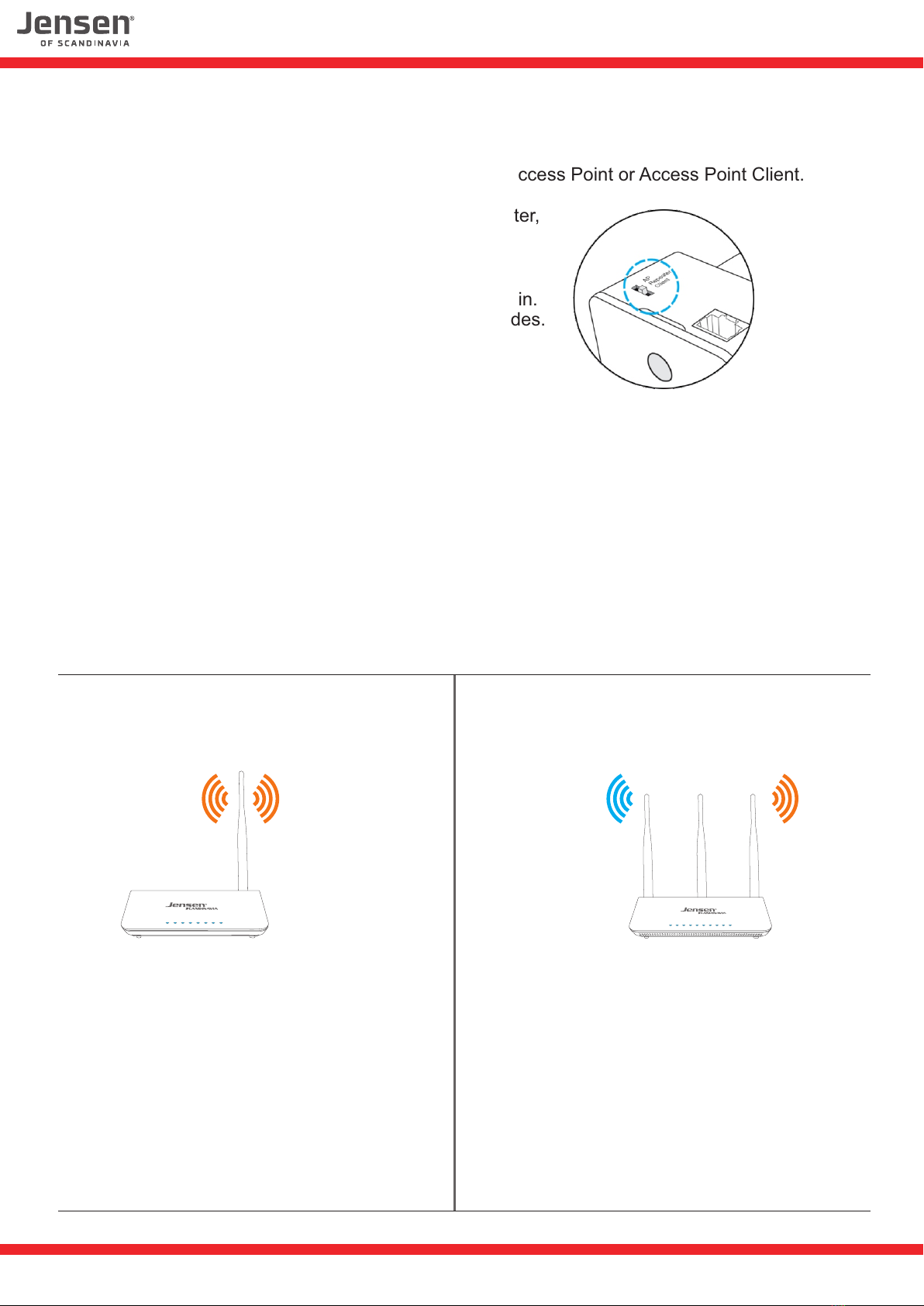
AL2400AC is a wireless dual-band repeater, which you can use to expand the coverage of your
wireless network in just a few steps. It can also be an Access Point or Access Point Client.
The setup of AL2400AC can be done from your computer,
smart phone or pad (wirelessly or by cable)
On the AL2400AC you will find a switch where you
can select which mode you want to use the AL2400AC in.
Please see page 3 for a description of the different modes.
What is dual-band?
Wireless networks have until recently mainly used the 2.4GHz frequency to transmit / receive data.
Today wireless networking are widely used, which means that there are often many networks within
the same area. The 2.4GHz frequency is divided into 13 channels that overlap each other, which often
resulting in interference if there are several networks using the same frequency/channels.
There are also a lot of other electronics that also uses 2.4Ghz, so that the source for interference
are numerous.
A dual-band router transmits at the 5GHz frequency in addition to 2.4GHz, hence the name dual-band.
Jensen dual-band routers:
Air:Link 3000DG
Air:Link 5000AC
Air:Link 7000AC
Jensen with only 2.4GHz
Air:Link 1000G
Air:Link 59300
Air:Link 29150
Air:Link 3G
singel-band dual-band
2.4GHz:
AirLink1E7AC0
5GHz:
AirLink5GHz1E7AC0
2.4GHz:
AirLink1E7AC0
3
What’s the difference between AP, Repeater and Client mode?
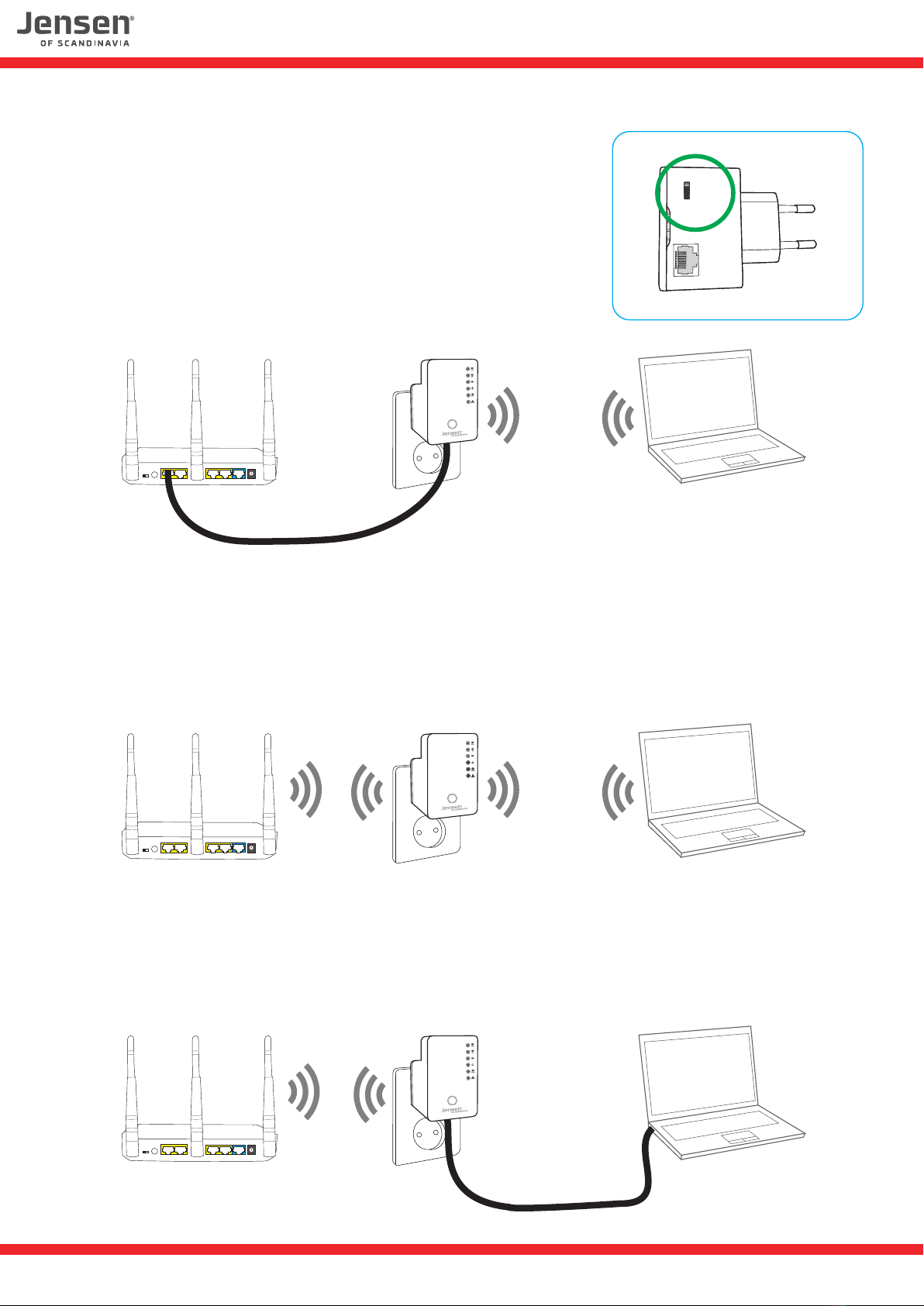
AP (Access Point)
In AP (Access Point) mode the AL2400AC will work as a wireless
transmitter. In AP mode you MUST connect the AL2400AC to
your wireless router using a network cable.
In AP mode the AL2400AC will transmitt a wireless network on
both 2.4GHz and 5GHz frequency.
Repeater
In repeater mode the AL2400AC will work as an extender/repeater for an existing wireless network.
If the exisiting wireless network is a dual-band (both 2.4GHz and 5Ghz) the 2400AC will be able to
extend both networks at the same time.
Client
In Client mode the AL2400AC works as an wireless recevier.
The usage for Client mode can be to connect devices that doesn’t have wireless built-in to the
wireless network, like TV, setup-box, computers etc.
AP
Repeater
Client
AP
Repeater
Client
2 1 Internet34
5VDC
ON / OFF
Reset/WPS
WiFi
2 1 Internet34
5VDC
ON / OFF
Reset/WPS
WiFi
2 1 Internet34
5VDC
ON / OFF
Reset/WPS
WiFi
4
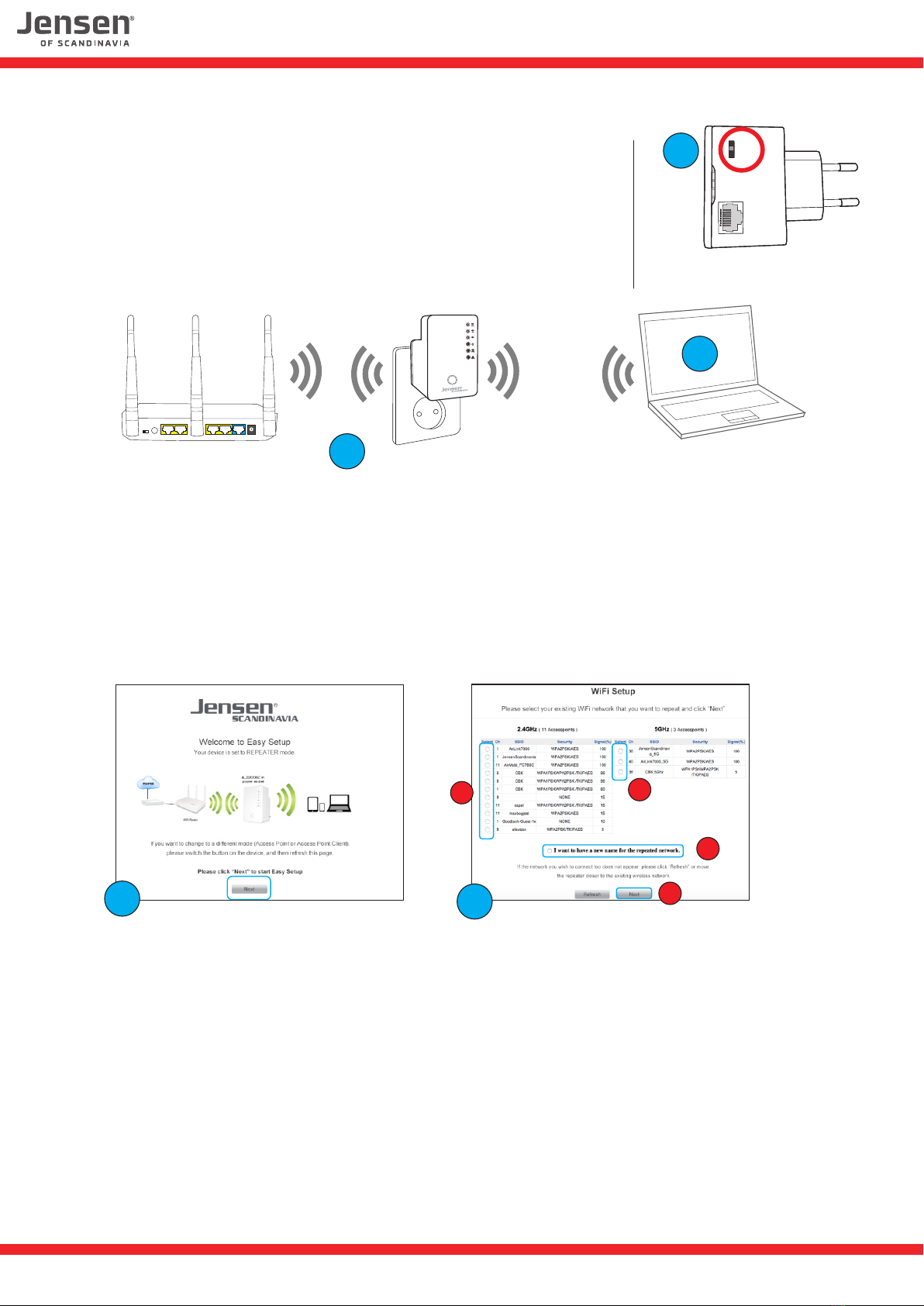
Setup AL2400AC as an repeater (page 1 of 2)
In repeater mode the AL2400AC will work as an extender/repeater
for an existing wireless network.
If the exisiting wireless network is a dual-band
(both 2.4GHz and 5Ghz) the 2400AC will be able to extend both
networks at the same time.
1. Please set the switch to Repeater position.
2. Place the AL2400AC in an availble power outlet near (3m) the existing wireless router.
3. Do a search for available wireless networks (via computer, tablet, smartphone etc.) and connect
to the network called AirLink2400AC
4. Open a WEB browser window (Internet Explorer, Chrome etc.) and enter
http://airlink.setup og trykk Enter.
Click Next when you see the welcome screen.
5. A list of all available wireless networks (sorted by 2.4GHz and 5GHz) will be shown.
Please select your wireless network(s) from the list.
a) If the exisiting wireless network is dual-band (2.4Ghz and 5GHz) you can select both networks
at this point. This will result in AL2400AC repeating both networks at the same time.
b) If you wish change the name of the new wireless network you can select «I want to have a new
name for the repeated network»
c) Click Next.
2 1 Internet34
5VDC
ON / OFF
Reset/WPS
WiFi
AP
Repeater
Client
AP
Repeater
Client
1
2
3
45
AA
B
C
5
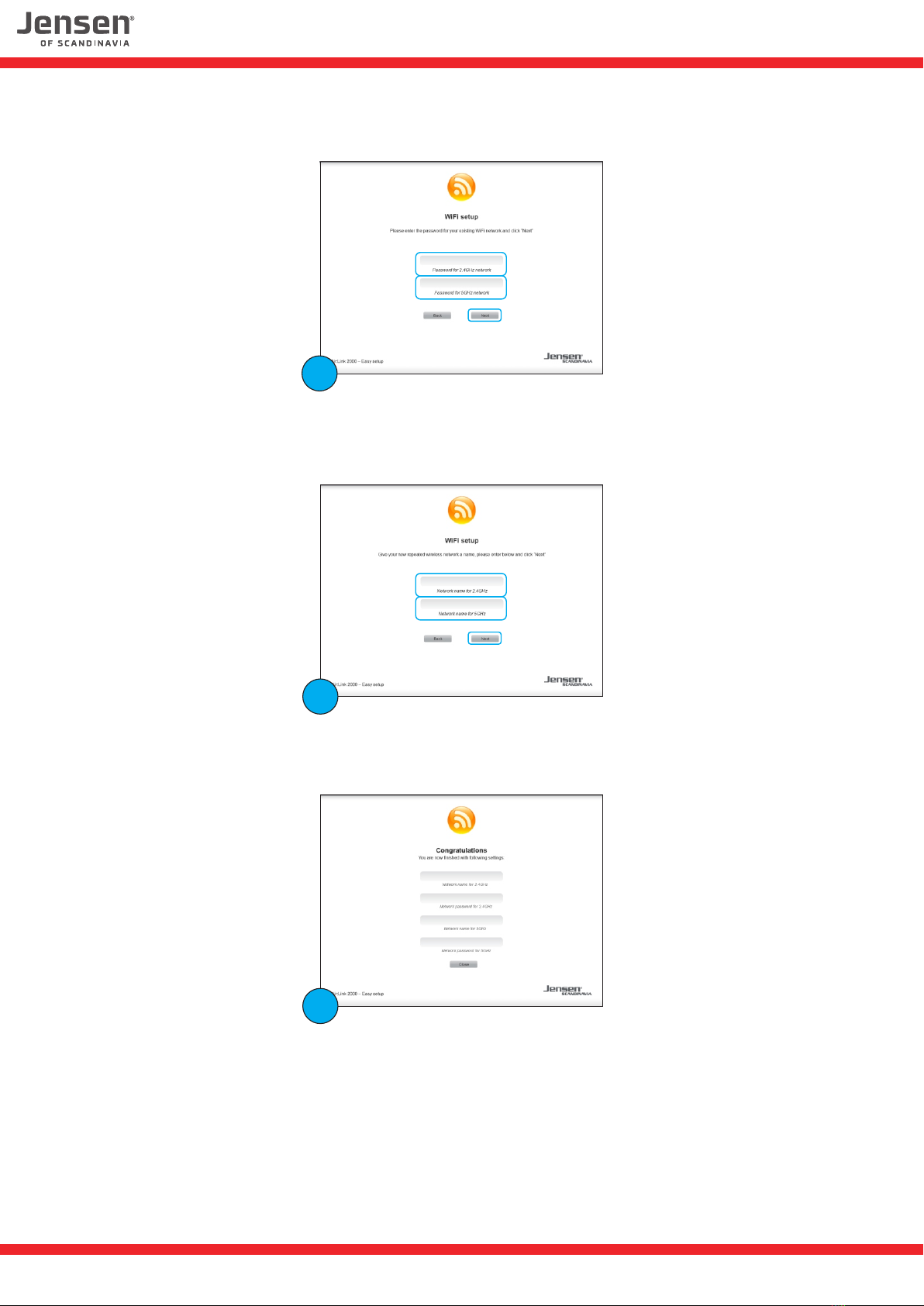
6. Enter the password of the existing wireless network and click next.
7. Please enter the name you want to use for the new wireless network and click Next.
* This option is shown only if you selected to change the network name is step 5b.
8. The AL2400AC is now finish the setup and ready for use.
You can now move the AL2400AC to the area where you want the extended coverage (*)
* In order for the AL2400AC to work properly it must be placed so it can receive fairly good signals
from the main wireless network. Please see page 16 for how to see LED status.
6
7
8
Setup AL2400AC as an repeater (page 2 of 2)
6
How to setup and use AL2400AC in AP mode
In AP (Access Point) mode the AL2400AC will work as a wireless
transmitter. In AP mode you MUST connect the AL2400AC to
your wireless router using a network cable.
In AP mode the AL2400AC will transmitt a wireless network on
both 2.4GHz and 5GHz frequency.
In AP mode AL2400AC is already setup with an unique network
name and password.
The network name for both 2.4Ghz and 5GHz can be seen on the
product label.
1. Please set the switch to AP position.
2. Place the AL2400AC in an availble power outlet and connect it to the existing network
(router or wireless router) using the enclosed network cable.
3. To connect to the AL2400AC wireless network do a search for available wireless networks.
On the product label you will find the network name (AirLinkxxxxx) of the AL2400AC.
Select the correct wireless network and connect to it.
4. Enter the password for the AL2400AC wireless network and click Connectt/OK.
The password (8 characters) can be found on the product label.
If the AL2400AC is connected to a working internet connection you should get access to
internet.
IMPORTANT!
In order for the AL2400AC to work in AP mode it is important that it is connected to a modem/router
with the router function enabled.
If you don’t get access to internet through AL2400AC in AP mode the problem is most likely that
the router/modem does not have an active router function.
2
2 1 Internet34
5VDC
ON / OFF
Reset/WPS
WiFi
3
AP
Repeater
Client
AP
Repeater
Client
1

7
How to change network name and password on AL2400AC in AP mode.
To be able to login to the main menu of AL2400AC your computer MUST be connected wirelessly
to the AL2400AC and AL2400AC must connected to the wireless router/modem by cable.
2 1 Internet34
5VDC
ON / OFF
Reset/WPS
WiFi
1. Please see previous page for how to setup AL2400AC in AP mode.
2. Open a WEB browser (Chrome, firefox etc.) and enter http://airlink.setup
3. Username = admin and password = 1234
4. Click Quick Setup
5. Enter the name you want to have for the 2.4GHz and 5GHz network
6. Click Next
4
5
6
8
7. Enter the password you want to use for the 2.4GHz and 5GHz network.
8. Click Next
9. Click Apply
The AL2400AC will now do a reboot.
After reboot it is ready for use with the new network name and password.
7
8
9
9
1. Please set the switch to CLIENT position.
2. Place the AL2400AC in an availble power outlet near (3m) the existing wireless router.
3. Open a WEB browser (Chrome, firefox etc.) and enter http://airlink.setup
4. Click Next when you see the welcome screen.
5. Select the wireless network you want the AL2400AC to connect to from the list and click Next.
3
Setup AL2400AC as an Client (page 1 of 2)
In Client mode the AL2400AC works as an wireless recevier.
The usage for Client mode can be to connect devices that
doesn’t have wireless built-in to the wireless network, like
TV, setup-box, computers etc.
To setup AL2400AC in Client mode you MUST connect it to
your computer using a network cable.
AP
Repeater
Client
AP
Repeater
Client
1
2 1 Internet34
5VDC
ON / OFF
Reset/WPS
WiFi
2
45
10
Setup AL2400AC as an Client (page 2 of 2)
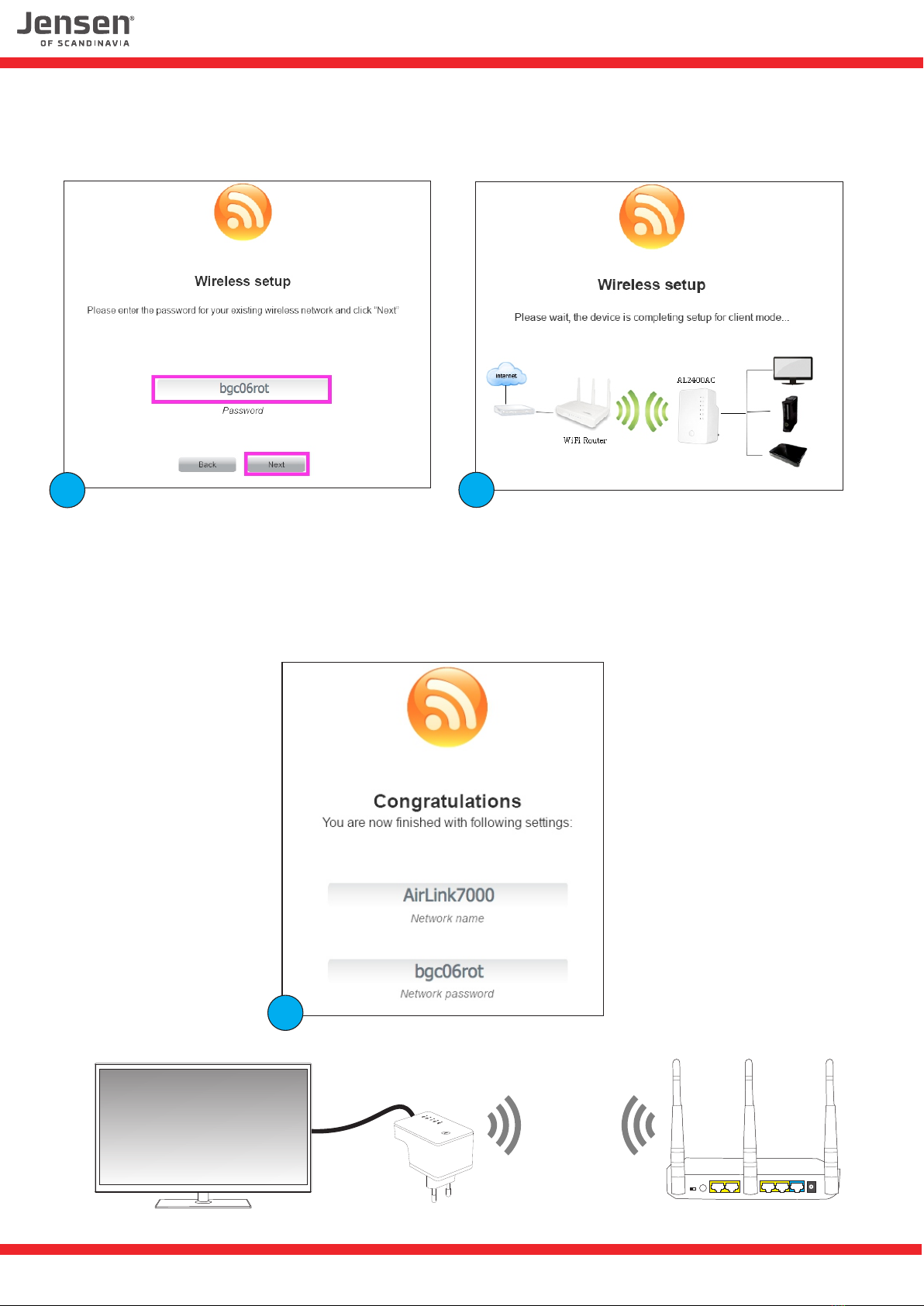
6. Enter the password for the wireless network and click Next.
7. Please wait while the AL2400AC connects to the wireless network.
8. When you see the below screen the AL2400AC is finish setup and ready for use.
Devices you connect to AL2400AC by cable will get access to internet.
2 1 Internet34
5VDC
ON / OFF
Reset/WPS
WiFi
67
8