Keychron M2 User manual

M2 WIRELESS MOUSE USER MANUAL


Type - A
Type - C
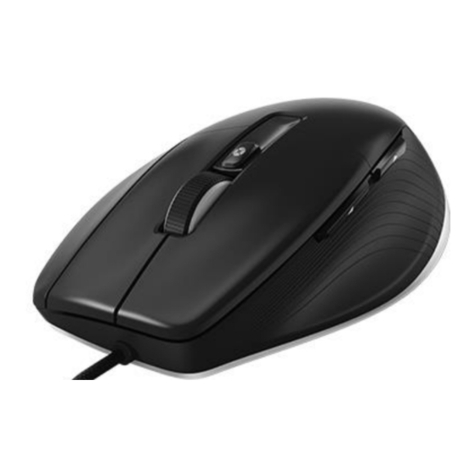
Middle wheel button
2.4GHz Type - A receiver
2.4GHz Type - C receiver
Mouse indicator Report rate button
Modes toggle
- 1 -

Connect the cable to the Type-C port of the mouse and the USB port on the device. The mouse is ready to use while the
indicator lights up.
When connected by cable, the mode will default to wired mode even if the toggle is in Bluetooth mode or 2.4GHz mode.
1. When the mode switch is in "OFF" position, the mouse won't respond if the cable is not connected.
3 Modes of connection
- 2 -
1. Switch to "G" mode (2.4GHz mode), and the mouse will automatically turn on 2.4GHz paring. The mouse indicator will slowly
flash green.
2. Find the 2.4GHz receiver and connect it to the device's USB/Type-C port. Once successfully connected, the mouse indicator
will turn green and stay on for 3 seconds before dimming off. The mouse is now ready for use.

G = 2.4GHz mode
- 3 -
simultaneously hold for 4 seconds
(to enter the forced paring mode)
3. In 2.4GHz paring mode, the mouse indicator will slowly blink green for 3 minutes. If the mouse is not connected within 3 minutes,
the indicator will turn off. If you need to reconnect, hold both the "Left button + Forward button" for 4 seconds to re-enter pairing
mode.
If you need to repair the connection in 2.4GHz mode, please unplug the 2.4GHz receiver first. Then, hold both the "Left button +
Forward button" for 4 seconds, wait for the green light indicator to start flashing, and plug the 2.4GHz receiver back in to complete
the pairing process.
Note: It is recommended that when pairing the M2 in 2.4GHz mode, the mouse should be within 20cm of the receiver.
Note: For the best wireless experience, we recommend using the
cable and putting the 2.4GHz receiver somewhere on your
desk close to your mouse for a lower rate of latency and
fewer signal interferences.
Type-C Cable Adapter 2.4GHz
Receiver

- 4 -
1. Switch to "B" Mode (Bluetooth), and the mouse will automatically turn on Bluetooth pairing mode. The mouse indicator will
slowly flash blue.
2. Open the Bluetooth settings, search for a device named "Keychron M2", then click "connect" to complete paring.
3. When in Bluetooth pairing mode, the mouse indicator will slowly blink in blue for 3 minutes. If it's not connected within
3 minutes, the mouse indicator will turn off. If you need to reconnect, you need to hold the "Left button + Forward button"
for 4 seconds to re-enter pairing mode. The indicator will slowly blink blue.
4. If the M2 is in Bluetooth mode and needs to pair with a new device, hold both the "Left button + Forward button" for 4 seconds
and wait for the blue light to flash on. At this point, Bluetooth has re-entered pairing mode, and you can connect the new
device to the M2.
B = Bluetooth
"Keychron M2"
simultaneously hold for 4 seconds
(to re-enter pairing mode)

Status indicator
- 5 -
*The mouse indicator slowly blinks green - Ready to be paired.
*The mouse indicator quickly blinks green - Pairing with the
previous device.
*The mouse indicator slowly blinks blue - Ready to be paired.
*The mouse indicator quickly blinks blue - Pairing with the
previous device.
The mouse indicator will slowly blink red.
Low Power
Bluetooth Mode
2.4GHz Mode
Orange light

Report Rate indicator
*Report Rate = Polling Rate
- 6 -
How to factory reset
Hold down both the "DPI" button and "Report Rate" button for 4 seconds, and all the LED lights on the mouse will blink. It will
blink three times to indicate that the factory reset is successful.
simultaneously hold for 4 seconds
(starts factory reset)
125Hz (Default in Bluetooth mode)
500Hz
1000Hz (Default in wired & 2.4GHz mode)

Auto-Sleep mode
Auto-Sleep mode will not be activated when in wired mode. When in 2.4GHz mode or Bluetooth mode, the mouse will go to
Auto-Sleep mode after 15 minutes of sitting idle to save the battery. Move or click the mouse to wake it up.
The Keychron M2 mouse driver can be downloaded from www.keychron.com. If the driver software can't connect to the
mouse, please contact us for technical support.
- 7 -

Note: The product supports up to 5V charging voltage and 300 mA charging current. We are not responsible for any problems
caused by improper recharging.
* The mouse is compatible with all USB ports. For the best signal and charging speed, connecting to the USB3.0 port is
recommended when charging or in use.
* If the mouse is connected by the USB Type - C cable when charging but not paired with any devices:
·The mouse indicator will stay RED when charging.
·The mouse indicator will stay GREEN when fully charged.
- 8 -
The mouse indicator will stay GREEN.
The mouse indicator will slowly blink RED.
Low Power
Fully Charged
Table of contents
Other Keychron Mouse manuals