manuals.online logo
Brands
  1. Home
  2. •
  3. Brands
  4. •
  5. Kicker
  6. •
  7. Stereo System
  8. •
  9. Kicker Bullfrog BF200 User manual

Kicker Bullfrog BF200 User manual

Other Kicker Stereo System manuals

Kicker QSS65 User manual

Kicker

Kicker QSS65 User manual

Kicker RS65.2 User manual

Kicker

Kicker RS65.2 User manual

Kicker KSMT25 User manual

Kicker

Kicker KSMT25 User manual

Kicker ZK150 User manual

Kicker

Kicker ZK150 User manual

Kicker ZK350 User manual

Kicker

Kicker ZK350 User manual

Kicker Amphitheater 40iK5BT2 User manual

Kicker

Kicker Amphitheater 40iK5BT2 User manual

Kicker 46HDR154 User manual

Kicker

Kicker 46HDR154 User manual

Kicker 40iK5BT User manual

Kicker

Kicker 40iK5BT User manual

Kicker AMPHITHEATER 41iK5BT2V2 User manual

Kicker

Kicker AMPHITHEATER 41iK5BT2V2 User manual

Kicker KMTC65 User manual

Kicker

Kicker KMTC65 User manual

Kicker Amphitheater 40iK5BT2 User manual

Kicker

Kicker Amphitheater 40iK5BT2 User manual

Kicker ZK150 User manual

Kicker

Kicker ZK150 User manual

Kicker iK350 User manual

Kicker

Kicker iK350 User manual

Kicker iKick iK150 User manual

Kicker

Kicker iKick iK150 User manual

Kicker KICKER zKICK ZK500 User manual

Kicker

Kicker KICKER zKICK ZK500 User manual

Kicker SS65.2 User manual

Kicker

Kicker SS65.2 User manual

Kicker iKick iK150 User manual

Kicker

Kicker iKick iK150 User manual

Kicker 40iK5 User manual

Kicker

Kicker 40iK5 User manual

Kicker KM6500 User manual

Kicker

Kicker KM6500 User manual

Kicker AMPHITHEATER 41iK5BT2V2 User manual

Kicker

Kicker AMPHITHEATER 41iK5BT2V2 User manual

Kicker Bullfrog BF100G User manual

Kicker

Kicker Bullfrog BF100G User manual

Kicker AMPHITHEATER 40iK5BTM User manual

Kicker

Kicker AMPHITHEATER 40iK5BTM User manual

Kicker Amphitheater K3 User manual

Kicker

Kicker Amphitheater K3 User manual

Kicker BF400 User manual

Kicker

Kicker BF400 User manual

Popular Stereo System manuals by other brands

Sony HCD-VX88 Service manual

Sony

Sony HCD-VX88 Service manual

Philips MCM398D/12 user manual

Philips

Philips MCM398D/12 user manual

Sony CMT-SPZ90DB operating instructions

Sony

Sony CMT-SPZ90DB operating instructions

LG OM4560 owner's manual

LG

LG OM4560 owner's manual

JVC UX-G3 instructions

JVC

JVC UX-G3 instructions

Odys ODYS - LOOP instruction manual

Odys

Odys ODYS - LOOP instruction manual

Aiwa NSX-AJ700 Service manual

Aiwa

Aiwa NSX-AJ700 Service manual

Panasonic SC-AK100 operating instructions

Panasonic

Panasonic SC-AK100 operating instructions

Sharp CD-G10000V Operation manual

Sharp

Sharp CD-G10000V Operation manual

Bogen NEARSCAPES 4.1 manual

Bogen

Bogen NEARSCAPES 4.1 manual

Panasonic SCPM29 - MINI HES W/CD PLAYER operating instructions

Panasonic

Panasonic SCPM29 - MINI HES W/CD PLAYER operating instructions

Meyer LD-3 operating instructions

Meyer

Meyer LD-3 operating instructions

THOMSON MIC302U manual

THOMSON

THOMSON MIC302U manual

Philips MCM530 Service manual

Philips

Philips MCM530 Service manual

Sony SS-CEP50 Service manual

Sony

Sony SS-CEP50 Service manual

Cetacea Sound CVS-II user guide

Cetacea Sound

Cetacea Sound CVS-II user guide

Sony MHC-V21D Service manual

Sony

Sony MHC-V21D Service manual

Denon UCD-250 Service manual

Denon

Denon UCD-250 Service manual

manuals.online logo
manuals.online logoBrands
  • About & Mission
  • Contact us
  • Privacy Policy
  • Terms and Conditions

Copyright 2025 Manuals.Online. All Rights Reserved.

User Manual for
KICKER Bullfrog Series Audio Systems
Manual del Propietario para los
Sistemas de Audio de la Serie KICKER Bullfrog
Manuel d’utilisation
des systèmes audio KICKER Bullfrog
BF200
Owner’s Manual
Manual del Propietario
Manuel d’utilisation
1
Contents | Contenido | Table des matières
Introduction . . . . . . . . 2
Hardware Overview . . . . . 3
Status Indicators . . . . . . . . . . . . . . . . 3
Connections . . . . . . . . . . . . . . . . . 4
Controls . . . . . . . . . . . . . . . . . . . 5
Hardware Operation . . . . . 6
Bluetooth Mode . . . . . . . . . . . . . . . . 6
FM Mode. . . . . . . . . . . . . . . . . . . 8
AUX Mode . . . . . . . . . . . . . . . . . . 8
KICKER Connect App (coming soon). .
Troubleshooting . . . . . . 9
Specifications . . . . . . . 24
Safety/Warranty . . . . . . 25
Introducción. . . . . . . . 2
Descripción del hardware . . . 10
Indicadores de estado . . . . . . . . . . . . . . 10
Conexiones . . . . . . . . . . . . . . . . . . 11
Controles. . . . . . . . . . . . . . . . . . . 12
Funcionamiento del Hardware 13
Modo Bluetooth . . . . . . . . . . . . . . . . 13
Modo FM. . . . . . . . . . . . . . . . . . . 15
Modo AUX . . . . . . . . . . . . . . . . . . 15
KICKER Connect App (próximamente) .
Solución de problemas. . . . 16
Especificaciones . . . . . . 24
Seguridad / Garantía . . . . 25
Introduction . . . . . . . . 2
Présentation du matériel . . . 17
Indicateurs d’état . . . . . . . . . . . . . . . . 17
Branchements . . . . . . . . . . . . . . . . . 18
Commandes . . . . . . . . . . . . . . . . . 19
Fonctionnement du matériel . . 20
Mode Bluetooth . . . . . . . . . . . . . . . . 20
Mode FM. . . . . . . . . . . . . . . . . . . 22
Mode AUX . . . . . . . . . . . . . . . . . . 22
Appli KICKER Connect (à venir) . . .
Dépannage . . . . . . . . 23
Spécifications . . . . . . . 24
Sécurité / Garantie . . . . . 25
2
Introduction | Introducción
Congratulations! You are the proud new owner of a KICKER Bullfrog audio system. Whether
tailgating before the game, creating some ambience for that date you’ve brought home, or just
relaxing in your natural habitat, the KICKER Bullfrog is ready to hop along life with you! The Bullfrog
features:
• KICKER Connect - Our mobile application for unlocking and controlling all the powerful features
of your Bullfrog.
• 360° Sound - Speakers on both sides supply sound for the whole room!
• Double-Kick™ - Need more juice? Pair two Bullfrog’s! Use KICKER Connect, or hardware
settings, to add another Bullfrog to your chorus.
• IP66 Certification - On your boat, at the lake or in your back yard, the Bullfrog is certified tough.
Now you can play what you want - anywhere you want.
• 100’ Bluetooth® Range - Anywhere you go, the fun goes with you. A 100 foot Bluetooth range
lets you walk everywhere around the party without missing a note.
With sound so good you just might croak, the Bullfrog licks the competition. (frog puns are toadally
lame)
¡Felicitaciones! Es el nuevo y orgulloso dueño de un sistema de audio Bullfrog de KICKER.
Ya sea si se reúne con amigos antes del partido, crea un ambiente especial para la cita que llevó
a su casa o, simplemente, se relaja en su hábitat natural, ¡el sistema Bullfrog de KICKER está listo
para acompañarlo en todo momento! El Bullfrog incluye:
• KICKER Connect: nuestra aplicación móvil para desbloquear y controlar todas las poderosas
funciones de su Bullfrog.
• Sonido de 360°: ¡los altavoces en ambos lados ofrecen sonido a todo el ambiente!
• Double-Kick™: ¿Necesita más potencia? ¡Conecte dos Bullfrog! Utilice KICKER Connect,
o las configuraciones del hardware, para agregar otro Bullfrog a su coro.
• Certificación IP66: en su bote, en el lago o en su patio trasero, el Bullfrog cuenta con una
certificación que prueba su resistencia. Ahora puede reproducir lo que quiera, donde quiera.
• Rango Bluetooth®de 100 pies: la diversión lo acompañará adonde vaya. Un rango Bluetooth
de 100 pies le permite caminar por todos lados en una fiesta sin perder ni una nota.
Con un sonido tan sorprendente que lo puede estremecer, el Bullfrog supera a la competencia.
Félicitations ! Vous êtes le fier nouveau propriétaire d’un système audio KICKER Bullfrog.
Que vous fassiez la fête avant un match, créiez une ambiance pour une soirée intime à la maison,
ou souhaitiez simplement vous détendre dans votre quotidien, le système KICKER Bullfrog vous
aidera à animer votre vie ! Le système Bullfrog comprend :
• KICKER Connect - Notre application mobile pour déverrouiller et contrôler toutes les puissantes
fonctionnalités de votre Bullfrog.
• Son 360° - Des haut-parleurs des deux côtés pour sonoriser la pièce entière !
• Double-Kick™- Vous avez besoin de plus de puissance ? Jumelez deux Bullfrog ! Utilisez
KICKER Connect, ou les paramètres de votre matériel, pour ajouter un autre Bullfrog à votre
chœur.
• Certifié IP66 - Utilisez votre Bullfrog sur votre bateau, au bord d’un lac ou sur votre terrasse,
sa robustesse est certifiée. Vous pouvez désormais écouter ce que vous voulez, partout où
vous le souhaitez.
• Portée Bluetooth®de 30 m - Où que vous alliez, le fun vous accompagne. Une portée
Bluetooth®de 30 mètres vous permet de faire le tour de la fête sans manquer une note.
Avec un son qui vous donne envie de chanter, le Bullfrog écrase ses concurrents.

3
Input Status:
Audio input status is indicated with one of three colored LEDs, located next to the
SOURCE/PAIRING button. These LEDs will change color with the source:
Bluetooth - Blue FM Radio - Red Auxiliary Input - Green
Status Indicators
The KICKER Bullfrog uses light indicators to acknowledge changes in settings, modes,
and input response. If no action can be taken, such as decreasing volume when at minimum,
or pressing FWD/BACK while in AUX mode, there will be no response.
Battery Status:
Battery status is indicated with 5 white LEDs on top of the Bullfrog, above the PLAY/PAUSE
button. These LEDs will also indicate Double-Kick mode (see Page 4). To show current battery
status, press any button while the Bullfrog is powered on. Status display will end after
5 seconds. Remember to charge the Bullfrog for 6 hours before first use. Charging is complete
when Battery LEDs stop counting and turn off.
{
BATTERY STATUS LEDs (1-5)
All Solid >80%
4 Solid 60%–80%
3 Solid 40%–60%
2 Solid 20%-40%
1 Solid <20%
1 Blinking <10%
Counting Up Battery Charging
AUX
}
LED status indicators:
• illuminated when the Bullfrog is powered on
• solid when input source is set
• flashes blue when in Bluetooth pairing mode
• blinks when receiving commands
• breathes slowly when audio is paused or muted
4
Connections
The KICKER Bullfrog has multiple hardware connections to
accommodate any audio application, indoors and outdoors.
Peel back the protective covering located on the side of the Bullfrog
to access the hardware panel. Remember to replace it when
finished. When operating near water or other risky areas, you are
solely responsible for maintaining the water-resistant integrity of the
Bullfrog. All connections should be removed and the cap should be
tightly secured.
Hardware reset
Line In - Provides audio input via 3.5mm connection
with AUX input mode.
External Antenna - Attach the included FM radio
antenna to increase the radio range. For best results,
place the antenna wire as high as possible.
USB Charge Bank - The USB Type A connection on the
Bullfrog acts as a power bank to charge your external
devices when the Bullfrog is on, or DC power is
connected. It is also used to update the firmware.
Charging current up to 2.1A.
DC Power - Power input using included wall-wart
power supply. Use only a KICKER-approved power
supply and the included power adapters.
5
Controls
The KICKER Bullfrog controls and buttons will have different functions depending on the input
mode, and whether a short or long press is used. Some buttons are inactive in certain modes,
such as FWD/BACK while in AUX mode.
1S
1S
Controls at a glance
short press
long press
Short Press - Show Battery Status (while on)
Long Press - Power On/Off
Increase Volume Decrease Volume
Short Press - Previous Track or Previous Radio Preset
Long Press - Rewind or Seek Backwards to available FM station
Short Press - Next Track or Next Radio Preset
Long Press - Fast Forward or Seek Forward to available FM station
Short Press - Play/Pause or Mute
Very Long Press (10s) - Software Reset (FM Presets are retained)
Short Press - Change Input Source
Long Press - Enter Bluetooth Pairing Mode
Change Input Source
Enter Pairing Mode
Off/On
1S
1
S
s
hort
p
res
s
lon
g
pres
s
6
Bluetooth
The KICKER Bullfrog supports audio input via Bluetooth transfer protocol. It will remember and
auto-connect with up to 5 audio devices. Use a software reset to wipe the auto-connect list,
or pair more devices to bump the last one off.
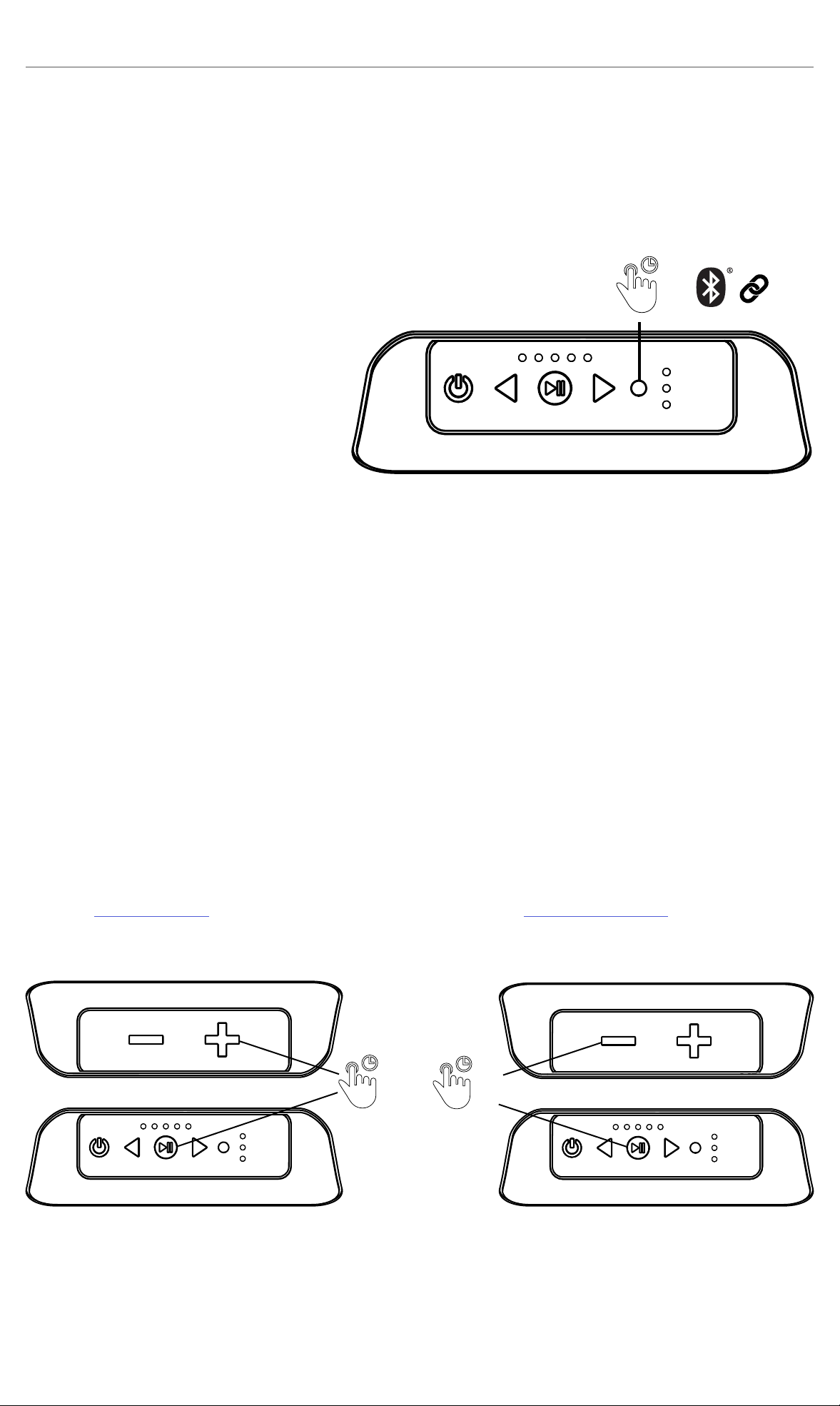
Enter Pairing mode by performing a long press (1 second) of the SOURCE button.
The Blue source LED will flash while in pairing mode for up to 2 minutes, then time-out.
You may also exit pairing mode by pressing the SOURCE button.
When the Bullfrog enters Bluetooth
mode, it will automatically begin to
search for and connect with the last
connected device. If that device
is not found, it will continue to search
for the other saved connections
until a connection is established.
When in Bluetooth Pairing mode, the
Bullfrog will display as “BF200 KICKER” on your Bluetooth device.
Double-Kick Mode:
Double-Kick allows you to play your audio through two Bullfrogs. One Bullfrog, the Primary,
will broadcast the audio to the Secondary Bullfrog. Audio and EQ settings applied by the
Primary Bullfrog, or KICKER Connect app, will be mirrored on the Secondary Bullfrog.
Double-Kick mode is compatible with all audio input sources. You may enter Double-Kick
mode by using the KICKER Connect app, or manually with the following button sequence.
1. Pair Bluetooth device with Primary Bullfrog
=
1S
2. 3.
1S 1S
Primary Secondary
2. Setup Primary Speaker
Press & Hold Play/Pause and ‘+’ on
Primary Bullfrog. The battery LEDs will
indicate Primary mode with an inside-out
pattern.
3. Setup Secondary Speaker
Press & Hold Play/Pause and ‘–’ on
Secondary Bullfrog. The battery LEDs will
indicate Secondary mode with an
outside-in pattern.
When successful, the Primary Bullfrog should have a solid input source LED. The Secondary
Bullfrog should have all input source LEDs solid. Any volume changes made on one Bullfrog
will effect the other. Press the SOURCE button, or turn the Bullfrog off, to exit Double-Kick
mode.
7
Double-Kick Status:
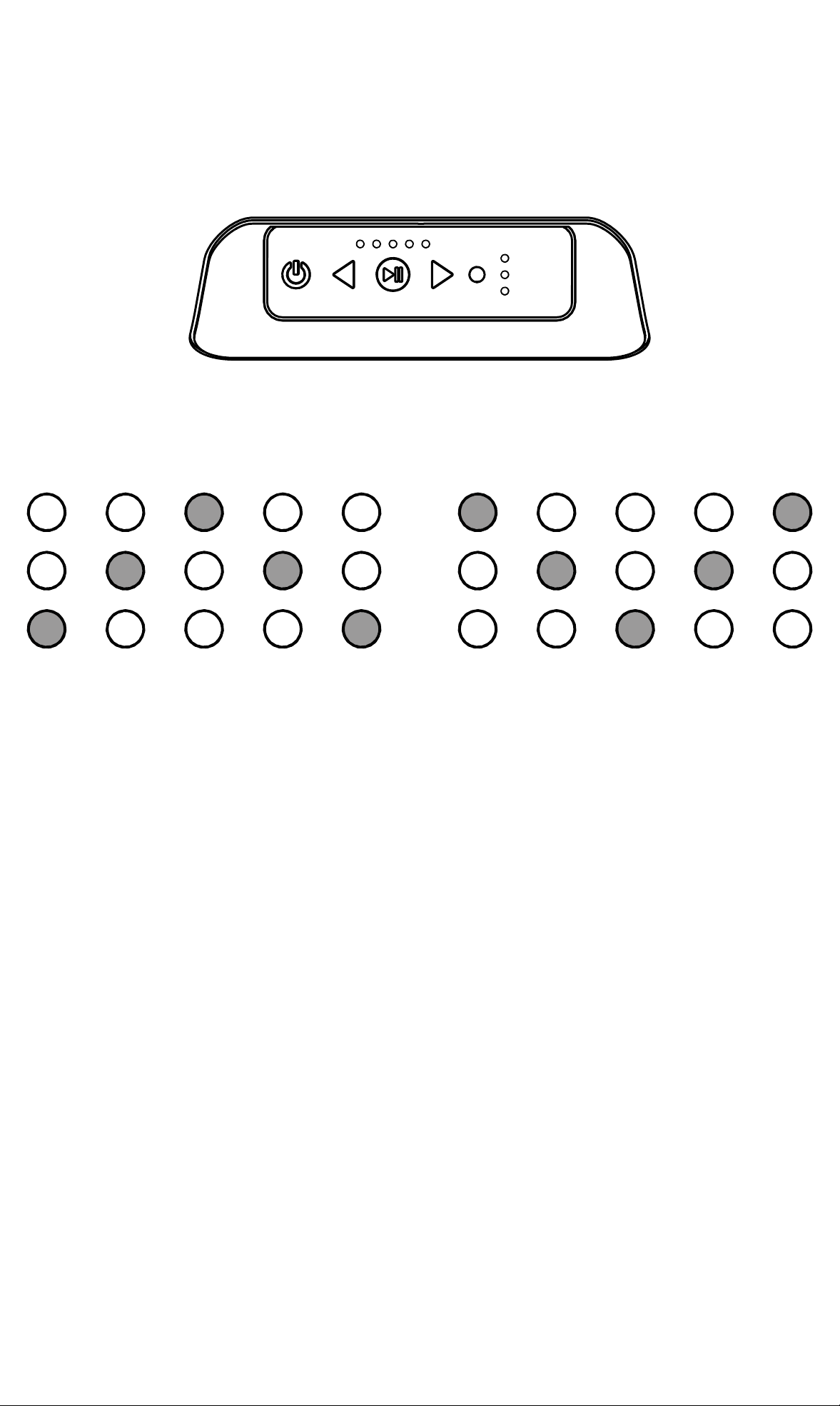
Double-Kick mode is indicated by one of two LED patterns across the Battery Status LEDs,
depending on if the Bullfrog is in Primary mode or Secondary mode.
These indicators will only be in effect while establishing the connection between Bullfrog’s.
Primary Bullfrog Secondary Bullfrog
Outward Sequence Inward Sequence
Auto Turn-off:
If no audio is detected for 10 minutes, the Bullfrog will turn off automatically while in Bluetooth
and AUX modes. Auto Turn-off is disabled in FM Radio, while using the USB Charge Bank, or
when the power cord is attached.
Power Saving Mode:
The Bullfrog will enter OFF mode after 36 hours. It must be turned back on for the KICKER
Connect App to work.
Hardware Reset:
A hardware reset allows the speaker to recover from unexpected issues. If the speaker
becomes unresponsive, momentarily press the reset button on the side of the speaker using a
paperclip.
Factory Reset:
Factory reset restores the speaker back to the way it was shipped to you. This can be useful
to reset the equalizer and volume levels to default, and can help resolve issues with Bluetooth,
FM radio, or with the Kicker Connect app. To perform a factory reset, turn the speaker on and
press and hold the Play button for 10 seconds, or until the LEDs turn off.
8
FM Radio
The KICKER Bullfrog features FM Radio with
the ability to save station presets using the
KICKER Connect app. It will always
resume your last FM channel. To increase
the range of available radio stations, connect
the included external antenna to the Line-
in/Ext Ant jack on the Bullfrog. FM Radio is
available without the external antenna, but,
for best results, use the external antenna
with as much elevation as possible.
Enter FM Radio mode by short pressing
the SOURCE button until the red LED
is selected. Use the KICKER Connect app
to tune to specifc frequencies, or save
stations to Preset.
AUX
The KICKER Bullfrog features auxiliary audio input via the 3.5mm (1/8”) input jack located on
the hardware panel. Enter AUX mode by short pressing the SOURCE button until the green
LED is selected. When using an external audio device, it is best to turn up the volume or gain
on the audio source to the highest level possible without distortion, then adjust the Bullfrog
volume as needed.
1S
Seek
Change preset
9
Troubleshooting
Speaker will not turn on:
• Hold the Power button.
• Make sure that the power cord has been plugged directly into a known-good wall outlet.
• Press the reset button inside the hardware panel using a paperclip or safety pin.
Bluetooth device will not connect:
• On your mobile device:
• Turn Bluetooth off, then on again.
• Remove ‘BF200 KICKER’ from the Bluetooth menu. Then pair again (see page 6).
• Move your mobile device closer to the speaker. Avoid obstacles that may block the wireless signal.
• If problems persist, follow the directions below to factory reset the speaker.
Double-Kick will not engage Primary/Secondary:
• Follow the instructions to manually enter Double-Kick mode on page 7.
• If problems persist, follow the directions below to factory reset both primary and secondary speakers.
Factory Reset:
• With the Bullfrog turned on, press and hold the PLAY/PAUSE button for 10 seconds until all LEDs turn off. This will reset all
settings back to factory defaults, including Bluetooth settings and paired device memory.
No Sound:
• Turn the speaker off, then back on again.
• Press the SOURCE button until the status LEDs show the correct input mode. Blue = Bluetooth; Red = FM; Green = AUX.
• Increase the volume on the speaker and on the mobile device.
• Check that music is playing on the mobile device.
• If problems persist, follow the directions above to factory reset the speaker.
Bluetooth Mode:
• Check that the status LED is solid blue.
• Open the Bluetooth menu on the mobile device, and check that ‘BF200 KICKER’ shows connected.
• Begin playing music on mobile device. Set audio output to Bluetooth.
• Move your mobile device closer to the speaker. Avoid obstacles that may block the wireless signal.
FM Mode
• Check that the status LED is solid red.
• Push PLAY/PAUSE button to ensure speaker is not muted.
• Use the Kicker Connect App to tune into a stronger FM station.
AUX Mode
• Check that the status LED is solid green.
• Begin playing music on mobile device. Set audio output to headphones.
• Push PLAY/PAUSE button to ensure speaker is not muted.
• Ensure the 3.5mm AUX cable is fully plugged into the LINE IN connector of the speaker’s side hardware panel.
• The 3.5mm AUX cable may be bad. Try a new cable.
KICKER Connect cannot connect to Bullfrog:
• Confirm mobile device compatibility. You must be running iOS 8.0 or Android 4.3 and newer
• Check that the speaker is turned on and charged.
• Only one mobile device may be connected to the speaker at a time. Check that a 2nd device is not already connected.
• Restart the mobile device, and try again.
Portable device will not charge from the USB port:
• Check that the speaker is turned on.
• Check that speaker is charged by attaching a power cord to the speaker.
• Check that you are using a known-good charge cable.
• Restart the speaker and the mobile device (if possible), and then try again.
FM reception is weak:
• Make sure you are using the Kicker Connect app to tune and save the strongest stations.
• For best FM reception, place the speaker as high above the ground as possible.
• Avoid placing the speaker directly next to large objects that will block the sky, like buildings and trees.
• If you are indoors, use the external FM antenna provided. Test a variety of antenna positions to find the best FM reception.