manuals.online logo
Brands
  1. Home
  2. •
  3. Brands
  4. •
  5. Kurzweil
  6. •
  7. Electronic Keyboard
  8. •
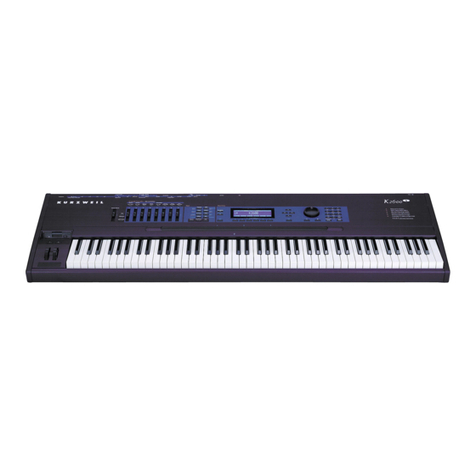
  9. Kurzweil KP30 User manual

Kurzweil KP30 User manual

Other Kurzweil Electronic Keyboard manuals

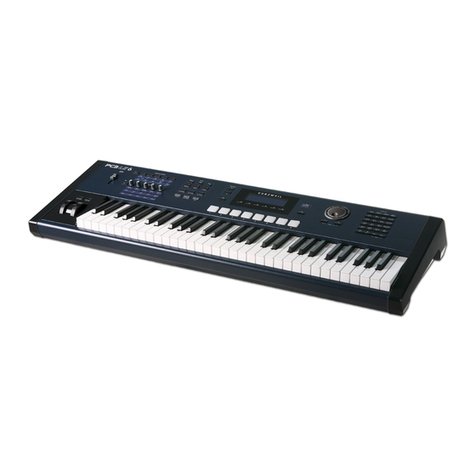
Kurzweil K2600 - MUSICIANS GUIDE REV A PART NUMBER 910330 CHAP... User manual

Kurzweil

Kurzweil K2600 - MUSICIANS GUIDE REV A PART NUMBER 910330 CHAP... User manual

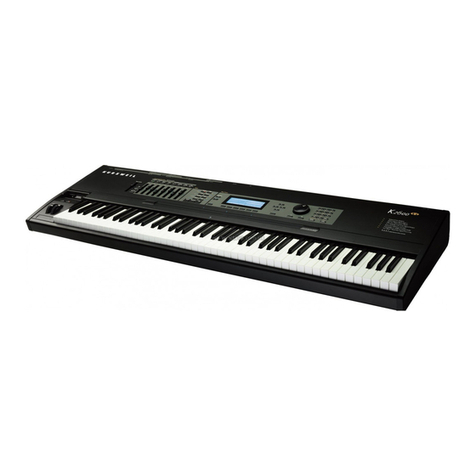
Kurzweil K2vx User manual

Kurzweil

Kurzweil K2vx User manual

Kurzweil K2600 BEST OF VAST - REV A User manual

Kurzweil

Kurzweil K2600 BEST OF VAST - REV A User manual

Kurzweil K2600 BEST OF VAST - REV A User manual

Kurzweil

Kurzweil K2600 BEST OF VAST - REV A User manual

Kurzweil K2600 - MUSICIANS GUIDE REV A PART NUMBER 910330 CHAP... User manual

Kurzweil

Kurzweil K2600 - MUSICIANS GUIDE REV A PART NUMBER 910330 CHAP... User manual

Kurzweil K2661 User manual

Kurzweil

Kurzweil K2661 User manual

Kurzweil KME-61 VERSION 2 SOFTWARE Owner's manual

Kurzweil

Kurzweil KME-61 VERSION 2 SOFTWARE Owner's manual

Kurzweil K2600 BEST OF VAST - REV A User manual

Kurzweil

Kurzweil K2600 BEST OF VAST - REV A User manual

Kurzweil K2500 User manual

Kurzweil

Kurzweil K2500 User manual

Kurzweil K2600 - MUSICIANS GUIDE REV A PART NUMBER 910330 CHAP... User manual

Kurzweil

Kurzweil K2600 - MUSICIANS GUIDE REV A PART NUMBER 910330 CHAP... User manual

Kurzweil K2600 BEST OF VAST - REV A Reference manual

Kurzweil

Kurzweil K2600 BEST OF VAST - REV A Reference manual

Kurzweil K2600 BEST OF VAST - REV A User manual

Kurzweil

Kurzweil K2600 BEST OF VAST - REV A User manual

Kurzweil M-1 User manual

Kurzweil

Kurzweil M-1 User manual

Kurzweil K2600S User manual

Kurzweil

Kurzweil K2600S User manual

Kurzweil K2600 ROM - INSTALLATION REV E User manual

Kurzweil

Kurzweil K2600 ROM - INSTALLATION REV E User manual

Kurzweil PC3 User manual

Kurzweil

Kurzweil PC3 User manual

Kurzweil PC3LE User manual

Kurzweil

Kurzweil PC3LE User manual

Kurzweil K2600 V2.0 - MUSICIANS GUIDE SUPPLEMENT REV... User manual

Kurzweil

Kurzweil K2600 V2.0 - MUSICIANS GUIDE SUPPLEMENT REV... User manual

Kurzweil K2600 BEST OF VAST - REV A User manual

Kurzweil

Kurzweil K2600 BEST OF VAST - REV A User manual

Kurzweil PC2 V3.0 - MUSICIANS GUIDE SUPPLEMENT REV A User manual

Kurzweil

Kurzweil PC2 V3.0 - MUSICIANS GUIDE SUPPLEMENT REV A User manual

Kurzweil K2500 Reference manual

Kurzweil

Kurzweil K2500 Reference manual

Kurzweil Flash Play PC4 User manual

Kurzweil

Kurzweil Flash Play PC4 User manual

Kurzweil PC3A User manual

Kurzweil

Kurzweil PC3A User manual

Kurzweil K2000R User manual

Kurzweil

Kurzweil K2000R User manual

Popular Electronic Keyboard manuals by other brands

Casio LK-50 General guide

Casio

Casio LK-50 General guide

Casio VZ-1 Service manual and parts list

Casio

Casio VZ-1 Service manual and parts list

Yamaha PortaTone PSR-225GM owner's guide

Yamaha

Yamaha PortaTone PSR-225GM owner's guide

Yamaha Portatone X2500 owner's guide

Yamaha

Yamaha Portatone X2500 owner's guide

Yamaha Portatone PSR-100 owner's guide

Yamaha

Yamaha Portatone PSR-100 owner's guide

Keith McMillen Instruments K-Board Pro 4 Get started

Keith McMillen Instruments

Keith McMillen Instruments K-Board Pro 4 Get started

Yamaha PortaSound PCS-30 owner's guide

Yamaha

Yamaha PortaSound PCS-30 owner's guide

McGrey 6170 user manual

McGrey

McGrey 6170 user manual

Roland Juno-6 Operation manual

Roland

Roland Juno-6 Operation manual

Akai MPK88 quick start guide

Akai

Akai MPK88 quick start guide

Waldorf IRIDIUM quick start

Waldorf

Waldorf IRIDIUM quick start

Behringer MOTÖR 61 user manual

Behringer

Behringer MOTÖR 61 user manual

Yamaha PortaTone PSR-62 owner's guide

Yamaha

Yamaha PortaTone PSR-62 owner's guide

Casio KL-130 user guide

Casio

Casio KL-130 user guide

Casio AT-5 user guide

Casio

Casio AT-5 user guide

Casio Privia PX-100 user guide

Casio

Casio Privia PX-100 user guide

Yamaha PortaSound PSS-100 owner's manual

Yamaha

Yamaha PortaSound PSS-100 owner's manual

Yamaha PortaTone PSR-640 owner's guide

Yamaha

Yamaha PortaTone PSR-640 owner's guide

manuals.online logo
manuals.online logoBrands
  • About & Mission
  • Contact us
  • Privacy Policy
  • Terms and Conditions

Copyright 2025 Manuals.Online. All Rights Reserved.

KP30
0
5
25
75
95
100
INFORMATION FOR YOUR SAFETY!
PRECAUTIONS
PLEASE READ CAREFULLY BEFORE
PROCEEDING
Please keep this manual in a safe place for
future reference.
Power Supply
Please connect the designated AC adaptor to
an AC outlet of the correct voltage.
Do not connect it to an AC outlet of voltage
other than that for which your instrument is
intended.
Unplug the AC power adaptor when not using
the instrument, or during electrical storms.
Connections
Before connecting the instrument to other
devices, turn off the power to all units. This will
help prevent malfunction and / or damage to
other devices.
Location
Do not expose the instrument to the following
conditions to avoid deformation, discoloration,
or more serious damage:
Direct sunlight
Extreme temperature or humidity
Excessive dusty or dirty location
Strong vibrations or shocks
Close to magnetic fields
Interference with other electrical devices
Radios and televisions placed nearby may
experience reception interference. Operate
this unit at a suitable distance from radios and
televisions.
Cleaning
Clean only with a soft, dry cloth.
Do not use paint thinners, solvents, cleaning
fluids, or chemical-impregnated wiping cloths.
Handling
Do not apply excessive force to the switches
or controls.
Do not let paper, metallic, or other objects into
the instrument. If this happens, unplug the AC
adaptor from the wall outlet. Then have the
instrument inspected by qualified service
personnel.
Disconnect all cables before moving the
instrument.
THE FCC REGULATION
WARNING (for USA)
This equipment has been tested and found to
comply with the limits for a Class B digital
device, pursuant to Part 15 of the FCC Rules.
These limits are designed to provide
reasonable protection against harmful
interference in a residential installation. This
equipment generates, uses, and can radiate
radio frequency energy and, if not installed
and used in accordance with the instructions,
may cause harmful interference to radio
communications. However, there is no
guarantee that interference will not occur in a
particular installation.
If this equipment does cause harmful
interference to radio or television reception,
which can be determined by turning the
equipment off and on, the user is encouraged
to try to correct the interference by one or
more of the following measures:
Reorient or relocate the receiving antenna.
Increase the separation between the
equipment and receiver.
Connect the equipment into an outlet on a
circuit different from that to which the
receiver is connected.
Consult the dealer or an experienced
radio/TV technician for help.
Unauthorized changes or modification to this
system can void the user's authority to operate
this equipment.
CAUTION
The normal function of the product may be
disturbed by Strong Electro Magnetic
Interference. If so, simply reset the product to
resume normal operation by following the
owner's manual. In case the function could
not resume, please use the product in other
location.
2
0
5
25
75
95
100
aw_MC37A_Manual_G14_150402
2015󾾠 󾾠 4󾾠 󾾠 2󾾠 󾾠 16:30:33
Panel & Display Description
Front Panel.......................................4
Rear Panel........................................4
Display..............................................5
Setup
Power Supply....................................6
Connections
Connecting a pair of Headphones....7
Connecting an Amplifier...................7
Connecting a Microphone.................7
Connecting a Computer...................7
Playing the Demos.........................8
Playing the Voices
Selecting a Voice..............................8
Sustain..............................................8
Modulation........................................9
DSP Effect........................................9
Transpose.........................................9
Piano................................................9
Playing the Styles
Selecting a Style.............................10
Playing a Fill...................................10
Sync................................................10
Accompaniment Volume.................10
Tempo.............................................11
Chord Fingering............................11
One Touch Setting..........................12
Memory/Percussion
Memory...........................................13
Percussion......................................13
Chord Dictionary...........................14
Metronome
Turning on the Metronome.............14
Selecting the Beat...........................14
Playing the Songs
Listening to the Songs....................15
Lesson Mode..................................15
Recording and Playback..............16
MIDI Functions
What’s MIDI?..................................17
MIDI Terminals................................17
Trouble Shooting..........................18
Specifications...............................18
Appendices
Voice List........................................19
Style List.........................................20
Song List.........................................21
Chord List.......................................22
MIDI Implementation Chart.............23
Contents
3
0
5
25
75
95
100
aw_MC37A_Manual_G14_150402
2015󾾠 󾾠 4󾾠 󾾠 2󾾠 󾾠 16:30:33
DIXIELAND
1
2
34
5
6
789
10
11
12
13
14
Panel & Display Description
15
Front Panel
1. POWER ON/OFF
Turn the power on and off.
2. A.B.C.
Turn the Chord Mode on and off.
3. START/STOP
Start or stop playing the song in
Song Mode.
Start or stop playing the style in
Style Mode.
4. SYNC/FILL
Turn the SYNC START on and
off.
Play the FILL
5. RECORDING
RECORD: Enter the Record
Mode.
PLAY: Play back the recorded
performance.
6. M1-M5/PAD1-PAD5
Recall the memory settings.
Play the percussion sound.
7. MASTER VOL
Adjust the master volume.
8. ACC.VOL
Adjust the accompaniment
volume.
9. TEMPO
Adjust the current tempo.
10. STORE
Register the memory.
11. STYLE
Enter the Style Mode.
12. FUNCTION
Change the adjusted
function.
13. VOICE
Enter the Voice Mode.
14. SONG
Enter the Song Mode.
15. O.T.S.
Enter the One Touch
Setting Mode.
Rear Panel
24
26 2527
4
24. DC 9V
Connect DV 9V power adaptor (optional).
25. PHONES/OUTPUT
Connect a pair of headphones.
Connect the audio equipment.
26. USB
Connect to a computer
27. MIC IN
Connect a microphone.
0
5
25
75
95
100
aw_MC37A_Manual_G14_150402
2015󾾠 󾾠 4󾾠 󾾠 2󾾠 󾾠 16:30:35
Panel & Display Description
16
17
18
20
21
22
23
19
16. MEMORY/PERC.
Switch the M1-M5/PAD1-
PAD5's function between
memory and percussion.
17. MODULATION
Turn the Modulation effect
on and off.
21. SUSTAIN
Turn the Sustain effect on
and off.
22. METRO
Turn the metronome on
and off.
23. PIANO
Enter the Piano Mode.
18.
Change the Lesson mode.
Enter the Chord Dictionary.
19. NUMBER KEYS
Select the number or adjust
the parameters.
20. DSP
Turn the DSP effect on and
off.
LESSON/CHORD DICT.
Display
1.DSP
2.LESSON 1
3.LESSON 2
4.LESSON 3
5.CHORD DIRECT
6. AUTO BASS CHORD
7.TREBLE CLEF
8.BASS CLEF
9.BEAT
10.TEMPO/COUNT
11.ACCOMP VOLUME/
MASTER VOLUME
12.METRO
13.MEMORY/PERCUSSION
4
1
2
3
5
67
8
9
10
11 12
13
14 15
16
17
DSP
Lesson 1
Lesson 2
Lesson 3
14.RECORD/PLAY
15.ONE TOUCH SETTING
16.SUSTAIN
17.KEYBOARD
5
0
5
25
75
95
100
aw_MC37A_Manual_G14_150402
2015󾾠 󾾠 4󾾠 󾾠 2󾾠 󾾠 16:30:35
Setup
This section contains information about setting up your instrument and preparing to play. Please
go through this section carefully before turning the power on.
Power Supply
You can power the unit either by batteries or by power
adaptor. Follow the instructions described below.
Using Batteries
6 pieces of C size (SUM-2 or R-14) or equivalent alkaline
batteries must first be installed into the battery
compartment.
1. Open the battery compartment cover located on the
bottom cabinet of the unit.
2. Insert the batteries, carefully follow the polarity
markings on the cabinet.
3. Replace the compartment cover, making sure that it
locks firmly in place.
Note:
Do not mix old and new batteries.
Always use same types of batteries.
Always remove the batteries from the unit when it is not
being used for an extended period of time.
Using Power Adapter
1. First, please make sure that POWER ON/OFF switch
of the instrument is set to OFF.
2. Connect the AC adaptor to the power supply jack.
3. Plug the AC adaptor into an AC outlet. And when
turning the power OFF, simply reverse the procedure
please. This will automatically cut off the battery power
supply.
4. Turn the power ON.
Note:
When the keyboard is not in use or in the time of
thunderstorm, please disconnect the power for safety
purpose.
A prompt voice sounds every two minutes if there is no
operation.
6
0
5
25
75
95
100
aw_MC37A_Manual_G14_150402
2015󾾠 󾾠 4󾾠 󾾠 2󾾠 󾾠 16:30:36
A standard pair of stereo headphones can be connected
to the PHONES jack for private practice or late-night
playing. The internal stereo speaker system is
automatically shut off when a pair of head phones is
plugged into this jack.
Note:
Do not listen with the headphones at high volume for long
periods of time. Doing so may cause hearing loss.
Plug an audio cord into the OUTPUT jack.
Then plug the other end of the cord into LINE IN or AUX
IN of the amplifier.
Note:
To avoid damaging the speakers, please ensure that the
volume has been set to the minimum level before
connecting the power and other devices.
You can connect an external microphone to MIC IN jack.
The instrument receives and transmits MIDI messages via
the USB connector.
Connections
Connecting a pair of Headphones
Connecting an Amplifier
Connecting a Microphone
Connecting a Computer
7
0
5
25
75
95
100
aw_MC37A_Manual_G14_150402
2015󾾠 󾾠 4󾾠 󾾠 2󾾠 󾾠 16:30:36
Playing the Demos
The instrument features 80 demo songs.
1. Press the [STYLE] and [VOICE] buttons
simultaneously to start playing the demo.
2. Select a demo song.
Use the number keys, the [+] button or the [-] button to
select the desired demo song.
3. Adjust the volume with the [MASTER VOLUME]
buttons.
Repeatedly press [MASTER VOL] up or down to
increase or decrease the volume. The volume ranges
from 0 (no sound) to 9 (Maximum) and the current
volume level appears on the display.
4. Press the [STYLE] and [VOICE] buttons
simultaneously again or press the [START/STOP]
button to stop playing and exit the demo mode.
Note:
In the DEMO mode, all buttons except START/STOP,
TEMPO+, TEMPO-, Number Keys, +/YES, -/NO,
MASTER VOL+, MASTER VOL-, POWER ON/OFF will
not be available.
From 0-9
Playing Voices
The instrument features 132 voices, including 4 drum kits.
Please refer to Voice List.
Selecting a Voice
Sustain
1. Press the [VOICE] button.
Enter the VOICE mode LCD shows VOICE and
the voice number.
2. Select a voice.
Use the number keys, the [+] button, the [-] button to
select the voice you want to play.
3. Play the voice.
You can play the keyboard and listen to the selected
voice.
. “ ”
8
When the Sustain features in ON, all notes played on the
keyboard would have a longer sustain. Press the
[SUSTAIN] button to turn the SUSTAIN effect ON or OFF.
0
5
25
75
95
100
aw_MC37A_Manual_G14_150402
2015󾾠 󾾠 4󾾠 󾾠 2󾾠 󾾠 16:30:36
Playing the Voices
Modulation
DSP Effect
Transpose
Piano
The Modulation function applies a vibrato effect to notes
played on the keyboard. Press the [MODULATION]
button while playing the keyboard then you will hear the
vibrato effect.
This function allows you to perform the overall sound in a
more realistic effect.
The DSP effect is set to ON when keyboard power on.
Press the [DSP] button to turn on/off the DSP effect.
Transpose function allows the overall pitch of the
instrument to be transposed up or down by a maximum of
one octave in semitone increments.
1. Press the [FUNCTION] button until “ ”displays.
2. Press the [+] or [-] button to adjust the pitch of the
instrument within 6 semitone.
3. Press the [+] and [-] buttons simultaneously to reset the
transpose to 0.
No matter what setting you've made from the panel, you
can instantly call up the piano setting by a single button
press.
1. Press [PIANO] button to enter piano and exit piano
mode.
2. In the PIANO mode, you can start a style. Press the
[START/STOP] button to play.
9
DSP
0
5
25
75
95
100
aw_MC37A_Manual_G14_150402
2015󾾠 󾾠 4󾾠 󾾠 2󾾠 󾾠 16:30:36
The instrument features 100 styles in a variety of different musical genres. Try selecting some of
the different styles (Refer to Style List) and play with the auto accompaniment.
Note:
The styles (91-99 and 00) are the piano styles. If you don't turn on A.B.C.and play a chord,
the auto accompaniment does not work.
Playing the Styles
Selecting a Style
Playing a Fill
Sync
Accompaniment Volume
1. Press the [STYLE] button.
Enter the STYLE mode. LCD shows “STYLE” and
the style number.
2. Use the number keys, the [+] button, the [-] button to
select the style you want to play.
3. Press the [START/STOP] button to start the rhythm
tracks of the auto accompaniment.
Simply press the [FILL] button, while the style is playing.
The keyboard inserts a variation, then the original style
automatically resumes at the end of the current measure.
Note:
For inserting a longer variation, hold down the [FILL]
button, The keyboard play the variation until you release
the [FILL] button。
While the style is not playing, press the [SYNC] button.
The black dots below the tempo and the metronome
flash, indicating the standby mode of the keyboard.
1. If the A.B.C. is OFF, pressing any key will automatically
begins to play the style (rhythm track).
2. If the A.B.C. is ON, pressing any key in the left-hand
range of the keyboard will automatically begins to play
the style (all tracks).
Adjust the volume of the accompaniment with the
[ACC.VOL] buttons.
Repeatedly press [ACC.VOL] up or down to increase or
decrease the volume. The volume ranges from 0 (no
sound) to 9 (Maximum) and the current accompaniment
volume level appears on the display. From 0-9
10
0
5
25
75
95
100
aw_MC37A_Manual_G14_150402
2015󾾠 󾾠 4󾾠 󾾠 2󾾠 󾾠 16:30:36