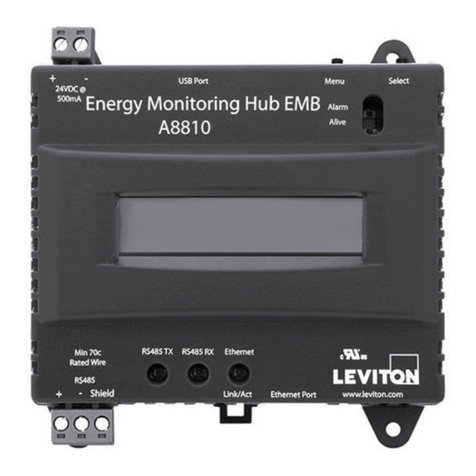
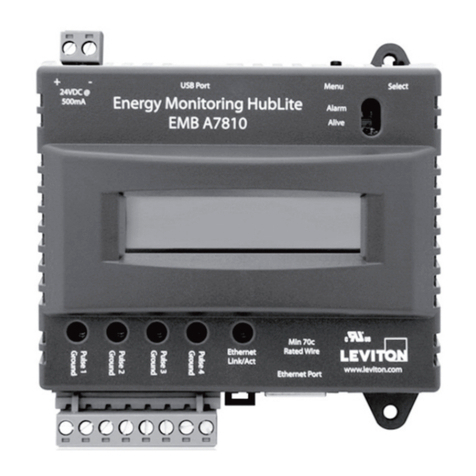
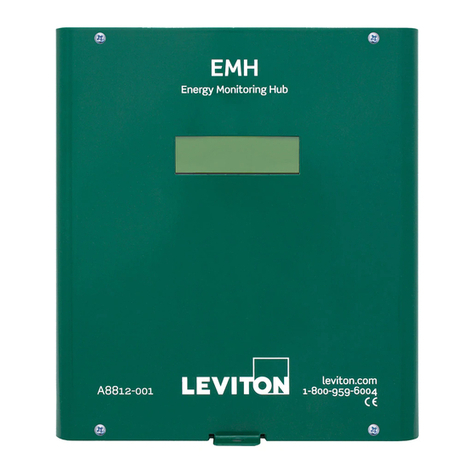
Leviton A8810 User manual

EMB HubTM Data Acquisition System
Cat. No. A8810
Quick Start Guide
DG-005-A8810-00B
WEB VERSION

WEB VERSION

• Leviton products are not intended for use in critical applications such as nuclear facilities, human
implantable devices or life support. Leviton is not liable, in whole or in part, for any claims or damages
arising from such uses.
• Leviton strongly believes in continuous improvement, therefore we must reserve the right to change
specifications and product offerings without notice. Where possible, we will substitute products with
equivalent functionality when necessary.
NOTICE
This product is not intended for life safety applications.
Do not install this product in hazardous or classified locations.
The installer is responsible for conformance to all applicable codes.
1 PRODUCT APPLICATION LIMITATION
1
WEB VERSION

2
2 OVERVIEW
EMB Hub is a family of data acquisition systems which provides owners and managers of commercial and
industrial facilities with a cost-effective means of gathering crucial information in a timely manner.
The EMB footprint and industrial temperature range makes this a perfect solution for embedded
applications. Reduce development time and speed up integration by collecting and distributing energy
information directly from your equipment.
WEB VERSION

3 INSTALLATION CHECKLIST
3
Hardware:
• A Data Acquisition Server (DAS1)
• Laptop (not provided) with one RJ45 port (required for LAN or direct laptop-to-EMB Hub connection)
• Ethernet Cat 5 or better ethernet cable (not provided)
• Power Supply 24VDC, 500mA or greater (not provided)
Optional hardware:
• Additional ModbusTM Devices or BACnet Devices.
• 2 wire, twisted pair with shield for Modbus/RS485 connection (BeldenTM 1120A or equivalent).
• Termination resistor (120 ohm) for long RS485 runs over 200 ft.
1Data Acquisition Server (A8810 EMB Hub, A7810 EMB HubLite, and A8812 EMH)
WEB VERSION

4 HARDWARE AND ELECTRICAL CONNECTION DIAGRAM
1. Unpack materials.
2. Mount the DAS using either the din rail mount, or with screws through the mounting tabs.
Note: A8812 & A8814 are not DIN rail compatible.
3. (Optional) Connect the Modbus network loop as shown in the above diagram. Follow the manufacturer’s
instructions for installing and powering the Modbus devices.
4. Connect a PC to the DAS using a Cat 5 or better ethernet cable. (Figure 1)
5. Supply +24VDC to the DAS. After power is applied the “Alive” light (upper right of A8810 andA7810) will
turn on and the LCD display will display series of diagnostics screens.
6. Decide type of connection
a. DHCP Mode (Default)
b. Static IP Mode
Figure 1
4
Power
Supply
+24VDC
GND
USB
A8810
EMB Hub
Menu Select
RS485
Shield
Laptop
+
+S
-
+S
Twisted Pair
Modbus DeviceModbus Device
Ethernet Cable (Cat. 5)
termination resistor
120 ohm
-
+S
-
-
Modbus Device
WEB VERSION

5
5 DHCP ENABLED MODE
Confirm the DAS is properly connected to the computer or a LAN, and both are powered on.
1. Confirm that DHCP is enabled on the computer. For most computers, this is the default setting.
2. To confirm you have established connection to the device, do a ping to the IP address shown in the
DAS’s LCD display. If no packets were lost, the connection is working and you are ready
to proceed.
3. Open a browser and type the IP address, shown on the LCD display of the EMB Hub, in the
address bar.
4. This will open the web browser interface of the EMB Hub.
5. At initial setup a password must be created. Click on the “click here for Password Setup” to create
the admin user password.
6. Enter the desired admin user password in both boxes and click the Apply button.
7. A Thank You message will be displayed, confirming that the password was succesfully set. Click on
the line below to proceed to the login screen.
Figure 2
Figure 3
Figure 4
WEB VERSION

6
6 STATIC IP MODE
Confirm the DAS is properly connected to the computer, and both are powered on.
1. On the EMB Hub, click the “Menu” button to select the “TCP/IP Config” option.
2. Click the “Select” button to enter the “TCP/IP Menu”.
3. Select the “DHCP+UPnP on/off” option by scrolling through options using the “Menu” button and
using “Select” button to enter.
4. Disable the DHCP+UPnP by clicking the “Menu” button, and navigating back to the “TCP/IP Config”
Menu.
5. Scroll through options (using “Menu” button) and select “IP Address” option using the “Select”
Button.
6. Confirm the IP address is 192.168.40.50
7. Scroll through the menu options and select “Previous Menu”, to return to the home menu options.
This change will require a reboot.
8. Click “Select” button to execute the reboot.
The DAS default network configuration is:
a. IP Address: 192.168.40.50
b. Netmask: 255.255.255.0
c. Gateway: 192.168.40.1
9. Configure the computer with the following static IP settings:
a. IP Address: 192.168.40.1
b. Netmask: 255.255.255.0
c. Gateway: 192.168.40.1
10. Open a browser and type the IP address, shown on the LCD display of the EMB Hub, on the
address bar.
11. This will open the web browser interface of the EMB Hub.
12. At initial setup a password must be created. Click on the “click here for Password Setup” to create
the admin user password.
Figure 5
WEB VERSION

7
14. A Thank You message will be displayed, confirming that the password was succesfully set. Click
on the line below to proceed to the login screen.
13. Enter the desired admin user password in both boxes and click the Apply button.
Figure 6
Figure 7
6 STATIC IP MODE
WEB VERSION

8
7 LOGGING INTO THE EMB HUB
1. From the web browser interface, click on “Click here to enter”.
2. Enter the username and password.
3. Login successful.
Figure 8
Figure 9
WEB VERSION
Other manuals for A8810
1
Table of contents
Other Leviton Data Logger manuals