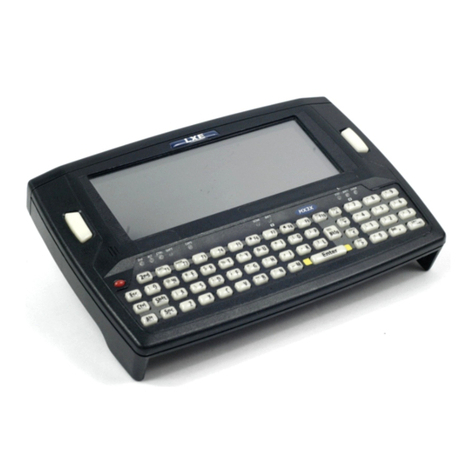
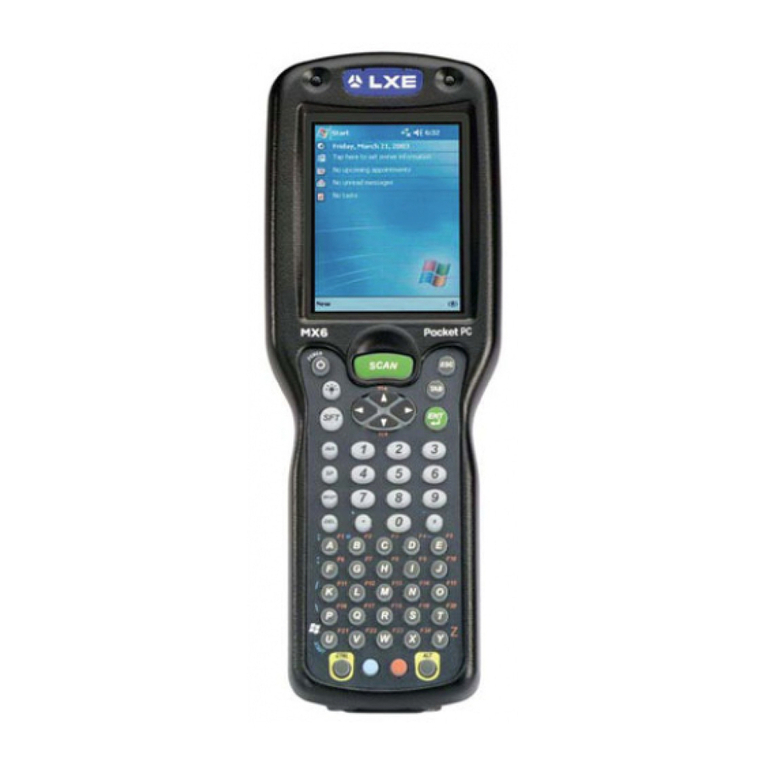
LXE MX3 Specifications

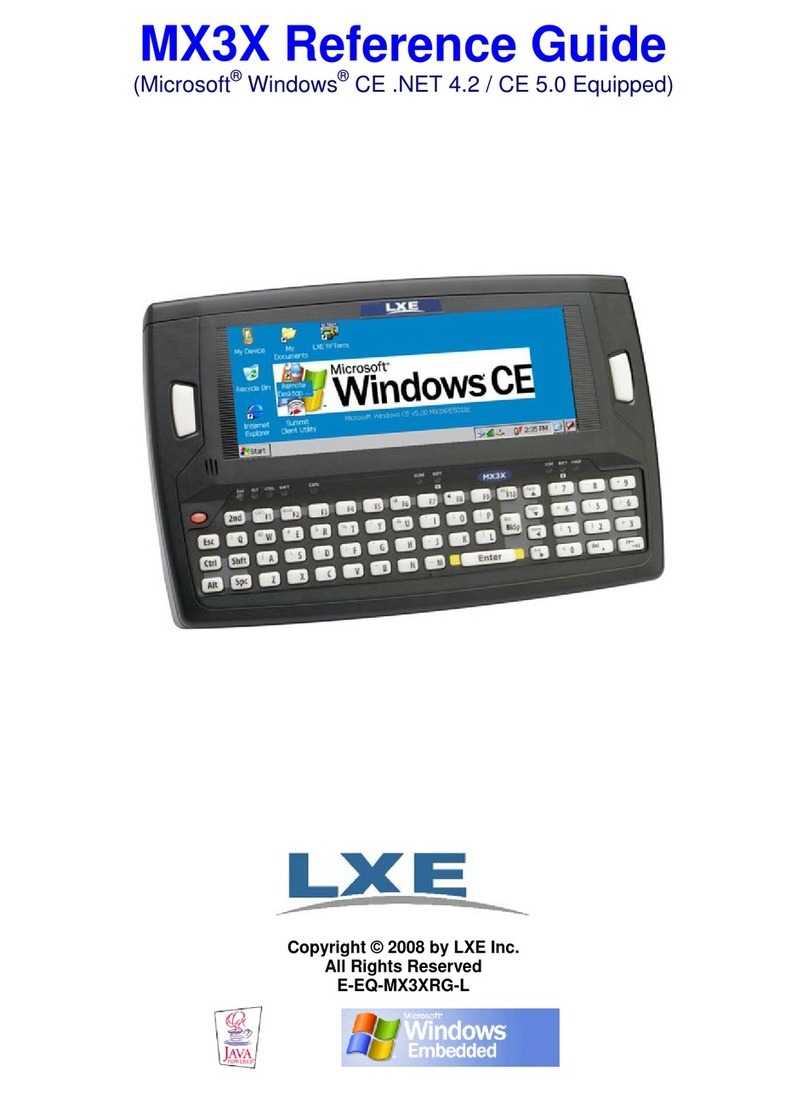
MX3 Installation and Operator’s
Guide
An EMS Technologies Company
Copyright © July 2003 by LXE Inc.
All Rights Reserved
2381A136OPGDWW
E-EQ-MX3OGWW-D

LANGUAGE : ENGLISH
Notices
Notice:
LXE Inc. reserves the right to make improvements or changes in the products described in this manual at any time
without notice. While reasonable efforts have been made in the preparation of this document to assure its
accuracy, LXE assumes no liability resulting from any errors or omissions in this document, or from the use of the
information contained herein. Further, LXE Incorporated, reserves the right to revise this publication and to make
changes to it from time to time without any obligation to notify any person or organization of such revision or
changes.
Copyright:
This manual is copyrighted. All rights are reserved. This document may not, in whole or in part, be copied,
photocopied, reproduced, translated or reduced to any electronic medium or machine-readable form without prior
consent, in writing, from LXE Inc.
Copyright © July 2003 by LXE Inc. An EMS Technologies Company.
125 Technology Parkway, Norcross, GA 30092 U.S.A. (770) 447-4224
Trademarks:
LXE® is a registered trademark of LXE Inc.
All other brand or product names are trademarks or registered trademarks of their respective companies or
organizations. When manual is in PDF format: “Acrobat ® Reader Copyright © 1987-2001 Adobe Systems
Incorporated. All rights reserved. Adobe, the Adobe logo, Acrobat, and the Acrobat logo are trademarks of Adobe
Systems Incorporated.” applies.
The user is strongly encouraged to read Appendix C, “Regulatory Notices
and Safety Information. Important safety cautions, warnings and regulatory
information are contained in Appendix C.
Revision Notice
MX3 Installation and Operator's Guide
Upgrade From Revision C to Revision D
Section Explanation
Notices Updated Notices, Copyrights and Trademarks.
The MX3 Handheld Computer Added “Cleaning the Display” section.
Revised “Terminal Emulation Screen Sizes” section.
Scanner Warnings and Labels Added “Cleaning the Scan Aperture” section.
Appendix C – Regulatory
Notices and Safety Information
Revised Approvals table.
Added 6816 Declaration of Conformity.

E-EQ-MX3OGWW-D MX3 Installation and Operator’s Guide
Table of Contents
THE MX3 HAND HELD COMPUTER 1
Introduction ............................................................................................................... 1
Components .............................................................................................................. 2
Display ....................................................................................................................... 3
Cleaning the Display ................................................................................................................3
Optional Touch Screen .............................................................................................................3
Display Backlight .....................................................................................................................4
Display Backlight Timer ........................................................................................................4
Panning .....................................................................................................................................5
Terminal Emulation Screen Sizes.............................................................................................5
Endcaps..................................................................................................................... 6
Scanner / Serial Port .................................................................................................................6
Laser Scanner Indicator..........................................................................................................6
Dual Serial Port ........................................................................................................................6
COM Port Switching ................................................................................................................7
IR Port ........................................................................................................................ 7
The Keypads.............................................................................................................. 8
QWERTY Keys ........................................................................................................................8
ABCD Keys ..............................................................................................................................8
The Overlays.............................................................................................................................9
Programmable Buttons ...........................................................................................................10
Possible Button Configurations............................................................................................10
Scan Key Function..................................................................................................................11
Enter Key Function.................................................................................................................11
Field Exit Key Function (IBM 5250/TN5250 Only)..............................................................11
2nd Key Function ...................................................................................................................11
Ctrl Key Function ...................................................................................................................11
Alt Key Function ....................................................................................................................11
Shft Key Function...................................................................................................................12
Spc Key Function ...................................................................................................................12
Mode Key Functions...............................................................................................................12
Caps Key and CapsLock Mode............................................................................................12
Keypress Sequences................................................................................................................12
Reset Key Sequence ...............................................................................................................12
DOS Key Functions Not Available on the MX3....................................................................12
Function LEDs........................................................................................................................13
Power Button Functions ........................................................................................ 15

ii Table of Contents
MX3 Installation and Operator’s Guide E-EQ-MX3OGWW-D
Off Timer and Critical Suspend Mode.................................................................................15
Power Status and the Status LED ...........................................................................................16
Power Management and the Keypad....................................................................................16
Cradles..................................................................................................................... 17
Desktop Cradle .......................................................................................................................17
Status LED ...........................................................................................................................18
Power Connector ..................................................................................................................18
RS-232 Connector ................................................................................................................19
Vehicle Mount Cradle ............................................................................................................20
Status LED ...........................................................................................................................20
Power Connector ..................................................................................................................21
RS-232 Connector ................................................................................................................21
Getting Help............................................................................................................. 22
OPERATION 23
Insert Main Battery.................................................................................................. 23
Attach Hand Strap (Optional)................................................................................. 25
Power Supplies (Optional) ..................................................................................... 26
Power On and Off.................................................................................................... 27
Turn On the MX3 ...................................................................................................................27
Turn Off the MX3...................................................................................................................27
Adjust Display and Volume.................................................................................... 28
Set The Display Contrast........................................................................................................28
Set The Beeper Volume..........................................................................................................28
Enter Data................................................................................................................ 28
Keypad Entry ..........................................................................................................................28
Scanner Entry..........................................................................................................................29
Batteries................................................................................................................... 30
Main Battery ...........................................................................................................................30
About Lithium-Ion Batteries ................................................................................................30
Backup Battery .......................................................................................................................30
Battery Hot-Swapping ............................................................................................................30
Critical Suspend State.............................................................................................................31
Battery Chargers .....................................................................................................................32
Optional LXE Multi-Charger ...............................................................................................32
SCANNER WARNINGS AND LABELS 33
Cleaning the Scan Aperture ................................................................................... 33

Table of Contents iii
E-EQ-MX3OGWW-D MX3 Installation and Operator’s Guide
APPENDIX A KEY MAPS 35
Keypads ................................................................................................................... 35
Key Map 101-Key Equivalencies for Batch Units .................................................................36
IBM 3270 and TN3270 Terminal Emulator Keypad..............................................................41
IBM 5250 and TN5250 Terminal Emulator Keypad..............................................................41
APPENDIX B MANUALS AND ACCESSORIES 43
Manuals.................................................................................................................... 43
Software Options .................................................................................................... 43
Accessories............................................................................................................. 44
APPENDIX C REGULATORY NOTICES AND SAFETY INFORMATION 45
INDEX 57
Illustrations
Figure 1 Front of MX3.........................................................................................................................................2
Figure 2 Back of MX3 .........................................................................................................................................2
Figure 3 MX3 Display .........................................................................................................................................3
Figure 4 Standard Range Scanner / Serial Port Endcap.......................................................................................6
Figure 5 Scanner LED Location ..........................................................................................................................6
Figure 6 Dual Serial Port .....................................................................................................................................6
Figure 7 IR Port ...................................................................................................................................................7
Figure 8 The QWERTY Keypad .........................................................................................................................8
Figure 9 The ABCD Keypad ...............................................................................................................................8
Figure 10 ABCD Keypad - ANSI/LDS/PC Overlay............................................................................................9
Figure 11 QWERTY Keypad - ANSI/LDS/PC Overlay......................................................................................9
Figure 12 TN3270/3270 Overlay for QWERTY Keypad....................................................................................9
Figure 13 TN5250/5250 Overlay for QWERTY Keypad....................................................................................9
Figure 14 Programmable Buttons (Field Exit / Scan / Enter) ............................................................................10
Figure 15 Function LEDs...................................................................................................................................13
Figure 16 Location of the Power (PWR) Button ...............................................................................................15

Figure 17 Power Status and the Status LED ......................................................................................................16
Figure 18 MX3 in the Desktop Cradle...............................................................................................................17
Figure 19 Desktop Cradle Status Indicator ........................................................................................................18
Figure 20 Desktop Cradle Power Connector .....................................................................................................18
Figure 21 Desktop Cradle RS-232 Connector ...................................................................................................19
Figure 22 Vehicle Mount Cradle - Front ...........................................................................................................20
Figure 23 Vehicle Cradle Power Connector ......................................................................................................21
Figure 24 Vehicle Cradle RS-232 Connector ....................................................................................................21
Figure 25 Main Battery......................................................................................................................................23

Figure 26 MX3 Battery Contacts .......................................................................................................................24

iv Table of Contents
MX3 Installation and Operator’s Guide E-EQ-MX3OGWW-D
Figure 27 Main Battery......................................................................................................................................24
Figure 28 MX3 With Handstrap Installed..........................................................................................................25
Figure 29 US AC/DC 12V Power Supply .........................................................................................................26
Figure 30 International AC/DC 12V Power Supply ..........................................................................................26
Figure 31 Location of the Power Button............................................................................................................27
Figure 32 Scan Beam .........................................................................................................................................29
Figure 33 Scanner LED Location ......................................................................................................................29
Figure 34 MX3 Charger Analyzer .....................................................................................................................32
Figure 35 Insert Main Battery in Charger ..........................................................................................................32
Figure 36 CDRH / IEC 825 Caution Label Location - MX3, Back...................................................................33
Figure 37 Caution Labels - Scanner...................................................................................................................33
Figure 38 ABCD Keypad and QWERTY Keypad ............................................................................................35
Figure 39 IBM 3270 Specific Keypad ...............................................................................................................41
Figure 40 IBM 5250 Specific Keypad ...............................................................................................................41

E-EQ-MX3OGWW-D MX3 Installation and Operator’s Guide
The MX3 Hand Held Computer
Introduction
The MX3 is a rugged, portable, hand-held PC-compatible computer capable of wireless data
communications. The MX3 can transmit information using either a 900 MHz or 2.4 GHz radio
(with an internally mounted antenna). It can store information for later transmission through an
RS-232 or InfraRed port. The MX3 is horizontally oriented and features electroluminescent
backlighting for the display. The keys on the keypad are constructed of a phosphorescent material
that can easily be seen in dimly lighted areas.
The MX3 is an MS-DOS compatible computer designed to run as a batch unit or run software
applications such as LXE’s Terminal Emulator applications (ANSI Plus, LDS Plus, DOS 5250,
DOS 3270, TN3270 and TN5250).
Note: The “MX3 Reference Guide” contains MX3 technical information and advanced
functions.

2 Components
MX3 Installation and Operator’s Guide E-EQ-MX3OGWW-D
Components
1. Endcap
2. Display
3. Field Exit or Scan or Enter
4. Beeper
5. On/Off Button
6. 2nd LED
7. Alt LED
8. Ctrl LED
9. Shift LED
10. Caps LED
11. Scanner LED
12. Backup Battery LED
13. Status LED
14. Main Battery LED
15. Charger LED
16. Scan or Enter
Figure 1 Front of MX3
1. Endcap
2. Leather Handstrap
Connector
3. IR Port
4. Cradle Input Contacts
5. Main Battery
Figure 2 Back of MX3

Display 3
E-EQ-MX3OGWW-D MX3 Installation and Operator’s Guide
Display
Figure 3 MX3 Display
The MX3 Display is a transflective monochrome LCD unit capable of supporting VGA graphics
modes. Display size is 640 x 240 pixels with an electroluminescent backlight. An optional touch
screen is available for batch and client server MX3s only.
Cleaning the Display
Keep fingers and rough or sharp objects away from the scan aperture and display. If the glass
becomes soiled or smudged, clean only with a standard household cleaner such as Windex®
without vinegar or use Isopropyl Alcohol. Do not use paper towels or harsh-chemical-based
cleaning fluids since they may result in damage to the glass surface. Use a clean, damp, lint-free
cloth. Do not scrub optical surfaces. If possible, clean only those areas which are soiled.
Lint/particulates can be removed with clean, filtered canned air.
Optional Touch Screen
A touch screen option is available that allows signature capture and touch input with the
appropriate software load. A pen stylus is included with the touch screen option. Contact LXE for
availability.

4 Display
MX3 Installation and Operator’s Guide E-EQ-MX3OGWW-D
Display Backlight
A display backlighting feature is available and depending upon programming, will operate in one
of three ways:
1. Backlighting Off. This is the most efficient way to operate the computer with
battery power.
2. Backlighting On For A Short Time. This will provide display backlighting for a
predetermined amount of time. Use of this feature will result in reduced battery life.
3. Backlighting On Whenever The Unit Is On. This provides full time
backlighting to the display whenever the unit is turned on. It greatly reduces the
expected battery life.
Display Backlight Timer
When the Display Backlight Timer expires the display backlight is turned off. The default value
for this parameter is 3 seconds. The value can be adjusted using the BIOS Setup. Refer to the
“MX3 Reference Guide”.
Any of the following will wake the display and display backlight:
• Display update by host or currently running application on the MX3
• Any key on the keypad
• Pen-touch on a touch screen display
When the display wakes up, the Display Backlight Timer will begin the countdown again. When
any of the above events occur prior to the timer expiring, the timer starts the countdown again.
The ability of touch screen activation to wake up the MX3 is configurable in BIOS Setup. Refer to
the “MX3 Reference Guide” for details.
Other manuals for MX3
6
Table of contents
Other LXE Handheld manuals