Mag
num First - 1 Seneca Street, 29th Floor, M55 - Buffalo, NY 14203 - phone 716-293-1588 - www.magnumfirst.com - [email protected]The sensor snaps into the tab at the top.
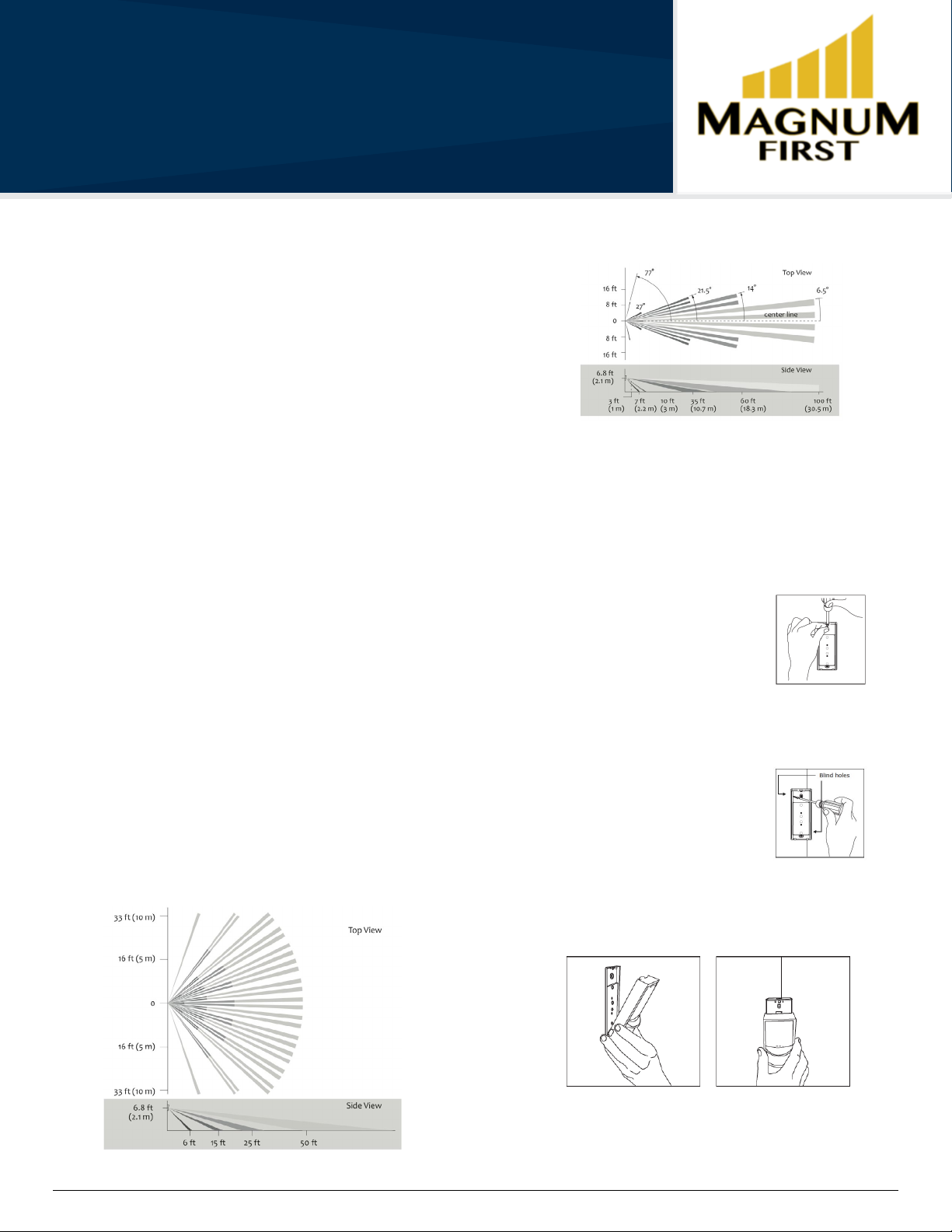
4. Confirm the sensor is properly positioned to detect motion and has sucient
light to operate, see the See Walk Test and See Light Test.
3. LINKING:
Two or more compatible devices can be linked and configured to provide the
desired control. There are two basic types of devices in the system; transmitters
and transceivers.
- Transmit-only: Transmitters are simple energy-harvesting devices that send RF
messages to communicate a condition, level, or state. Transmitters can only be
linked to transceivers. Examples > Rocker Switches, Occupancy Sensors
- Transmit & Receive: Transceivers are controlling devices that send as well as
receive RF messages. They also process relevant control logic, and actuate the
appropriate outputs (switching a light on or o for example). Transceivers can
be linked with transmitters as well as other transceivers. Examples > Relays,
Dimmers, Gateways
The Occupancy Sensor is a Transmit-only Device.
To link the sensor to a transceiver; the transceiver must first be powered, within
wireless range, and set to accepts links.
Next, the desired transmitter, or another transceiver, is triggered to send a
special link message. The awaiting transceiver receives and stores the link
permanently so the devices can interact to provide a variety of intelligent control
options.
To Link or Unlink an Occupancy Sensor.
1. Set the desired transceiver to the
desired Link/Unlink mode (refer to
that device’s installation guide).
2. Click the Menu button on the
bottom of the sensor once. This
sends a link/unlink radio telegram.
NOTE: The button interface on the sensor is used for linking and testing only. The
occupancy timer settings are configured on the transceiver to which the sensor
is linked.
Refer to the “Linking” section of the transceiver/controller installation guides to
complete the linking & setup process.
Testing the Sensor:
Before starting a test, ensure the sensor’s energy storage is charged by placing it under
bright light (2000 lux) for 1.5 hours, or insert a battery for 5 minutes while in a well-lit
area.
NOTE: If the sensor does not have a sucient charge, it cannot enter into the test modes.
No LED light or 1 red blink when the test button is pressed indicates insucient charge.
If a battery is used to charge the sensor for a light test, ensure it is removed to
get an accurate light measurement.
A test mode will stay active for 3 minutes. To exit a test and resume normal
operation, press and hold the Menu button for 5 seconds..
Walk Test:
Use the walk test to confirm motion is within the sensor’s range.
1. Press and hold the Set button for 5 seconds.
••> Red LED will blink to confirm that a walk test is active.
2. Move in and out of the sensor‘s range to determine its coverage area.
••> Sensor will blink when it detects motion.
3. Make small hand movements just inside the limit of the sensor‘s range to see
if the motion triggers a response.
NOTE: Ensure the sensor does not falsely trigger from user activity outside the
desired zone or other heat and motion sources. If false triggering occurs, adjust
the sensitivity switch (under back cover, next to battery slot) from REG to LOW.
Light Test:
Use the light test to measure real-time light levels and confirm whether the
occupancy sensor has sucient light.
1. Create a realistic lighting condition (the test measures the real-time light level).
2. Press and hold the Set button for 10 seconds.
••> Red & green LEDs will blink to confirm light test is active.
3. Watch the LED blink rate to determine the light strength. ••> The highest
is 5 blinks which indicates very good light (200 lux or more). 1 blink indicates
minimum light (<25 lux).
NOTE: If there is no blink rate, consider relocating the sensor or installing a
battery to provide supplemental power.
Optional Settings:
Two additional settings can be configured via button presses which may be
useful in some installations. Note that these settings consume additional energy
and are not advisable for low-light level installations:
LED Blink on Motion Transmission - Red LED under PIR lense will blink whenev-
er motion is transmitted (disabled by default).
••> To enable/disable - press and hold Menu button for 3 seconds (green Menu
LED will blink once)
-Enabled = 3 blinks from green Menu LED
-Disabled = 3 blinks from red Set LED
Heartbeat Transmission - unoccupied heartbeat message will be sent at 1 hr
intervals with no motion (disabled by default).
••> To enable/disable - press and hold Menu button for 5 seconds (both green
and red LEDs will blink once)
-Enabled = 3 blinks from green Menu LED
-Disabled = 3 blinks from red Set LED
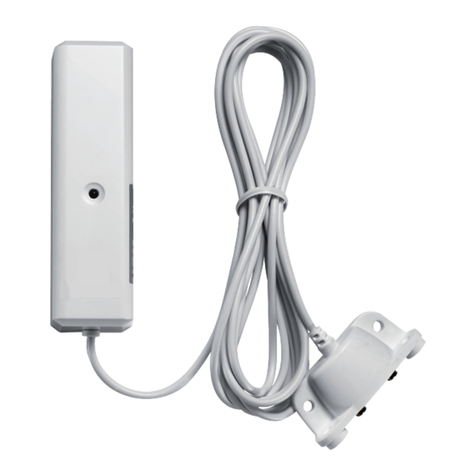
Occupancy Sensor- Wall Mounted
[M9-EOSW]