manuals.online logo
Brands
  1. Home
  2. •
  3. Brands
  4. •
  5. McAfee
  6. •
  7. Firewall
  8. •
  9. McAfee NS5100 User manual

McAfee NS5100 User manual

This manual suits for next models

1

Other McAfee Firewall manuals

McAfee NS9100 User manual

McAfee

McAfee NS9100 User manual

McAfee IIP-M80K-ISAA - Network Security Platform... User manual

McAfee

McAfee IIP-M80K-ISAA - Network Security Platform... User manual

McAfee SG720 User manual

McAfee

McAfee SG720 User manual

McAfee IIP-M65K-ISAA - Network Security Platform... User manual

McAfee

McAfee IIP-M65K-ISAA - Network Security Platform... User manual

McAfee MSA-3400-SWGI - Web Security Appliance 3400 User manual

McAfee

McAfee MSA-3400-SWGI - Web Security Appliance 3400 User manual

McAfee M-3050 User manual

McAfee

McAfee M-3050 User manual

McAfee MAP-3300-SWG - Web Security Appliance 3300 User manual

McAfee

McAfee MAP-3300-SWG - Web Security Appliance 3300 User manual

McAfee NS7200 User manual

McAfee

McAfee NS7200 User manual

McAfee M-1250 - Network Security Platform Quick reference guide

McAfee

McAfee M-1250 - Network Security Platform Quick reference guide

McAfee M4050 - Network Security Platform User manual
McAfee

McAfee M4050 - Network Security Platform User manual

McAfee M-1250 - Network Security Platform User manual

McAfee

McAfee M-1250 - Network Security Platform User manual

McAfee NS3500 User manual

McAfee

McAfee NS3500 User manual

McAfee Manager Appliance User manual

McAfee

McAfee Manager Appliance User manual
McAfee M-1250 - Network Security Platform User manual

McAfee

McAfee M-1250 - Network Security Platform User manual

McAfee M-1250 - Network Security Platform User manual

McAfee

McAfee M-1250 - Network Security Platform User manual

McAfee NS Series User manual

McAfee

McAfee NS Series User manual

McAfee SG310 Instruction Manual

McAfee

McAfee SG310 Instruction Manual

McAfee 1650 Installation instructions

McAfee

McAfee 1650 Installation instructions

McAfee ATD-3000 Installation instructions

McAfee

McAfee ATD-3000 Installation instructions

McAfee MFO-3400-SWGA - Web Security Appliance 3400... User manual

McAfee

McAfee MFO-3400-SWGA - Web Security Appliance 3400... User manual

McAfee Data Loss Prevention Prevent User manual

McAfee

McAfee Data Loss Prevention Prevent User manual

McAfee M-3050 User manual

McAfee

McAfee M-3050 User manual

McAfee M-1250 - Network Security Platform Installation and operation manual

McAfee

McAfee M-1250 - Network Security Platform Installation and operation manual

McAfee INTRUSHIELD 1400 User manual

McAfee

McAfee INTRUSHIELD 1400 User manual

Popular Firewall manuals by other brands

Fortinet FSM-500F Configuration guide

Fortinet

Fortinet FSM-500F Configuration guide

Cisco Meraki MX100 installation guide

Cisco

Cisco Meraki MX100 installation guide

Cisco S190 quick start guide

Cisco

Cisco S190 quick start guide

Fortinet FortiGate Voice Series install guide

Fortinet

Fortinet FortiGate Voice Series install guide

SecureLogix ETM System installation guide

SecureLogix

SecureLogix ETM System installation guide

Huawei USG6000 Series Upgrade guide

Huawei

Huawei USG6000 Series Upgrade guide

NETGEAR ProSafe FVX538 Reference manual

NETGEAR

NETGEAR ProSafe FVX538 Reference manual

Lanner FW-8877 user manual

Lanner

Lanner FW-8877 user manual

Nexcom DNA 1150 user manual

Nexcom

Nexcom DNA 1150 user manual

Cisco 3110 Hardware installation guide

Cisco

Cisco 3110 Hardware installation guide

Fortinet FortiGate-60 series install guide

Fortinet

Fortinet FortiGate-60 series install guide

ADTRAN NetVanta 2300 Specifications

ADTRAN

ADTRAN NetVanta 2300 Specifications

Swisscom Internet Backup manual

Swisscom

Swisscom Internet Backup manual

SonicWALL NSa 5700 quick start guide

SonicWALL

SonicWALL NSa 5700 quick start guide

DPtech FW1000 SERIES Maintenance manual

DPtech

DPtech FW1000 SERIES Maintenance manual

FEITIAN MultiPass FIDO product manual

FEITIAN

FEITIAN MultiPass FIDO product manual

Trend Micro Deep Edge quick start guide

Trend Micro

Trend Micro Deep Edge quick start guide

Smoothwall S10 Appliance Getting started guide

Smoothwall

Smoothwall S10 Appliance Getting started guide

manuals.online logo
manuals.online logoBrands
  • About & Mission
  • Contact us
  • Privacy Policy
  • Terms and Conditions

Copyright 2025 Manuals.Online. All Rights Reserved.

NS5x00 Quick Start Guide
Revision C
McAfee Network Security Platform
Overview
This quick start guide explains how to quickly set up and activate your McAfee® Network Security Platform
NS5100 and NS5200 Sensors in inline mode. These models have a throughput of 600 Mbps, and 1 Gbps
respectively.
All product documentation referenced in this quick start guide is found on the McAfee Service Portal.
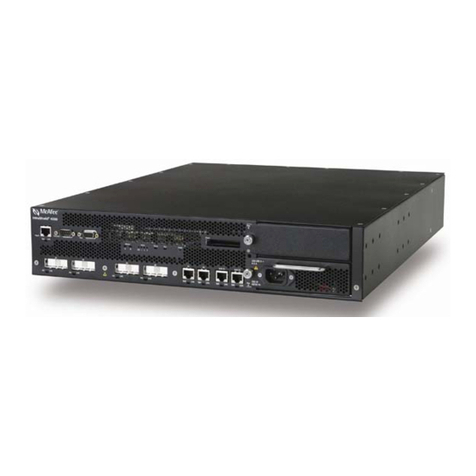
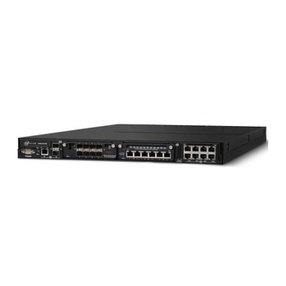
The NS5100/NS5200 Sensor model
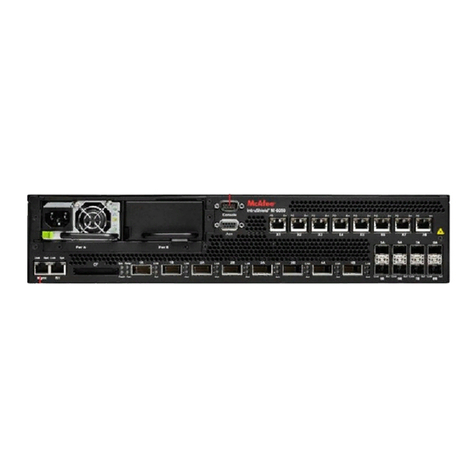
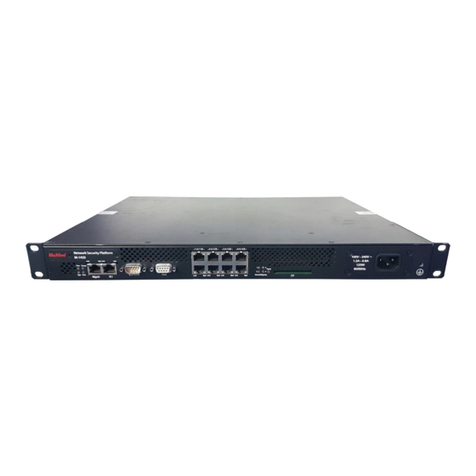
Figure 1 Sensor front panel
1Console port (1)
2RJ-11 port (1) for fail-open control of two built-in SFP+ ports in slot G0. The RJ-11 ports support 1 Gbps (SFP)
ber and 10 Gbps (SFP+) (SR and LR). You can convert these ports to copper ports by using the copper SFP
transceivers.
3SFP/SFP+ 1/10 ber Gigabit or SFP 1 Gbps copper Ethernet ports (2)
4RJ-11 port (6) for external passive fail-open control of twelve SFP ports in slot G1. The RJ-11 ports support 1
Gbps (SFP) ber (SR and LR). You can convert these ports to copper ports by using the copper SFP
transceivers. The fail-open ports are internally wired to control the SFP ports. For example, port X1 controls
monitoring ports G1/1 and G1/2; port X2 controls monitoring ports G1/3 and G1/4 and so on.
5SFP 1 Gbps copper or ber Gigabit Ethernet ports (12)
6RJ-45 10/100/1000 Mbps Ethernet Monitoring ports (8)
1
The supported transceiver modules are SFP+ (MM and SM), SFP Fiber (MM and SM) and Copper SFP.
Figure 2 Sensor rear panel
1Power supply inlet (2)
The NS5x00 Sensors are shipped with one power supply unit. A second power supply (optional) is supported
to enable redundancy.
2USB ports (2)
3RJ-45 10/100/1000 Management port (MGMT) (1)
4RJ-45 10/100/1000 Response port (R1) (1)
Verify the contents in the box
The following accessories are shipped in the NS5x00 Sensor crate:
• Sensor
• Power cords (McAfee provides standard and international power cables)
• Set of rack mounting rails
• Printed Quick Start Guide
Verify the hardware and software requirements
Make sure to meet the following hardware requirements. For more information, see the McAfee Network Security
Platform Installation Guide.
The following are the system requirements for a Manager server.
2
Minimum required Recommended
Operating
system Any of the following:
• Windows Server 2008 R2 Standard or Enterprise Edition, English
operating system, SP1 (64-bit) (Full Installation)
• Windows Server 2008 R2 Standard or Enterprise Edition, Japanese
operating system, SP1 (64-bit) (Full Installation)
• Windows Server 2012 Standard Edition (Server with a GUI) English
operating system
• Windows Server 2012 Standard Edition (Server with a GUI)
Japanese operating system
• Windows Server 2012 R2 Standard Edition (Server with a GUI)
English operating system
• Windows Server 2012 R2 Standard Edition (Server with a GUI)
Japanese operating system
• Windows Server 2012 R2 Datacenter Edition (Server with a GUI)
English operating system
• Windows Server 2012 R2 Datacenter Edition (Server with a GUI)
Japanese operating system
Only x64 architecture is supported.
Same as the minimum
required.
Memory 8 GB 8 GB or more
CPU Server model processor such as Intel Xeon Same
Disk space 100 GB 300 GB or more
Network 100 Mbps card 1000 Mbps card
Monitor 32-bit color, 1440 x 900 display setting 1440 x 900 (or above)
The following are the system requirements for client systems connecting to the Manager application.
Minimum Recommended
Operating
system • Windows 7 English or Japanese
• Windows 8 English or Japanese
• Windows 8.1 English or Japanese
• Windows 10 English or Japanese
The display language of the Manager client must be same as
that of the Manager server operating system.
RAM 2 GB 4 GB
CPU 1.5 GHz processor 1.5 GHz or faster
Browser • Internet Explorer 9, 10 or 11
• Mozilla Firefox
Google Chrome in not supported since the NPAPI plug-in is
disabled by default and will not be supported by Google going
forward. This means that Java applet support is also disabled
by default.
• Internet Explorer 11
• Mozilla Firefox 41.0.2 or
above
3
Install the following software:
• Sensor image
• Manager image
• Signature set
Install the slide rails and rack mount the Sensor
McAfee recommends rack-mounting your Sensor. For maintenance purposes, you must have access to the
front and rear of the Sensor.
Before you mount the Sensor on the rack, make sure that the power is o. Remove the power cable and all
network interface cables from the Sensor.
Due to the weight of the appliance, McAfee recommends that one person hold the chassis and the other person
x it to the rail cabinet.
Task
1Mount the slide rails to the rack.
aAlign the rails and t it into the corresponding holes on the front post of the rack.
bFit the rails into holes on the rear post of the rack.
cInstall the front end of each slide rail in the front post of a 4-post enterprise rack. Try dierent hole
combinations until one of them locks in.
At times in a 4-post enterprise rack, certain hole combinations do not permit the rail latch to lock in. So to
make it lock, you must try dierent hole combinations.
4
2Position the inner members to x the chassis.
aPull inner member of the slide rail out until it comes to a lock position.
To push the inner member into the rack, lift the latch and push the inner member.
bPosition both inner members.
3Mount inner members to the chassis unit.
aPlace each inner member on both sides of the chassis unit. Position the mounting holes of the inner
member with matching mounting hooks on chassis unit.
bApply to both sides of chassis unit.
4Install chassis unit into the rack.
aLift the release tab on both sides and push the inner members into the outer members until they lock in
place.
bContinue to push the chassis unit in until fully closed.
5
5Secure the chassis unit through the rack rails.
aWith the chassis unit in fully closed position, secure using two spring screws provided in the chassis ear.
bTighten the screws. The screws thread directly to the rack posts.
Connect the Management and Console ports
Task
1On the rear panel of the NS5x00 Sensors, plug a Category 5e Ethernet cable in the Management port
(labeled MGMT).
2Plug the other end of the cable into the network device connected to your Manager server.
3On the front panel of the NS5x00 Sensors, plug the DB9 Console cables into the Console port (labeled
Console).
4Connect the other end of the Console port cable directly to a COM port of the PC or terminal server you are
using to congure the Sensor (for example, a PC running correctly congured Windows Hyperterminal
software). You must directly connect to the console for initial conguration, you cannot congure the Sensor
remotely.
Terminal servers are provided for console access.
6
The required settings for Hyperterminal are:
• Baud rate: 115200 • Stop Bits: 1
• Number of Bits: 8 • Control Flow: None
• Parity: None
5Plug one end of the power cable into the power inlet and plug the other end into a power source. The
Sensor ships with standard US power and international cables.
The NS-series Sensor does not have a power switch. You can directly plug the power cable into a power
source.
Connect the monitoring ports
This procedure describes how to connect cables to a Sensor that runs in inline mode.
Task
1Plug the cable appropriate for use with your transceiver module into one of the monitoring ports labeled x
(for example, 1).
2Plug the cable appropriate for use with your transceiver module into one of the monitoring ports labeled y
(for example, 2).
3Connect the other end of each cable to the network devices that you want to monitor. For example, if you
plan to monitor trac between a switch and a router, connect the cable connected to 1 to the router and
the one connected to 2 to the switch.
Install the Manager software
For detailed instructions, see the McAfee Network Security Platform Installation Guide.
You must have administrator rights on the target Windows Server to install the Manager software.
A MySQL database is included with the Manager and is installed (embedded) automatically on your target
Windows Server during this process.
7
The following steps briey explain the Manager installation:
Task
1Prepare the system according to the requirements outlined in McAfee Network Security Platform Installation
Guide and the McAfee Network Security Platform Release Notes.
2Close all open applications.
3Go to the McAfee Update Server (https://menshen1.intruvert.com/) and log on, using the grant number and
password.
4Go to the Manager Software Updates folder and select the latest Manager software version available.
5Download the .zip le to the target Windows Server and extract the setup le.
6Double-click Manager _<version>_setup.exe and follow the on-screen prompts.
Start the Manager
From the Start menu, select Programs | McAfee | Network Security Manager | Network Security Manager.
Add the Sensor to the Manager
The Manager displays the Logon page.
Task
1Log on to the Manager using the default user name (admin) and password (admin123).
2Click the Devices tab.
8
3Select the admin domain from the Domain drop-down. To add a Sensor in the Manager, select Global | Add and
Remove Devices, then click New.
You do not require a license le to enable IPS on NS-series Sensors.
The Add and Remove Devices page is displayed. We recommend using the Add Device wizard to add a device.
4Enter the following mandatory information in the appropriate elds.
•Device Name — The Sensor name must begin with a letter. The maximum length of the name is 25
characters.
•Device Type — Species the type of device to be added. Select IPS Sensor.
•Shared Secret — The shared secret must be a minimum of 8 characters and maximum of 25 characters in
length. The key cannot start with an exclamation mark nor can have any spaces. The parameters that
you can use to dene the key are:
• 26 alphabets: Uppercase and lowercase (A,
B, C,...Z and a,b,c,...z)
• 32 symbols: ~ ` ! @ # $ % ^ & * ( ) _ + ‑ = [ ]
{ } \ | ; : " ' , . <? /
• 10 digits: 0 1 2 3 4 5 6 7 8 9
Retype the password in Confirm Shared Secret.
The Sensor name and shared secret key that you enter in the Manager must be identical to the shared
secret that you will later enter during physical installation or initialization of the Sensor (using CLI
interface) in Step 9 - Congure Sensor information. If not, the Sensor will not be able to register itself with
the Manager.
•Updating Mode — Select Online or Offline.
Selecting Offline enables Oine Sensor update. Online is the default mode.
9
•Contact Information — (Optional) Type the contact information.
•Location — (Optional) Type the location.
5Click Save. The added Sensor is displayed on the Add and Remove Devices page.
Congure Sensor information
Congure the Sensor with the network information, a name, and the shared secret key that the Sensor uses to
establish secure communication with the Manager. Use the name and key values you set in Step 8- Add the
Sensor to the Manager.
The rst time you congure a Sensor, you must have physical access to the Sensor.
At any time during conguration, you can type a question mark (?) to get help on the Sensor CLI commands. For
a list of all commands, type commands.
Task
1Log on to the Sensor using the terminal connected to the Console port.
2At the prompt, log on using the default Sensor user name (admin) and password (admin123).
3Optional, but recommended. Change the Sensor password. At the prompt, type: passwd.The Sensor prompts
you to enter the new password and prompts you for the old password.
A password must contain between 8–25 characters, is case sensitive, and can consist of any alphanumeric
character or symbol.
4Set the name of the Sensor:
You can enter the setup command at the prompt. This automatically prompts you to provide the information
shown in items d through g and item j. Alternatively, you can use the set command. If you use the set
command, manually enter the complete command syntax as shown in items d through g and item j.
At the prompt, type: set sensor name <word>.
Example: set sensor name HR_sensor1
The Sensor name is a case-sensitive character string up to 25 characters. The string can include hyphens,
underscores, and periods, and must begin with a letter.
10