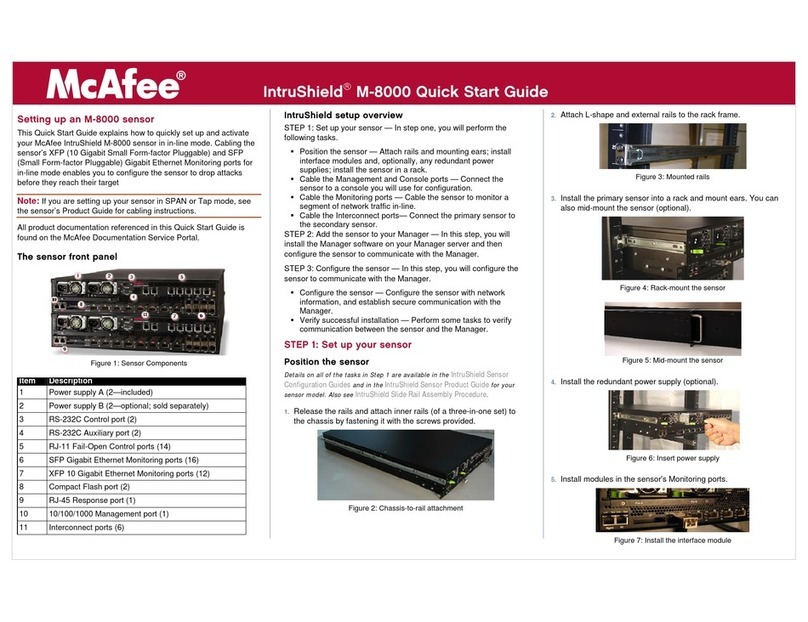
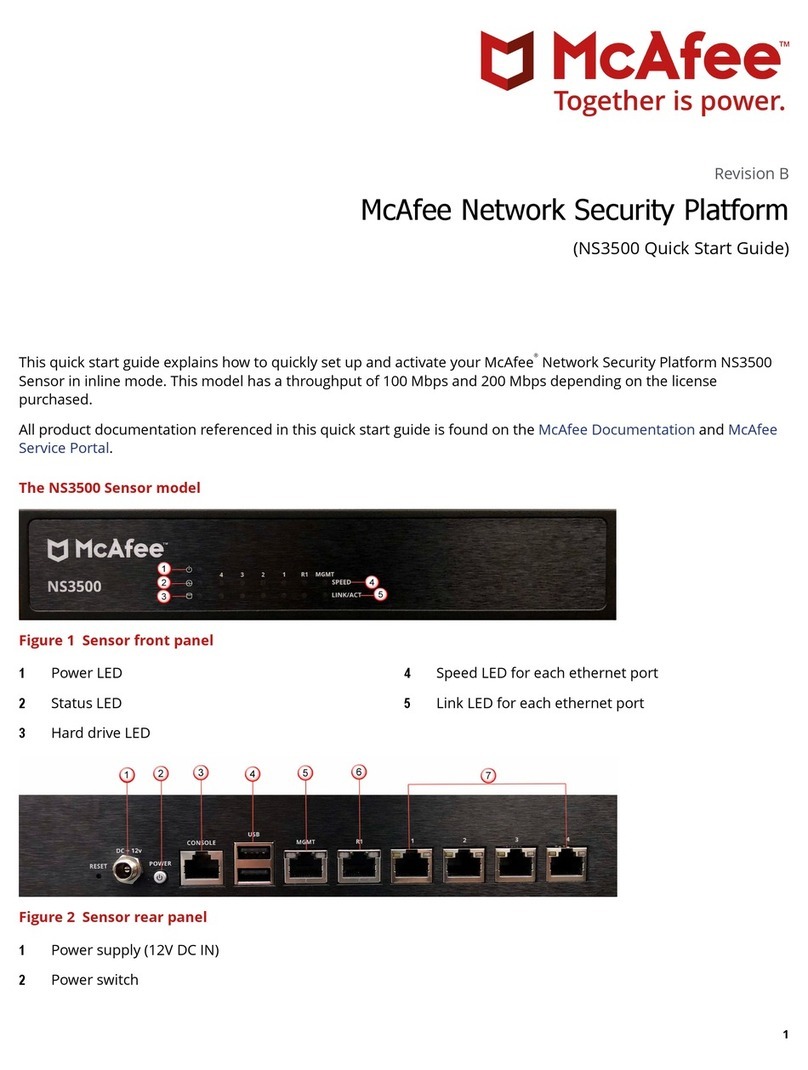
Install the Manager Appliance on the mounting rails
Carefully install the Manager Appliance on the mounting rails.
aWith help from another person, lift the Manager Appliance so that the side rails at the back of the
Manager Appliance are aligned with the mounting rails in the rack, then push the Manager Appliance into
the mounting rails until it stops.
To avoid injury, use two people to lift the Manager Appliance and attach it to the rack. The
Manager Appliance weighs approximately 10.46 kg (23.05 lbs).
bUse a screwdriver to x a screw through the front and back rack holes to secure the system to the rack.
cAttach the provided cable management arm if desired.
dIf required, attach the lockable bezel to protect the front panel.
4 Connect the Manager Appliance to power and the network
After you have installed the Manager Appliance on the rack, connect the appliance to the power source and to
your network. Connect a monitor, keyboard, and a mouse, which are required to congure the Manager
Appliance.
Perform these steps to connect the Manager Appliance to a power source and network.
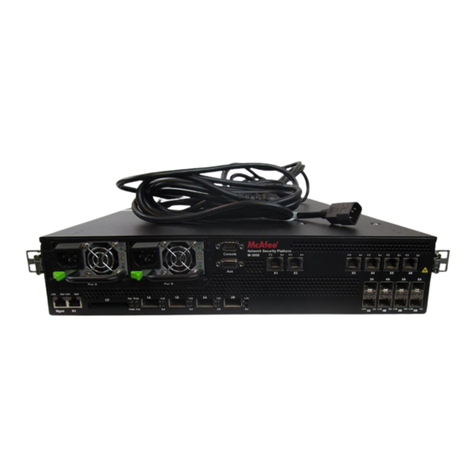
aPlug the AC power cord into the back of the Manager Appliance, then plug the other end of the cord into
an appropriate power source.
bConnect a network cable to NIC 1.
Use only NIC 1 for initial conguration purposes. The Manager Appliance Conguration Tool will
not work with the other NIC interfaces.
cConnect the monitor, mouse, and keyboard to the rear or front of the Manager Appliance.
You can manage the Manager Appliance from a remote computer after the initial installation
and conguration are completed.
dTurn on the power for the Manager Appliance.
Appliance power on/o — the push-button on/o power switch on the front panel of the
Manager Appliance does not turn o the AC power. To remove AC power from the Manager
Appliance, you must unplug the AC power cord from either the power supply or wall outlet.
eWhen the appliance has started and you log on, the Manager Appliance Conguration Tool appears.
5 Manager Appliance front panel description
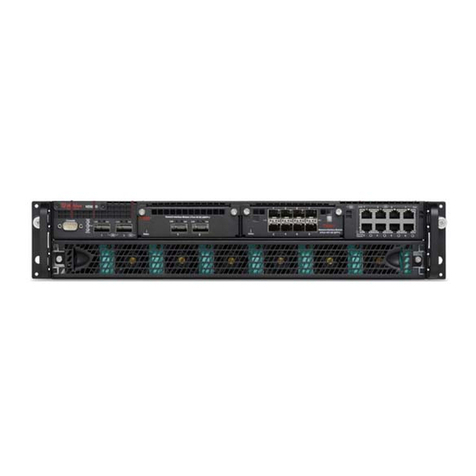
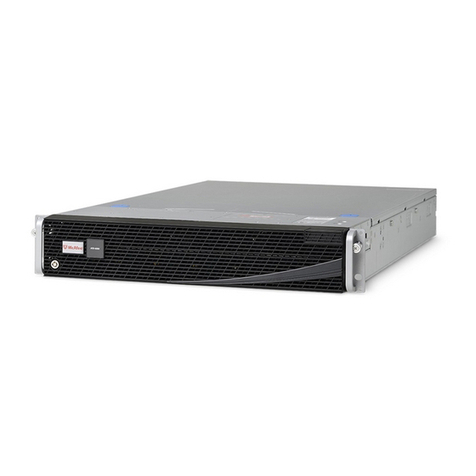
The Manager Appliance front panel has these lights and buttons.
An optional lockable bezel is included with the Manager Appliance, which can be installed to cover the front
panel.
3