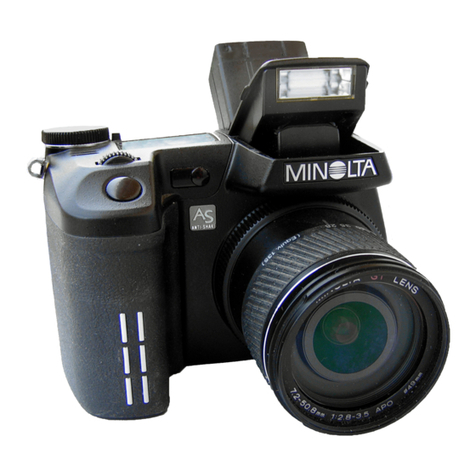
Minolta DiMAGE S404 User manual

INSTRUCTION MANUALE
9224-2776-21 H-A112

2
BEFORE YOU BEGIN
Before installing the DiMAGE Image Viewer Utility software, read the data-transfer section in the
camera manual. This section details how to connect the camera to a computer using the supplied
USB cable. Users with Windows 98/98SE or Mac OS 8.6 will need to install driver software before
connecting the camera to a computer. Image data can also be downloaded with an SD memory or
MultiMedia card reader. The examples in this manual assume the camera is connected to the com-
puter with a USB cable as described in the camera manual.
This instruction manual does not provide instruction in the basic operation of personal computers, or
the basic operation of Windows or Macintosh operating systems; refer to the manuals supplied with
the computer.
The examples in this manual use Windows software. The appearance of the screens may differ from
the examples when using Macintosh or other Windows operating systems.
Every precaution has been taken to ensure the accuracy of this material. Contact Minolta if you have
any questions. Minolta is not responsible for any loss or damage caused by the use of this software.
This instruction manual may not be copied either in part or in its entirety without the prior permission
of Minolta Co., Ltd.

3
System requirements .............................................................................................................................5
Installation ......................................................................................................................................5
Before installing the DiMAGE Image Viewer Utility...................................................................5
Installing the DiMAGE Image Viewer Utility - Windows ............................................................6
Installing the DiMAGE Image Viewer Utility - Macintosh ..........................................................8
Starting up the Image Viewer...............................................................................................................10
Starting up the Image Viewer Utility - Windows ......................................................................10
Starting up the Image Viewer Utility - Macintosh.....................................................................11
Importing images..................................................................................................................................12
Memory card folder organization.............................................................................................12
Loading all the still-image files in a folder ...............................................................................13
Loading individual still-image files ...........................................................................................14
Rotate, flip, and sort thumbnails..............................................................................................15
Basic image processing .......................................................................................................................16
Color-correction window ..........................................................................................................16
Displaying images in the color-correction window ..................................................................17
Variation palette.......................................................................................................................18
Color-balance variation...............................................................................................19
Brightness & contrast variation...................................................................................20
Saturation variation.....................................................................................................21
Brightness, contrast, and color-balance corrections ...............................................................22
Auto-setting button......................................................................................................22
An introduction to color............................................................................................................23
Undoing an image correction ..................................................................................................24
Redoing a canceled image correction.....................................................................................24
Resetting all image corrections ...............................................................................................24
The image display area ...........................................................................................................25
Fit-to-window button ...................................................................................................25
Resizing the utility window..........................................................................................25
Saving images ....................................................................................................................................26
Resizing an image to be saved ...............................................................................................26
Saving single images...............................................................................................................27
Saving multiple images............................................................................................................28
Closing the DiMAGE Image Viewer Utility ..............................................................................29
TABLE OF CONTENTS


4
TABLE OF CONTENTS

Advanced image processing ................................................................................................................30
The tone curve / histogram palette..........................................................................................31
Using the tone curve ...............................................................................................................32
Drawing tone curves by freehand............................................................................................33
Ashort guide to tone-curve corrections...................................................................................34
White, black, and gray-point corrections .................................................................................36
Setting the white and black-point values.................................................................................38
Tone-curve / histogram auto setting ........................................................................................39
Displaying the color histograms ..............................................................................................39
Histogram corrections..............................................................................................................40
Hue, saturation, and lightness palette.....................................................................................42
Auto-setting button......................................................................................................43
Comparing pre- and post correction images ...........................................................................44
Tracking image corrections - snapshot button ........................................................................45
Saving image corrections ........................................................................................................46
Loading color-correction Jobs .................................................................................................47
Sharpness................................................................................................................................48
Color matching ....................................................................................................................................50
Setting the output color space.................................................................................................50
Using the monitor’s ICC profile ...............................................................................................52
Appendix ....................................................................................................................................54
Displaying the recording data of an image..............................................................................54
About the RAW button.............................................................................................................55

5
SYSTEM REQUIREMENTS
IBM PC/AT compatible computers
133MHz Pentium processor or higher
64MB or more of RAM
100MB or more of available hard-disk
space
CD-ROM drive
Apple Macintosh series computers
PowerPC 100MHz or higher
Mac OS 8.6 - Mac OS 9.1
64MB or more of available RAM
100MB or more of available hard-disk
space
A 24-bit color or greater monitor with a
minimum resolution of 640 X 480.
1024 X 768 or higher is recommended.
CD-ROM drive
A True Color (24 bit) or greater monitor
with a minimum resolution of 640 X
480 (VGA). 1024 X 768 (XGA) or high-
er is recommended.
Windows 95, Windows 98/98 Second
Edition, Windows Me, Windows 2000
Professional, Windows XP, Windows
NT4.0 (Service Pack 6 or later)
RAM-stationed programs such as anti-virus or installation-monitoring software may cause the installer
to fail. Remove or disable these programs before installing the DiMAGE Image Viewer Utility.
Reinstall or enable the software when the installation is complete.
Before installing the DiMAGE Image Viewer Utility

6
INSTALLATION
Click the “Starting up the DiMAGE Image Viewer Utility
installer” button to begin installation.
Installing the DiMAGE Image Viewer Utility - Windows
In the example below, the hard disk drive is drive C, and the CD-ROM drive is drive D. The letters
designating the drives will vary between computers. With Windows 2000, NT4.0, or XP, the software
should be installed with the Administrator privilege.
Insert the DiMAGE Software CD-ROM into the CD-ROM
drive.
• The DiMAGE Image Viewer Utility Installer window will
open automatically.
Turn on the computer to start Windows.
The welcome window will open. Click “Next>” to
continue.
The license agreement appears. If you accept the agree-
ment, click “Yes” to continue the installation routine.
• Read the entire license agreement carefully before
continuing. If you do not agree to the terms, click “No”
to exit the installation program.

7
To install the software in the default location - C:\Program
Files\DiMAGE Image Viewer Utility, click “Next >.”
• To install the software in a different location, click
browse button to display the folder selection window.
Specify the directory in which to install the software.
The name of the default program folder is displayed. To
install the software icons in this folder, click “Next>.”
Installation will begin.
• To install the software icons in another folder, select one
of the folders listed in the existing-folders box below.
Click “Next>” to begin installation.
When the software installation has been completed, a
message will be displayed. Click “Finish.”
• The DiMAGE Image Viewer Utility installer window will
be displayed. Click “Finish” to close the window.

The license agreement appears. If you accept the agreement,
click “Yes” to continue the installation routine.
• Read the entire license agreement carefully before
continuing. If you do not agree to the terms, click “No” to exit
the installation program.
8
INSTALLATION
Turn on the computer to start the operating system.
Installing the DiMAGE Image Viewer Utility - Macintosh
When the desktop appears, insert the DiMAGE Software CD-ROM into the CD-ROM drive.
• The contents of the CD-ROM appear automatically. If the contents do not appear, double-click the
CD-ROM icon to open it.
Open the Utility folder, and then open the appropriate lan-
guage folder.
Double-click on the installer icon to start the
Installation program.
When the installation screen appears click “Next>” to begin the
setup.

9
The location for the DiMAGE Image Viewer Utility files must be
specified. Click the reference button.
Confirm the installation location on the installer screen. Click
“Next >>” to install the DiMAGE Image Viewer Utility.
A window will appear when the software has been installed.
Click “Quit” to exit the installer.
Using the folder-selection dialog box, select the
location where the software should be installed.
Click “Choose.”

10
STARTING UP THE IMAGE VIEWER
Starting up the Image Viewer Utility - Windows
Select the DiMAGE Image Viewer Utility from
the DiMAGE Image Viewer Utility folder in
the program option of the start menu. The
utility will start up and the main window will
be displayed.
Other manuals for DiMAGE S404
2
This manual suits for next models
1
Table of contents
Other Minolta Software manuals

Minolta
Minolta DiMAGE Viewer User manual

Minolta
Minolta Dimage Scan 1.1 Mounting instructions

Minolta
Minolta DiMAGE image Viewer Utility User manual

Minolta
Minolta DiMAGE Biz Software User manual

Minolta
Minolta Viewer User manual

Minolta
Minolta Scan Multi II F-3100 User manual

Minolta
Minolta DiMAGE H-A106 User manual

Minolta
Minolta PCL6 User manual

Minolta
Minolta PRINTER DRIVER 20 User manual

Minolta
Minolta DIMAGE A1 - SOFTWARE User manual