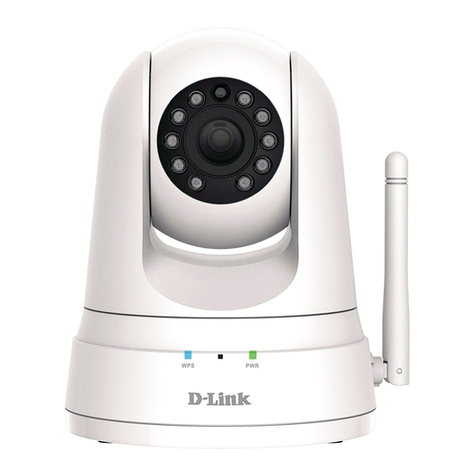
MivaTek IPC2201 User manual
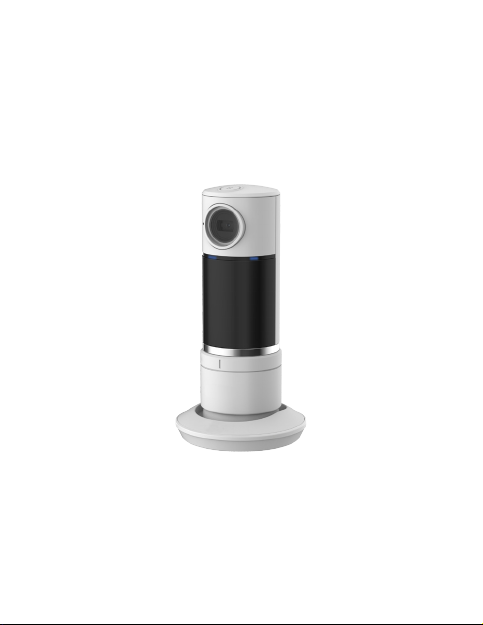
WiFi Home Video Camera
User Manual
IPC2201
MivaTek

| 1
English
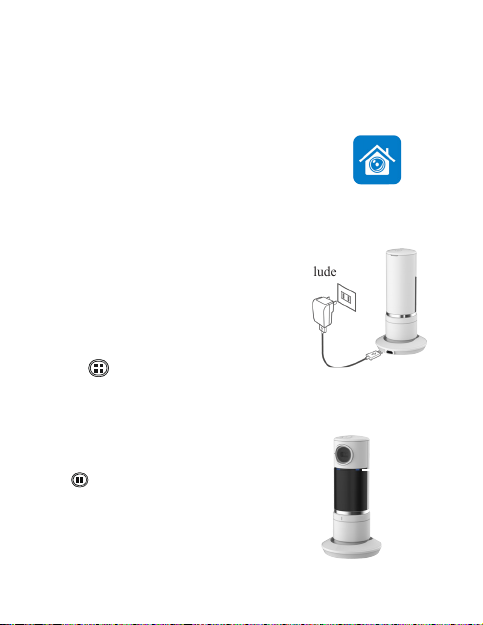
Names of Parts
Lens
LED
Indicator
Network
Indicator
Micro USB Port
Stand
Power/Mode
Button
Speaker
Reset microSD Card
Slot
2 |
English
1. Insert a microSD Card (suggested class 10, up to 64GB)
For initial use, mobile device needs to:
1. Connects to internet (via WiFi, 3G/4G).
2. Download and install App [Unieye Home] from
Google Play Store or Apple App Store.
Getting Started
2.
Power on: Plug a USB power cable with the included
5V/2A adapter into one of
• PC USB port
• USB output adapter
3. Power off:
Press for 3 seconds to turn off camera.
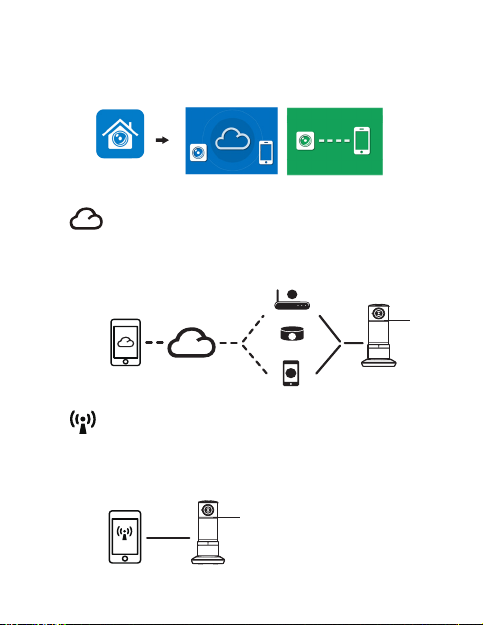
Mobile device connects to smart WiFi Home Camera directly via App
[Unieye Home] for remote control, live view, Widget display and
receives push alerts when events are detected. Camera with 300° pan
motor could be remote controlled by Wi-Fi and Bluetooth.
Modes Switch in Camera
Network indicator shows current mode status.
Press to switch.
•
Steady purple for direct control
•
Steady blue for Internet control
Camera needs to:
Network
Indicator
Unieye Home
| 3
English
Wireless & App Operation
Run App [Unieye Home] on mobile device and navigate either one of
modes:
(I) Internet Mode - Internet (II) Local Mode - Direct control
Mobile Camera
Local
Status: Purple
Status:
Blue
Unieye
Server
AP
3G/4G Mobile Hotspot
Wireless Router
AP
Camera
3G/4G Mobile
Wireless Router
AP
Mobile
Internet
Unieye Home
Internet Mode Local Mode
(I) 【Internet Mode】
Mobile device connects to camera via internet for remote control,
live view, pan angel change, camera setup, push notication,
Widget display and the instant live view from partner's camera.
【Local Mode】
(II)
Mobile device directly connects to camera via WiFi for remote
control, live view, pan angel change, camera setup and receives
push alerts when noise and motion events are detected.

4 |
English
Mobile Device Connects to Camera
1. F
or Android: Turn on [Wi-Fi].
For iOS: Go to [Settings] [Wi-Fi].
Turn on [Wi-Fi] and select the camera name.
2. Run [Unieye Home].
3. Tap【Local】and select the camera to enter View Page.
Tap [ ] to scan again if camera is not found.
Note:
For rst use, password setting is required.
iOS Settings
Before using 【Internet Mode】on mobile App, ensure WiFi on mobile
device
is on and network indicator on camera shows steady purple.
Remote Control Page
Internet Mode Main Page
【Internet Mode】
1. Run [Unieye Home] and tap .
2. Tap Add Camera in list. Enter camera ID and password.
Add Camera
Before adding a congured camera or using another
mobile, ensure the
camera is in 【Internet Mode】
and status indicator shows steady green.
| 5
English
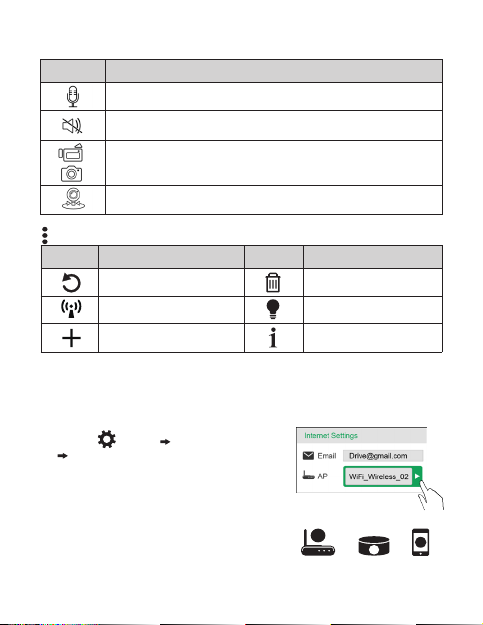
Remote Control :
Advance Setup
Items Descriptions
Talk to camera from mobile.
Mute the sound from camera.
Shoot videos or take photos and save to storage on mobile
"Album\Unieye Home\“
Pan camera view angel.
Items Descriptions Items Descriptions
Rescan for cameras Delete camera
Switch to local mode Tip for help
Add camera About
1. Go to [ Setup] [ Internet Settings]
Edit Email and AP
2. Tap [Save] to complete Email & AP
settings.
Camera Internet Setup
Before using internet cloud service, Email and AP must be properly
set up.
Note: AP(Access Point) can be
• Wireless Router or
• 3G/4G Mobile Wireless Router or
• 3G/4G Mobile Hotspot
AP
AP
AP
AP
AP
AP
AP
AP
AP
Wireless Router 3G/4G Mobile
Wireless Router
3G/4G
Mobile Hotspot
6 |
English
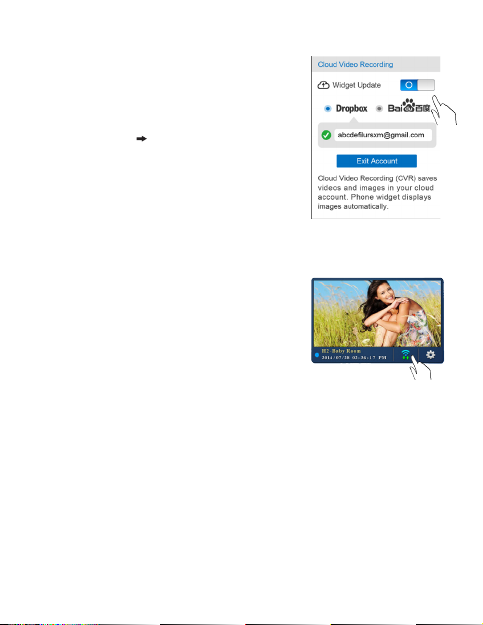
Cloud Video Recording
Widget displays on mobile desktop
Cloud Video Recording (CVR) saves videos
and images in your cloud account. For initial
use, cloud account should be authenticated.
Widget is a small tool for Android that real time
shows alert inforamtion on Mobile desktop.
1. Go to [Setup] Turn on [Save to CVR]
2. Select a cloud account and enter account
information.
3. Tap Save on [Setup] page to activate CVR
function.
1. Add an Unieye Home Widget.
2. On widget setting page, select a camera and
adjust photo fetch interval.
3. Tap [Conrm] to create the Widget on mobile
desktop.
Photos on widget update regularly or when events
detected.
Push Alert
When camera is in【Internet Mode】and events are detected,
Push alerts and Email will be sent to mobile device.

| 7
English
Note: Record event clips only when mobile device did not connect
to camera.
Groups Descriptions
Camera Settings
Edit name, password. Format SD card. Adjust
night vision, noise detection, motion detection,
image rotation, etc.
Internet Settings Edit Email and AP for【Internet Mode】.
Events (for camera)
In [Setup] Page, tap [Save] to complete settings to camera.
Tap [ ] and select [Local Mode] to switch to Local Mode .
Items Descriptions
Camera Videos
View or delete recorded video les saved in camera
SD card during motion and noise detection.
Setup (for camera)
【Local Mode】
Local Mode Main Page Remote Control Page

8 |
English
Control Camera Angle
Set up camera lens angle by using APP.
1. Click [ Pan] .
2. Click arrows for control the lens angle.
3. Tap [ ] to set camera angle back to
latest setup.
Note:
Don't manual to rotate the hinge, please
use the app program to control the motor and
rotate the hinge.

| 9
English
Condition Status Indicator Beep
Power On
Flash for few seconds, then turn to
steady purple.
(For 1st power-on , LED status turns
blue; Network LED turns purple)
1 time
【Local Mode】Network LED shows steady purple N/A
【Internet Mode】Network LED shows steady blue N/A
Power Off No indication 1 time
Low Battery Flash in red 2 times
Fail connect to
【Internet】
Flash in blue for few seconds, then
turn to purple N/A
Factory Reset No change 3 times
Camera Hotkey
Forced Shutdown
Press and hold for 5 seconds to turn off camera.
Forced
Factory
Settings
• Camera: Open the top cover. Insert a small thin
paper clip into the hole and press lightly to reset.
• Mobile:
Go to App [Unieye Home]
Connect
【Local Mode】[Setup] page Reset
factory settings.
Camera Indication
Camera Hotkey
Table of contents