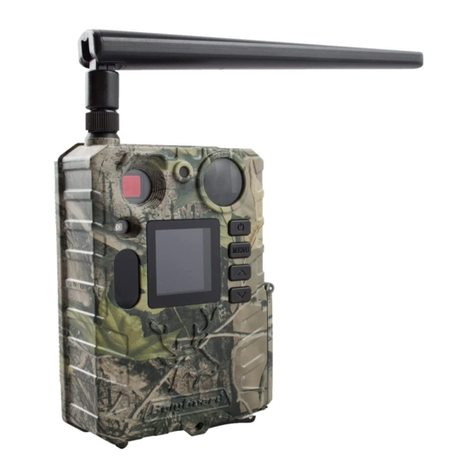
Quick Start
Although user congurable to a high degree the TRACKER camera comes
with default settings that allow you to get started immediately without the
need for too much input.
It is recommended that you become familiar with your camera on the default settings before
delving into the more advanced ones.
Once the SD card and batteries are installed (See page 5) you just need to set a
few key settings and you’re ready to get out there.
1. Set the Photo/Video mode switch (See page 3) to your preferred mode.
(Photo mode is a good starting point)
2. Set the IR LED switch to 40 (If you nd too much reection or whiting out set to 19)
Turning On for the First Time:
• Switch the ON/OFF switch to ON and then press the OK button. The
Moondyne logo will show momentarily along with the SD card capacity and
available storage. (The startup sound can be switched off in settings) press the M
button to enter the menu.
• Use the arrow keys to scroll down the menu and check the bottom of the
screen for prompts.
Key Camera Settings:
Multi Shot: Choose setting 1 to 7 (3 is a good starting point)
Image Size: Choose Mega Pixels (8 is a good starting point)
Time/Date: Set correct time, date and date format.
Camera sound: Set this to OFF if the startup sound is not required.
Settings such as Timer, time lapse and delay can stop the PIR sensor from
working for set periods of time and they are not recommended to be changed until
you fully understand them.
When you have nished in the menu, exit back to the preview mode by pressing
the M button. Once in preview mode the camera will automatically revert to PIR
auto mode after 60 seconds of no input or PIR auto mode can be entered manually
from preview mode by holding the OK button for 3 seconds.
After user settings have been set, next time you use the camera simply turn
the ON/OFF switch to ON, attach the battery pack and camera will be ready to
start monitoring and capturing images.
6