manuals.online logo
Brands
  1. Home
  2. •
  3. Brands
  4. •
  5. Morbella
  6. •
  7. Dashcam
  8. •
  9. Morbella MX6 User manual

Morbella MX6 User manual

Other Morbella Dashcam manuals

Morbella MX5 User manual

Morbella

Morbella MX5 User manual

Morbella QB6 User manual

Morbella

Morbella QB6 User manual

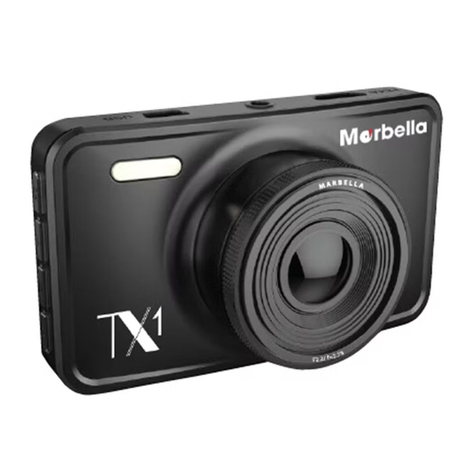
Morbella TX1 User manual

Morbella

Morbella TX1 User manual

Popular Dashcam manuals by other brands

Toyota CAMRY PT949-08210 installation instructions

Toyota

Toyota CAMRY PT949-08210 installation instructions

Kogan Y2 Quick start quide

Kogan

Kogan Y2 Quick start quide

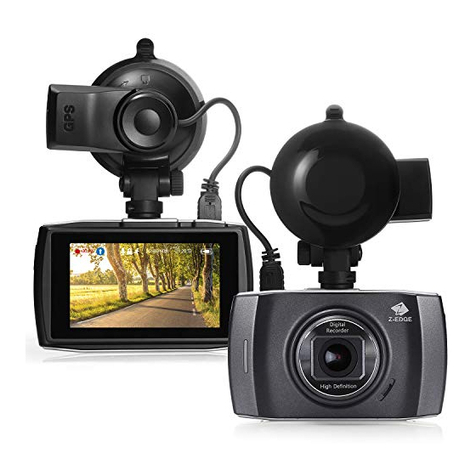
Z-EDGE T3 user guide

Z-EDGE

Z-EDGE T3 user guide

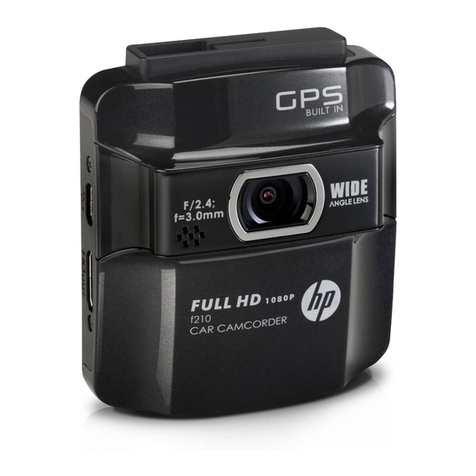
HP f210 user manual

HP

HP f210 user manual

Cansonic UltraDuo Z2 instruction manual

Cansonic

Cansonic UltraDuo Z2 instruction manual

Gazer F720 user manual

Gazer

Gazer F720 user manual

Xblitz TANGO 4K user manual

Xblitz

Xblitz TANGO 4K user manual

Rexing M1 user manual

Rexing

Rexing M1 user manual

Maka Technologies Marbella MXPro user manual

Maka Technologies

Maka Technologies Marbella MXPro user manual

NESA NRC-80DLM User manual & installation guide

NESA

NESA NRC-80DLM User manual & installation guide

Boyo VTM43TC manual

Boyo

Boyo VTM43TC manual

Kaiser Baas R20 user guide

Kaiser Baas

Kaiser Baas R20 user guide

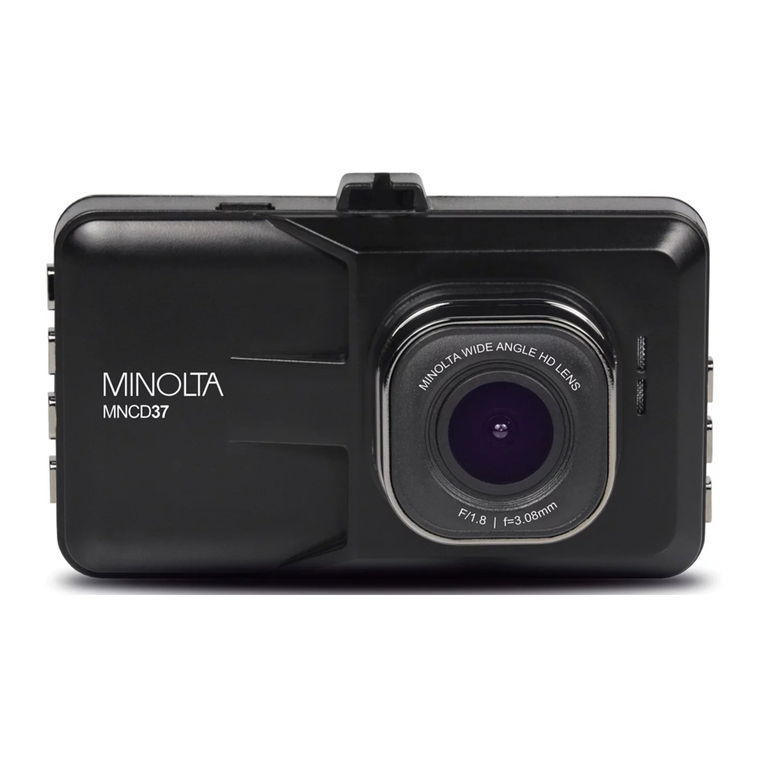
Minolta MNCD37 user manual

Minolta

Minolta MNCD37 user manual

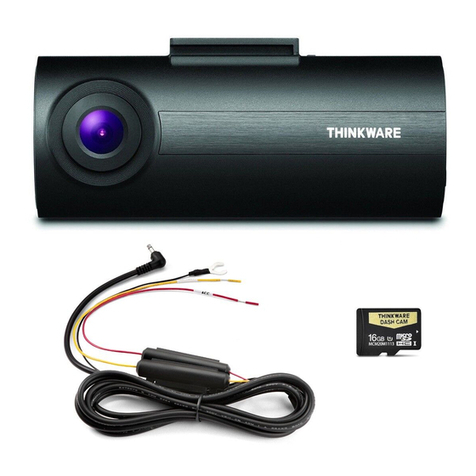
Thinkware FA10 user manual

Thinkware

Thinkware FA10 user manual

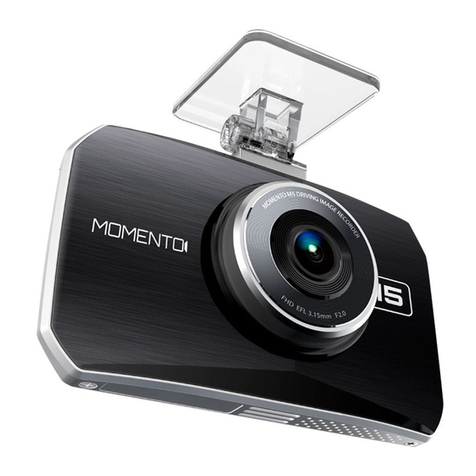
Momento MD-5200 user manual

Momento

Momento MD-5200 user manual

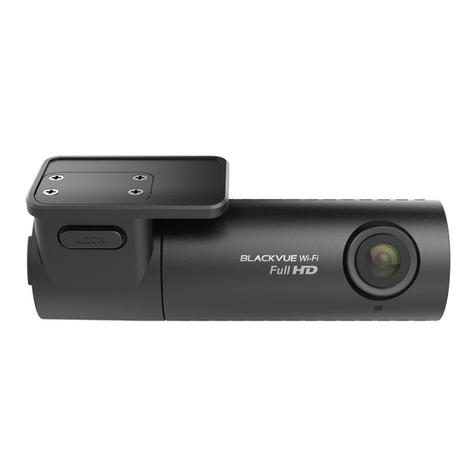
BlackVue DR590X-1CH manual

BlackVue

BlackVue DR590X-1CH manual

Niceboy PILOT XR manual

Niceboy

Niceboy PILOT XR manual

ROVE M3 user manual

ROVE

ROVE M3 user manual

manuals.online logo
manuals.online logoBrands
  • About & Mission
  • Contact us
  • Privacy Policy
  • Terms and Conditions

Copyright 2025 Manuals.Online. All Rights Reserved.

Page 1
© 2013 Maka Technologies Group. All Rights Reserved.
Page 2
© 2013 Maka Technologies Group. All Rights Reserved.
Page 3
© 2013 Maka Technologies Group. All Rights Reserved.
#
MX6 HD Digital
RoadcorderTM Feature
Description
1
ON/OFF Button
Hold on to the button for 3 seconds to turn on or off
the device.
2
Menu Button
Press to access a menu to configure features and
Preferences.
Under Video Mode - such as Resolution, Loop
Recording, WDR, Exposure, Motion Detection, Record
Audio, Date Stamp, G-sensor.
Under Camera Mode –such as Capture Mode,
Resolution, Sequence, Quality, Sharpness, White
Balance, Colour, ISO, Exposure, Anti-Shaking, Quick
Review, Date Stamp

16 –STATUS LIGHT
11 –DOWN
10 –UP
1 –ON/OFF
12 - REC
13 - MODE
3 –USB INTERFACE
4 –AV-OUT
2 –M
8 –LENS
7 –MICROPHONE
14 –FLASHLIGHT
5 –MICROSD SLOT
9 –RESET
6 –HDMI
15 –CAR HOLDER
Page 4
© 2013 Maka Technologies Group. All Rights Reserved.
#
MX6 HD Digital
RoadcorderTM Feature
Description
3
USB Interface
Charge or connect your device to your PC for file
transfer.
4
AV-Output
Allow you to connect your DVR to another device that
supports AV-Input. For instance, you will be able to
view your video footages on a TV (supports AV-Input).
5
MicroSD/ TF Slot
Slot in your microSD card here. Support up to max.
32GB microSD card.
6
HDMI Port
Allow you to connect your device to a TV that has a
HDMI port. You will be able to display High definition
video footages on the TV.
7
Microphone
Record and play sound.
8
Camera Lens
CMOS Sensor Lens
9
Reset Button
Insert the end of a small paper clip or stylus into the
hole. This will allow you to restart the system when
device has no response.
10
&
11
Navigation Buttons
–Up & Down arrows
Press any arrow keys to go up or down through the
items shown on the device screen.
Under Video Mode –allow you to zoom in and out
during/ before recording
Under Camera Mode –allow you to zoom in and out
before taking a photo
Under Playback Mode –scroll up and down for your
respective photos or videos
12
Record Button
With MX6 HD Digital RoadcorderTM, you can take both
still photos and videos. It also works as a “OK” button
in setting menu.
Under Video Mode –press button to record video
Under Camera Mode –press button one time to take
a still picture
Under Playback Mode –use this button to select the
video you wish to view
Page 5
© 2013 Maka Technologies Group. All Rights Reserved.
#
MX6 HD Digital
RoadcorderTM Feature
Description
13
Mode Button
Toggle between Video Mode/Camera Mode/Playback
Mode.
It is also a shortcut key to mute your microphone. Hold
on to Mode button for 3 seconds to mute or unmute
feature.
Note: When the device is muted, the microphone icon will be
crossed out with a red line.
14
Flashlight
An LED flash on the back gives you extra light when
you need it.
15
Car Holder
Connect your window suction to MX6 HD Digital
RoadcorderTM.
16
Status Light
Indicate power status.
When lit:
Blue: Power OFF while battery is charging.
Note: Once battery is fully charged, status light will disappear.
Red (steady): Power ON while battery is not charging.
Pink (steady):Power ON while battery is charging.
Note: Pink status light will be lit when you sync your files to your
computer via USB. Please be reminded that charging of battery
via computer is not possible.
Red (flashing): Recording Mode ON while battery is
not charging.
Red & Blue (flashing): Recording Mode ON while
battery is charging.
Page 6
© 2013 Maka Technologies Group. All Rights Reserved.
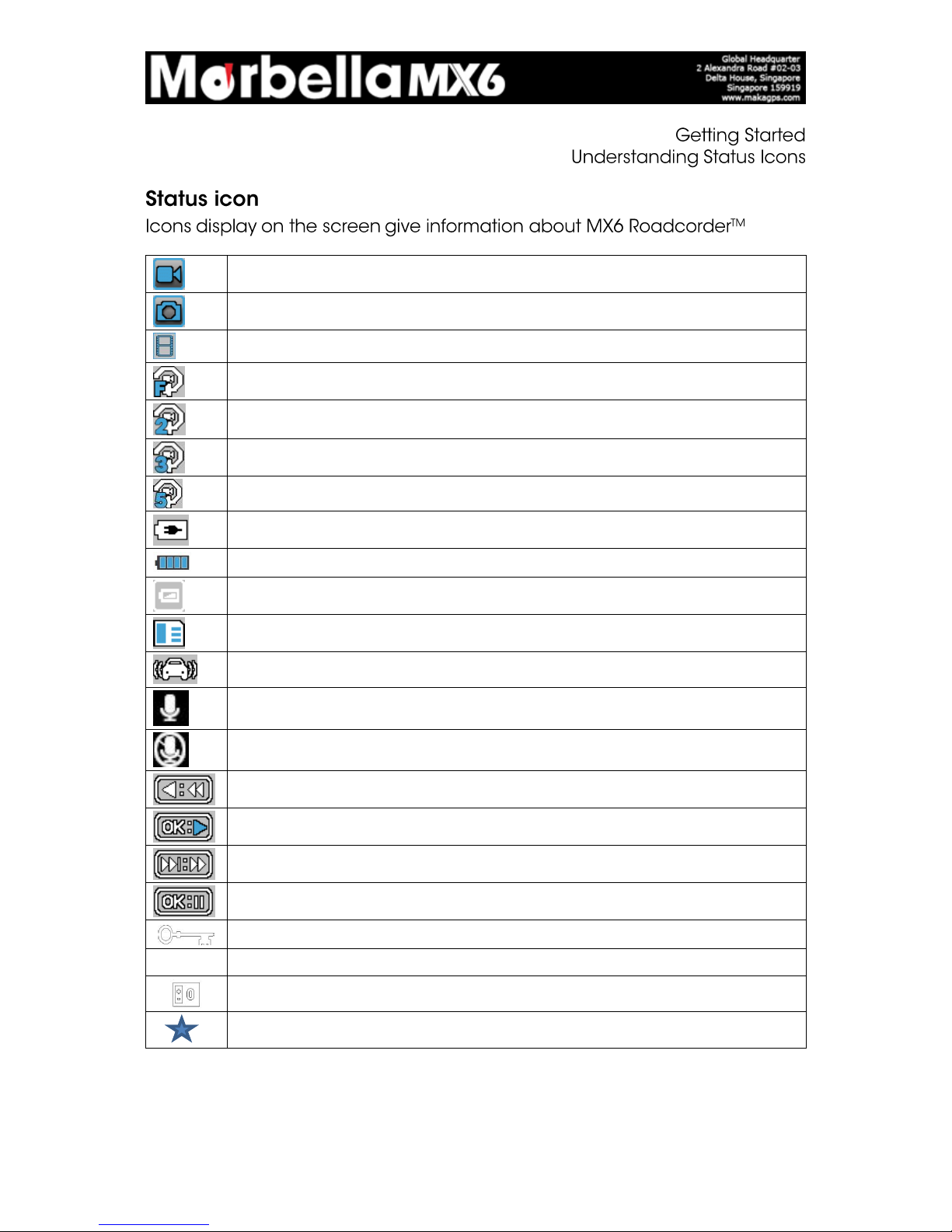
Video Recording Mode
Camera Mode
Playback Mode
Motion Detector Mode
Loop Recording: 2 minutes time frame
Loop Recording: 3 minutes time frame
Loop Recording: 5 minutes time frame
Battery Status: Charging
Battery Status: Fully Charged
Battery Status: Low
MicroSD Card/ TF Card: Card has been inserted
G sensor
Microphone: On
Microphone: Mute
Playback Mode: Rewind
Playback Mode: Play
Playback Mode: Fast Forward
Playback Mode: Pause
File locked: Click on [M] to activate lock file during recording
1080FHD
Video Resolution available in 1080FHD/ 720P/ WVGA/ VGA
Exposure status: +0.0
Photo Quality: Fine/ Normal/ Economy
Page 7
© 2013 Maka Technologies Group. All Rights Reserved.
※
CAR HOLDER
WINDOW SUCTION
WINDOW MOUNT
Page 8
© 2013 Maka Technologies Group. All Rights Reserved.
Page 9
© 2013 Maka Technologies Group. All Rights Reserved.
Page 10
© 2013 Maka Technologies Group. All Rights Reserved.