AC ELWA®-E Operation Manual, Version 00100.24 3
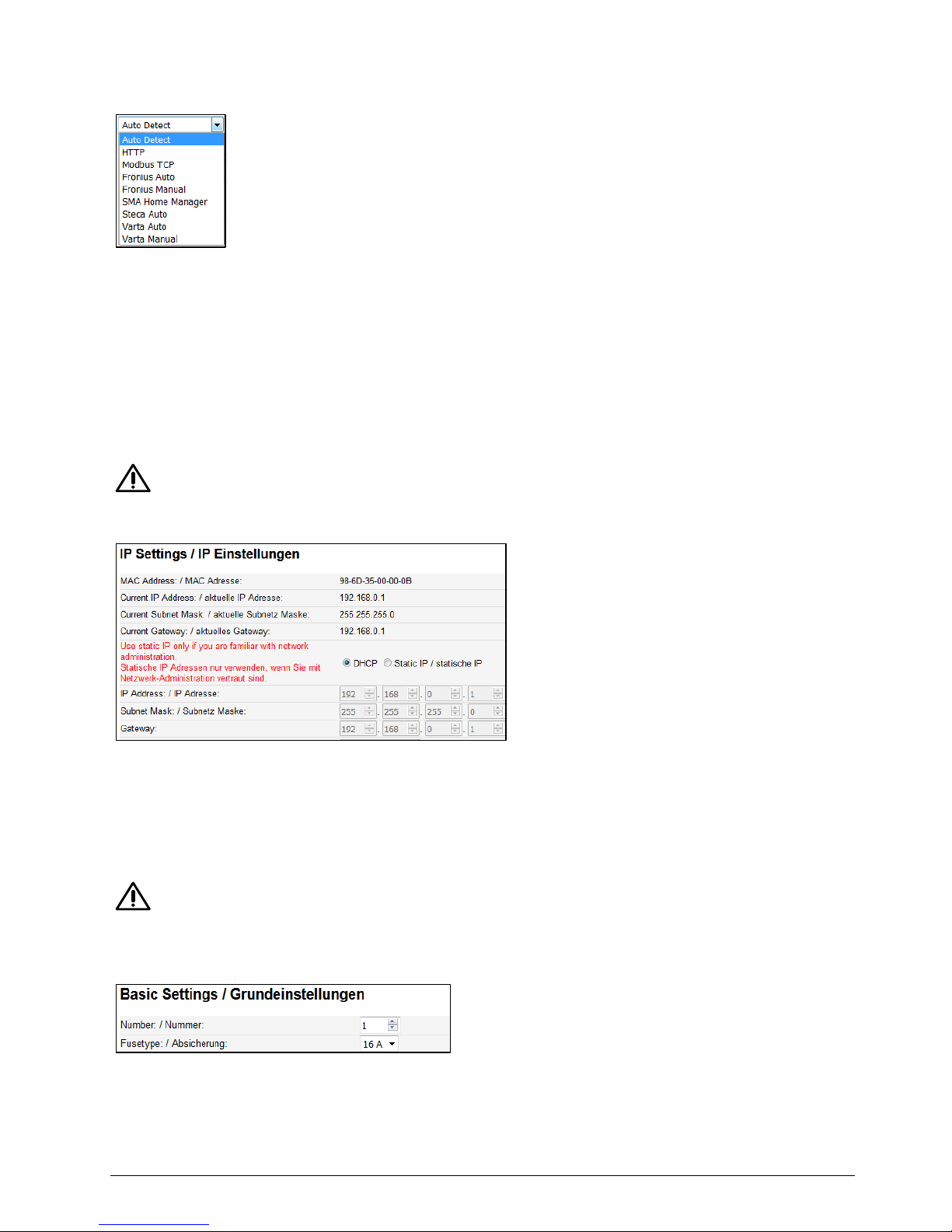
Time frame blocking time 0-0 (no blocking)
Device number 1 (Note: is shown in the Scan Tool and on the router in the DHCP list)
16A fuse protection of the plug socket
5. Placing into operation with router
The start-up with router only works, if it is configured to DHCP.
The device must not be in Setup-Mode ( symbol, all three LEDs blinking)
1. Connect laptop with router (LAN or WLAN)
2. Connect AC ELWA-E and router via standard Rj45-cable („patch-cable“)
3. Plug in AC ELWA-E power plug
4. AC ELWA-E gets a dynamic IP-address from router
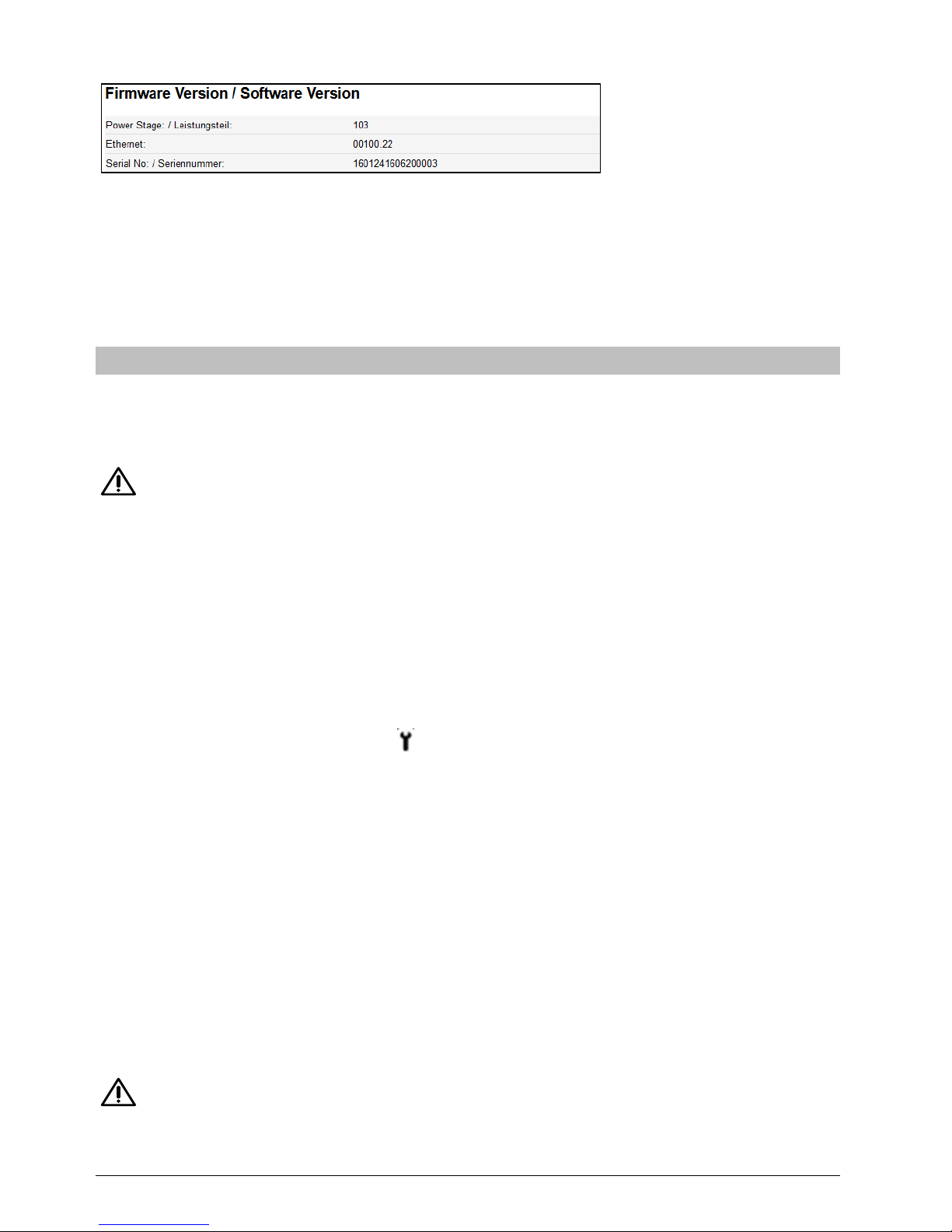
5. Searching for AC ELWA-E by using the software „Scan AC ELWA-E.exe“ (Download the
software package at www.my-pv.com )
Scanning is performed via UDP port 16124. Firewalls (or specific router settings) may
prevent the AC ELWA-E from being found.
In this case, it is advisable to look for the IP address of the AC ELWA-E in the DHCP list of
the router and enter it manually into the address line of the web browser.
6. Are there more AC ELWA-Es in the network, the desired device can be determined by the
serial number (lateral on the case)!
7. A double click on the particular device opens the website of the AC ELWA-E.
6. Placing into operation without router
1. Set adjusting knob to the symbol
2. Plug in AC ELWA-E power plug
3. All 3 LEDs of the AC ELWA-E are on for approx. 10 seconds (device boots), afterwards all 3
LEDs are blinking. The device is now in Setup-Mode
4. Disconnect existing Wi-Fi connections on the laptop to avoid possible network-conflicts
5. Connect Laptop to AC ELWA-E via standard Rj45-cable („patch-cable“)
6. The Laptop gets a dynamic IP address
7. The system software, e.g. MS Windows 7, might request you to choose a place of the
network. At this step it is not necessary to do so. You can close the window.
8. Insert address 192.168.0.1 in the web browser to select homepage of the AC-ELWA-E
9. Select Button „Setup“ and configure as described in chapter „Setup“
10. Disconnect the AC ELWA-E power plug after all the adjustments are made and turn the
knob to the desired temperature
11. Disconnect the data connection between AC ELWA-E and Laptop/PC
12. Connect AC ELWA-E via standard Rj45-cable („patch-cable“) with router