manuals.online logo
Brands
  1. Home
  2. •
  3. Brands
  4. •
  5. NetComm
  6. •
  7. Print Server
  8. •
  9. NetComm FIBRE NF1ADV User manual

NetComm FIBRE NF1ADV User manual

Other manuals for FIBRE NF1ADV

3

Other NetComm Print Server manuals

NetComm NP5000 User manual

NetComm

NetComm NP5000 User manual

NetComm NP3640 User manual

NetComm

NetComm NP3640 User manual

NetComm NP3680 User manual

NetComm

NetComm NP3680 User manual

NetComm NP3640 User manual

NetComm

NetComm NP3640 User manual

NetComm 3G15Wn User manual

NetComm

NetComm 3G15Wn User manual

NetComm NP3640 User manual

NetComm

NetComm NP3640 User manual

NetComm NP5000 User manual

NetComm

NetComm NP5000 User manual

Popular Print Server manuals by other brands

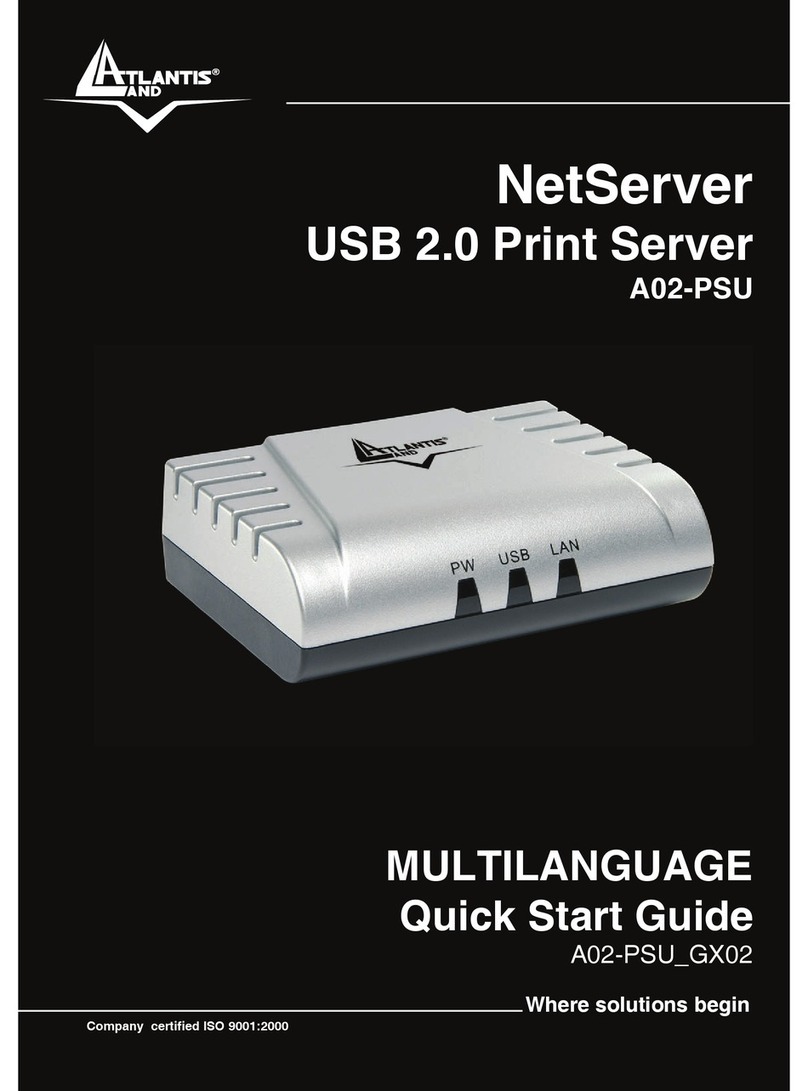
Atlantis Land NETSERVER A02-PSU_GX02 quick start guide

Atlantis Land

Atlantis Land NETSERVER A02-PSU_GX02 quick start guide

Digitus DN-13003-1 user manual

Digitus

Digitus DN-13003-1 user manual

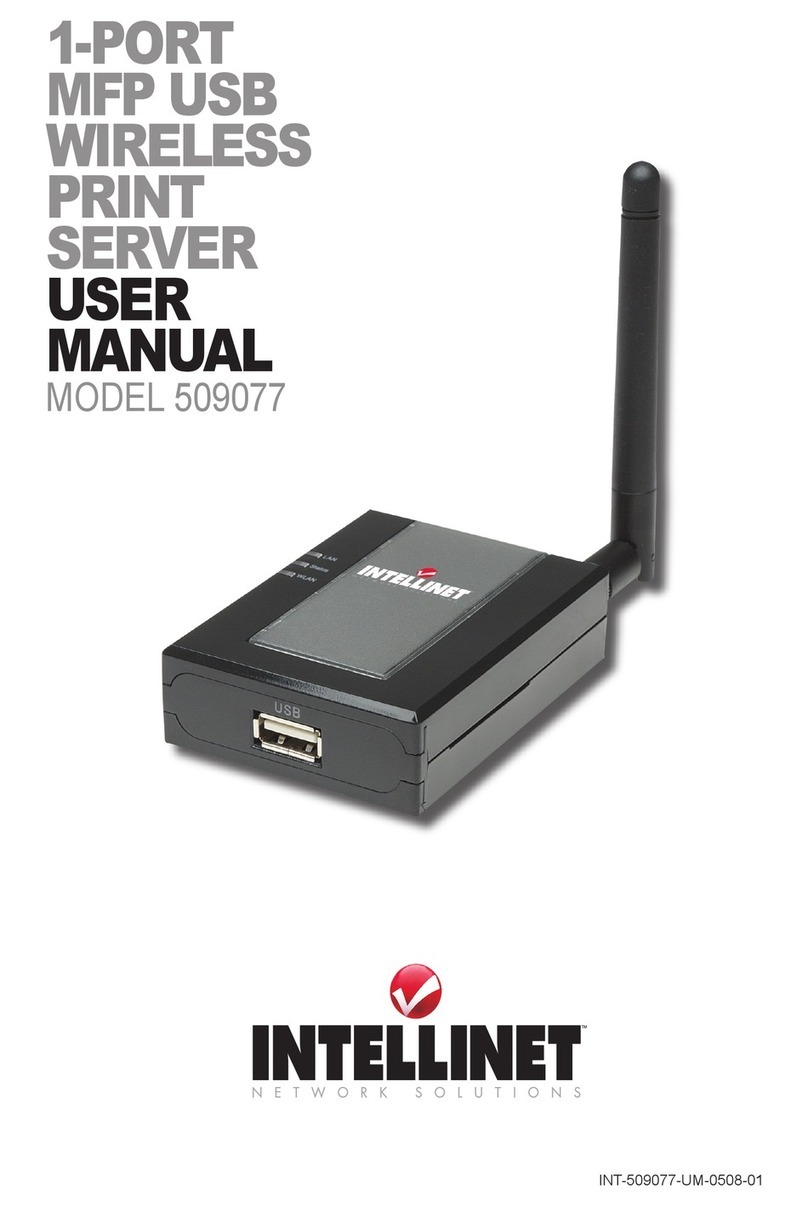
Intellinet 509077 user manual

Intellinet

Intellinet 509077 user manual

Buffalo LPV4-U2-300S user manual

Buffalo

Buffalo LPV4-U2-300S user manual

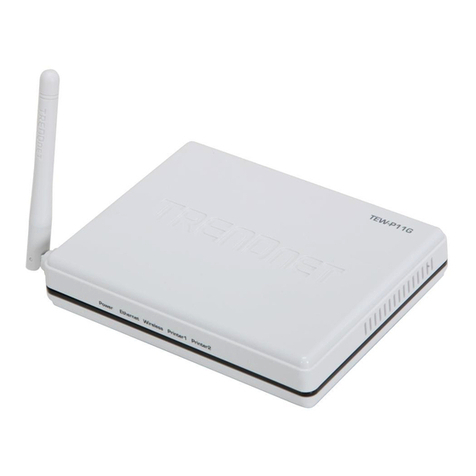
TRENDnet TEW-P11G datasheet

TRENDnet

TRENDnet TEW-P11G datasheet

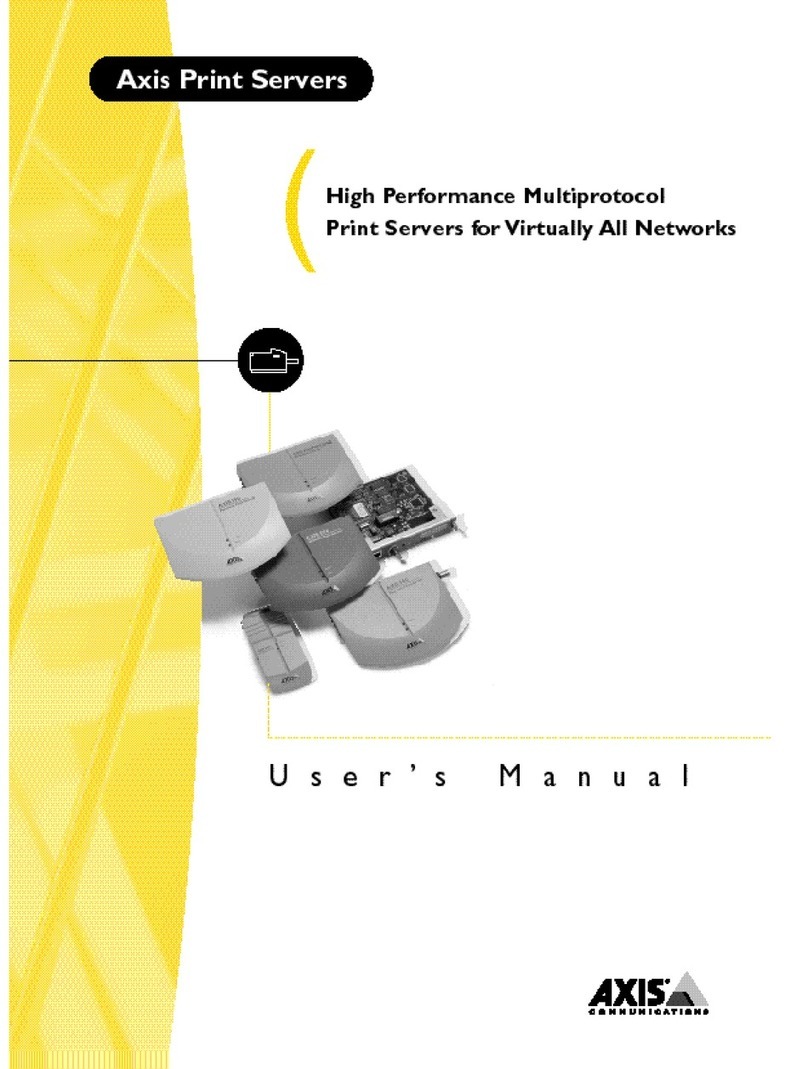
Axis 140 BJC user manual

Axis

Axis 140 BJC user manual

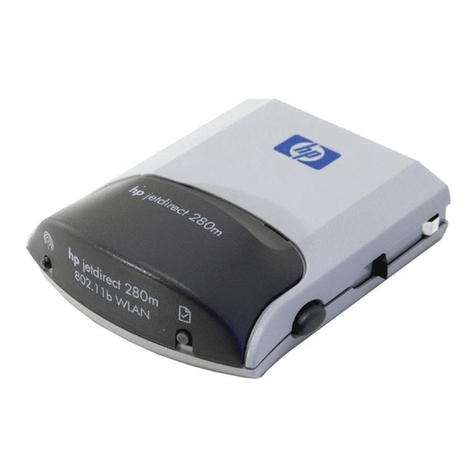
HP Jetdirect 280m - 802.11b Wireless Print... user guide

HP

HP Jetdirect 280m - 802.11b Wireless Print... user guide

MicroNet SP766W user manual

MicroNet

MicroNet SP766W user manual

Buffalo LPV4-U2-300S Quick setup guide

Buffalo

Buffalo LPV4-U2-300S Quick setup guide

Axis 5600+ user manual

Axis

Axis 5600+ user manual

Edimax PS-1206PWg Compatibility listing

Edimax

Edimax PS-1206PWg Compatibility listing

Epson C823622A - Interface Type B Print Server brochure

Epson

Epson C823622A - Interface Type B Print Server brochure

Axis 540 series Quick installation guide

Axis

Axis 540 series Quick installation guide

D-Link DP-300+ user manual

D-Link

D-Link DP-300+ user manual

Hawking HPS1U Quick installation guide

Hawking

Hawking HPS1U Quick installation guide

LevelOne WPS-9123 user manual

LevelOne

LevelOne WPS-9123 user manual

D-Link DP-300+ manual

D-Link

D-Link DP-300+ manual

LevelOne FPS-1032 user manual

LevelOne

LevelOne FPS-1032 user manual

manuals.online logo
manuals.online logoBrands
  • About & Mission
  • Contact us
  • Privacy Policy
  • Terms and Conditions

Copyright 2025 Manuals.Online. All Rights Reserved.

Print Server Setup Guide
(NF1ADV)
Print Server Setup for the NF1ADV
This set of print server setup instructions is intended for use with printers connecting with a USB cable
connection being plugged into the USB port on the NF1ADV. This guide is divided into sections according to
the operating system you are using when the print server settings are added. Simply select the operating
system you are using on your PC or laptop on the next page to find the instructions tailor made for you.
Select your Operating System:
NF1ADV Print Server Setup for Windows XP Users
1. Turn on your printer and plug it into the USB port of the NF1ADV.
2. Navigate to http://192.168.1.1 in a web browser using “admin” (without quotes) as both the
username and password to login to the NF1ADV router.
3. Select the Print Server menu option from the Advanced Settings drop down menu.
4. Select the Enable on-board print server option.
5. Enter a printer name without spaces into the Printer Name field. This name can be constructed with
any characters of your choice.
6. Enter the make and model of the printer into the Make and Model field.
7. Press the Apply/Save button.
8. Back in Windows select Start > Control panel > Printers and Faxes.
9. Select the Add a Printer option from the Printer Tasks list at the left hand side of the window.
10. The Add Printer Wizard window will open.
11. Press the Next button.
12. Select the “A network printer, or a printer attached to another computer” option and press the
Next button.
13. Select the “Connect to a printer on the Internet or on a home or office network” option.
14. Enter the URL as http://192.168.1.1:631/printers/printer_name where
printer_name is the name of the printer you added in step 5.
15. Press the Next button.
16. Select the driver for your printer from the list or select the Have Disk button and browse to the
printer driver on the CD that accompanied the printer when you purchased it. Click the Ok button
after you have selected the correct driver.
17. Click on the Finish button to complete the Printer Setup Wizard.
18. The new Printer settings will be displayed on the Printer and Faxes window as highlighted below.
19. Right click on the new printer entry and select Properties.
20. On the General tab select the Print Test Page button to test the printer connection.
21. If the page prints successfully the printer has been configured successfully. You will need to repeat
the “Add a Printer” process from step 8 for any other PCs or laptops you have connected to the
NF1ADV that you wish to be able to print from.
NF1ADV Print Server Setup for Windows Vista Users
1. Turn on the printer and plug it into the USB port of the NF1ADV.
2. Navigate to http://192.168.1.1 in a web browser using “admin” (without quotes) for both the
username and password to login to the NF1ADV router.
3. Select the Print Server menu option from the Advanced Settings drop down menu.
4. Select the Enable on-board print server option.
5. Enter a printer name without spaces into the Printer Name field. This name can be constructed with
any characters of your choice.
6. Enter the make and model of the printer into the Make and Model field. The make and model can
also be any characters of your choice.
7. Press the Apply/Save button.
8. Back in Windows select Start > Control Panel > Printers.
9. Select the Add a Printer button.