Nexxt XPY300 User manual

Nexxt Solutions - Integrated Wireless IP Camera
2
Integrated Wireless IP Camera
INTRODUCTION
Thank you for purchasing the Nexxt Solutions
XPY 300 Camera. Our new XPY is an integrated
wireless IP Camera solution that combines a high
quality digital video camera with network connectivity
and a powerful web server to bring a clear picture
to your desktop or mobile phone from anywhere on
your local network or over the Internet.

Nexxt Solutions - Integrated Wireless IP Camera
3
This camera is intended for indoor use only.
Use the supplied power adaptor to connect the
camera to the AC mains (5.0V DC, 1.5A). The
warranty does not cover any damage caused by
applying the wrong voltage.
Never attempt to disassemble the unit. The
warranty does not cover damages as a result of
tampering with, or the improper alteration of the
device.
Do not point the camera at the sun or at any other
strong light source.
Do not install the camera where it can be exposed
to rain or water
Wait at least 10 seconds when powering the
camera on and off. Otherwise, it can cause serious
damage to the CPU.
When updating the camera, please make sure that:
the camera is connected directly to a computer
using a network cable;
all other programs and windows on the computer
have been closed;
the camera remains connected during the entire
firmware update.
•
•
•
•
•
•
•
-
-
-
BEFORE YOU BEGIN

Nexxt Solutions - Integrated Wireless IP Camera
4
NOTES ON WINDOWS AND MAC COMPATIBILITY:
FEATURES
The camera combines a high-sensitivity 1/4 CMOS
image sensor with a powerful wireless web server
in order to capture clear images from anywhere,
and to transmit them instantly on your local
network or over the internet.
Can be used on WiFi or wired networks.
Selectable image resolution of 640x480 and
320x240 pixels.
The system can be expanded at any time by adding
multiple cameras.
View multiple cameras in split screen view or
choose full screen in order to monitor the activity
from a single camera.
Cameras can be viewed via standard PC or Mac
browsers, including Internet Explorer, Safari,
Chrome and Firefox.
Infrared LEDs for night vision (up to 15 meters).
Includes multi-level user management system,
which can be configured with passwords for
controlled access.
Easy- to-use web browser controls. They also allow
quick configuration changes via the settings menu.
Compatibility with smartphones enables you to
view real-time videos over the internet using any
standard browser.
Supports image snapshots and image forwarding
via email and FTP upload.
IP camera setup should be completed on a
Windows PC only using Internet Explorer.
Live viewing, taking snapshots, recording and
camera configuration are fully supported on
computers with Windows operating systems.
•
•
•
•
•
•
•
•
•
•
•
-
-

Nexxt Solutions - Integrated Wireless IP Camera
5
NOTE: if any of the listed items are missing or
damaged, please notify immediately the Nexxt Solutions
reseller from whom you purchased the product for
replacement or warranty information.
Our WiFi Camera can be set up in minutes for
instant monitoring and live viewing on your Windows
computer and 3G Smartphone - all via your wireless
network router or switch. For optional recording
capabilities, simply install the recording software in
your Windows PC and configure it according to your
particular needs.
view live images via compatible web browsers
including Safari, Firefox and Chrome but are limited
to viewing one camera at a time.
take and save snapshot images via the web
browser interface.
Wireless IP Camera x1
AC power adaptor x1
Quick installation guide x1
CD-ROM x1
(includes the IP Super Client Software)
Network cable x1
Mounting bracket and hardware
•
•
•
•
•
•
-
-
PACKAGE CONTENTS
CAMERA INSTALLATION
Mac users are only able to:
Open the box and make sure all items listed below
are included:
Nexxt Solutions - Integrated Wireless IP Camera
6
Begin by screwing the bracket to the camera.
Connect the camera using the power adaptor that
comes with the product.
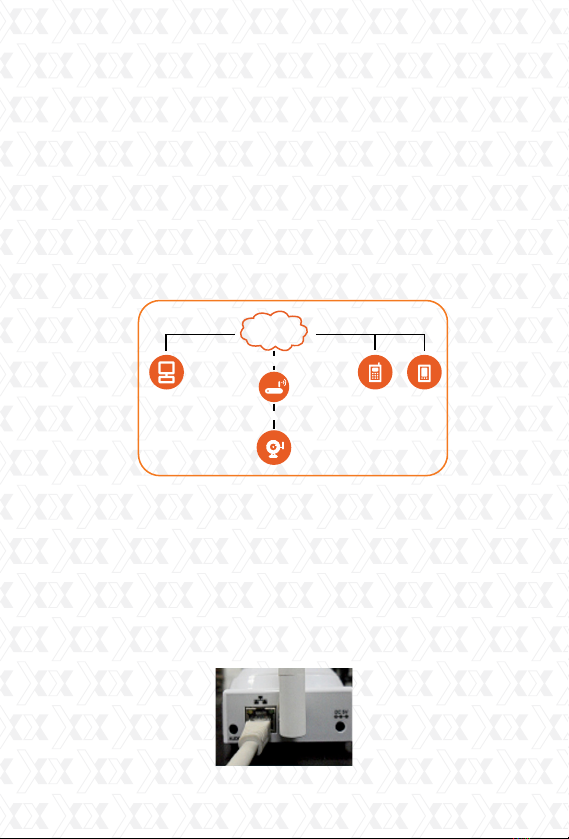
Using a standard Ethernet network cable, connect
the camera to your network.
The camera can either be connected to a router/
switch or directly to a PC with an Ethernet
network cable. We recommend setting up the
camera on your network using a wired connection
prior to using the device in a wireless
configuration.
Continue with the setup of the camera (as
described in the following chapter). Once the
camera has been successfully connected to your
network, it can be mounted on the wall or ceiling
using the wall plugs and screws included with the
device. (The initial set up must be performed
using Windows operating system only).
1. Plug the cable into the RJ-45 connector on the
rear of the camera..
1.
2.
3.
INTERNET
Cellular
Phone
IP Camera
Modem
PDAComputer
Intranet
Internet connection

Nexxt Solutions - Integrated Wireless IP Camera
7
2. Plug the other end into an available RJ-45 port
on your router.
3. Connect the power cable to the wall outlet.
Please note that if you are using the camera on
a wireless network, you will need to configure the
camera for wired use, prior to configuring
wireless settings in the device (later described in
this manual).
Accessing the IP camera
Using the IP Super Client Software
Note: The IP network camera is designed to work in
a local area network (LAN) or over the internet. For
the first method, we highly recommend using the
software included in the CD. The installation steps
are described below.
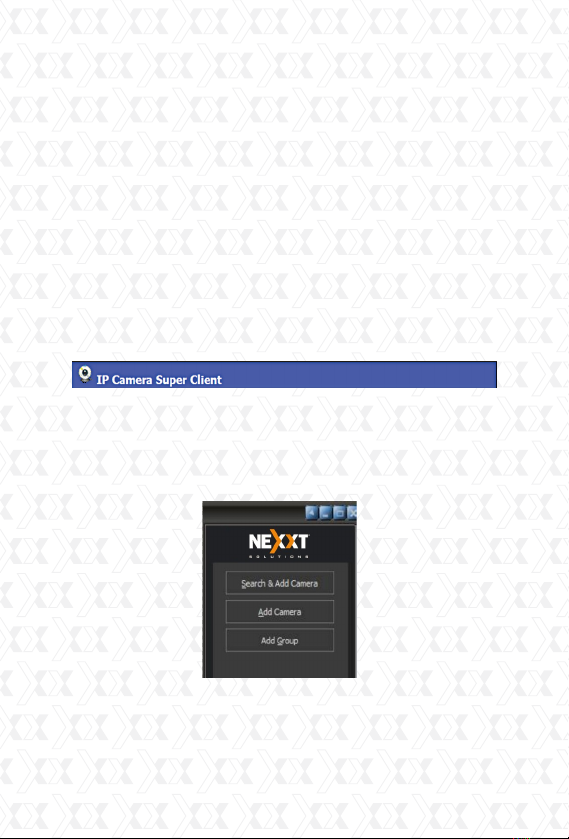
1. Introduction
The IP camera Super Client is an easy-to-use
software designed for surveillance applications
with multiple cameras. This software includes PT
controls, recording, alarm notifications, in
addition to a central management feature that
allows the administration, configuration and
access control settings for each individual device.
Nexxt Solutions - Integrated Wireless IP Camera
8
Functions:
*Supports up to 81-video monitoring in one screen
*Supports multi-level structured device list.
*Supports scheduled recording with alarm.
*Supports panoramic recording.
*Supports motion detection, sound alert and
external alarm trigger.
*Supports audio, SMS, SMS modem, dialing, email,
FTP and alarm output switch.
*Supports inquiries, browsing of alarm and
operation log records.
*Supports multi-level access management.
*Supports remote login to check records and
alarm records.
Adding devices
After installing the client software, we need to add
the devices. When running the program, the device
list on the right of the main interface is empty; there
is a guide to show you how to add the devices.
Click the right button to choose “add new device”
or “add new group”. This program supports a
multi-level structure to manage existing devices.

Nexxt Solutions - Integrated Wireless IP Camera
9
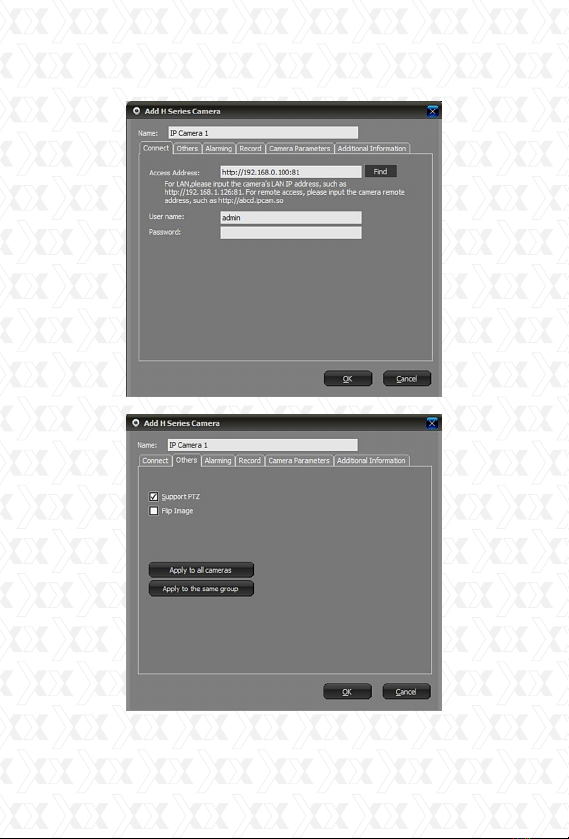
Now, let’s take the 300-series and 330-series as
examples to introduce the adding device option.
300-Series Image:
Nexxt Solutions - Integrated Wireless IP Camera
10
330-Series Image:
Name: name assigned to the camera, used to
distinguish it from other devices connected. This
This manual suits for next models
1
Table of contents
Other Nexxt IP Camera manuals