You can now aunch the connection from the Connect menu.
The KCS6104’s four or KCS6116’s sixteen seria ports are pre-configured with RS232
settings of 9600 baud, no parity, 8 data bits and 1 stop bit. If you wish to change these
settings:
C ick Configure to oad the Management Conso e, se ect Serial & Network:
Serial Port and c ick Edit for the re evant Port #
Set the Common Settings (Baud Rate, Parity, Data Bits, Stop Bits and
Flow Control) to match those of the device being contro ed.
You can a so se ect the Console Server protoco s (Telnet, SS , TCP,
Unauthenticated Telnet or RFC2217) for the remote networks connection to
this seria port – a Logging Level may a so be set to specify the eve of
information to be ogged for this port
C ick Apply
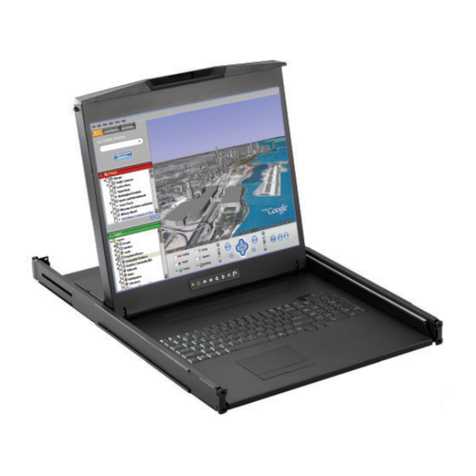
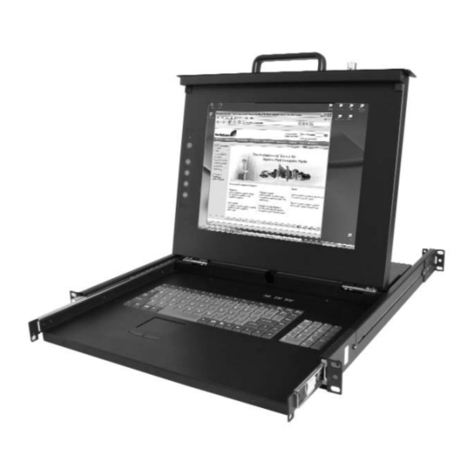
You can now access the KCS6104/KCS6116 oca y with the attached screen and
keyboard and use the oca thin c ient software to manage a the computer, networking
and power devices in the rack.
Step 5 emote control
There are two options to remote y manage network hosts and seria devices via the
KCS6104/6116.
The first is to run the thin c ient management software on the KCS6104/6116,
connecting direct y to the network host or seria device – then use VNC from a remote
PC to remote y contro the KCS6104/6116.
From the Management Conso e, se ect System: Services, check VNC Server
and/or Secure VNC Server
KCS6000 Quick Start (Rev 3.1) Page 4
C ick Apply
On the remote PC, aunch a web browser and ogin to the KCS6104/6116
Management Conso e (in the address bar, enter https:// fo owed by the IP
address of the KCS6104/6116, e.g. https://192.168.0.1)
Se ect Manage: KCS: Connect and aunch the Remote Contro connection,
your browser wi down oad and run a VNC c ient Java app et
The second option is to run the c ient management software on the remote PC, and
secure y tunne the connection to the network host or seria device through the
KCS6104/6116.
This is particu ar y usefu when you have proprietary app ications on the remote PC
(such as De Open Manage or VMware VDI c ient) that you want to use to manage a
DRAC service processor or VMware virtua device on one of your servers:
Se ect Serial & Network: Network osts and c ick Add ost
Enter the IP address/DNS Name of the host
Edit the Permitted Services used for accessing this host, e.g. HTTPS (TCP
port 443), VNC (TCP port 5900), or add custom TCP or UDP port numbers – on y
the services specified here are tunne ed through to the host, a other services
are b ocked
At this stage you may a so specify the eve of information to be ogged and
monitored for each host access
C ick Apply
Se ect Serial & Network: Users & Groups and c ick Add User
Enter a Username, enter and confirm a Password and se ect the new y added
host under Accessible ost(s)
C ick Apply
Insta the SDT Connector Java app ication on the remote PC, c ick File: New
Gateway
Enter the KCS6104/6116’s IP address as the Gateway Address and the new y
added username and password as Gateway Username and Gateway
Password, c ick OK
C ick Retrieve osts to retrieve the user’s accessib e hosts and permitted
services from the KCS6104/6116
Under the KCS6104/6116 Gateway, se ect at the host access the service to
aunch – a tunne ed connection through the KCS6104/6116 is estab ished and
the oca management c ient software is aunched