Outform iDISPLAY User manual

iDISPLAY 15.6” Display
User Manual

1
About This Guide............................................................................... 2
Introducing the iDISPLAY 15.6” GEN 5.............................................2
Important Notices............................................................................. 3
Copyright Information......................................................................3
Safety and Warning Information .....................................................4
Package Contents .............................................................................. 5
Quick Start User Guide...................................................................... 7
Setting up the Tablet Hardware.......................................................7
Playing Videos and Displaying Images.............................................7
Supported File Formats....................................................................8
Accessing the Pulse Player Settings ................................................8
Pulse Player Settings ......................................................................... 9
Using the Android Operating System............................................... 13
Configuring the Android Operating System Settings.....................14
Using Pulse Management ................................................................15
Troubleshooting ................................................................................ 16
Table of Contents

2
About This Guide
Thank you for purchasing an Outform product. We recommend reading this user guide
in its entirety in order to maximize the performance and service life of this product. This
product is intended for commercial use and should be installed by authorized personnel
only.
Introducing the iDISPLAY 15.6” GEN 5
The iDISPLAY 15.6” GEN 5 is interactive digital display designed to be used in
commercial environments, and includes the following features:
• Quad core processor
• 1920 x 1080 full HD resolution
• Android 5.1 operating system
• 10-point touch capacitive screen
• 802.11b/g/n or 802.11b/g/n/a/c WiFi
• Bluetooth
• VESA wall mounting option
• 100M/1000M RJ45 Ethernet port with Power over Ethernet (PoE 15.6” is optional)
• USB ports
• 2 speakers
• Headphone jack
If required, please ask for detailed specifications.

3
Important Notices
Copyright Information
Copyright © 2021 Outform. All rights reserved.
All intellectual property rights in this publication are owned by Outform and protected
by applicable copyright laws and international treaty provisions. Outform retains all
rights not expressly granted. No part of this publication may be reproduced in any form
whatsoever or used to make any derivative work without prior written approval by
Outform.
Outform reserves the right to revise this publication, and/or make improvements or
changes in the product(s) and/or the program(s) described in this documentation at
any time without prior notice. The information in this document is provided in good
faith, but without any representation or warranty whatsoever, whether it is accurate,
or complete or otherwise, and on express understanding that Outform shall have
no liability whatsoever to other parties in any way arising from or relating to the
information or its use.
All other trademarks are the property of their respective owners. Other company and
brand products and service names are trademarks or registered trademarks of their
respective holders.
This device complies with CE and FCC regulations.

4
NOTE
This mark is applied to indicate that the equipment conforms to European safety and
electro-magnetic compatibility standards.
WARNING!
Main Supply: This equipment is designed to operate from a 100-240 Volt, 50/60Hz AC
power supply. The use of other power sources may damage this equipment. Check that
the voltage marked on the rating plate located at the rear of the power adaptor states
100-240V. The manufacturer will NOT accept responsibility or damage or injury caused
by connecting to the wrong voltage.
WARNING!
Main Adaptor: The supplied power adaptor is compatible with a standard main socket.
If the power adaptor or lead gets damaged, it must be replaced by a qualified service
agent with an approved adaptor of the same type and rating.
WARNING!
Dangerous voltage constituting a risk of electric shock is present inside this equipment.
WARNINGS!
The main plug shall be the main disconnect device and shall remain operable at all
times.
Do not push objects into holes and ventilation slots.
Do not expose this product to moisture or place any objects filled with liquids on or
near the product.
Do not place a naked flame source, such as lighted candles, on or near this product.
Do not store or operate the device in environments where the temperature is above 50
degrees celsius or below -10 degrees celsius.
Do not intentionally hit the device or place heavy or sharp objects on the device.
Only use accessories specified by the manufacturer.
Keep the device away from benzene, diluents, and other chemicals.
Do not attempt to repair this product yourself. Always use a qualified service agent to
perform adjustments or repairs.
Important Notices
Safety and Warning Information

5
Package Contents
The package contains the following items:
15.6” Shown Display Tablet
Power Adapter Power Cable
(US, UK, or EU)
USB Mini Mouse
(Included with
advertising displays only)

6
15.6” Display Exterior Components
1 53 7 9
2
15
11
12
13
4
6
14
8 10
Top View
Front View
Bottom View
No. Description
1 DC 12V Port 5.5x2.1 mm
2 Type-C OTG
3 3.5 mm Audio Port
4 HDMI Output
5 TF-Card Slot
6 Sim Card Slot
7 USB 2.0 OTG Port
8 Reset Key
9 USB 2.0 OTG Port
10 Ethernet RJ45 Port
11 Volume Button V+
12 Volume Button V-
13 Power Button
14 Vesa Hole 6x4xM4
15 Camera

7
This section describes how to set up and use the iDISPLAY tablet for the first time. The
tablet runs OUTFORM’s Pulse Player software by default, which runs on an Android
operating system installed in the player to play the desired content.
Setting up the Tablet Hardware
Connect the following components to the back side ports of the iDISPLAY tablet:
• The power adapter, plugged in to a nearby plug outlet.
• Alternately, power may be supplied through the RJ45 outlet by plugging in an RJ45
cable connected to a POE capable source. (15.6” tablet only).
The tablet automatically powers on and initiates the Pulse Player software, which in
most cases plays a sample video by default.
Playing Videos and Displaying Images
Copy video and image files to the tablet using a USB thumb drive as follows:
1. Insert an empty USB drive into a computer and create a folder titled “0” (the
number zero) at the topmost (root) directory of the drive. Ensure that no other
content is on the drive.
2. Copy the desired video and image files to be played into the “0” folder.
3. Eject the drive from the computer and insert it into a USB port on the back side of
the tablet.
4. A password prompt appears on the display. Enter the configured password using
the on-screen keyboard. By default this password is “11223344” without the
quotation marks, and can be modified later.
5. Upon successful entry of the password, select one of the two options that display,
either to delete and replace the existing content on the tablet or to simply add
additional content.
NOTE: If you choose to keep the existing content, the new content from the USB
drive is copied alongside the existing content, and no files are deleted. However, if
a file on the drive has the same name as a file already on the tablet, the file on the
tablet will be overwritten.
6. After a message displays indicating that the content has been copied, the USB
drive can be removed. The new content plays automatically.
NOTE: When auto-copying files from a Linux or MAC OS-based computer, hidden
metadata files, preceded by a period “.”, may also get copied into the “0” folder on the
USB drive. When Pulse Player attempts to play or display these files, a black screen is
shown momentarily. Use the Explorer app mentioned in the Android Operating System
Settings section below to manually delete these metadata files from the “0” folder on
the device.
Quick Start User Guide

8
Quick Start User Guide
Supported File Formats
The tablet supports the following file formats:
• Standard Android applications (APK files) supported by Android 5.1 and more
recent versions
• Video formats: 3gp / mp4 / avi / mkv / flv / mov / rm / rmvb
• Image formats: jpg / jpeg / png / bmp
Accessing the Pulse Player Settings
When content is being played on the display, use a finger to draw a Z shape on the
screen. Start at the top left of the screen and move in the direction shown below.
Note: If the tablet is an advertising display with no touch screen, plug the provided
mouse into a usb port on the tablet. Click and drag the mouse to draw the Z-shape and
interact with the tablet menus.
Then enter the configured or default password (“11223344” without the quotation
marks) when prompted to open the Pulse Player settings interface.
Modify the “Change Password” Pulse Player software setting to configure the password
for this function.
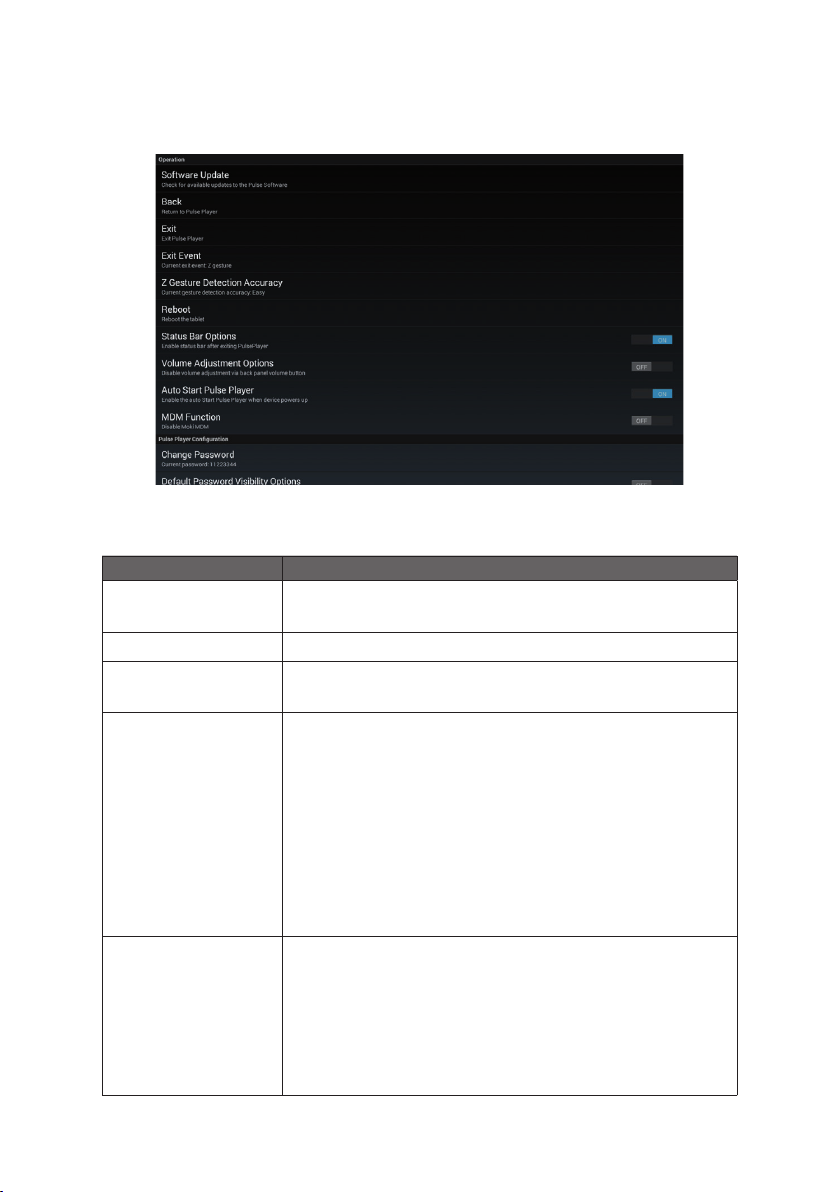
9
Pulse Player Settings
The following table describes the Pulse Player settings. For more information on how to
use the underlying Android operating system, refer to the following section.
Setting Description
Software Update Check for available Pulse Player software updates. This
requires an Internet connection.
Back Return to playing the configured content.
Exit Exit Pulse Player and open the home screen of the base
Android operating system.
Exit Event Configure how the user stops content playback to open
the Pulse Player settings interface. Settings include the
following:
• Z gesture: Draw a large Z shape on the screen by
sliding a finger across the screen, starting at the top
left of the screen.
• Tapping the screen 5 times: Tap anywhere on the
screen 5 times.
• Z gesture and tapping the screen 5 times: Either draw a
Z shape or tap 5 times as described above.
Z Gesture
Detection Accuracy
Choose “Easy”, “Medium, or “Hard” to configure how
accurately the user must draw the Z shape to perform the
Exit Event. “Easy” indicates a low level of drawing accuracy,
“Medium” a fair amount of accuracy, and “Hard” a stricter
level of accuracy, all with regards to how straight the
lines of the Z shape are drawn and whether the drawing is
oriented correctly.
Other manuals for iDISPLAY
4
Table of contents
Other Outform Monitor manuals