manuals.online logo
Brands
  1. Home
  2. •
  3. Brands
  4. •
  5. pigtronix
  6. •
  7. Music Pedal
  8. •
  9. pigtronix ECHOLUTION 3 User manual

pigtronix ECHOLUTION 3 User manual

Other pigtronix Music Pedal manuals

pigtronix Infinity looper User manual

pigtronix

pigtronix Infinity looper User manual

pigtronix philosopher king User manual

pigtronix

pigtronix philosopher king User manual

pigtronix Constellator User manual

pigtronix

pigtronix Constellator User manual

pigtronix Gatekeeper Micro User manual

pigtronix

pigtronix Gatekeeper Micro User manual

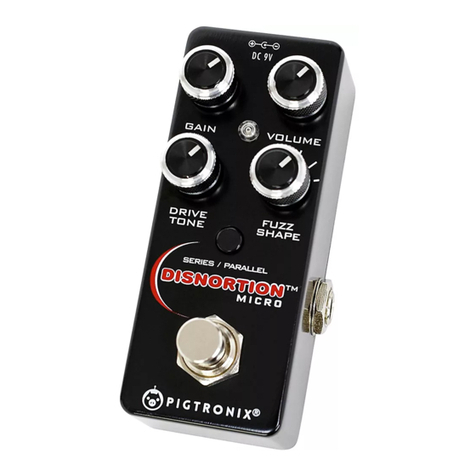
pigtronix OFO Disnortion User manual

pigtronix

pigtronix OFO Disnortion User manual

pigtronix RINGMASTER User manual

pigtronix

pigtronix RINGMASTER User manual

pigtronix OCTAVA User manual

pigtronix

pigtronix OCTAVA User manual

pigtronix Pigtronix II User manual

pigtronix

pigtronix Pigtronix II User manual

pigtronix Resotron User manual

pigtronix

pigtronix Resotron User manual

pigtronix Resotron User manual

pigtronix

pigtronix Resotron User manual

pigtronix INFINITY 3 User manual

pigtronix

pigtronix INFINITY 3 User manual

pigtronix PHILOSOPHER'S TONE User manual

pigtronix

pigtronix PHILOSOPHER'S TONE User manual

pigtronix PHILOSOPHER'S GOLD User manual

pigtronix

pigtronix PHILOSOPHER'S GOLD User manual

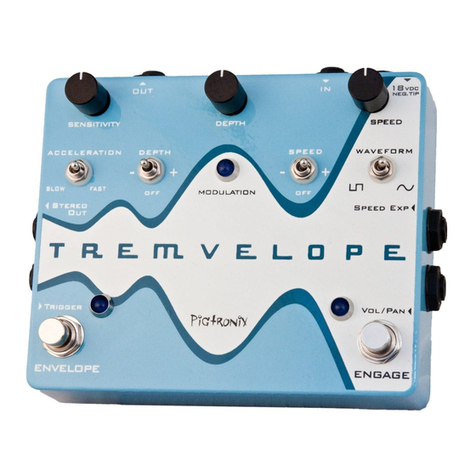
pigtronix Tremvelope User manual

pigtronix

pigtronix Tremvelope User manual

pigtronix philosopher king User manual

pigtronix

pigtronix philosopher king User manual

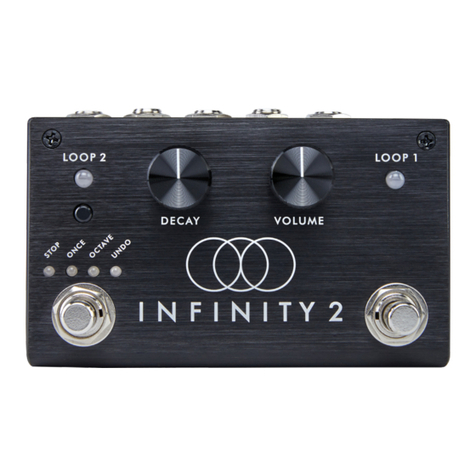
pigtronix INFINITY 2 User manual

pigtronix

pigtronix INFINITY 2 User manual

pigtronix COSMOSIS User manual

pigtronix

pigtronix COSMOSIS User manual

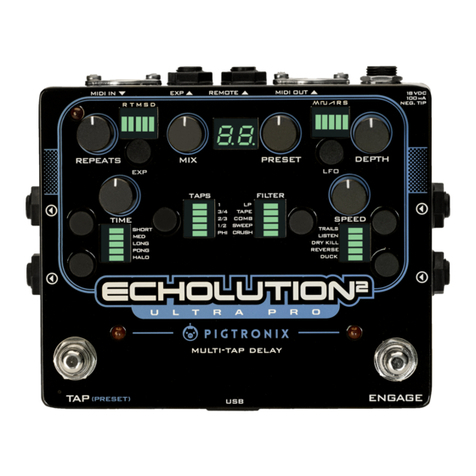
pigtronix Echolution 2 Ultra Pro User manual

pigtronix

pigtronix Echolution 2 Ultra Pro User manual

pigtronix DISNORTION User manual

pigtronix

pigtronix DISNORTION User manual

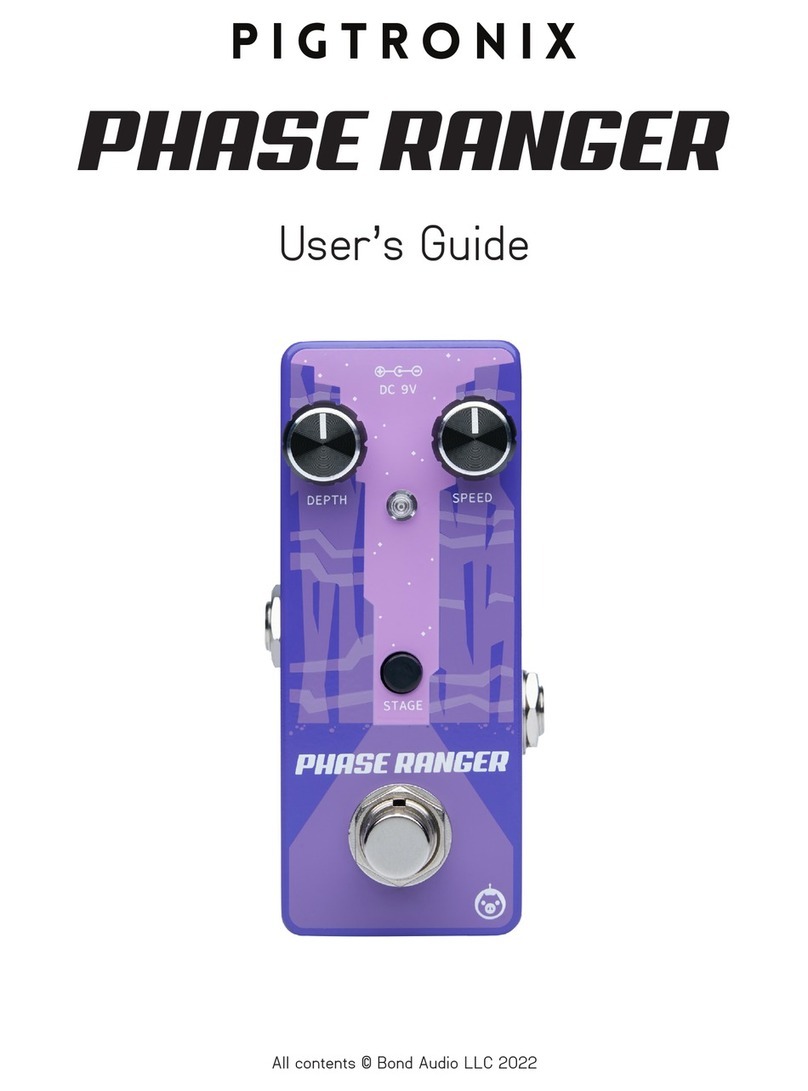
pigtronix PHASE RANGER User manual

pigtronix

pigtronix PHASE RANGER User manual

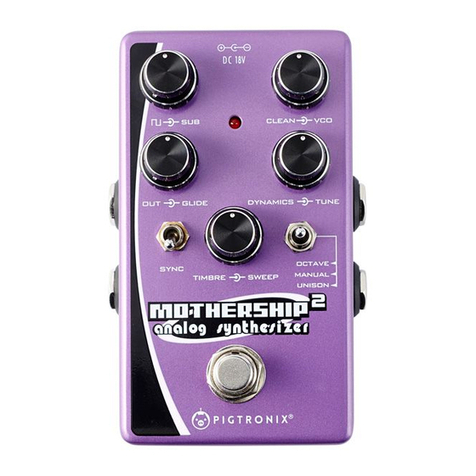
pigtronix mothership 2 User manual

pigtronix

pigtronix mothership 2 User manual

pigtronix mothership 2 User manual

pigtronix

pigtronix mothership 2 User manual

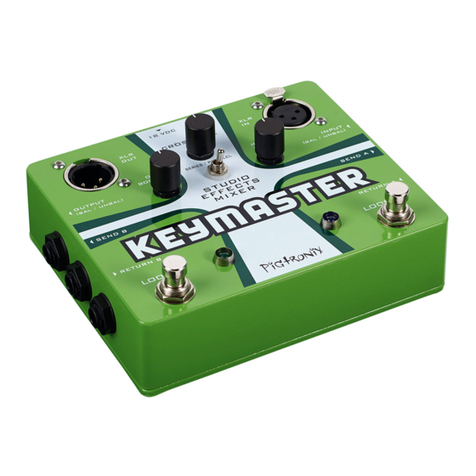
pigtronix Keymaster User manual

pigtronix

pigtronix Keymaster User manual

pigtronix TIDE RIDER User manual

pigtronix

pigtronix TIDE RIDER User manual

Popular Music Pedal manuals by other brands

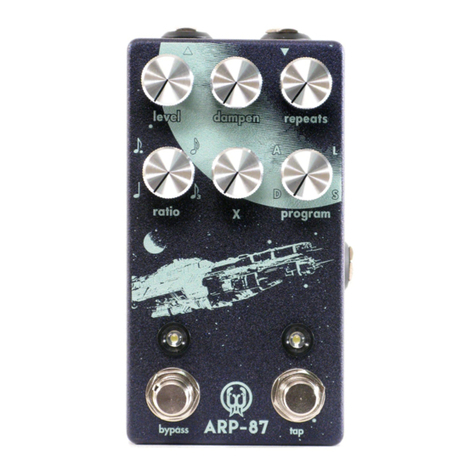
Walrus Audio ARP-87 instruction manual

Walrus Audio

Walrus Audio ARP-87 instruction manual

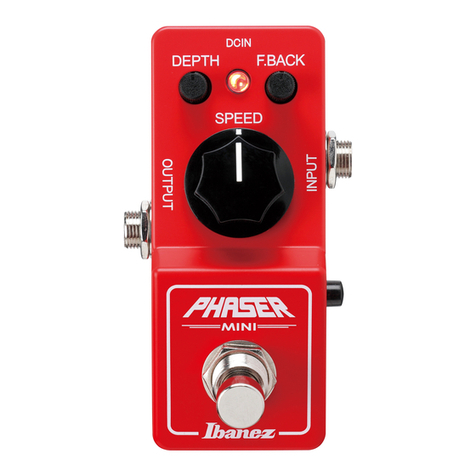
Ibanez Phaser Mini owner's manual

Ibanez

Ibanez Phaser Mini owner's manual

Ashdown GEEZER BUTLER PEDAL OF DOOM user guide

Ashdown

Ashdown GEEZER BUTLER PEDAL OF DOOM user guide

TC Electronic G-Natural user manual

TC Electronic

TC Electronic G-Natural user manual

Pro-MIDI G25 user manual

Pro-MIDI

Pro-MIDI G25 user manual

Whirlwind oc-bass quick start guide

Whirlwind

Whirlwind oc-bass quick start guide

Strymon Lex-rotary user manual

Strymon

Strymon Lex-rotary user manual

Behringer PB600 manual

Behringer

Behringer PB600 manual

Lexicon MX200 user guide

Lexicon

Lexicon MX200 user guide

Dunlop Hendrix 68 Shrine Octavio Fuzz Series quick start guide

Dunlop

Dunlop Hendrix 68 Shrine Octavio Fuzz Series quick start guide

Matthews Effects Whaler V2 manual

Matthews Effects

Matthews Effects Whaler V2 manual

Grid 1 Pedal Jeanie user manual

Grid 1

Grid 1 Pedal Jeanie user manual

Amptweaker tightboost user manual

Amptweaker

Amptweaker tightboost user manual

Ibanez TS-808 Tube Screamer Overdrive Pro owner's manual

Ibanez

Ibanez TS-808 Tube Screamer Overdrive Pro owner's manual

DW 7000 owner's manual

DW

DW 7000 owner's manual

FAMC Liquid-Foot Jr. Series user manual

FAMC

FAMC Liquid-Foot Jr. Series user manual

Dimavery EPVP-50 manual

Dimavery

Dimavery EPVP-50 manual

Tefi Vintage Lab GEGÈ operating manual

Tefi Vintage Lab

Tefi Vintage Lab GEGÈ operating manual

manuals.online logo
manuals.online logoBrands
  • About & Mission
  • Contact us
  • Privacy Policy
  • Terms and Conditions

Copyright 2025 Manuals.Online. All Rights Reserved.

ECHOLUTION 3
User’s Guide
All contents © Bond Audio LLC 2021
2
CONTENTS
03
Introduction
04
Explanation of Controls
11
Presets
13
Warranty
15
Contact Information
3
A DIMENSION WORTH GETTING LOST IN.
Echolution 3 is a multi-tap stereo modulation delay offering a myriad of sound design options
including reverse, jump, pong, modulation tempo sync, variable low pass filter, flexible signal routing
and comprehensive MIDI control. Delay times ranging from 100ms to 5 seconds can be dialed in
using the Time knob or via Tap Tempo using the le footswitch. A second delay tap can be set to the
same length or a fraction of the main delay time to create rhythmic echoes. The ¾ fraction creates
a dotted eight note delay, while the Golden fraction uses the sacred geometry of the Golden Ratio
(.382) as the multiplier for the second tap.
The multi-tap settings can be even further enhanced by the stereo ping pong effect, which causes
the different delay taps to switch sides on each repeat. Store up to 4 presets, unlock hidden
features with the Universal Remote footswitch, and design yet unheard delay lines.
Runs on standard 9VDC.
4
EXPLANATION OF CONTROLS
5
Sets the length of the delay line. Turning the Time knob overrides the tap tempo setting. Pressing Tap
overrides the Time knob setting.
Sub-divisions of the delay time can be selected using a small push button located to the le of the
Time knob. Sub-division values are indicated by three LEDs located above the Time knob. The three
selections are: 1, ¾ and golden ratio (.382) subdivision settings. Pushing and holding the small push
button switch will turn on a second delay tap that can be set to any of the three sub-division values.
The second tap is indicated by a blinking LED. Once the second tap is activated, press the small push
button switch to advance the second tap to a different sub-division. It is possible to have both taps
overlap. Push and hold the switch again to turn off the second tap.
Sets the volume level of the delay signal.
Sets the amount of regeneration in the delay line. Turning this knob fully clockwise will cause the
delay line to self-oscillate.
The function of the Mod knob is selectable with a small push button located above the Mod knob. The
three selections provide control of Speed, Depth, and Tone. Speed sets the rate of LFO modulation
of the delay line. Depth sets the amount of LFO modulation in the delay line. Tone sets the cutoff
frequency of the low pass filter in the delay line. When toggling between these three functions,
the selected parameter will not change in value until the knob is turned. Pushing and holding the
small push button switch will synchronize the LFO speed to the tap tempo value. The default is 1:1.
Adjusting the Speed knob when the LFO is synced will change the ratio between the LFO speed and
tap tempo. Available ratios are: 1:4, 1:3, 1:2, 1:1 (noon), 2:1, 3:1, 4:1. Push and hold the switch again to
turn LFO sync off. The Speed function does not have to be selected in order to turn LFO tempo
sync on and off.
Pressing the Engage footswitch toggles between bypass and effect on.
Time
Mix
Repeats
Mod
Engage Footswitch
Knobs
6
A long press of the Tempo switch enters Preset Select mode. Once you have entered the Preset
Select mode, the currently selected red preset LED will blink. A short press on the Tap Tempo switch
will move up one preset and a long press will move down one preset. Once the desired preset is
queued, pressing the Engage foot switch will activate it. When the footswitch is used to load a preset,
the bypass status of the effect will not change.
Presets:
The 4 LEDs above the Engage footswitch indicate which preset is currently selected. Pressing the
push button switch above the Engage switch cycles through the 4 available presets. When a new
preset is selected, the corresponding LED will blink. Press and hold the push button switch (or hit
the Engage footswitch) to load the selected preset. To save a preset aer making changes, press
and hold the push button switch. This action will cause the current preset LED to double-blink. If you
want to save to over the current preset, press and hold the push button switch to save. If you want
to save to a different preset, press the push button switch until the desired LED is double blinking.
Then press and hold the push button switch to save. If you want to exit the preset save without saving
anything, press either the Engage footswitch or Tempo footswitch.
The Tempo footswitch can be assigned to perform alternate, Special FX functions by pressing the
push button switch located above the Tempo footswitch. Pressing the small push button switch will
cycle through the alternate footswitch functions. Once the desired function is selected, pressing
the Tempo footswitch will turn this function on and off. When a Special FX function is activated,
the corresponding LED will flash. Once a Special FX function is activated, you can still change the
functionality of the Tempo footswitch by pressing the push button switch.
Reverse makes the delay line go backwards.
Jump makes the delay line jump up 1 octave. When Jump is activated, only the first tap will change
pitch. If the second tap is turned on, it will remain at the normal pitch.
Pong is activated independently with a push and hold on the small push button switch. Pong causes
the echoes to alternate between the le and right channels and is meant to be used with a stereo,
two amp setup. The Pong function can be turned on and off regardless of which function is selected
for the Tempo footswitch. Pong cannot be activated by the Tempo footswitch.
Preset Select
Special FX
The primary function of the le footswitch is tap tempo. Pressing Tap sets the length of the delay
and overrides the current Time knob setting. Turning the Time knob overrides the tap tempo setting.
Tempo Footswitch

7
Use this input for mono sound sources.
Use this input for the second input of a stereo signal. When nothing is connected to Input 2, the signal
from Input 1 is automatically passed to Input 2.
Main audio output. This jack expects a standard (TS) ¼” instrument cable. Amp, mixer, or DI goes here.
Rear Panel I/O
In 1
In 2
Out 1
Second audio output. Use Out 2 for stereo instruments or when you want to split a mono signal so
that it can be output to two separate destinations.
Out 2
This ¼” TRS input allows for remote control via a passive TRS remote switch or MIDI. The slider
switch located above this jack determines the functionality of the jack.
TRS / MIDI
Echolution 3 runs on 9VDC at 100mA power using a standard 2.1mm negative tip power supply.
Power
USB
Connect a micro USB cable here to perform firmware updates (if available) to the Echolution 3 using
the firmware update tool available from pigtronix.com.
8
The Echolution 3 is compatible with a single, dual, or triple footswitch momentary remote using a
TRS (balanced 1/4”) cable. The Remote switch can be used to toggle Reverse (tip to sleeve) and Jump
(ring to sleeve) as well as a Freeze (tip and ring to sleeve) functions.
The Remote switch can also be made to control Preset Select by pushing and holding the preset
selector switch during boot up. See the complete list of boot options below.
Engage Switch = Trails - Disconnects delay line input but leaves delay line output connected in bypass.
Tap Switch = Global Rap - Tempo does not change when selecting a new preset.
Reverse Switch = Wet / Dry - Sums both inputs and routes them to one output while routing the delay
line to the other output. *Note - This mode overrides Dry Kill and Phase Invert.
Modulation Switch = Phase Invert - Inverts the phase of the delay line in one channel only.
Subdivisions Switch = Dry Kill - Eliminates clean pass through audio. Delay line only.
Preset = Remote Switch control mode - Toggles remote switch functionality between Preset Selection
and Special FX (Reverse, Jump, Freeze).
Special FX Mode:
Tip = Reverse
Ring = Jump
Both = Freeze. This creates a static loop from whatever material is in the delay line.
Preset Mode:
Tip = Preset 1 / 2
Ring = Preset 3 / 4
MIDI:
The Echolution 3 is compatible with ¼” MIDI input. Echolution 3 will automatically follow MIDI clock
signals as a means of setting the delay time. Echolution 3 will also obey MIDI preset change commands.
MIDI CC control of every onboard function is available, along with several “hidden” features, not
available on the face of the unit.
Remote Switch
Boot Options
9
List of Hidden Features only accessible via MIDI:
• Bit Crusher
• Tap
• ½ Tap
• Halo
• Square Wave LFO
• Saw Wave LFO
• Sample + Hold LFO
• Super Square Wave LFO
• Super Saw Wave LFO
• Super Sample + Hold LFO
Setting the Echolution 3 MIDI Channel:
To set the MIDI channel on the Echolution 3, Press and Hold the Preset and Special FX buttons during
boot up. The LED in the lop le corner will blink, indicating that the Echolution 3 is set to receive MIDI
on Channel 1. Press the Tap footswitch to advance the channel number. The total number of LEDs lit
will indicate the MIDI channel that is selected. Press the Engage footswitch to select the appropriate
MIDI channel. The unit will then finish booting up.
MIDI Preset Change:
To load a particular preset, simply send a program change command with the desired preset number.
Echolution 3 will load that number plus one as the preset.
MIDI Quantization:
When MIDI Synced, tapping a new delay length will quantize the new length to an integer number of
MIDI quarter notes (i.e. you can change the delay time while remaining MIDI Synced). To get back to
the original delay time, double tap the Tempo switch.
MIDI and Hidden Features
10
12 Repeats Knob
13 Time Knob
14 Mix Knob
15 LFO Speed Knob
16 Modulation
Depth Knob
17
Time Button
Special Values:
3 = Short
4 = Med
5 = Long
18
SFX Button
Special Values:
3 = Off
4 = Pong
5 = Halo
6 = Pong and Halo
19
Taps Button
Special Values:
3 = First Tap Off
4 = First Tap 1
5 = First Tap 3/4
6 = First Tap 2/3
7 = First Tap 1/2
8 = First Tap PHI
9 = Second Tap Off
10 = Second Tap 1
11 = Second Tap 3/4
12 = Second Tap 2/3
13 = Second Tap 1/2
14 = Second Tap PHI
20 = Bit Crusher
9 = Crush Off
10 = Crush On
MIDI CC Map:
Saving: Aer using other midi commands to change parameters, MIDI Preset Save Command can be
used to save a preset.
21 Bypass Button
Special Values:
3 = None
24
LFO Mod Button
Special Values:
3 = Triangle
4 = Square
5 = Saw
6 = Random
7 = Super Triangle
8 = Super Square
9 = Super Saw
10 = Super Random
25 Tap Tempo
Footswitch
27
Engage Footswitch
Special Values:
3 = Explicitly Engaged
4 = Explicitly Not Engaged
29 Jump Footswitch /
Preset 1/2
30 Freeze Footswitch /

Preset 3/4
31
Loop Open Close
(1 = open; 1 = close).
Send a momentary 1 to
CC#31 to start a loop,
then send another to
close that loop.
76
Second Tap Volume
(mapped 0-127) Second
Tap Volume: Send the
desired value (0-127) to
MIDI CC#76 to change
the volume of the
second tap.
79 Enable MIDI Clock In
(0=off; 1=on)