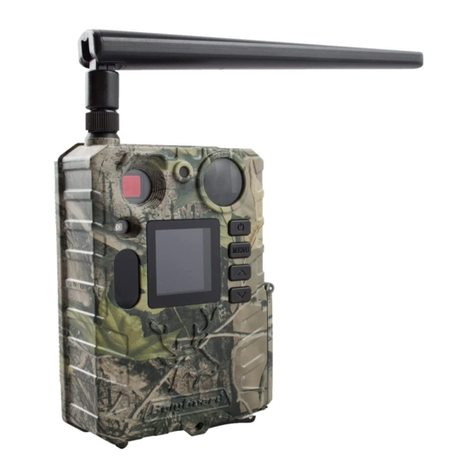
Powering up the DigitalEye 7.2 Wireless RF Unit
To power up the system turn the Power on/off switch to the "on" position. You will hear a short
melody from the PixController RF board letting you know it's powered on. Next there will be a 30
second delay. After this time expires you will hear 4 quick beeps which let you know the system is
going into a 1 minute auto walk test phase. If you walk past the Wireless PIR motion sensors at
this point you will hear 1 beep for a "A" Sensor or trigger sensor, and 2 beeps for a "B" sensor or
power up sensor. You may want to keep the case open so you can hear this from a distance.
After this 1 minute walk test phase expires you will hear 4 quick beeps again letting you know the
system is going "active". After this point the system is ready to take photos.
Setting the DIP switch on the PixController DigitalEye 7.2 Wireless RF Unit
8-Position DIP Switch
Introduction
The 8-Position DIP switch on the PixController RF
board is used to setup how the board controls the
attached cameras, functions in day only, night only,
24 hour mode, and many more features. Listed
below are instructions on how to setup the DIP
switch feature on the RF board.
Note: When changing switch setting you must
re-boot your PixController board. When re-
booting you must wait approximately 30
seconds before turning power on again.
Setting the Address Code
Switches 1, 2, and 3 controls the address code of the DigitalEye™ RF controller box. Both the
SlimFire Remote Control or Wireless PIR Sensor, and DigitalEye™ RF controller box need to be
set to the same address code in order for the unit to function properly. There are 8 unique
address codes you can set the DigitalEye™ RF to respond to.
The DigitalEye™ RF is compatible with the SlimFire remote and PIR wireless motion sensors.
The address code here is the “house code” from A-P, however, the DigitalEye™ RF only will
recognize “house codes” A-H. For more information about setting the house code on your
SlimFire remote or Wireless PIR Motion Sensor.
Out of the box both the SlimFire remote and Wireless PIR sensor will be defaulted to the
“A” Address Code.
Why set different address codes? There may be a situation when you want to have several
DigitalEye™ RF units in a recording session. You may want to only have several DigitalEye™
RF units respond to SlimFire or Wireless PIR motion sensors. For this you have the ability to set
the address between each of these devices. It is a good idea to use a marking pen and write the
address code on your SlimFire remote or Wireless PIR motion sensor if not set in the default “A”
address code.
.