manuals.online logo
Brands
  1. Home
  2. •
  3. Brands
  4. •
  5. Planon
  6. •
  7. Scanner
  8. •
  9. Planon DocuPen RC810 User manual

Planon DocuPen RC810 User manual

Other manuals for DocuPen RC810

1

This manual suits for next models

1

Other Planon Scanner manuals

Planon DocuPen RC800 Series User manual

Planon

Planon DocuPen RC800 Series User manual

Planon DocuPen R705 User manual

Planon

Planon DocuPen R705 User manual

Planon SlimScan SS100 User manual

Planon

Planon SlimScan SS100 User manual

Planon DocuPen RC805 User manual

Planon

Planon DocuPen RC805 User manual

Planon DocuPen RC810 User manual

Planon

Planon DocuPen RC810 User manual

Planon DocuPen XSERIES User manual

Planon

Planon DocuPen XSERIES User manual

Planon DocuPen R700 Instruction Manual

Planon

Planon DocuPen R700 Instruction Manual

Planon Docupen Pen Scanner User manual

Planon

Planon Docupen Pen Scanner User manual

Planon DocuPen X SERIES Instruction Manual

Planon

Planon DocuPen X SERIES Instruction Manual

Planon DocuPen DPEN-R750 User manual

Planon

Planon DocuPen DPEN-R750 User manual

Planon DocuPen DocuPort Series DocuPen User manual

Planon

Planon DocuPen DocuPort Series DocuPen User manual

Planon DocuPen R700 User manual

Planon

Planon DocuPen R700 User manual

Popular Scanner manuals by other brands

Radio Shack PRO-433 quick start guide

Radio Shack

Radio Shack PRO-433 quick start guide

Atid AT911N series user guide

Atid

Atid AT911N series user guide

Siemens RUGGEDCOM WiN5100 Faq

Siemens

Siemens RUGGEDCOM WiN5100 Faq

Canon CanoScan LiDE 20 Specifications

Canon

Canon CanoScan LiDE 20 Specifications

Epson 4180 - Perfection Photo Product support bulletin

Epson

Epson 4180 - Perfection Photo Product support bulletin

Radio Shack PRO-72 owner's manual

Radio Shack

Radio Shack PRO-72 owner's manual

Lanier 5622 Operator's guide

Lanier

Lanier 5622 Operator's guide

Faro Freestyle 2 user manual

Faro

Faro Freestyle 2 user manual

Kramer VS-16N user manual

Kramer

Kramer VS-16N user manual

Z/I Imaging PhotoScan 2001 instructions

Z/I Imaging

Z/I Imaging PhotoScan 2001 instructions

Renkforce DS100-5M operating instructions

Renkforce

Renkforce DS100-5M operating instructions

Canon imageFORMULA CR-120N user manual

Canon

Canon imageFORMULA CR-120N user manual

Fujitsu FI-4860C2 Specifications

Fujitsu

Fujitsu FI-4860C2 Specifications

HPc9861a 4400c Setup and support guide

HPc9861a

HPc9861a 4400c Setup and support guide

Kodak i5800 Scanner Brochure & specs

Kodak

Kodak i5800 Scanner Brochure & specs

Kodak i7300 user guide

Kodak

Kodak i7300 user guide

Revopoint POP user manual

Revopoint

Revopoint POP user manual

Fujitsu fi-4860C installation guide

Fujitsu

Fujitsu fi-4860C installation guide

manuals.online logo
manuals.online logoBrands
  • About & Mission
  • Contact us
  • Privacy Policy
  • Terms and Conditions

Copyright 2025 Manuals.Online. All Rights Reserved.

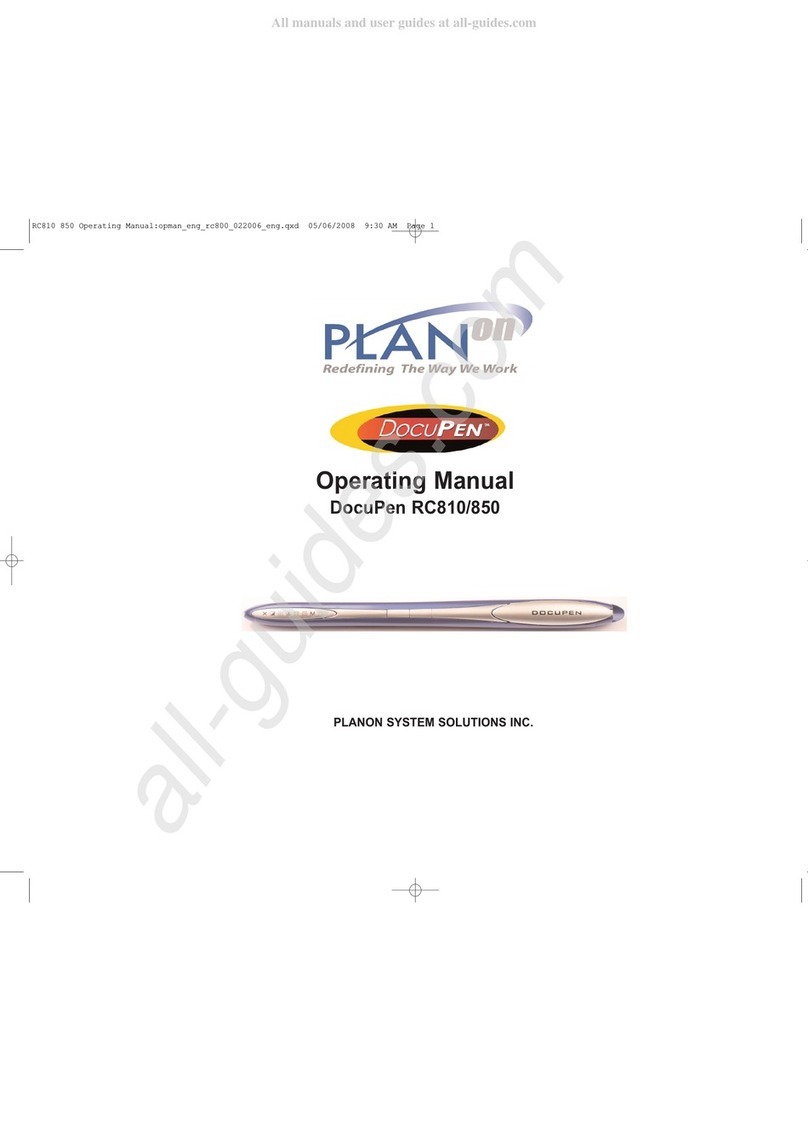
Operating Manual
DocuPen RC810/850
P ANON SYSTEM SO UTIONS INC.
RC810 850 Operating Manual:opman_eng_rc800_022006_eng. xd 05/06/2008 9:30 AM Page 1
Legal and Other Notices
All contents of this publication are subject to change without notice.
No part of this publication may be reproduced or transmitted in any form
Or by any means, electronic or mechanical, for any purpose, without the
express prior written permission of Planon Systems Solutions Inc.
Planon Systems Solutions Inc. makes no representations or warranties regarding any
damages, or benefit expected by using this unit lawfully, or any request from a third
person, which are caused by the inappropriate use of this unit.
IN NO V NT SHALL S LL R B LIABL FOR ANY DIR CT,
INCID NTAL OR CONS QU NTIAL DAMAG S OF ANY NATUR ,
OR LOSS S OR XP NS S R SULTING FROM ANY D F CTIV
PRODUCT OR TH US OF THIS PRODUCT.
Trademarks
Docuport DocuPen™ is a registered trademark of Docuport Incorporated.
PaperPort Copy rights OCR technology by Nuance® Inc. All rights reserved.
Copyright Outside In ® Viewer Technology © Inso Corporation All rights reserved
Copyright © 2004 Planon System Solutions Inc. All rights reserved.
Abbyy™ is a registered Trademark of Abbyy
All other product or company names are trademarks or registered
trademarks of their respective holders.
Regulatory Information
This device complies with Part 15 of the FCC Rules. Operation is subject to the follow-
ing two conditions: (1) this device may not cause harmful interference, and (2) this
device must accept any interference received, including interference that may cause
undesired operation.
Canada IC S 003, Issue 3
This Class B digital apparatus complies with Canadian IC S-003.
Planon System Solutions Inc.
5155 Spectrum Way, Unit 15
Mississauga, Ontario. L4W 5A1
Phone: (905) 507-3926 Fax (905) 624-6629
mail: [email protected] website: www.planon.com
Help Line: 1-877-DOCUP N (362-8736)
Contents
INTRODUCTION.............................................................. 1
Check the Contents;;;;;;;;;;;;;;;;. 1
DocuPen RC850/810 Features ;;;;;;;;;;; 2
Power On/Rez Button...;;;;;;;;;;;;;..... 2
Color Mode Button............................................................ 2
Driver and Software Installation;;;;;;;;........... 3
Software Installation.......................................................... 3
Installing the PenTwain driver.......................................... 4
Installing the Docupen Application driver........................ 5
Installing the USB driver.................................................. 6
Installing PaperPort........................................................... 12
Downloading the scanned images to Paperport............... 14
Installing Abbyy Finereader Sprint Software...................... 17
Erasing DocuPen’s Memory............................................... 19
Scan Settings..................................................................... 20
LED Indicators................................................................... 21
Scan Mode - Profile Configurator ..................................... 22
CALIBRATION................................................................... 24
Color calibration................................................................ 25
Roller calibration................................................................ 26
Points to Remember Before You Scan;;;;;;;.... 28
On-board memory and External memory card................. 29
arranty........................................................................... 30
APPENDIX....................................................................... 31
A. DocuPen RC850/810 Specifications........................... 31
B. Proper Handling and Safe Use................................... 32
C. Technical Support....................................................... 32

RC810 850 Operating Manual:opman_eng_rc800_022006_eng. xd 05/06/2008 9:30 AM Page 2
Introduction
Thank you for purchasing our DocuPen RC 810 or 850* portable scanner.
The DocuPen functions as a quick and simple tool that can be taken any-
where to swipe over a smooth flat surface to capture black&white as well as
color images.
We recommend that you fully charge your DocuPen before the first use. You
can charge the DocuPen by simply plugging it into any USB port. It takes
about 50 minutes to fully charge the DocuPen.
This manual provides instructions for scanning documents with the
DocuPen and downloading the scanned images to your PC.
Please read these instructions carefully to obtain optimum performance and
longer service life from the unit. Retain this manual for future reference.
In case you have any questions, need further information or experience any
kind of difficulties during installation or operation don’t hesitate to contact our
Customer Support at:
[email protected]
1-877-DOCUPEN or 1-905-507-3926
For International callers: 1 888 507 3926
Check the Contents:
The following components are included in your DocuPen product package:
1. The DocuPen unit
2. USB cable for communication with PC (Mac) & recharging the DocuPen.
3. Installation CD containing DocuPen PenTwain and USB driver, DocuPen
stand-alone application, PaperPort Software
4. Abbyy Sprint FineReader (Included exclusively with the DocuPen RC850)
4. Quick Start Guide
5. Leather Case ( xecutive Leather Case**)
* Please note that the DocuPen 810 and DocuPen 850 have identical hardware
properties, hence further on we will refer to both models as the DocuPen.
** xecutive Leather Case only included with RC850
DocuPen Operation Manual 1
RC810 850 Operating Manual:opman_eng_rc800_022006_eng. xd 05/06/2008 9:30 AM Page 3
Driver and Software Installation
DocuPen Driver Platform Requirements: Before you install the DocuPen PenTwain
driver, make sure that your computer meets the following minimum system require-
ments:
Microsoft Windows 2000/NT/M /XP/Vista
CD-ROM for driver installation
Before connecting the DocuPen you must install the necessary drivers. Insert the
DocuPen Installation CD in your CD-drive and follow the on-screen instructions.
After installation, the DocuPen driver is made available to all Windows Twain-compati-
ble applications, such as PaperPort, Windows Imaging, etc.
Upon insertion of the CD the DocuPen Installer control window will appear. (See
above)
By clicking on the corresponding button you will install the PenTwain driver, the USB
driver, the DocuPen Application (recommended) and the PaperPort software. The
Docupen Application will allow you to download and view the images from your
DocuPen without using any additional graphics software.
ScanSoft’s PaperPort is one of the leading Document Management Software packages
and works seamlessly with our DocuPen. Although you can use any Twain compatible
graphics software we recommend PaperPort due to its document editing capabilities
DocuPen Operation Manual 3
DocuPen Features
The DocuPen Scanner has two control buttons on top. On the left-hand side of the
DocuPen you can see eight L Ds indicating the scan settings and on the right you see
the Battery and External memory card cover and the USB port. By pressing the
control buttons you will be able select the desired color mode and scan resolution. The
L Ds on the left-hand side of the scanner will indicate the mode that you have select-
ed.
Power On/Rez (Resolution) Button
Press the Power On/Rez button once to turn the DocuPen on. The DocuPen
will turn itself on in default or last used configuration. The corresponding L Ds
will be on. For details on the various configurations please go to section Scan
Settings - EDs Indicators.
Press the Power ON/Rez button again to select between Standard Resolution
and Hi Resolution (Hi Rez) setting.There are two Standard Rez and two Hi
Rez settings which can be set via the Pen Configurator Dialog explained in
Section Scan Settings. The Resolution L Ds will turn on/off accordingly.
After the scan is completed the DocuPen will save the data into memory and
turn itself off automatically. You can also turn the DocuPen off manually by
pressing and holding the Power ON/Rez button for 5 seconds.
Color Mode Button
Press the Color Mode button to select desired Color mode.There are 3 color
modes available: Monocolor, Docucolor* and Photocolor . The Color Mode
L Ds will turn on/off accordingly. When the desired Color mode and Rez set-
ting are selected, you can start gliding the DocuPen over your document.
*Docucolor is the term referring to standard color
DocuPen Operation Manual 2
Power On/Resolution
USB port
Scan Speed
Mono Mode
Docucolor Mode
Photocolor Mode
Standard Resolution
High Resolution
Battery
Memory
Color Mode
Battery/ xternal memory
Card Cover
Note: YOU MUST INSTA THE DRIVERS BEFORE STARTING TO WORK WITH
THE DOCUPEN!
RC810 850 Operating Manual:opman_eng_rc800_022006_eng. xd 05/06/2008 9:30 AM Page 4
Software Installation (Continued)
6. The PenTWAIN driver will start installing. You will be prompted to click the
Finish button to complete the Pen Twain installation.
The installation of the Docupen Application (Start by selecting DocuPen Application
button in the DocuPen Install window and follow the on-screen instructions)is identi-
cal, hence not explained here.
Now you have installed the PenTwain driver and the DocuPen application. You are
almost done! As a next step we recommend installing the ScanSoft’s PaperPort soft-
ware package.
DocuPen Operation Manual 5
Software Installation (Continued)
We recommend that you close all Windows programs and disable all virus protection
software temporarily during the Pentwain driver & PaperPort installation
1. Insert the DocuPen CD-ROM into your CD drive
2. DocuPen Install window will appear in a few moments
3. In the DocuPen Install window please click on the button PenTwain Driver
4. In the Welcome window, click
the Next button
5. In the Start Installation win-
dow, click the Next button to
begin installation
DocuPen Operation Manual 4
Note: You must be logged on your PC as Administrator
Note: The DocuPen USB cable must be DISCONNECTED during installation of
the Pentwain driver
RC810 850 Operating Manual:opman_eng_rc800_022006_eng. xd 05/06/2008 9:30 AM Page 5
Installing the USB driver
In the DocuPen Install window please click on the button USB Driver
1. In the Welcome window, click the Next button
DocuPen Operation Manual 6
Installing the USB driver (Continued)
2. In the Start Installation window, click the Next button to begin installation
3. In the Set Up window, select Install and click the Next button to begin installation
DocuPen Operation Manual 7
RC810 850 Operating Manual:opman_eng_rc800_022006_eng. xd 05/06/2008 9:30 AM Page 6
Installing the USB driver (Continued)
Windows should self install the USB driver from the Installation CD. Please follow the
on-screen instructions of the Found New Hardware Wizard
In the initial Found
New Hardware Wizard window select No, not this time and click the Next button
In the following
Found New
Hardware Wizard window select Install the software automatically and click the
Next button. The USB driver installation will is finalized.
If you need further assistance don’t hesitate to contact our Customer care:
[email protected]
TOLL FR 1-877-DOCUP N or 1888 507 3926
DocuPen Operation Manual 9
Installing the USB driver (Continued)
4. In some Windows OS you might see the window below. Please click on the
Continue Anyway button
5. Click Finish button to complete the installation process.
Connect the DocuPen to your computer and press the Power ON/Rez button to turn it
on. You might briefly see a pop-up message from the Windows Found New Hardware
Wizard.
DocuPen Operation Manual 8
RC810 850 Operating Manual:opman_eng_rc800_022006_eng. xd 05/06/2008 9:30 AM Page 7
Installing the USB driver (continued)
4. Complete the USB installation by clicking on the Finish button
DocuPen Operation Manual 11
Installing the USB driver (continued)
2. In the next window Select Search removable media and click Next. Please
make sure the Installation CD is in your CD ROM drive
3.Wait a few seconds while driver is being installed
DocuPen Operation Manual 10
Note: Depending on your Operation System a Restart might be required.
We recommend that you restart your computer after installation is completed
Note: The DocuPen is completely independent from the computer i.e. it should not
(We recommend that it is not) connected to the USB cable while scanning
You need to connect to download, calibrate or simply to charge the battery
Make sure the USB port utilized for installation is the same used when
working with the DocuPen
RC810 850 Operating Manual:opman_eng_rc800_022006_eng. xd 05/06/2008 9:30 AM Page 8
Installing the PaperPort Software (continued)
8. In the next window, click Install 9. In the next window, you will see the
Installation progress
11. Installation complete, click Finish 10. Registration window - optional
Congratulations! The Driver and Software installation is now complete!
Now you are ready to use your DocuPen!
DocuPen Operation Manual 13
Installing the PaperPort Software
1. From the DocuPen Install window select PaperPort and simply follow the on-
screen instructions.
2. In the welcome window select your 3. In the next window please Click on the
language and click this button. Start Installation button
4. In the next window, click Next 5. In the next window, accept the License
agreement and click Next.
6. In the next window, fill in your 7. In the next window, select Complete
information, click Next Set up, click Next
DocuPen Operation Manual 12
Note: Depending on your Operation System a Restart might be required
6
RC810 850 Operating Manual:opman_eng_rc800_022006_eng. xd 05/06/2008 9:30 AM Page 9
Download the scanned Images to PaperPort
As mentioned above you can use the DocuPen with any TWAIN compatible software
package. As, however, we provide one of the best Document Management Software
packages, i.e. Nuance’s PaperPort we will explain how you download the images from
the DocuPen to your computer using the PaperPort software. You can read the detailed
instructions of how to use PaperPort in the Getting started guide which you can find in
the Paperport folder under Program files on your computer.
You can also use the stand-alone DocuPen Application which will allow to view the
thumbnails and save the images without using the PaperPort software. Simply double-
click on the thumbnails in the DocuPen Scanner Control window and it will open up
with your default graphics software on your desktop.
1. Start the PaperPort Software
2. On you very first start you will see the How to Guide prompt window. Feel free to
explore the detailed How to instructions within this guide.
3. In the Command bar within PaperPort click on the Select or Get Photo button. The
Scan pane will open on the left side of the PaperPort window.
Simultaneously the Available scan-
ners prompt window will open. Select
PenTwain and click Ok.
You may have more than one scan-
ner, so PenTwain must be selected
when using the DocuPen.
DocuPen Operation Manual 14
Note: Make sure that your DocuPen is CONNECTED to your PC
Download the scanned Images to PaperPort
After you have selected PenTwain, you can
click on the Scan button within the Scan pane
of PaperPort.
This will open the DocuPen Scanner Control
window. The window indicates Off-line. This
message changes to On-line only during
download. Click on the download button and
a dialog window will appear prompting you to
turn the DocuPen ON.
In the dialog Click OK and press the Power On
button on your DocuPen
The ”Transferring...” dialog will pop-up, display-
ing the status of the download process
When the download is complete you will see
thumbnails of the images in the Docupen
Scanner Control window. You can select the
images you want to download by clicking on
them or you can select all images by clicking
on the Select All button
By clicking on the Transfer button you will transfer the selected thumbnails to the
PaperPort desktop area
DocuPen Operation Manual 15
RC810 850 Operating Manual:opman_eng_rc800_022006_eng. xd 05/06/2008 9:30 AM Page 10